How to Remove Spyware From Android: Full 6-Step Fix
Think your own Android has spyware? Spot the signs, boot into Safe Mode, revoke Device Admin, run Play Protect, and factory reset if needed. Full guide.
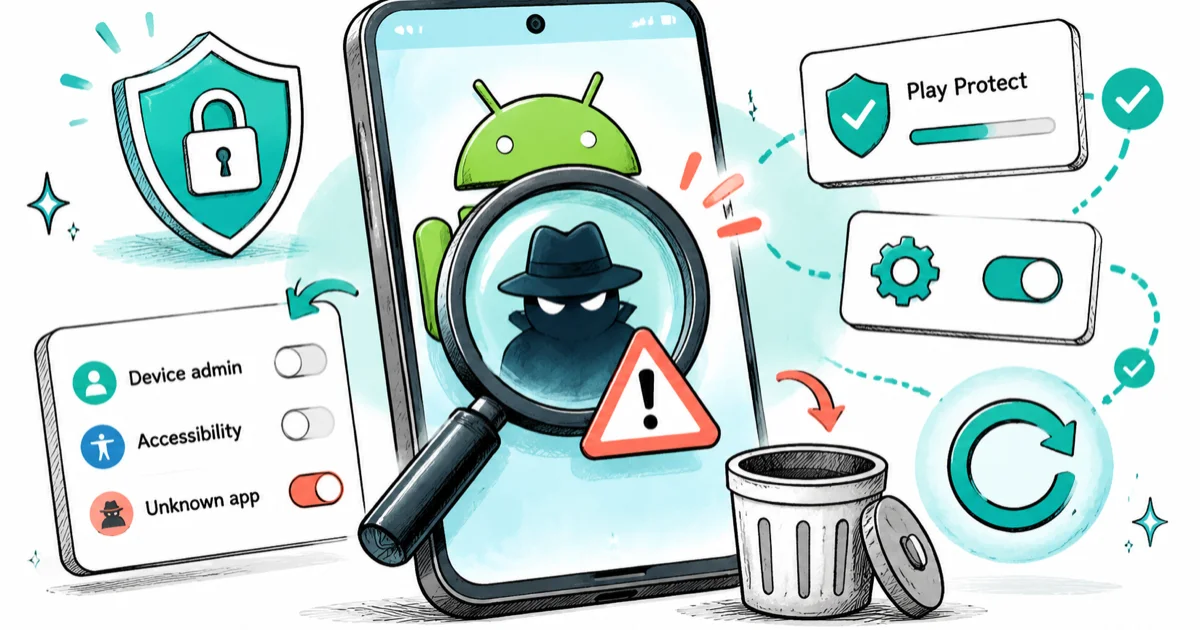
Quick AnswerReboot into Safe Mode, revoke Device Admin and Accessibility for any app you don't recognize, uninstall it, then run Play Protect. Factory reset only if those steps fail.
If you think there’s spyware on your own Android, this guide walks the cleanup in the order that works for most cases without paying for anything. We cover the warning signs first, then removal: Play Protect, Safe Mode, Device Admin, and a factory reset as the last resort. These steps are for a phone you own and control, not for inspecting anyone else’s device.
- Safe Mode blocks every third-party app from loading, so a spyware app can’t fight the uninstall or re-grant its own permissions.
- Most “unremovable” apps are holding Device Admin or Accessibility permissions, so revoke those before you tap uninstall.
- Google Play Protect is built into every Google-certified Android and scans for known threats for free.
- A factory reset clears nearly all spyware, but back up first because it wipes everything on the phone.
- If you suspect stalkerware planted by someone with physical access, removing it may alert them, so plan for your safety before you start.
#How Do I Know If My Android Has Spyware?
Spyware shows itself through patterns, not a single symptom. Watch for fast battery drain, overheating while idle, pop-up ads outside any app, unusual spikes in mobile data, and apps you don’t remember installing.
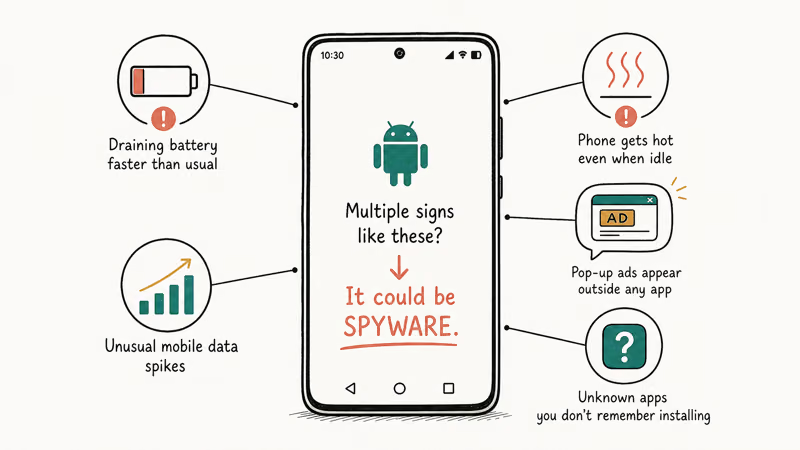
One sign rarely confirms anything. Several together is a strong hint. For a fuller checklist, see our guide on how to tell if your cell phone is being tracked or monitored.
The threat is real and growing, with SMS-based malware among the fastest-rising Android spyware vectors, a pattern Protectstar’s spyware analysis walks through in detail. Google’s Play Protect documentation states that the service scans more than 200 billion Android apps a day for harmful behavior. The cleanup below works across current Galaxy and Pixel phones running Android 15, and Safe Mode removal usually clears the suspect app on the first pass.
First, a word on consent and safety. This guide assumes the phone is yours.
Installing tracking software on someone else’s device without their permission is illegal under wiretap and computer-misuse laws in most places. If you suspect stalkerware that another person planted, removing it can notify that person, so consider reaching a domestic-violence hotline or a trusted contact before you act.
#Step 1: Find the Suspicious App
Open Settings > Apps > See all apps and sort by install date. Look for anything installed around the time your symptoms started.
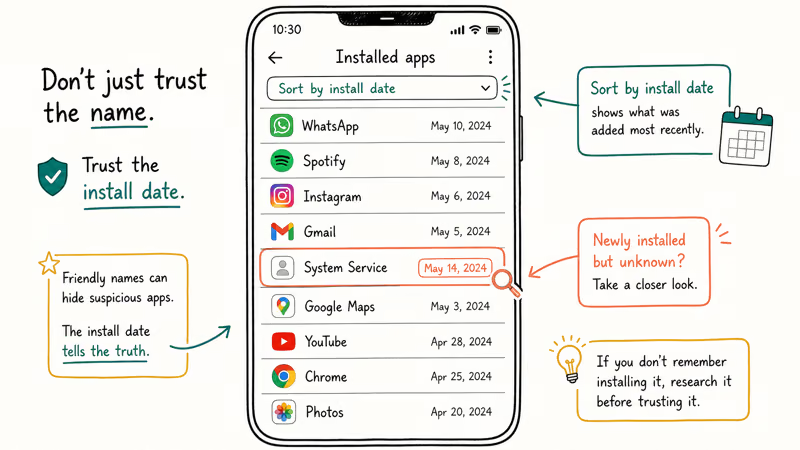
Spyware often hides behind generic names like “System Service,” “Update Manager,” or “Phone Cleaner,” and some have no home screen icon at all. According to TechCrunch’s reporting on consumer-grade spyware, one common stalkerware app disguises itself as “System Settings” with a default Android icon to blend right in with the system apps you’d never think to question.
Don’t trust a friendly name. Trust the install date and permissions instead.
Make a short list of every app you can’t account for. Don’t uninstall yet, because some of these apps protect themselves: the uninstall button stays grayed out until you strip their Device Admin or Accessibility permissions, which is exactly what the next two steps walk you through doing safely.
#Step 2: Boot Into Safe Mode
Safe Mode is the key trick. It loads only the core system apps and blocks every third-party app, the spyware included. With the app frozen, it can’t re-grant its own permissions or block its own removal while you work.
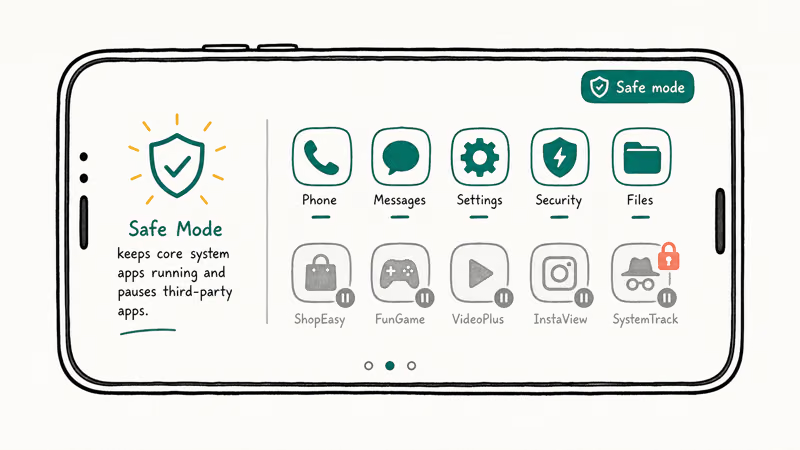
To enter Safe Mode, press and hold the power button, then touch and hold the Power off option until a Safe mode prompt appears. Tap it. Your phone restarts with “Safe mode” shown in a corner of the screen. The exact steps vary slightly by manufacturer and by Android version, so check your maker’s support page if the prompt looks different on your model.
With the spyware frozen, you can now revoke its permissions and uninstall it cleanly.
#Step 3: Revoke Device Admin and Accessibility Permissions
This is where most people get stuck. You find the app, tap Uninstall, and the button is dead. The app has granted itself protections, and you can strip them by hand.
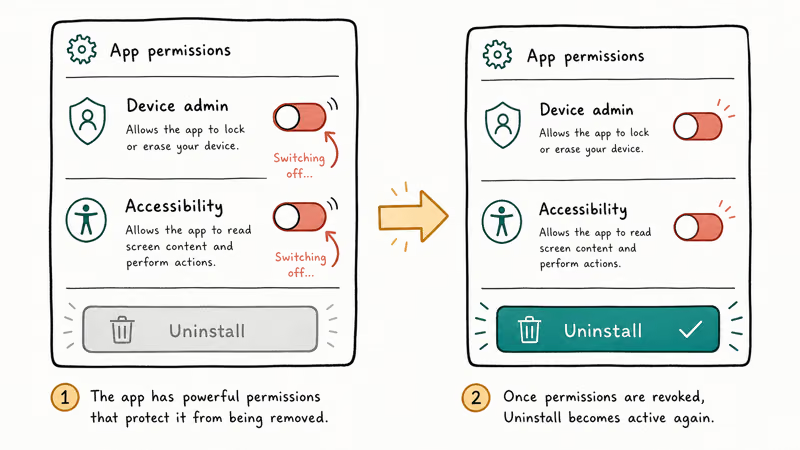
Go to Settings > Security and privacy > More security settings > Device admin apps (on some phones it’s Apps > Special app access > Device admin apps). Toggle off any app you don’t recognize, then choose Deactivate. Spyware abuses the Device Admin feature, which exists for legitimate company device management, to block uninstalls and gain deep access.
Next, check Settings > Accessibility for any service you didn’t enable. Spyware leans on Accessibility to read your screen, capture keystrokes, and monitor activity. Turn off anything suspicious. With both stripped, the Uninstall button comes back to life.
#Step 4: Run Google Play Protect
Every Google-certified Android ships with Play Protect, a built-in scanner. Open the Play Store, tap your profile icon, then tap Play Protect and run a scan. It catches many known spyware families for free.
Check one thing while you’re there: confirm Play Protect wasn’t secretly disabled. If “Scan apps with Play Protect” is toggled off, that’s a red flag. Google’s own support documentation confirms that keeping Play Protect on is the recommended baseline, and malware often disables security tools to stay hidden.
Commercial spyware vendors even tell buyers to switch it off. Turn both detection toggles back on.
Play Protect has limits. It struggles with sideloaded APKs, brand-new threats, and malware buried in system processes, so a clean scan isn’t a guarantee on its own. A sideloaded app can stay on the phone until it’s removed by hand in Safe Mode.
#Step 5: Exit Safe Mode and Verify
Restart the phone normally to leave Safe Mode. Watch for the old symptoms over the next day.
If the pop-ups, drain, or strange behavior come back, repeat the Safe Mode and removal steps. Some spyware re-installs from a companion app you missed the first time, so go back through your suspicious-app list and check whether anything reappeared. If symptoms persist after a second pass, move to the factory reset.
Either way, change your important passwords from a separate, clean device. Treat any account you logged into while infected as exposed.
#When Should I Factory Reset?
A factory reset is the most thorough option and the right call when manual removal fails. It wipes the phone back to its out-of-the-box state, clearing nearly all spyware, including stubborn infections with hidden files or lingering admin hooks.
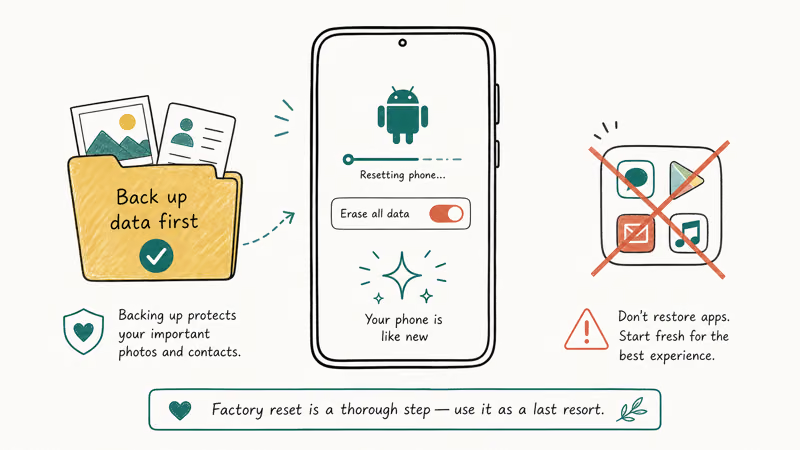
Back up your photos, contacts, and files first. Back up data, not apps. Then go to Settings > System > Reset > Factory data reset and follow the prompts. The reset itself takes only a few minutes, but be careful not to drag the spyware back in with a restored app backup, which is the single most common way people re-infect a freshly wiped phone.
After the reset, reinstall apps only from the Play Store. According to Google’s Android security guidance, sticking to the official store and keeping the system updated is the best defense against re-infection.
#Bottom Line
Start with Safe Mode and the Device Admin and Accessibility check, since that free combination removes most spyware without a reset and takes only a few minutes once you know where the toggles live. If the symptoms survive a second cleanup pass, factory reset the phone and rebuild it from the Play Store only.
Not sure it’s spyware yet? Our guide on how to tell if your phone is hacked lists the signs, and how to detect spyware on iPhone covers the Apple side.
For broader cleanup, see how to remove malware from Android. Worried about one app instead? How to know if your WhatsApp is hacked covers that single-app case.
#Frequently Asked Questions
Can I remove spyware without a factory reset?
Yes, in most cases. Boot into Safe Mode, revoke Device Admin and Accessibility permissions for the suspect app, uninstall it, then run Play Protect. A factory reset is only needed when the app survives that process, when you can’t pin down which app is the culprit, or when the symptoms keep coming back after two full cleanup passes in a row.
How can I tell spyware from a normal app draining my battery?
A normal app drains battery while you use it. Spyware drains it constantly, even idle, and pairs the drain with other signs: data spikes, overheating, or an app you don’t recognize holding Device Admin or Accessibility access. Check those permissions before you assume it’s spyware.
Does Google Play Protect catch all spyware?
No. It catches many known threats but misses sideloaded APKs and brand-new spyware, so treat it as one layer in a broader cleanup rather than a guarantee, and always pair it with the manual Safe Mode pass described above.
Why is the uninstall button grayed out?
The app granted itself Device Admin rights, which block removal by design. Open Device admin apps in Settings, deactivate the suspect app, and the uninstall option returns.
Is it legal to put spyware on someone else’s phone?
No. Installing tracking or monitoring software on a device you don’t own, without the owner’s consent, violates wiretap and computer-misuse laws in most countries. The narrow exceptions are a parent managing a minor child’s device or an employer on a company-owned phone, and even those have legal limits. This guide is for cleaning your own phone.
What should I do if I think a partner planted stalkerware?
Plan for your safety first. Removing stalkerware can alert the person who installed it, which may escalate a dangerous situation. Consider contacting a domestic-violence hotline or the Coalition Against Stalkerware before you act, and remove the app from a safe location if you decide to proceed.

Pixel 11 vs Pixel 10: What Changed and Who Should Upgrade
Pixel 11 vs Pixel 10: same screen and camera resolution, new Tensor G6, 25W wireless, and Gemini Intelligence. Here is who should actually upgrade.

Verizon Not Receiving Texts? How to Fix It in 9 Steps
Verizon not receiving texts? Fix it in 9 steps: check Message Blocking in My Verizon, reset network settings, deregister iMessage, and call support.
Pixel Battery Drain: What Google's July Fix Really Covers
Google marked the Pixel idle battery drain bug fixed in July, but only some phones got the patch. Here is who is covered, who is not, and what to try.
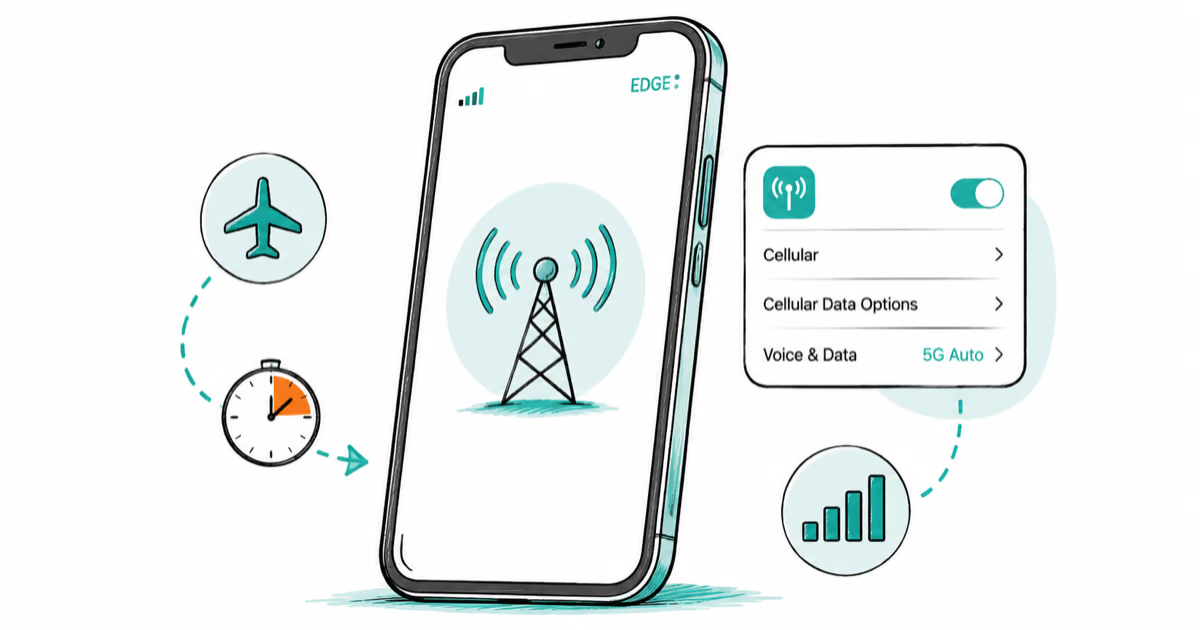
iPhone Stuck on EDGE? How to Get 5G or LTE Back (2026)
iPhone stuck on EDGE with crawling data? Here's why the E icon appears, which settings force 5G or LTE back, and when the problem is your carrier.