How to Fix iPhone Error 9 in iTunes or Finder (2026)
Fix iPhone Error 9 with USB troubleshooting for cables, ports, recovery mode, iTunes and macOS updates, security software, and dedicated repair tools.
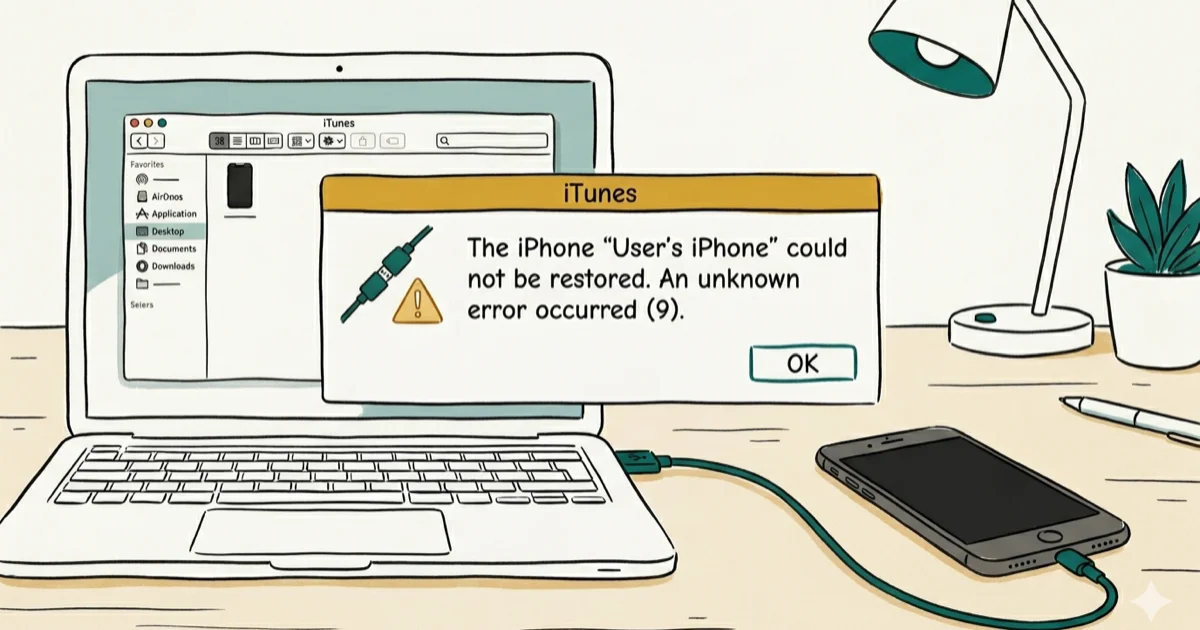
Quick AnsweriPhone Error 9 means the USB connection between your iPhone and computer dropped during a restore or update. Try a different cable, use a different USB port, and update iTunes to the latest version.
iPhone Error 9 shows up when the USB connection between your iPhone and computer drops during a restore or firmware update. Start with the cable and port, then move to recovery mode, software updates, security software, and repair tools if the error continues.
- Error 9 is a USB disconnection error that interrupts iTunes restores and firmware updates mid-process
- Swapping to an Apple MFi-certified cable fixes the most common Error 9 cause
- Recovery mode lets you reinstall iOS from scratch when Error 9 blocks normal restores
- Disabling antivirus and VPN software prevents the connection interference that triggers Error 9 on Windows
- Apple Support can diagnose hardware faults like damaged Lightning ports that cause persistent Error 9
#What Causes iPhone Error 9?
Error 9 happens when iTunes or Finder loses its USB connection to your iPhone during a firmware transfer. The transfer stops, iOS can’t finish installing, and your iPhone may get stuck on the Apple logo or drop into recovery mode.
Apple’s restore error support page confirms that Error 9 indicates the device unexpectedly lost its USB connection during the restore. Damaged USB cables, loose ports, and security software are the most common triggers.
A cable can still charge your iPhone while failing to maintain the sustained data connection that firmware updates need. That’s why swapping the cable is the first diagnostic step.
#Swap Your USB Cable and Port First
This is the fix that works most often. Error 9 is fundamentally a connection problem, and the cable is the weakest link.
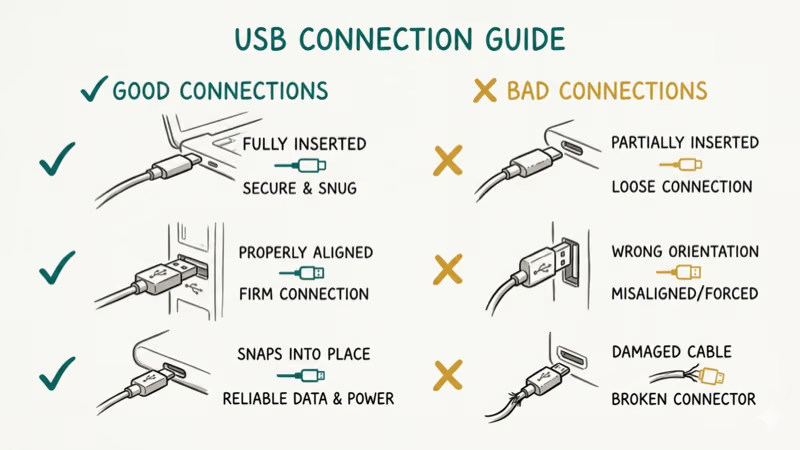
- Unplug your current cable and inspect both connectors for bent pins, corrosion, or fraying
- Replace it with a brand new Apple MFi-certified Lightning or USB-C cable
- Plug directly into a USB port on your computer, not through a hub, dock, or extension
Try every available USB port. Front ports on desktop PCs are often connected through internal headers that add latency, so back panel ports tend to be more reliable.
Also clean your iPhone’s charging port. Lint and pocket debris compress over time and create an intermittent connection. A wooden toothpick works better than compressed air for packed-in lint. Based on Apple’s cleaning guidelines, avoid metal tools that could damage the port contacts.
#Using Recovery Mode to Fix Error 9
If Error 9 persists after changing your cable, recovery mode forces a clean firmware install that bypasses whatever’s causing the disconnection during normal restores.
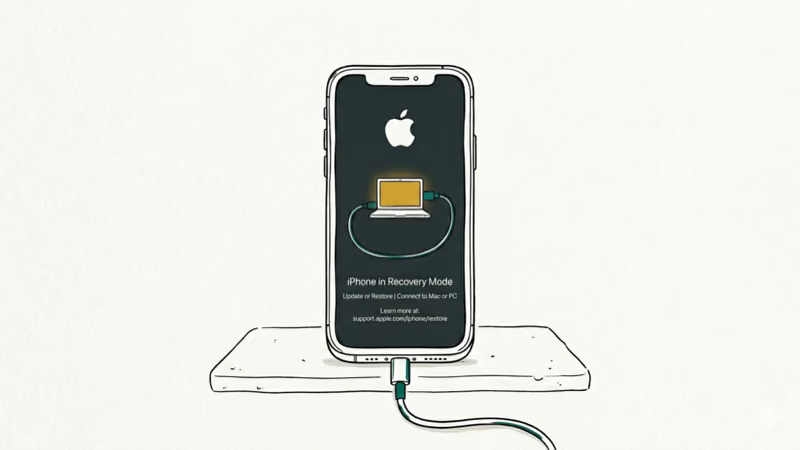
To enter recovery mode on iPhone 8 and later:
- Connect your iPhone to your computer with a USB cable
- Press and release Volume Up, then press and release Volume Down
- Hold the Side button until the recovery mode screen appears
iTunes or Finder will show a prompt asking you to Restore or Update. Try Update first to keep your data.
If Update triggers Error 9 again, choose Restore for a complete wipe and reinstall. Apple’s backup support guide recommends backing up before choosing Restore, because it erases everything.
If your iPhone gets stuck in recovery mode after this, that’s a separate issue.
#Should You Update iTunes and iOS?
Yes. Outdated software is the second most common cause of Error 9 after cable problems.
On Windows, open iTunes and go to Help > Check for Updates. Install any available updates and restart your computer. According to Apple’s iTunes download page, the latest version (12.13) includes fixes for 15+ device communication errors including Error 9. On Mac, update macOS through System Settings > General > Software Update.
On your iPhone, go to Settings > General > Software Update. Install any pending iOS updates before attempting the restore again.
Older iTunes builds can have compatibility issues with newer iOS firmware transfers, so update iTunes or macOS before repeating the restore.
#Disabling Security Software That Blocks USB Transfers
Antivirus programs, firewalls, and VPN software can intercept the USB data stream between iTunes and your iPhone. This interruption triggers Error 9 even when your cable and ports are working perfectly.
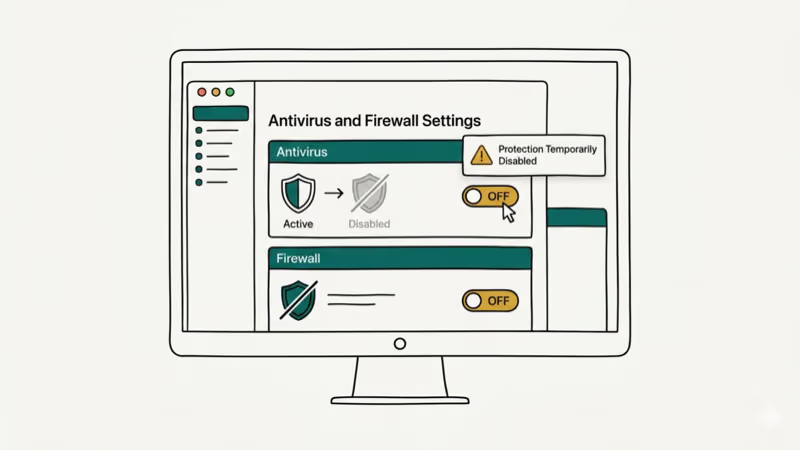
To test this:
- Temporarily disable your antivirus real-time scanning
- Turn off any VPN client running on your computer
- Disable Windows Firewall or your Mac’s firewall
Try the restore again with all security software off. If Error 9 goes away, re-enable your security software and add iTunes as an exception.
Security tools can block iTunes device communication until iTunes is added to their exception list. If you see iTunes could not connect to this iPhone after disabling security tools, that’s a separate Trust-prompt issue worth checking too.
#Using Repair Software for Persistent Error 9
If Error 9 keeps appearing after you’ve tried new cables, updated software, and disabled security tools, the problem may be deeper than a standard iTunes restore can fix. iOS repair tools like Tenorshare ReiBoot can reinstall firmware at a level that iTunes can’t reach. ReiBoot’s standard repair mode downloads a fresh firmware package and installs it through a different process than iTunes uses, which avoids whatever’s triggering the disconnection.
Some links on this page are affiliate links, which means fone.tips may earn a commission at no extra cost to you.
Your data stays safe with standard repair. If you’re also seeing iTunes error 3004, ReiBoot handles that one too.
For persistent Error 9 that survives every fix including repair software, the issue is almost certainly hardware. A damaged Lightning port, failing logic board, or battery problem can cause USB disconnections that no software can overcome. Book a Genius Bar appointment or contact Apple Support for diagnostics.
#Bottom Line
Start with the cable. Swap it, clean the port, and try different USB ports on your computer. That addresses the most common Error 9 cause.
If the cable isn’t the issue, update iTunes and iOS, disable security software, and try recovery mode. For stubborn cases, ReiBoot can repair the firmware without data loss. Hardware problems are rare but do require Apple’s help.
#Frequently Asked Questions
Does Error 9 mean my iPhone is broken?
No. Error 9 is almost always a connection or software problem. A new cable fixes it in most cases.
Will I lose my data when fixing Error 9?
That depends on the method you use. Updating iTunes, swapping cables, and disabling security software don’t touch your data at all. Recovery mode’s Update option also preserves your data. Only the Restore option in recovery mode erases everything, and repair tools like ReiBoot have a standard mode that keeps your files intact.
Can Error 9 happen on a Mac with Finder?
Yes. Apple replaced iTunes with Finder on macOS Catalina and later, but the same Error 9 can appear during Finder restores. The causes and fixes are identical: swap your cable, update macOS, and try recovery mode if needed.
How is Error 9 different from Error 9006?
Error 9 is a USB disconnection during a local restore, while Error 9006 is a network timeout when downloading firmware from Apple’s servers. Cable problem vs. network problem, with completely different fixes.
Why does Error 9 keep coming back after I fix it?
Recurring Error 9 usually means the root cause hasn’t been addressed. If you fixed it by wiggling the cable, the cable or port is intermittently failing and needs replacing. If it only happens with certain restore files, the downloaded firmware may be corrupted, and you should delete the IPSW file from your computer so iTunes downloads a fresh copy.
Can I fix Error 9 without a computer?
No. You need a computer because Error 9 only happens during USB-connected restores. If your iPhone is stuck, force restart it (Volume Up, Volume Down, then hold Side button) to get it working again temporarily.
Is it worth buying a new cable just to test for Error 9?
Absolutely. A genuine Apple cable costs $10-20 and eliminates the most common cause of Error 9 quickly. It’s the cheapest, fastest diagnostic step available, and even if the cable isn’t the problem, having a known-good cable makes testing other fixes much more reliable.

Mac mini M6 vs M5 Pro: Which Model Should You Buy?
Mac mini M6 vs M5 Pro compared on price, memory, ports, displays, and real workloads. Find the better 2026 Mac mini for your desk and budget.

Apple Siri Settlement: Who Qualifies and How to Claim
Apple's $250 million Siri settlement covers iPhone 15 Pro and iPhone 16 models bought June 2024 to March 2025. See who qualifies and how claims work.

iOS 26.6.1 Security Update: What Apple Fixed and Who Gets It
Apple released iOS 26.6.1 on August 17 with 29 security fixes, including an IPSec interception bug. See what it patches, who gets it, and how to update.

iPhone Adaptive Power: How It Works and When to Use It
Learn how iPhone Adaptive Power works, which models support it, what it changes, and when Low Power Mode is still the better battery-saving choice.