How to Do a Snapchat Face Swap in 2026: Full Guide
Step-by-step Snapchat face swap guide for iPhone and Android: live two-person swap, photo swap, fixes when it fails, and best alternatives in 2026.
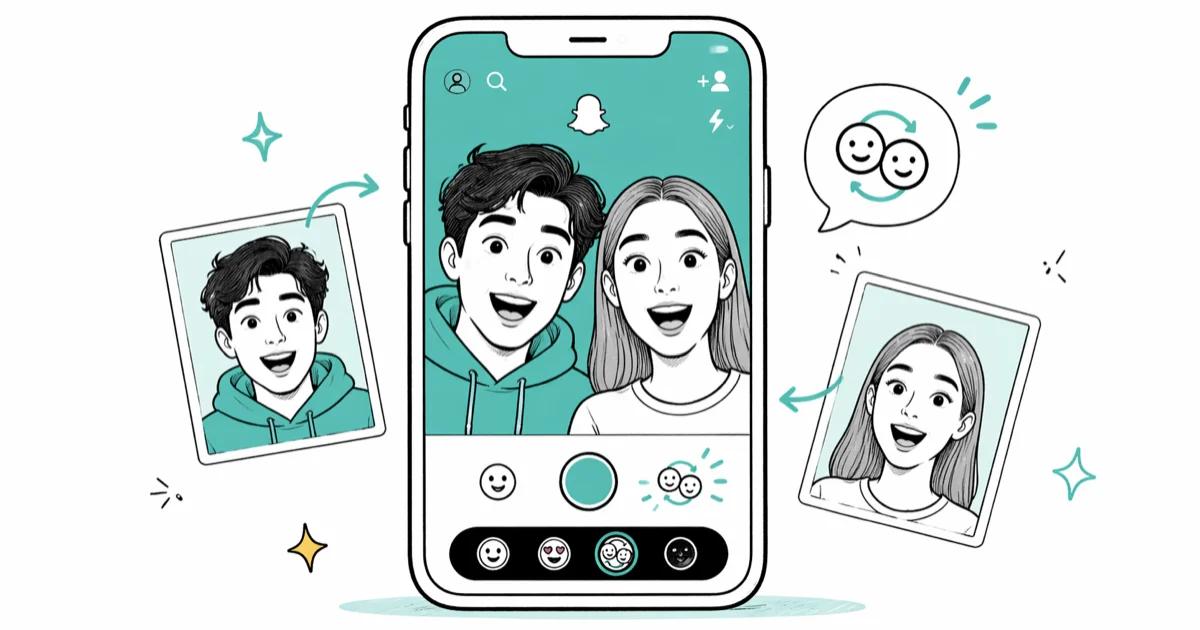
Quick AnswerOpen Snapchat in selfie mode, tap and hold on your face to load the Lens Carousel, then swipe to the yellow two-smiley Face Swap Lens. Line both faces up inside the placeholders and Snapchat aligns them automatically.
Learning how to do a Snapchat face swap takes about thirty seconds once you know where the Lens lives in the carousel. The feature first arrived inside Snapchat’s Lens lineup back in 2016 and has stayed there through every UI overhaul since. The current workflow is the same basic flow on iPhone and Android: open Snapchat, load the Lens Carousel, and pick the face-swap Lens.
- The Face Swap Lens lives in Snapchat’s Lens Carousel, not in Memories or Stories
- A two-person live swap needs both faces visible in the same frame at the same time
- Solo swap pulls candidate faces from your camera roll automatically; you don’t pick the photo
- Glasses, hats, and side-angle poses can break face detection
- The swap is locked into the photo once saved, so delete and reshoot to redo it
#Where the Face Swap Lens Lives in 2026
Snapchat used to surface Face Swap as a dedicated icon, but the feature now sits inside the standard Lens Carousel. Tap your selfie on the camera screen and hold for a beat.
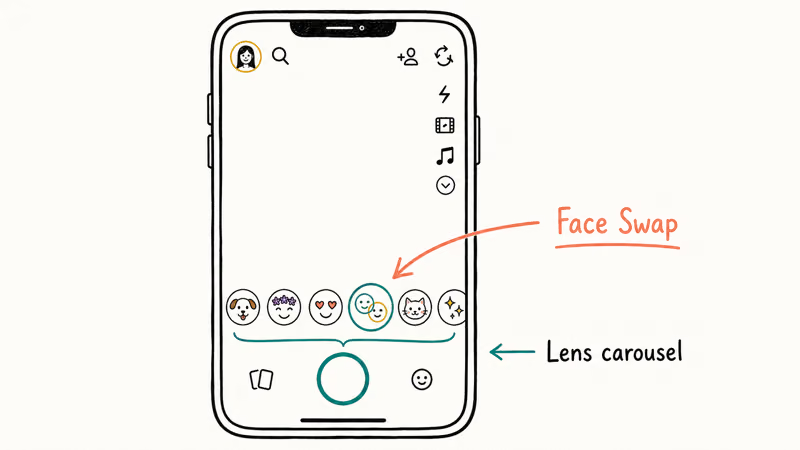
The carousel slides up under the capture ring. Swipe left through the official Lenses until you see the two yellow smiley faces — that’s the live swap. A purple two-head icon further down the carousel triggers photo-swap mode.
According to Snapchat’s help center, Lenses use real-time facial tracking and an AR mesh that wraps the camera image to the contours of each detected face. The face-swap variant runs that mesh twice and reassigns each texture map to the opposite mesh. That is why the swap feels glued to your features when you talk and not painted on like a sticker.
The swap Lens usually loads faster when Snapchat is already open and Lenses are cached. One small tip: keep Snapchat in your iOS or Android background list so the Lens cache stays warm between sessions.
#Step-by-Step: Live Face Swap With a Friend
This is the classic two-person swap. Same five steps on iPhone and Android.
#Open Snapchat and switch to the front camera
Launch Snapchat. If the rear camera is active, tap the camera-flip icon in the top-right of the capture screen. Most people do the swap in selfie mode because aligning two faces is easier when you can see the preview on the same screen as the camera you’re holding.
#Activate the Lens Carousel
Tap and hold on your face on the camera preview. After a brief scan, a white mesh appears over your face and the Lens Carousel slides up from the bottom. If the mesh doesn’t appear, you’re either too close, too far, or partially obscured. Step back to about arm’s length and try again.
#Find the Face Swap Lens
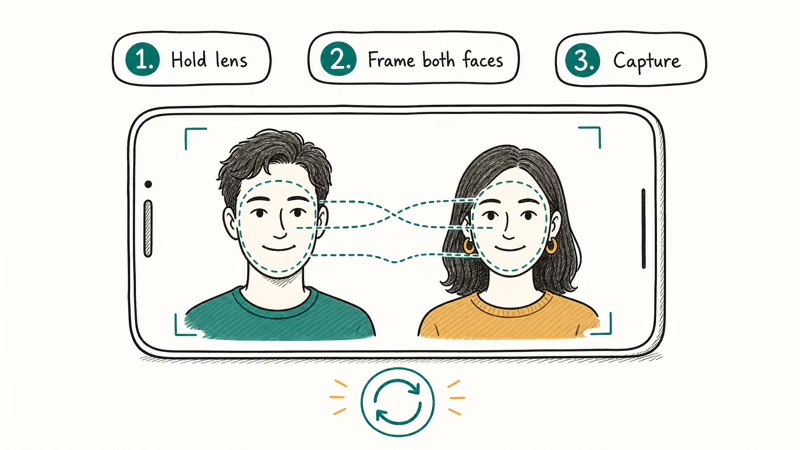
Swipe left through Snapchat’s official Lenses. Look for a yellow circle with two smiley emojis and tap it. Two empty face placeholders now appear on the preview.
#Line up both faces
Hand the phone to your friend or hold it so both heads fit inside the two placeholders. Snapchat states that the swap activates only after both meshes lock simultaneously. Keep both faces inside the placeholder ovals until the effect locks.
#Capture and save
Tap the round shutter button to take a photo, or hold it to record up to ten seconds of video. To save the swap to your phone, tap the down-arrow icon in the bottom-left corner. You can also send it directly to Snapchat friends via the blue paper-airplane button. Once saved, the swap is baked into the photo and can’t be undone inside the app.
Lost the saved file? See recovering deleted Snapchat memories and our notes on how to save Snapchat videos.
#How Do You Face Swap With a Saved Photo?
This is the solo mode, sometimes called Photo Face Swap or the purple swap.
- Open Snapchat and tap and hold on your face to load the Lens Carousel.
- Scroll until you see the purple two-head icon labeled Face Swap. It usually sits a few positions to the left of the live yellow swap Lens.
- Tap it. Snapchat scans your camera roll for compatible faces. The app does the matching automatically, so you don’t pick the source photo by hand.
- A small popup shows a candidate face. Tap it to apply, or tap the refresh arrow to cycle to another candidate.
- Capture the result with the shutter and save it the same way as the live swap.
According to Snapchat’s lens documentation, the photo-swap algorithm prefers front-facing portraits with neutral expressions. Profile shots, blurry faces, and faces partially out of frame are skipped because Snapchat can’t detect a usable face.
If the purple icon doesn’t appear at all, your Snapchat build is likely outdated. Update it through the App Store or Google Play and reopen the Lens Carousel.
#Why Isn’t My Snapchat Face Swap Working?
Snapchat’s face tracking fails in four predictable ways, listed below.
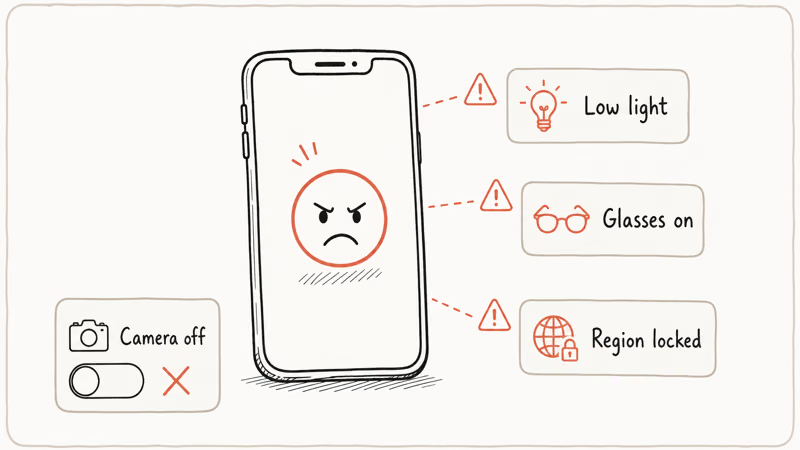
- Low light. The mesh needs visible facial landmarks. Side lamps, harsh overhead light, and backlit windows all reduce detection accuracy.
- Glasses and hats. Anything covering the eyebrows or hairline can suppress one of the two meshes, and the swap engages only when both lock.
- Side angles. Snapchat is trained on front-facing faces. Three-quarter or profile angles can fail more often than straight-on portraits.
- Outdated app version. Major Snapchat updates have shifted Lens placement twice in the last three years, and older builds sometimes lose access to specific Lenses entirely.
If the camera itself stalls before you even reach the carousel, our guide on Snapchat filters not working covers the camera-permission and cache fixes that overlap with face-swap failures. For an app that crashes mid-swap, see Snapchat keeps crashing for the iOS and Android reset steps.
#Best Alternatives to Snapchat Face Swap
Snapchat’s swap is the best-known option, but you don’t need Snapchat to do this. Two alternatives are worth considering:
Reface (iOS and Android). Reface uses a deepfake-style model that lets you choose both the source face and the target clip from preset libraries. The free tier is watermarked. Reface’s privacy policy confirms that uploaded faces are deleted within twenty-four hours of generation, which is a meaningful safeguard if you care about face data leaving your phone.
B612 (iOS and Android). Real-time two-face merge, similar to Snapchat’s live swap. No photo-swap mode here.
A note on MSQRD and Face Swap Live, which dominated the 2016 to 2018 face-swap era. MSQRD was acquired by Meta and effectively wound down, and Face Swap Live has not received meaningful updates in years. Neither is a serious 2026 alternative.
For a wider look at where Snapchat wins and loses against rival apps, see our pros and cons of Snapchat breakdown.
#Privacy and Consent: What to Know Before You Swap
Face swap is a party trick, but the data underneath is real biometric information. Snap’s transparency documentation confirms that the face mesh used by Lenses is processed on-device and is not retained on Snap servers after the Lens closes. Photo swaps using your camera roll also process the image locally on both iOS and Android, according to the same documentation.
A few etiquette items that come up often in reader email:
- Get consent before swapping with someone else’s face, especially with a saved photo of theirs.
- Avoid face swaps on photos of people who can’t consent, including minors and strangers.
- Skip swapping public figures into compromising scenes; even comedic edits can fall foul of Snap’s community values.
These are not theoretical concerns. Snap announced in early 2024 that AR Lens misuse falls under its harmful-content reporting flow, and accounts that misuse face technology can be restricted or banned.
#Bottom Line
For a live swap with a friend, the fastest path in 2026 is still the original one. Open Snapchat in selfie mode, hold on your face, tap the yellow two-smiley Lens, and align both faces inside the placeholders.
For a solo swap with a saved photo, switch to the purple two-head Lens and let Snapchat pick the candidate from your camera roll automatically. If you want manual control over which source face is used or studio-quality output, Reface is the better choice than Snapchat’s built-in Lens.
If you just want to make friends laugh in fifteen seconds with no setup, the live two-smiley Lens is hard to beat and costs nothing.
#Frequently Asked Questions
Can I face swap with a saved photo on Snapchat?
Yes. Snapchat’s solo face swap, marked by the purple two-head icon in the Lens Carousel, pulls candidate faces from your camera roll automatically. You don’t get to pick the photo yourself. The app scans for usable faces and offers them to you one at a time through a small popup.
Can I face swap with three or more people in one photo?
Snapchat’s live swap is built for exactly two faces. The Lens picks the two best-aligned faces and ignores the rest.
Why is the face swap Lens not working on my phone?
The most common causes are low light, glasses or hats covering the brow line, side-angle faces, or an outdated Snapchat app. Step back to arm’s length, remove accessories, face the camera directly, and update Snapchat through the App Store or Google Play. If the camera preview itself fails to load, confirm that Snapchat has camera permission in your phone settings.
Can I use face swap during a Snapchat video call?
No. The Lens runs on the capture camera, not on live video chat. Record a swapped clip and send it as a snap instead.
Can I undo a face swap after saving it?
Not inside the Snapchat app. Once you tap save, the swap is baked into the saved photo or video and there is no in-app revert. The workaround is to delete the saved file and create a new swap. If you already sent the swap to a friend, the recipient sees the saved version even if you delete your copy.
Is Snapchat face swap safe for my privacy?
According to Snap’s transparency documentation, the face mesh runs on-device and is not stored on Snap servers after the Lens closes. The bigger risk is consent etiquette.
Does face swap work the same on iPhone and Android?
Yes. The live swap and photo swap use the same Lens Carousel flow on iPhone and Android, though exact icon placement can vary slightly by app version.
What happened to the standalone Face Swap button?
Snapchat consolidated its Lens UI between 2020 and 2021, moving Face Swap from its own dedicated button into the standard Lens Carousel. The two-smiley icon for live swap and the purple two-head icon for photo swap are the current entry points. Older Snapchat tutorials showing a separate face-swap shortcut are out of date.

Google Messages Error 3100: Why RCS Is Broken on Galaxy
Google Messages RCS error 3100 hits Galaxy owners after phone or carrier switches. Google told 9to5Google a fix is coming. Here's what actually helps.

Is This Bank App Real? Spot a Fake App on Your Home Screen
A bank app can land on your home screen from a web page with no install warning. Learn the checks that tell a real banking app from a phishing web app.

Apps Crashing After iOS 27 Update? Fix Order (2026)
Apps crashing after the iOS 27 update? Update the app in the App Store first, then offload and reinstall to clear stale cache, then restart. The fix order.

Do AI Translation Earbuds Work Offline? What to Know
Do AI translation earbuds work offline? A few do with downloaded language packs, but most need the cloud. Here's what works offline and what you give up.