How to Cast Twitch to Chromecast: Mobile, Web, Google TV
Cast Twitch to Chromecast from the iOS or Android app, Chrome browser, or Google TV native app, plus audio sync fixes and Shield TV alternatives.
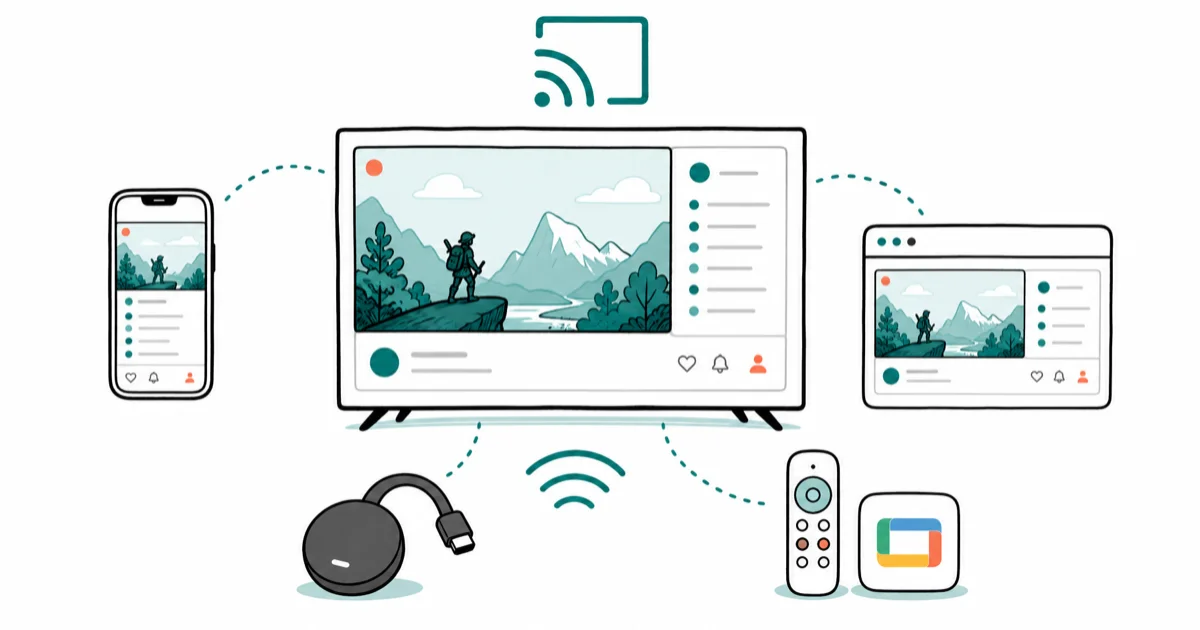
Quick AnswerOpen the Twitch mobile app, tap the Cast icon at the top of any live stream, and pick your Chromecast. From Chrome on desktop, use the three-dot menu's Cast option. On Chromecast with Google TV, install the native Twitch app from the Play Store.
Casting Twitch to a Chromecast should take two taps. In practice the Cast icon hides, audio drifts, and chat goes missing. This guide covers the mobile app, Chrome browser, and native Google TV app paths, plus the chat and audio limits you’ll run into and when a Shield TV is the smarter buy.
- Twitch for Android and iOS (app version 17.x and later) has a built-in Cast icon at the top of every live stream and VOD player.
- Chrome on desktop casts Twitch through the three-dot menu’s Cast option, no extension required since Chromecast support is built into Chrome 70 and newer.
- Chromecast with Google TV runs a native Twitch app from the Play Store, which gives you a real remote-driven UI rather than a phone-as-controller flow.
- Chat doesn’t render on the TV during a cast. Keep your phone or a second tab open if you want to read or post in chat.
- When the cast button is missing, the Twitch app and the Chromecast are usually on different Wi-Fi networks or different VLANs.
#Chromecast Generations Compatible With Twitch
Not every Chromecast in your drawer behaves the same way. The original 1st-gen dongle (2013) still casts from the Twitch app, but stutters on 1080p60 streams because its single-band 802.11n radio caps out around 25 Mbps in real-world use. Chromecast Ultra and the 3rd-gen Chromecast push 1080p60 cleanly. Chromecast with Google TV (both HD and 4K) does both, and it adds the native Twitch app so you don’t even need a phone.
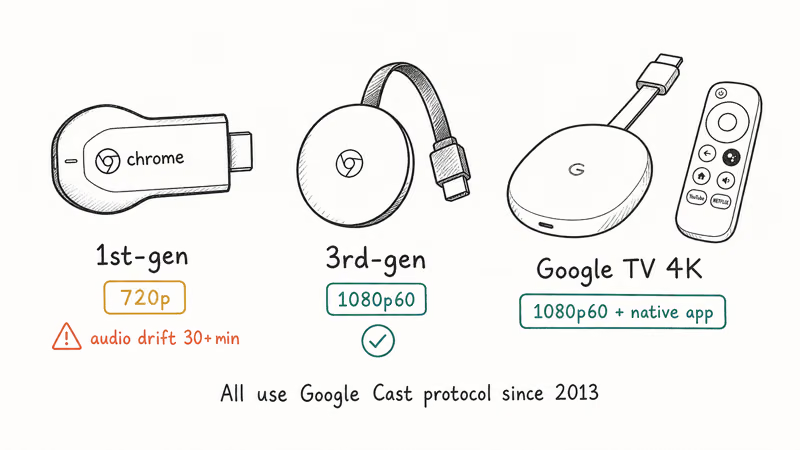
A few practical takeaways by generation:
- 1st-gen Chromecast: works for 720p streams, audio drift starts above 30 minutes
- Chromecast 3rd-gen: solid 1080p60 for most Twitch streams
- Chromecast with Google TV (4K): best experience, native Twitch app installable
Google’s Chromecast support hub confirms that every Chromecast and Google TV Streamer model runs on the same Google Cast protocol, which is why one Twitch build covers every unit on the market.
#Casting Twitch From the Mobile App
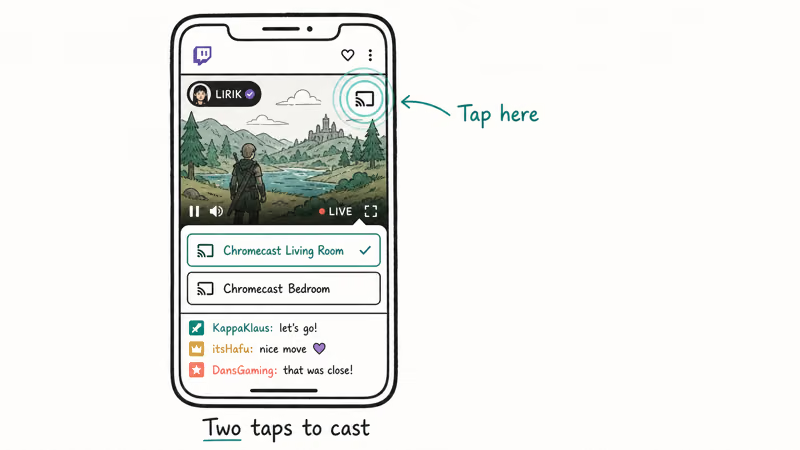
The Twitch mobile app is the fastest path. Open the app, pick any live channel, and the Cast icon sits at the top of the player next to the channel name. Tap it, choose your Chromecast, and the stream jumps to your TV in two or three seconds.
#Casting From Android
- Install Twitch from the Google Play Store and keep it updated.
- Sign in and open a live channel.
- Tap the Cast icon at the top of the video player.
- Select your Chromecast from the device list.
- Use your phone as a remote for pause, quality, and channel switching.
#Casting From iOS
The flow on iPhone and iPad mirrors Android with one quirk: iOS sometimes hides the Cast icon when the Twitch app launches before Wi-Fi finishes reconnecting. Force-quit Twitch from the App Switcher and reopen it. The Cast icon usually comes back.
According to Twitch’s Help Center page on the mobile app, Chromecast support is built directly into the app, so you can cast to the big screen with no separate Twitch extension required.
#Casting Twitch From Chrome on Desktop
For desktop, Chrome is the easiest route because Cast is built in. You don’t need the Google Cast extension anymore. It was deprecated when Chrome 70 shipped in 2018.
- Open Chrome and go to
twitch.tv. - Start playing a stream.
- Click the three-dot menu in the top-right corner of Chrome.
- Choose Cast… from the menu.
- Pick your Chromecast under the Sources dropdown, then choose Cast tab.
Tab-casting sends only the Twitch tab, so you can keep using the rest of your browser normally. If audio stays on your computer instead of the TV, click the cast icon in Chrome’s toolbar and confirm the audio output is set to the Chromecast.
If you’d rather cast a different player altogether, our walkthrough on casting VLC to Chromecast covers the desktop-app side of things. And if you want to mirror something else from a console, screen mirroring on PS4 goes through that workflow.
#Can You Run a Native Twitch App on Chromecast With Google TV?
Yes, and it’s the cleanest experience by a wide margin. Chromecast with Google TV ships with the Play Store, so you can install Twitch the same way you’d install it on any Android device. The app behaves like the Android TV version: remote-friendly navigation, browse-by-category, and the Cast icon disappears because the stream is playing directly on the device.
To install it:
- From the Google TV home screen, open the Apps tab.
- Search for Twitch in the Play Store.
- Install and sign in with your Twitch account or a QR-code login.
- Use the Google TV remote to browse channels and play streams.
The trade-off: chat still doesn’t appear in the TV app. Twitch designed the Google TV app for lean-back viewing, so messages live on a companion device. If you stream a lot and need overlay tools, our roundup of Twitch overlay makers covers chat overlays that work in OBS rather than on the TV itself.
#Fixing Audio Sync and Chat Overlay Limits
Two problems come up more than anything else when casting Twitch: audio that drifts a second or two behind the video, and the missing chat overlay.
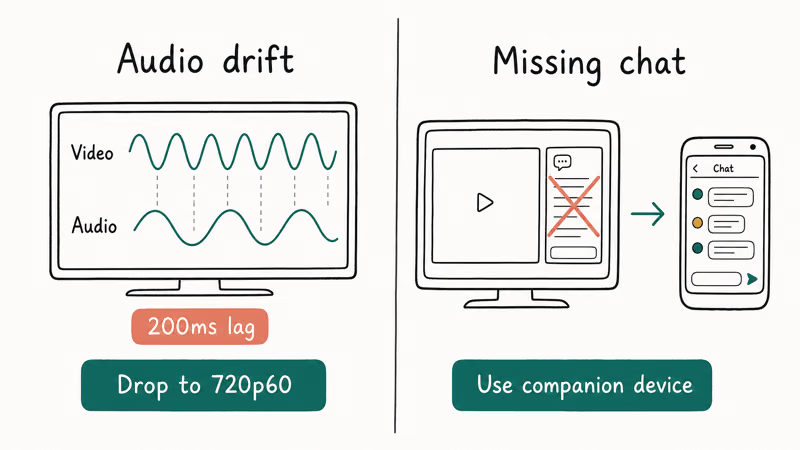
Audio sync drift usually traces back to Wi-Fi congestion or HDMI audio passthrough on the TV. Dropping the stream from 1080p60 to 720p60 often reduces drift. Restarting the Chromecast can also help. If your TV has an audio delay setting under sound options, adjust it in small increments until voices line up.
The chat overlay on the TV is the bigger limitation. The Twitch Cast protocol sends video and audio only, never the chat panel. Common workarounds:
- Keep
twitch.tv/popout/{channel}/chatopen on your phone or second monitor - Use the Twitch app’s chat tab on a separate device while the cast plays
- Pair the Twitch name generator with a clean throwaway account if you want a quieter chat experience while watching
The cast session carries video and audio streams, not the chat panel. So you’re not missing a hidden setting in the app, and no toggle in the player options will surface the chat overlay on the TV side either. The companion-device workaround is the only path.
#What if the Cast Button Won’t Show Up?
This is the most common Chromecast headache and it almost always comes down to network mismatches. Run through this list:
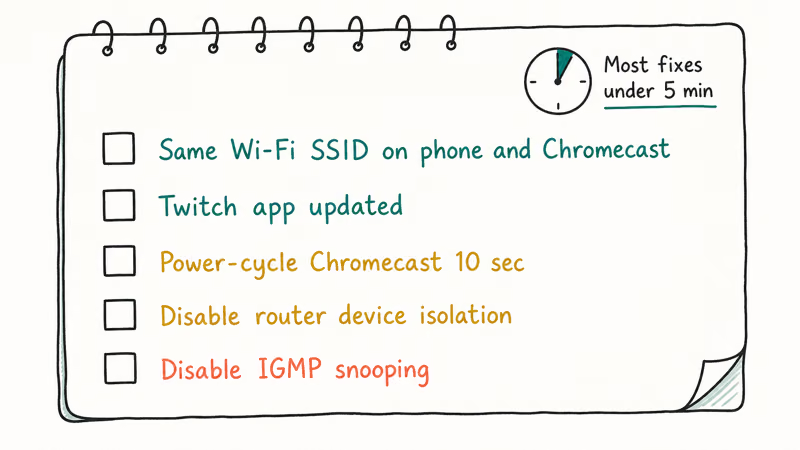
- Same Wi-Fi network on both devices: guest networks and IoT VLANs are the usual culprits. Switch your phone to the main 2.4 GHz or 5 GHz SSID the Chromecast lives on.
- Twitch app updated: older builds dropped the cast icon during one of the 2024 redesigns. Update to the latest from the Play Store or App Store.
- Restart the Chromecast: pull power for ten seconds, plug it back in. The cast service rebuilds its mDNS broadcast on reboot.
- Router multicast settings: some mesh routers (Eero, Google Wifi) need IGMP snooping or “device isolation” turned off for Chromecast discovery to work.
- Persistent buffering: if streams load but constantly rebuffer, our Twitch lagging guide walks through quality-tier and network fixes.
Run this sequence before reinstalling the app or replacing hardware; it covers the usual discovery failures.
#NVIDIA Shield TV as a Twitch Alternative
If you’ve tried two Chromecasts and the cast button still won’t behave, NVIDIA Shield TV is the strongest alternative for Twitch on the big screen. It runs Android TV, which means the same native Twitch app installs from the Play Store, plus it handles 4K HDR transcoding for game streams more gracefully than any Chromecast generation. The Shield TV Pro adds 3 GB of RAM and 16 GB of storage, useful if you also use Plex or sideload Kodi.
The trade-off is price. According to NVIDIA’s Shield TV product page, the standard tube costs $149.99 and the Pro costs $199.99, both roughly 5x the $29.99 sticker on a Chromecast with Google TV HD.
For a Twitch-only setup, that’s overkill. A media-center plus Twitch combo earns the premium because Shield TV doubles as a Plex transcoder and AI-upscaler in the same box, things no Chromecast does. Our guide to the top alternatives to Google Chromecast compares Shield TV against Roku, Fire TV, and Apple TV head to head across 4 categories.
#Bottom Line
For casual Twitch viewing from a phone, tap the Cast icon in the Twitch mobile app. It works on every Chromecast since 2013 and takes two taps. For a dedicated setup, buy a Chromecast with Google TV 4K and install the native Twitch app from the Play Store.
Google TV ends the phone-as-controller dance. Step up to NVIDIA Shield TV only if you also need 4K HDR transcoding or Plex. On desktop, Chrome’s built-in Cast menu handles it.
#Frequently Asked Questions
Why does my Cast button disappear in the Twitch app?
Usually a network mismatch. Confirm both devices share the same SSID, force-quit and reopen Twitch, then unplug the Chromecast for ten seconds if needed.
Can I cast my own Twitch stream from Chromecast?
No. To broadcast gameplay you’ll need OBS Studio, Streamlabs, or a capture card setup on a separate computer.
Does Twitch chat show up on the TV when casting?
No. Keep twitch.tv/popout/{channel}/chat open on a phone or second monitor.
Why is my Twitch stream lagging on Chromecast?
Lag almost always traces back to Wi-Fi congestion or shared bandwidth. Move the Chromecast within 10 feet of the router, drop the stream to 720p60, and close any heavy downloads on the same network. If buffering persists, plug an Ethernet adapter into the Chromecast Ultra or Chromecast with Google TV (both support wired through the USB-C power port).
Do I need a Twitch Prime or Turbo account to cast?
No, casting works on free Twitch accounts at no extra cost. Turbo and Prime add ad-free viewing and free channel subs, but Cast itself ships in the standard mobile and web apps.
Can I cast Twitch to multiple Chromecasts at the same time?
One device per cast. Audio groups in the Google Home app handle multi-room sound, but the Twitch video stream binds to a single target. Run two phones or two browser tabs to push the same stream to a second TV.
Does the original first-gen Chromecast still work with Twitch?
The 2013 first-gen Chromecast still pairs with the Twitch app and plays streams, but it caps out around 720p reliably and drifts on audio after long sessions because its single-band 802.11n radio struggles with sustained throughput. If you watch Twitch more than once a week, upgrading to Chromecast with Google TV HD at $29.99 unlocks the native Twitch app, a real remote, and a 5 GHz radio that handles 1080p60 more comfortably.

Google Messages Error 3100: Why RCS Is Broken on Galaxy
Google Messages RCS error 3100 hits Galaxy owners after phone or carrier switches. Google told 9to5Google a fix is coming. Here's what actually helps.

Is This Bank App Real? Spot a Fake App on Your Home Screen
A bank app can land on your home screen from a web page with no install warning. Learn the checks that tell a real banking app from a phishing web app.

Apps Crashing After iOS 27 Update? Fix Order (2026)
Apps crashing after the iOS 27 update? Update the app in the App Store first, then offload and reinstall to clear stale cache, then restart. The fix order.

Do AI Translation Earbuds Work Offline? What to Know
Do AI translation earbuds work offline? A few do with downloaded language packs, but most need the cloud. Here's what works offline and what you give up.