Google Account Recovery After Factory Reset (2026)
Recover your own Google account after a factory reset that triggered FRP. Use Google Account Recovery (g.co/recover) and the 24-72h identity review.
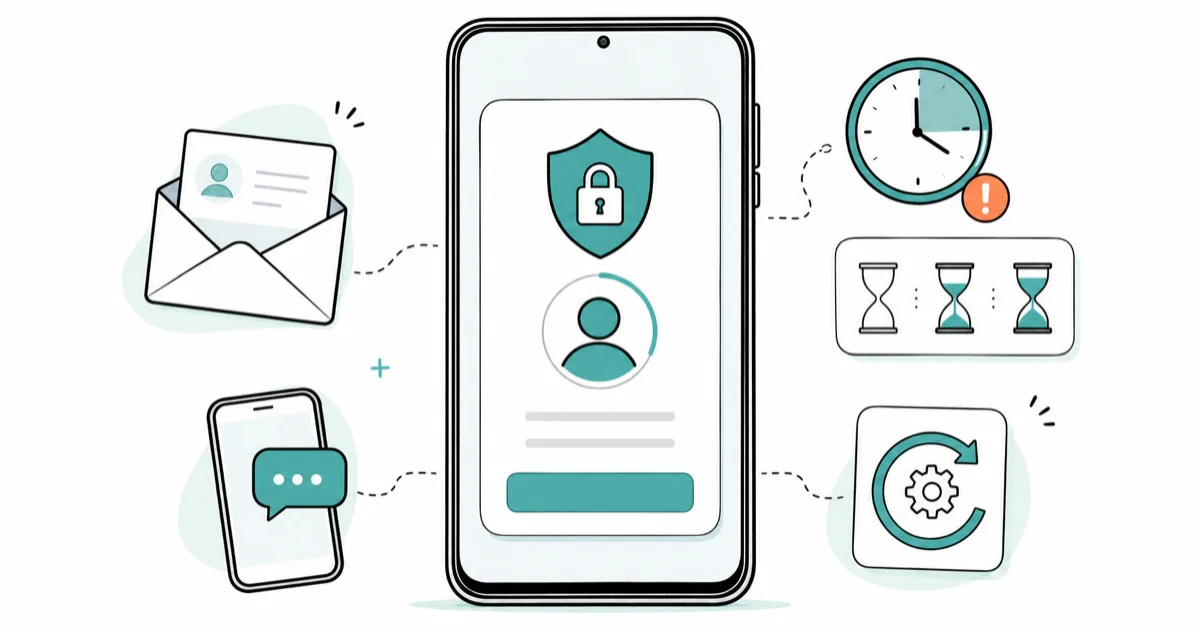
Quick AnswerUse Google Account Recovery at g.co/recover to verify via recovery email, phone, or a 24-72 hour identity check. This only works for accounts you legitimately own.
If you factory-reset your own device and got FRP-locked on your own Google account, this guide walks through Google’s official recovery flow. The fastest fix is g.co/recover from a desktop browser, not from the locked phone itself.
This article only covers recovery for accounts you legitimately own. Trying to recover or bypass an account on a device that wasn’t yours can violate the Computer Fraud and Abuse Act in the US, similar privacy laws elsewhere, and Google’s Terms of Service.
-
Google’s Factory Reset Protection has been on by default for every Android phone running Android 5.1 or later, which is why the verification screen appears after any wipe that didn’t first remove the account.
-
Start at g.co/recover on a desktop browser with full keyboard, not the locked phone. Wrong answers count against you on retry, so don’t guess.
-
The recovery phone path completes in under 2 minutes. The 24-72 hour manual identity review only kicks in when automated verification fails.
-
Google never charges for account recovery. Any site asking for payment to unlock your Google account is a scam.
-
If three documented recovery attempts fail, an authorized service center with proof of purchase is the only remaining legal path on your own device.
#Why Does Factory Reset Trigger Google Account Verification?
Factory Reset Protection (FRP) is an anti-theft feature that Google built into Android. According to Google’s Find My Device and FRP overview, FRP turns on automatically the moment you add a Google Account to a device running Android 5.1 or later. After any factory reset that didn’t first include “Remove account,” the phone demands proof you’re the legitimate owner before it lets setup continue.
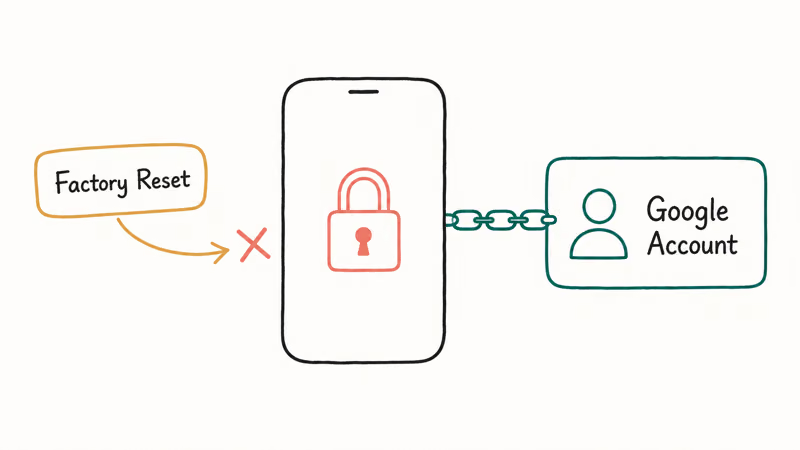
The reason FRP exists is straightforward. Stolen phones used to be a one-wipe-and-resell business, and FRP killed that workflow by binding the phone to the last Google account that was active before the reset.
This is fundamentally different from general Gmail account recovery without a device prompt. Gmail recovery in a normal browser lets you set a new password and continue using webmail. FRP recovery has to satisfy the device that you’re the same human who added the account in the first place. The verification is stricter, the path is narrower, and the device won’t budge until Google’s servers say so.
iPhone owners face a similar gate through Activation Lock. The iCloud equivalent for iPad follows a comparable own-device recovery flow on Apple’s side, but the specifics differ.
#Pre-Recovery Checklist: What You Need Before Starting
Before tapping anything on the FRP screen, take 5 minutes to gather what you’ll need. The recovery process gets dramatically easier when you have the right materials handy.
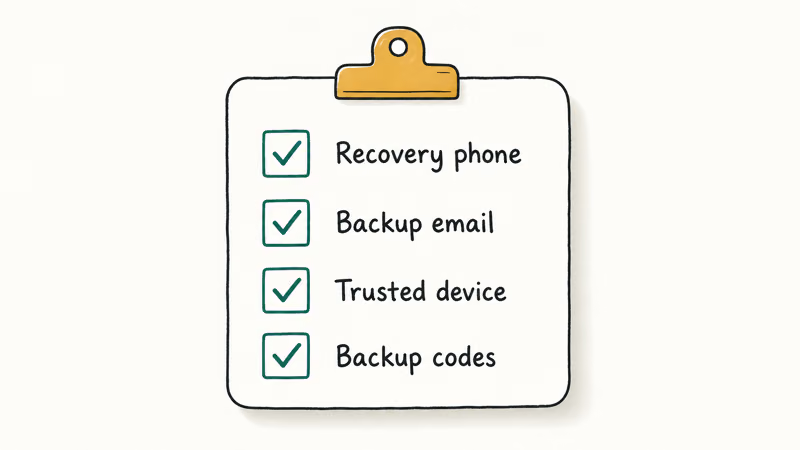
Pull up a desktop or tablet and open the account at myaccount.google.com using any other device where you’re still signed in. Confirm three things: your recovery phone number is current, your backup email still works, and at least one trusted device shows up under Security > Your devices. If any of those are stale, fix them now while you still have access.
If you have a paper copy of your backup codes from when you set up 2-Step Verification, find it. A single 8-digit backup code is the cleanest verification you can hand Google. Most people don’t have these because the original setup screen makes it easy to skip the “download codes” step.
Note your last remembered password attempt, even if you’re sure it’s wrong. Google’s recovery flow asks for any password you’ve used historically. A close-but-wrong answer scores higher than a blank field.
For future-proofing, our guide to disabling FRP before a planned factory reset and the Android factory reset codes by manufacturer cover the pre-wipe routine that would have prevented this lockout entirely.
#How Do You Recover Your Google Account From the FRP Prompt?
The device screen shows a “This device was reset. To continue, sign in with a Google Account that was previously synced on this device” message after a reset when FRP is still bound to the previous Google account. That wording means the phone is asking for the same Google ID used before the wipe, not just any account you can create today.
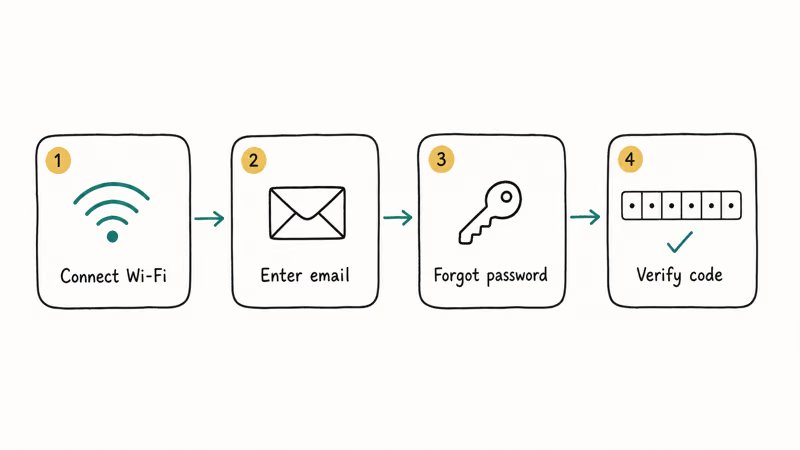
Here’s the recovery sequence in order:
-
Connect the phone to Wi-Fi. FRP verification needs network access; cellular data may work but Wi-Fi is more reliable.
-
On the sign-in field, type the exact Google email that was on the device before the reset. Auto-complete suggestions are off, so spell it carefully.
-
If you remember the password, enter it. The phone signs in and FRP releases. Done.
-
If the password fails or you don’t remember it, tap Forgot password? on the prompt. This launches the in-prompt recovery flow.
-
Google offers verification options based on what’s on your account: a code to your recovery phone, a link to your backup email, or a push prompt to a trusted device. Pick the one with the freshest contact info.
-
Enter the code or approve the push. Choose a new password (at least 8 characters, mixing letters and numbers). FRP releases and the phone continues setup.
If the in-prompt flow keeps failing or the verification options are stale, switch to a desktop browser and load Google Account Recovery (g.co/recover) directly. The desktop flow has a full keyboard, faster typing, and a clearer view of the identity-question fields. According to Google’s recovery information guide, using a device or browser you’ve previously signed in from significantly raises your odds of passing the security check, so a desktop you regularly use beats your locked phone here.
If your recovery phone is current, the desktop recovery-phone path is usually the quickest route. If that phone number is stale or disconnected, expect to use the identity-review path covered in the next section.
#Recovering From an Automated Rejection on g.co/recover
Automated rejection is common when your recovery info is outdated, you’ve forgotten too many old passwords, or you’re signing in from an unfamiliar network. Don’t keep retrying the same answers. Each failed attempt teaches Google’s anti-abuse system that something looks off, and the lockout window stretches longer.
Stop, wait 4 to 24 hours, and gather better evidence before the next try. Concrete details Google’s identity questions ask about:
- The approximate month and year you created the account
- A password you used in the past (any era counts, not just the most recent)
- Roughly when you last successfully signed in on the locked device
- The model of the previous Android phone you used the account on
- The top 2 to 3 people you frequently email
The more of these you can answer with specifics, the higher your approval odds. Google’s security recommendations page explains why 2-Step Verification matters: the system places higher trust on identity signals from 2-Step-enabled accounts during recovery review. Vague guesses hurt more than blank fields, so leave items blank if you really don’t know.
When the automated form keeps failing, escalate to manual review through the Google Account Support troubleshooter. According to the troubleshooter page, the process can take “a few days” for review, but it routes your case into a human-reviewed queue with a different decision path than the automated form uses.
#Inside Google’s 24-72 Hour Manual Identity Review
After enough automated rejections, Google routes the case to manual review. Look for “We can’t verify this account belongs to you.”
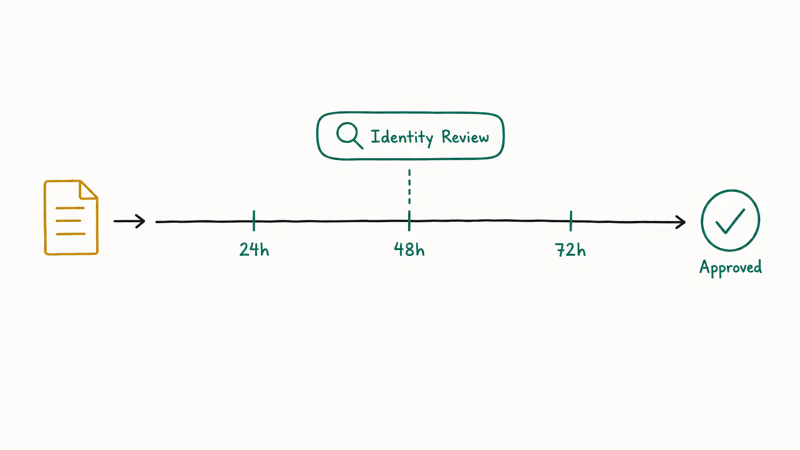
The manual window typically runs 24 to 72 hours based on user reports across Reddit’s r/GoogleAccountRecovery and similar threads. There’s no official Google number for this timeline, but the troubleshooter form states the review takes “a few days.”
When recovery info is stale, Google’s automated check may reject the first attempt and route you toward slower identity review. Use the troubleshooter form to add the strongest current evidence you have before trying again.
To improve the manual-review outcome, attach as much account-history evidence as the form allows:
- The original device purchase receipt (carrier email, Best Buy / Amazon order, manufacturer order confirmation)
- A current phone bill in the account holder’s name
- A photo of the account holder holding the device
Submit the request from a device and network you’ve used the account from in the past. Google’s review weighs location and device fingerprint heavily. A request submitted from a hotel Wi-Fi in another country looks suspicious even if everything else lines up.
If the manual review approves, you’ll get an email with next steps. If it rejects, the next escalation is the authorized-service-center path.
#The Last Resort: Authorized Service Center With Proof of Ownership
Three documented recovery attempts, including one through the troubleshooter, is the realistic ceiling for self-service. Beyond that, you have one legal option left: an authorized service center with proof of ownership.
Bring the device, the original purchase receipt, and a government ID matching the account name to an authorized repair location. Options include carrier-owned stores (Verizon, AT&T, T-Mobile), manufacturer-authorized shops (Samsung Experience Store, Google Pixel-certified repair partners), and independent shops with manufacturer authorization. They can’t unlock FRP themselves, but in some cases they can submit a release request through internal channels.
Success rates vary widely by manufacturer. Samsung’s network has the clearest documented release path; Pixel and other brands typically route everything through the manufacturer’s web support form rather than walk-in service.
What you should not do: pay an online “FRP bypass service” that promises to remotely unlock the phone. These are mostly scams that take your money, sometimes infect the device with spyware, and usually don’t deliver. The FRP lock bypass on Android landscape exists for a different audience and a different scenario, not for legitimate owners with stale credentials.
Google’s policies are clear: no third party can legally unlock your FRP without manufacturer or carrier authorization. Anyone claiming otherwise is either using exploits that violate Google’s Terms of Service or running a payment scam.
#Bottom Line
Start at g.co/recover on a desktop browser, not on the locked phone. The bigger screen and full keyboard make identity questions easier to answer accurately, which directly affects approval odds.
If Google’s automated check rejects you, don’t retry immediately. Wait 24 hours, gather better evidence (an old phone bill, the original device receipt), then try again through the Account Support troubleshooter. After three documented failures, an authorized service center is the only remaining legal path. Unauthorized bypass tools risk both your device security and your data.
#Frequently Asked Questions
How long does Google account recovery take after a factory reset?
The recovery-phone path takes under 2 minutes when your contact info is current. If you have to use g.co/recover with identity questions, the automated flow finishes in 5 to 10 minutes. If automated review rejects you, the manual escalation through the Account Support troubleshooter typically takes 24 to 72 hours based on user reports, with no firm guarantee from Google on timing.
Can I recover my Google account without my recovery phone or email?
Yes, but it’s significantly harder. Google falls back to identity questions: account creation date, old passwords, prior devices, and frequent contacts. Gather as much account history as you can before submitting.
What happens if Google rejects my recovery attempt three times?
You’ll typically see a temporary cooldown, then a message routing you to the manual review queue. Don’t keep hammering the same answers. Wait at least 24 hours, gather stronger evidence (purchase receipts, old phone bills, anything tied to the account creation date), then submit through the Google Account Support troubleshooter for human review.
Does Google charge for account recovery?
No. Recovery is free. Any site or service charging a fee to recover your Google account or unlock FRP is a scam. Use g.co/recover directly, then escalate through Google’s official troubleshooter if needed.
Can a carrier or authorized service center unlock the FRP for me?
In some cases, yes, when you bring proof of ownership. Samsung’s authorized service network has the most documented release path, while Google Pixel and other manufacturers are harder because they don’t operate large brick-and-mortar networks. Bring the original purchase receipt, a government ID matching the account name, and the device itself. The service center can’t unlock FRP directly but can file a manufacturer release request.
Why does the device say to use the account previously synced when I only had one Google account?
Even with one account, the device specifically wants that same account, not a different Google account you might create today. FRP binds to the exact Google ID that was active before the reset, so signing in with a freshly-created account won’t satisfy the verification.
What’s the difference between Gmail recovery and FRP recovery after a factory reset?
Gmail recovery from a normal browser only needs to confirm you own the email address. FRP recovery has to satisfy the device hardware that the same human who originally added the account is back. The verification is stricter, the path is narrower, and the device itself won’t continue setup until Google’s servers approve. For data recovery questions like recovering contacts after a factory reset or recovering photos after an Android reset, those are separate flows from the account recovery itself.
How do I prevent FRP lockout on my next factory reset?
Before any planned wipe, go to Settings > Accounts > Google, tap your account, and choose Remove account. This clears the FRP binding so the next reset boots clean. Confirm your recovery phone and backup email are current on myaccount.google.com, and write down your backup codes if you’ve enabled 2-Step Verification. These 3 steps take under 5 minutes and prevent the entire lockout scenario.

Pixel 11 vs Pixel 10: What Changed and Who Should Upgrade
Pixel 11 vs Pixel 10: same screen and camera resolution, new Tensor G6, 25W wireless, and Gemini Intelligence. Here is who should actually upgrade.

Verizon Not Receiving Texts? How to Fix It in 9 Steps
Verizon not receiving texts? Fix it in 9 steps: check Message Blocking in My Verizon, reset network settings, deregister iMessage, and call support.

Pixel Battery Drain: What Google's July Fix Really Covers
Google marked the Pixel idle battery drain bug fixed in July, but only some phones got the patch. Here is who is covered, who is not, and what to try.

iPhone Stuck on EDGE? How to Get 5G or LTE Back (2026)
iPhone stuck on EDGE with crawling data? Here's why the E icon appears, which settings force 5G or LTE back, and when the problem is your carrier.