School-Friendly Online Games That Stay Unblocked in 2026
School-friendly browser games that schools whitelist by default. Coolmath, Chess.com, ABCya and 11 more that load clean on Chromebooks in 2026.
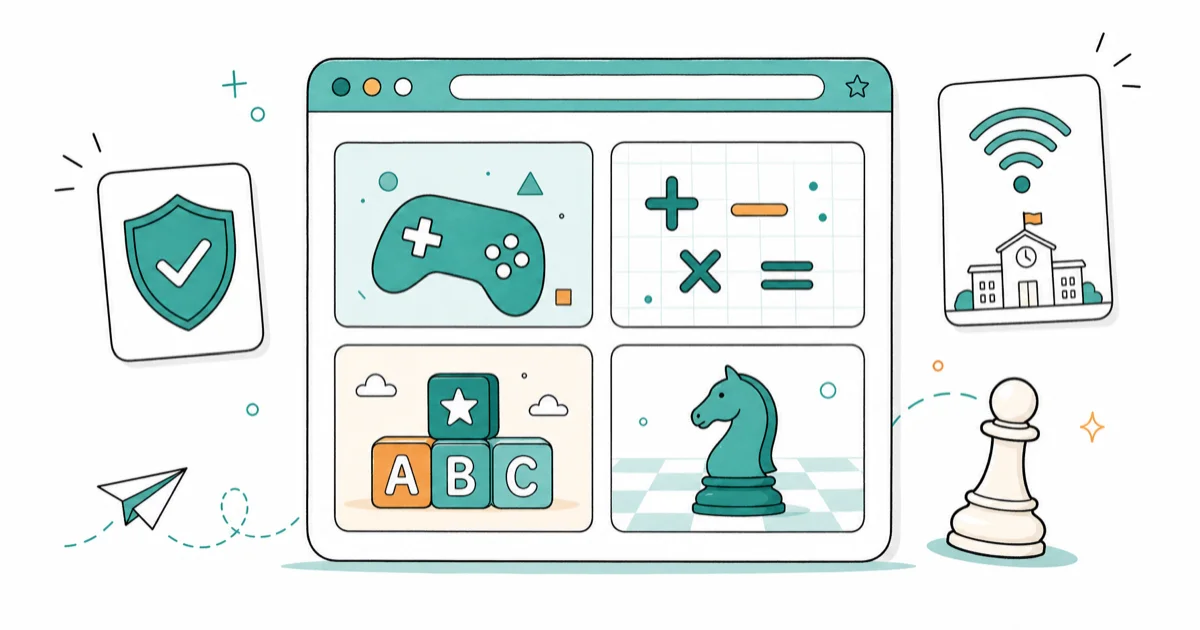
Quick AnswerCoolmath Games, HoodaMath, ABCya, and Chess.com tend to load on most school networks because districts whitelist their educational and family-safe domains. Stick to those rather than hunting around for games hidden behind proxy sites.
Most “unblocked games at school” lists send you to mirror sites that get blacklisted within a week. The 14 browser games below are the ones that load clean on a managed school Chromebook with no proxy tricks and no policy violations. The list is built around domains that districts already trust, which is why they keep working when classroom filters tighten up before exams.
- Coolmath Games, HoodaMath, and ABCya hold whitelist status on the most common K-12 web filters because GoGuardian and Securly classify them as educational.
- Browser-native classics like Chess.com, 2048, and Tetris run inside any modern Chromebook without installs, downloads, or browser extensions.
- These lightweight sites load fast on a typical school connection, which beats most game aggregator sites loaded with autoplay video.
- School networks log every request, so treat any game session as visible to the IT team and choose sites your district handbook already approves.
- Educational platforms like Vocabulary.com FreeRice and Legends of Learning are the safest pick because teachers actually use them inside lesson plans.
#Why Some Games Stay Unblocked While Others Don’t
School networks run domain-category filters, not game-by-game blocklists. According to GoGuardian’s filtering documentation, schools assign categories like Education, Games, and Productivity different access levels for different bell schedules. Sites tagged Education almost always stay open.

Sites tagged Games usually require a teacher override or only open during free periods. That’s why Coolmath Games loads when freegames-dot-whatever does not.
The second factor is the URL itself. Districts using Securly’s filtering platform flag any domain whose name contains “unblocked,” “proxy,” “free games,” or random number suffixes. Popular mirror sites routinely get blocked within weeks of catching on, while established educational domains keep loading without any change.
Sites with no clear educational classification usually fail the filter outright. The ones that load tend to be sites with strong domain age and clean ad networks. That tells you the filter cares about reputation, not just category tags.
#What Counts as a Safe School-Friendly Browser Game?
A school-friendly game has four traits: an educational or family-safe domain category, no required login or sign-up, no third-party ad networks loading from sketchy domains, and gameplay that works inside a single browser tab. Any site that asks for an email, pushes a download, or opens pop-up windows fails those criteria, which is how the list below stays short.
Browser-only delivery matters because most school Chromebooks block extension installs and lock down local app installs. The Chromebook student device admin guide describes how districts use Chrome Enterprise Upgrade to disable Chrome Web Store access for student accounts. If a game wants you to install something, it won’t run. The 14 picks below all run from a tab.
#Top Educational Sites That Schools Already Whitelist
These five domains routinely appear on the whitelist samples published in district acceptable-use policy documents. They’re the safest starting point because the filter category itself is “Education.”

#1. Coolmath Games
Coolmath Games hosts roughly 1,000 puzzle, logic, and strategy titles, including Run 3, Bloxorz, and Fireboy and Watergirl. According to Coolmath’s parent FAQ, the site is reviewed for COPPA compliance and serves no third-party tracking ads to logged-out visitors. The games play without an account prompt, and the pages load fast on a Chromebook.
#2. HoodaMath
HoodaMath leans heavily into curriculum-aligned math escape rooms and logic puzzles. The site groups games by grade level, which is why teachers regularly send students there during enrichment time. The Escape Games category is the most popular pick for middle-school students. No login needed, no ads beyond a single banner.
#3. ABCya
ABCya targets pre-K through 6th grade with math, reading, and typing games. The site appears on the National Education Association’s classroom resource list, which is why it loads on practically every elementary school network. Free play covers about 30% of the catalog without an account; the rest requires a teacher-managed login that schools provide.
#4. PBS Kids Games
PBS Kids Games offers character-driven educational games tied to PBS shows like Wild Kratts and Curious George. PBS Kids has a public no-advertising policy on its kids properties, which is why filters across all 50 states keep it open. Best for K-3 students or anyone who wants a clean, no-stress play session.
#5. National Geographic Kids
Nat Geo Kids runs animal trivia, geography puzzles, and quick action games tied to the magazine’s editorial content. The site asks for nothing beyond the click and runs ad-free for visitors under 13.
#Browser-Native Classics That Don’t Need Anything Installed
These games run on neutral domains that filters generally leave alone because the gameplay is universally school-safe. Each one loads clean on a standard Chromebook without a filter warning.

#6. Chess.com
Chess.com is the largest online chess platform in the world. The Play vs. Computer mode works without an account, with no login prompt or filter warning.
The site loads inside a single tab. No Flash, no plugins, no installs.
#7. 2048
The original 2048 by Gabriele Cirulli is a single-page web game with no ads, no login, and no tracking. The source code is open on GitHub, which is part of why districts trust it. The game weighs about 70 KB total per the Chrome network panel and it loads instantly even on slow Wi-Fi.
#8. Tetris
Tetris.com offers a free browser version through the official Tetris Holding site. The official URL matters here because most “free Tetris” mirror sites get blocked for ad-network reasons. The official site has minimal ads and runs cleanly. No download, no login, plays in any modern browser.
#9. Sudoku.com
Sudoku.com gives you four difficulty levels and a daily puzzle. It loads behind both GoGuardian and Securly filters on most networks. The site does include ads, but they come from Google’s vetted ad network, which is generally allow-listed at schools.
#10. Solitaire Bliss
Solitaire Bliss hosts Klondike, FreeCell, Spider, and Pyramid solitaire variants. The clean interface and absence of pop-up ads make it a reliable pick for short breaks. Card games of this type don’t trigger most “Games” category filters because they sit under “Productivity” or “Casual” classification.
#Educational Platforms Teachers Actively Encourage
These three platforms aren’t just safe at school. Many teachers assign them as part of class. If you want a game that won’t draw a side-eye from the teacher walking past, start here.
#11. Vocabulary.com (FreeRice)
FreeRice is the United Nations World Food Programme’s vocabulary quiz game that donates rice for every correct answer. The FreeRice impact page reports billions of grains donated since 2007. At the SAT-vocabulary level, the engine adapts difficulty based on streak length. Zero ads, zero downsides.
#12. Legends of Learning
Legends of Learning is a curriculum-aligned game library used by millions of teachers across the United States. Most schools provide students with a Clever or Google sign-in, which means the platform loads even on tightly filtered networks. The science and math game catalogs are the strongest sections.
#13. Quizlet Live
Quizlet Live turns flashcard sets into team-based games during class. The site loads on practically every K-12 network because Quizlet itself is whitelisted by GoGuardian and Securly. If your teacher hosts a game, joining it counts as classroom-approved screen time.
#14. Khan Academy Kids Games
Khan Academy hosts a small game and reward layer inside Khan Academy Kids and the main Khan platform. Like Quizlet, Khan Academy is on every standard whitelist because districts pay for accounts. Use the math and reading mini-games inside lessons, and the games count toward your assigned work.
#How Schools Decide Which Games to Block
Most K-12 districts now run cloud-based content filters like GoGuardian, Securly, Lightspeed, or Cisco Umbrella. Each filter assigns every domain a category, and the school decides which categories to allow during which class periods. According to Lightspeed Systems’ product page, the platform sorts traffic into categories such as Education, Games, Social Networking, and Streaming Media. A school might allow Education at all times but only allow Games during after-school hours.

Schools also block specific domains by request. A teacher who notices students spending half of class on a game site can ask IT to block it directly. This happens routinely once a site catches on. The fix is permanent for that domain, which is why mirror sites die so fast.
The reverse is also true: domains your school IT team trusts almost never get blocked. Khan Academy, PBS Kids, Coolmath Games, and Quizlet have been on standard education whitelists for over a decade.
#What to Avoid Trying at School
Avoid any site whose URL contains the word “unblocked,” “proxy,” “free,” or random number strings. These are the classic flag words that automated filters catch. Avoid sites that ask you to install a browser extension or download an app. Chrome Enterprise Upgrade typically blocks both, and the attempt itself can show up in your IT team’s activity log.
Avoid trying to defeat your school’s filter using a VPN extension, web proxy, or alternate DNS. The Children’s Internet Protection Act requires schools to maintain content filters as a condition of E-Rate funding, which means working around those filters is a policy violation in nearly every district.
Stick to school-friendly sites and you stay out of the disciplinary side of the conversation.
Also avoid games that require sign-up with a personal email. School-managed devices typically forward all login forms to the IT activity log, and giving your personal email to a third-party game site you don’t recognize is a bad habit even off-campus.
#Are There Mobile Games Worth Playing on Your School-Issued iPad?
If your school issues iPads, your IT team has likely set up restrictions through Apple School Manager. We’ve covered the iPad restriction rules students should understand in a separate guide. Most schools allow Numbers, Pages, Keynote, and a small set of educator-approved games like Prodigy or Khan Academy Kids. Trying to install other games will fail silently because the App Store is locked down.
For students who own personal devices and want to keep gaming time separate from school work, the browser games above hold up well as quick break options. Set strict time limits and treat your school device as work-only.
#Bottom Line
Open Coolmath Games or Chess.com first. They load on practically every school network, run inside a single browser tab, and never trigger the disciplinary side of your school’s acceptable use policy. If those don’t fit your taste, work down the list of educational platforms before bothering with anything called “unblocked.” Sites with that label get blacklisted in days, while educational domains have stayed open since 2010.
For after-school gaming, save your real game time for a personal device. The browser games above are designed for short breaks and tutoring time, not for replacing what you’d play at home.
If you want similar low-pressure picks with a bit more depth on personal hardware, our roundups of games like Cookie Clicker and games like Webkinz both include browser-friendly options, and our FarmVille alternatives guide covers casual farming picks.
Multiplayer fans can check our games like Jackbox list for party games that work over a video call. If your Chromebook keyboard acts up while playing, our Chromebook keyboard fix guide walks through the common causes.
If Roblox is what you wanted and the school Chromebook blocks it, our guide explains why managed Chromebooks refuse Roblox installs and the legitimate options.
#Frequently Asked Questions
Are unblocked games legal to play at school?
Playing browser games at school isn’t illegal, but it can violate your district’s acceptable use policy. Stick to educational sites the school has already whitelisted, like Coolmath Games or Chess.com. If your school handbook lists approved sites, use that list as the starting point.
Can the school see what games I’m playing on my Chromebook?
Yes. School Chromebooks managed through Google Workspace for Education log every URL visited and every search query. The IT team and any teacher with classroom-management tools like GoGuardian or Securly can see your activity in real time. Treat any session on a school device as fully visible.
Why do some game sites work one week and get blocked the next?
When too many students cluster on a specific site, IT teams add it to a domain block list. Mirror and proxy sites typically last days to weeks. Educational sites like HoodaMath, Coolmath, and ABCya have been allow-listed for years because schools actively want students to use them.
Will I get in trouble for trying to defeat my school’s web filter?
Most likely yes. Working around a school filter is a violation of nearly every district’s acceptable use policy and the Children’s Internet Protection Act. Consequences range from a warning to losing device privileges. The simpler path is to use sites already on the whitelist.
Can I play games on a school-issued iPad without installing anything?
Yes. Open Safari and visit Coolmath Games, Chess.com, or any of the educational platforms above. Browser games don’t trigger the App Store restrictions that Apple School Manager enforces. As long as the URL passes the content filter, the game runs.
Do I need a personal account to play these games at school?
Most school-friendly sites don’t require an account. Coolmath Games, HoodaMath, Chess.com, and 2048 all let you play without a login. Avoid creating accounts on game sites with a school email or your personal email; school-managed devices log every form submission.
What’s the fastest way to find games my school already approves?
Ask your teacher or check the school’s library website. Most district library pages list approved educational sites for student use. The platforms recommended by your librarian almost always pass the content filter because they’re already paid for or whitelisted by the IT department.
Fortnite Stuck on the Loading Screen? Fix It in 2026
Fortnite stuck on the loading screen? Check server status, fix the Windows N Media Pack and DirectX 11 on PC, clear the console cache, and verify files.
Minecraft Keeps Crashing? Java and Bedrock Fixes (2026)
Minecraft keeps crashing on startup or mid-game? Update your GPU driver, remove mods on Java, and reinstall Gaming Services on Bedrock. Fixes for both.
Pokemon GO Not Loading? Fix the Loading Screen 2026
Pokemon GO not loading or stuck on the Pokeball? Check server status, fix automatic date and time, grant location permission, clear the cache, and update.
PS5 Controller Not Charging? 9 Fixes That Work (2026)
DualSense not charging? Swap the cable, use a rear port in Rest Mode, clean the USB-C port, and check power settings. 9 fixes for a dead PS5 controller.