Fortnite Voice Chat Not Working? 9 Proven Fixes (2026)
Fortnite voice chat not working? 9 proven fixes for PC, Xbox, PS5, Switch, and mobile. Covers mic setup, Party vs Game channel, DNS, and privacy settings.
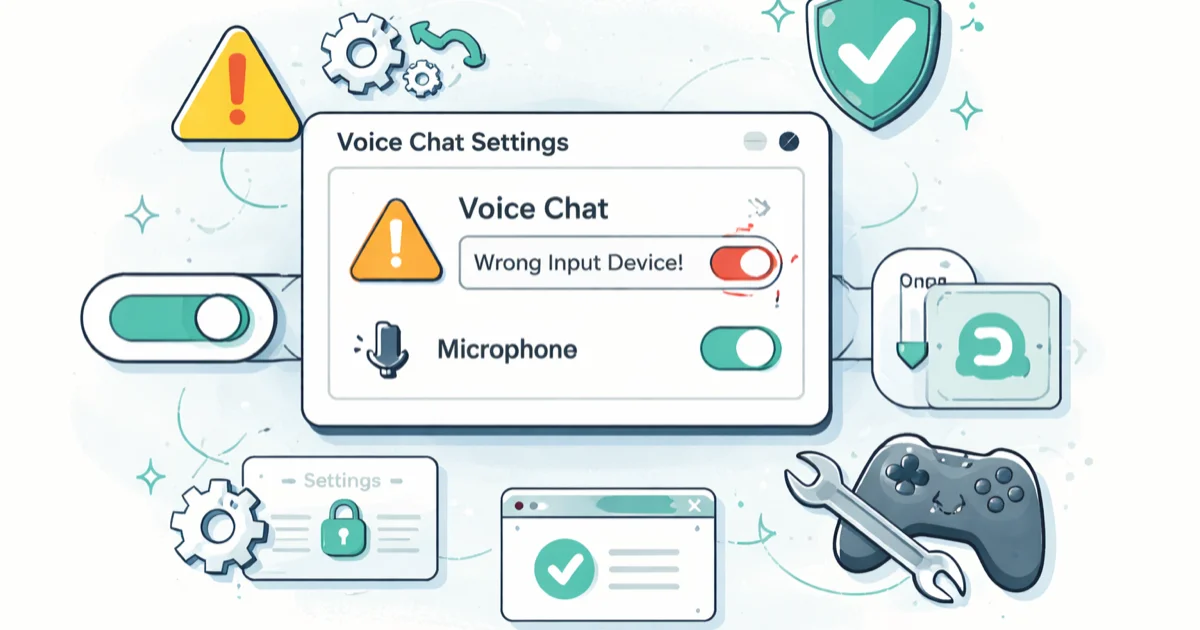
Quick AnswerFortnite voice chat usually fails because the wrong input device is selected, platform privacy settings block chat, or the party channel is muted. Check Epic's voice chat status page first, then switch your party to Party Channel and set microphone permissions to allow Fortnite on Windows, Xbox, or PlayStation.
Fortnite voice chat not working usually comes down to three things: the wrong microphone selected on your device, a platform-level privacy block, or the party dropped into Game Channel instead of Party Channel. The fixes in this guide cover Windows PCs, Xbox, PlayStation, Switch, and mobile, and the same handful of causes accounts for most reports across every platform.
Using these methods on devices or accounts you don’t own may violate applicable laws and platform terms.
- Epic’s Fortnite status page is the first stop because voice outages sometimes hit only the voice service while matchmaking stays green
- Party Channel lets you talk to your squad, Game Channel broadcasts to the whole lobby, and switching between them takes 2 taps in the Social menu
- Xbox privacy defaults block voice chat for child accounts until a parent opens the Xbox Family dashboard and flips “Others can communicate” to Friends or Everyone
- PS5 voice chat fails silently if the headset is plugged into the controller AND the console has Chat Audio routed to TV speakers
- Changing DNS to Cloudflare 1.1.1.1 or Google 8.8.8.8 resolves the “voice chat unavailable” error tied to ISP DNS caching stale Epic endpoints
#Five Reasons Voice Chat Fails in Fortnite
The cause almost always falls into one of five buckets. Knowing which one saves 20 minutes of random fixing. Voice chat on Fortnite rides on a separate Epic service from matchmaking, so the game can work perfectly while the chat layer silently drops.
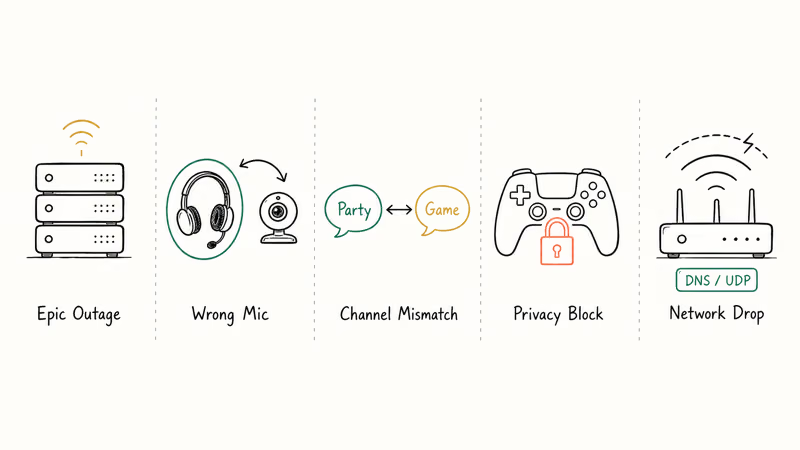
Here are the five buckets. First, Epic voice service outage: status.epicgames.com lists a separate “Voice chat” row under the Fortnite section, and it turns amber independently of the main game status. Second, wrong input device on the OS: Windows, macOS, and consoles all default to the most recently connected audio device, and a USB webcam mic or laptop built-in mic often wins over the headset you actually want.
Channel mismatch is the third cause. Party Channel vs Game Channel is the single most common reason teammates can’t hear each other mid-match. Fourth is a platform privacy block on Xbox, PlayStation, and Switch. Fifth is a network or DNS drop tied to UDP ports 3478-3479, which some ISP routers reset aggressively.
According to Epic’s voice chat troubleshooting guide, the three most reported fix paths are restarting the game, switching the party channel, and re-enabling Voice Chat in Settings. Start with the status page and the channel check before touching drivers.
#How Do You Fix the Microphone on Windows 11 or 10?
Windows grabs the wrong mic more often than any other platform. Fortnite pulls whatever Windows hands it as the default communications device, and that default resets every time you plug in a new USB audio device. Plug in a USB headset the day after using a webcam for a meeting, for instance, and Fortnite can grab the webcam’s built-in mic so your squad hears room noise instead of your voice.
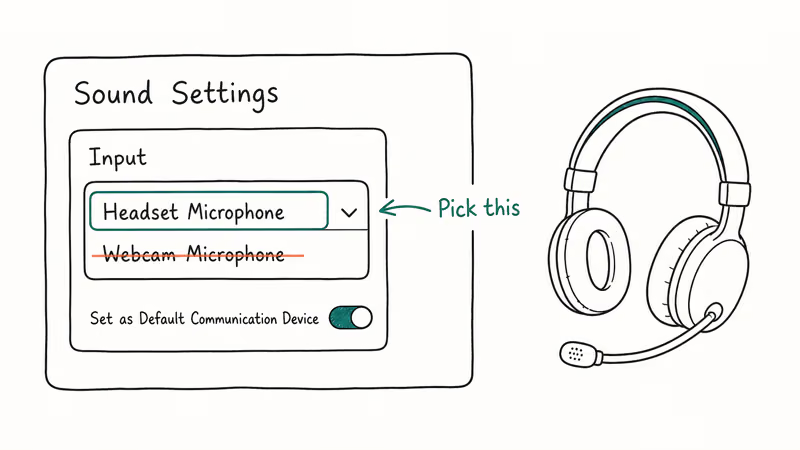
Open the Windows sound panel and set the input explicitly:
- Press Windows + I to open Settings, then go to
System>Sound. - Under Input, click the device name and pick your headset mic, not “Microphone Array” or the webcam.
- Click More sound settings at the bottom, then the Recording tab.
- Right-click your headset mic and choose Set as Default Communication Device.
- Click
Properties>Levelsand set the mic volume to 80-100 and boost to 0 dB.
Next, check Fortnite’s microphone permission. Microsoft tightened app-level mic access in Windows 11 22H2, and the permission is OFF by default for games installed through Epic Games Launcher.
Go to Settings > Privacy & security > Microphone. Toggle Microphone access to On, toggle Let apps access your microphone to On, and scroll to Let desktop apps access your microphone and make sure it’s On too. The last toggle is the one that trips up the most players because it’s several scroll-screens below the others, and it’s a separate grant from the Microsoft Store app permission most guides stop at.
Microsoft’s Windows 11 microphone documentation confirms that desktop apps like Fortnite are controlled by a separate toggle from Microsoft Store apps. Miss that toggle and no permission prompt ever fires.
Restart Fortnite completely after changing permissions. Alt-tabbing back in won’t pick up the change because Epic caches the audio device on launch. Close the launcher too, not just the game window. The mic change takes effect only after a full Epic Games Launcher relaunch, not a soft quit from the tray.
If Windows still can’t see the mic at all, the driver might be the issue. Check for outdated audio drivers through Device Manager, and also confirm the Razer Synapse or similar utility isn’t crashing on startup because those conflicts kill USB headset recognition.
#Fixing Xbox Voice Chat
Xbox voice chat in Fortnite breaks for three reasons: an account under 18 with default privacy, a bad controller headset jack, or the Chat Mixer pinned to Game. The privacy block is the most common, and Fortnite blocks voice silently with no error message, which makes it hard to diagnose at first. The reasons below walk through each path in turn so you can rule them out quickly.

Check the privacy settings first:
- Press the Xbox button on the controller.
- Go to Profile & system >
Settings>Account>Privacy &online safety > Xbox privacy. - Choose View details & customize > Communication & multiplayer.
- Set Others can communicate with voice, text, or invites to Friends or Everybody.
- Set You can communicate outside of Xbox Live with voice & text to Everybody.
Microsoft’s Xbox family settings page states that child accounts under 13 need a parent to change these from the Xbox Family Settings app, and the change won’t stick until the parent confirms it on their device.
The Chat Mixer is the second sneaky culprit. Hold the Xbox button, go to Audio & music, and drag the Chat/Game slider toward the center. If it’s pinned all the way to Game, your teammates are there but you can’t hear them over gunfire. System updates sometimes reset audio preferences and pin this slider back to Game, so it’s worth re-checking after any console update.
Child accounts need extra steps. Fortnite reads the Xbox parental control settings directly, and the Epic account can add its own lock on top. The two settings live in different dashboards, so both need a pass.
Thermal issues can masquerade as voice issues too. If voice works but the console feels sluggish between matches, it might be time to check why your Xbox is so slow because throttling kills voice mid-session and looks identical to a server issue.
#Fixing PS5 and PS4 Voice Chat
PlayStation 5 voice chat in Fortnite fails in a subtle way that’s easy to miss. The headset routes fine through the controller jack, but console-level Chat Audio stays pointed at the TV speakers, so teammates hear you but you hear them through the TV with a noticeable echo. The fix is a single audio setting most players never open.
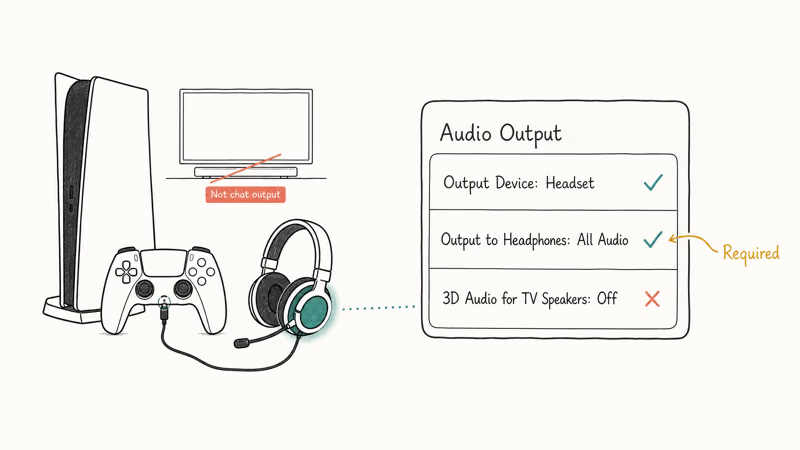
Set the chat output correctly:
- Go to
Settings>Sound>Audio Output. - Under Output Device, pick your headset (USB or Bluetooth).
- Set Output to Headphones to All Audio.
- Disable 3D Audio for TV Speakers if the headset is connected.
Sony’s PS5 audio output documentation confirms that “Output to Headphones: All Audio” is required to hear party voice through a headset when connected to the DualSense. Chat Audio Only mutes game audio but keeps voice, which is the opposite of what most players want.
For PS4, the path is Settings > Devices > Audio Devices > Output to Headphones: All Audio. Same logic applies. The default on a fresh PS4 is Chat Audio only.
Both consoles need party privacy open too. Go to Settings > Account Management > Privacy Settings > Voice Chat (or Players and gameplay on PS5) and allow voice from friends or anyone. PlayStation’s parental controls documentation recommends reviewing communication restrictions for child accounts.
Heat matters too. After a few hours of continuous play, a warm PS5 can start dropping voice connections. The fix is checking whether the PS5 is lagging and power cycling if thermals look high.
#Nintendo Switch Voice Chat Setup
Nintendo Switch voice chat in Fortnite is weirder than other platforms because Nintendo historically routed in-game voice through a smartphone app. That changed with Fortnite chapter 4, which added native console voice chat on Switch. According to Nintendo’s Fortnite voice chat support article, native chat works through a wired 3.5mm headset or any Bluetooth headset paired in System Settings > Bluetooth Audio.
Two settings commonly block it. First, Bluetooth Audio not enabled: go to System Settings > Bluetooth Audio and pair the headset. Only one Bluetooth audio device can connect at a time, and the Switch blocks the connection if two controllers are already paired.
Second, Parental Controls restrict communication. Flip the toggle on.
If you’re on Switch OLED or Switch 2 with a docked setup, plug the headset into the dock’s 3.5mm jack, not the Switch itself, because the dock route bypasses the Bluetooth pairing limit entirely.
#Switching Between Party Channel and Game Channel
The Party vs Game channel mistake is the most common reason squads think voice chat is broken when it’s actually fine. Party Channel lets your 2-4 person squad talk privately. Game Channel opens voice to everyone in the 100-player lobby and is enabled for only specific modes like Squad Fill.
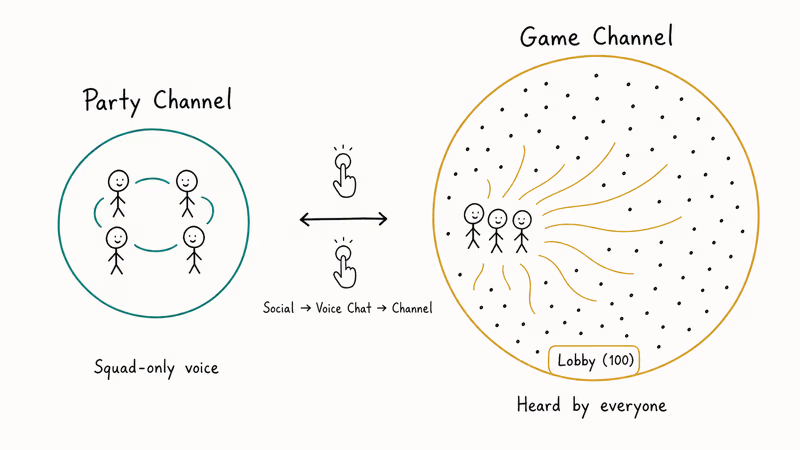
Switch your party in 2 taps:
- Press the Social button (or hit
Escape>Socialon PC). - Select Voice Chat at the top.
- Under Channel, pick Party for squad-only voice, or Game if the mode supports it.
Two extra checks catch most Party Channel failures. Voice Chat volume must be above 0 in Settings > Audio, and this resets to 0 after some Fortnite updates. Push to Talk is the other one: if enabled, your assigned key or button must be held to transmit, and open-mic is easier for most squads.
Epic’s Fortnite audio settings help article confirms that the Voice Chat volume and Party Channel toggle are the two most-adjusted settings when a voice issue is reported.
#What If the Epic Server or Your Network Is the Problem?
When the above fixes don’t work, the issue is usually network-side. Fortnite voice uses UDP ports 3478-3479 (Epic voice service) plus 5222 (chat signaling), and some ISP routers reset those connections aggressively. DNS caching also plays a role because Epic rotates voice endpoints and stale ISP DNS entries point to offline servers.
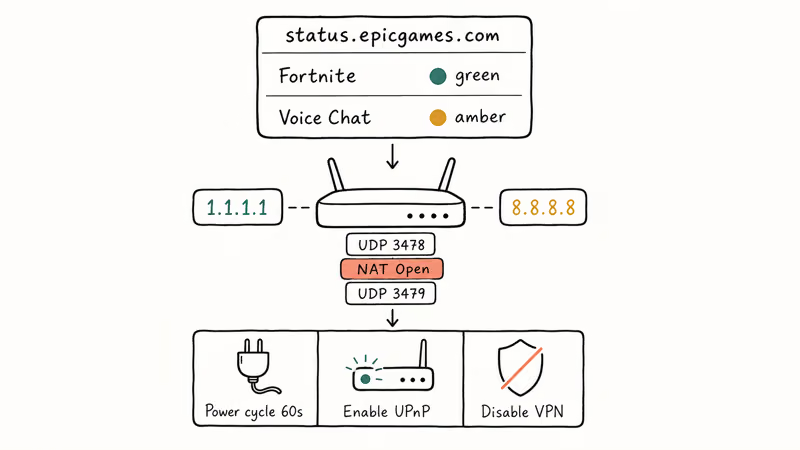
Try these network fixes in order:
- Check Epic’s voice chat status at status.epicgames.com and expand the Fortnite section. A green Fortnite with amber Voice Chat means Epic’s voice service is down and no client-side fix will help.
- Change DNS to Cloudflare 1.1.1.1 or Google 8.8.8.8 on your console or router.
- Power cycle the router by unplugging it for 60 seconds to clear the NAT table.
- Enable UPnP on the router so Fortnite can open voice ports automatically.
- Disable VPN if you’re running one, because voice frequently breaks through commercial VPNs.
Cloudflare states that 1.1.1.1 is their free public DNS service tuned for consumer internet. ISP DNS servers often cache Epic endpoints for 24 hours or longer, and that cache can point to retired voice infrastructure.
If voice works briefly and then drops, NAT type is the likely culprit. Fortnite prefers NAT Type Open (1) on consoles. Type Moderate (2) or Strict (3) will connect to matchmaking but kill voice chat within 5-10 minutes. Port forward the UDP ports above or enable UPnP to fix NAT type.
#Mobile Voice Chat on iOS and Android
Fortnite on iPhone, iPad, and Android returned to app stores in 2024-2025 (Epic Games Store on Android, AltStore on iOS in EU), and mobile voice chat has its own failure patterns. The biggest one: iOS denies microphone permission by default, and Fortnite asks once at first launch. If you missed or denied that prompt, the setting won’t auto-prompt again.
Fix iOS microphone permission:
- Open the iOS Settings app.
- Scroll to Fortnite in the app list.
- Toggle Microphone to On.
- Force-quit Fortnite (swipe up from the app switcher) and relaunch.
For Android, go to Settings > Apps > Fortnite > Permissions > Microphone and set it to Allow only while using the app. Samsung devices also have a separate Sensitive permissions toggle under Fortnite’s app info that can override the main Microphone setting.
If the mic is physically working (test it with the iPhone Voice Memos app or a recorder on Android) but Fortnite still can’t hear you, check the in-game audio settings the same way as on PC or console. Push-to-talk is often enabled by default on mobile to save battery, and the tap-to-transmit button appears as a small microphone icon on the HUD.
One more wrinkle hits streamers. If voice works in Fortnite but Discord stream has no sound, the issue is Discord’s screen-share audio routing, not Fortnite’s mic.
#Bottom Line
Start with the Epic voice chat status page because a red voice row with a green game row is the one failure no client fix can solve. If status is green, switch your party from Game to Party Channel in 2 taps, which alone fixes a large share of the voice complaints posted on Reddit’s r/FortniteBR.
From there, check platform privacy (Xbox Family Settings, PS5 Privacy, Switch Parental Controls) before touching drivers or DNS. The driver and port forwarding fixes work, but they take 15-30 minutes and should be the last resort. Squads on Xbox with child accounts should start at the Xbox Family dashboard.
#Frequently Asked Questions
Why can I hear my teammates but they can’t hear me?
Your output is routing correctly but your input device is wrong. Windows or the console is sending audio from a different microphone (laptop built-in, webcam, or an old Bluetooth headset) that isn’t near your mouth. Set your headset as the Default Communication Device on Windows, or check Output to Headphones: All Audio on PS5. Also confirm you’re not accidentally muted with the headset’s physical mute switch or the Fortnite push-to-talk key.
Does Fortnite voice chat work cross-platform between PC and console?
Yes, across PC, Xbox, PlayStation, and Switch. Each player just needs their platform cross-network voice toggle set to Allow.
Why does Fortnite voice chat keep cutting out mid-match?
NAT type or thermal throttling are the two most likely causes when voice connects fine but drops 5-10 minutes in. Open your console or router settings, check NAT type (aim for Open or Type 1), and enable UPnP so Fortnite can hold its UDP ports open. On PS5 specifically, drops around the 3-hour mark often correlate with the console heating up and throttling background services.
Can I use a Bluetooth headset for Fortnite voice chat on Switch?
Yes, since the September 2021 system update. Pair the headset under System Settings > Bluetooth Audio, and the Switch routes Fortnite voice through it. One limitation sticks: only one Bluetooth audio device can connect at a time, and the system blocks the pairing if two Bluetooth controllers are already in use.
Is there a fix for the “Voice chat unavailable” error specifically?
This one is almost always DNS-related. Switch DNS to 1.1.1.1 and restart Fortnite.
What if I can hear game audio but voice chat has zero sound?
You’re likely on the wrong voice channel. Press Escape, open Social, go to Voice Chat, and confirm the channel is set to Party (not Game) if you’re trying to talk to your squad. Also check that Voice Chat volume in Settings > Audio isn’t at 0. Fortnite updates occasionally reset this to 0.
Do I need Discord if Fortnite voice chat is working?
No. Many squads still prefer Discord for cross-game chat.
How do I test my microphone before joining a Fortnite match?
Use the Windows Voice Recorder app (built-in on Windows 11), the macOS QuickTime Player > File > New Audio Recording, or the Xbox Party app’s voice test. On PS5, go to Settings > Sound > Microphone > Adjust Microphone Level and watch the meter move while you speak. Seeing the meter respond confirms the hardware works, leaving Fortnite settings as the remaining variable to fix.

Fortnite Stuck on the Loading Screen? Fix It in 2026
Fortnite stuck on the loading screen? Check server status, fix the Windows N Media Pack and DirectX 11 on PC, clear the console cache, and verify files.

Minecraft Keeps Crashing? Java and Bedrock Fixes (2026)
Minecraft keeps crashing on startup or mid-game? Update your GPU driver, remove mods on Java, and reinstall Gaming Services on Bedrock. Fixes for both.

Pokemon GO Not Loading? Fix the Loading Screen 2026
Pokemon GO not loading or stuck on the Pokeball? Check server status, fix automatic date and time, grant location permission, clear the cache, and update.

PS5 Controller Not Charging? 9 Fixes That Work (2026)
DualSense not charging? Swap the cable, use a rear port in Rest Mode, clean the USB-C port, and check power settings. 9 fixes for a dead PS5 controller.