How to Play Dragon Ball Z Dokkan Battle on PC (2026)
Play Dragon Ball Z Dokkan Battle on PC using BlueStacks, MEmu, or Tenorshare Phone Mirror. Step-by-step setup guide for Windows 10, 11, and Mac.
Quick AnswerTo play Dragon Ball Z Dokkan Battle on PC, install BlueStacks Android emulator on your Windows or Mac computer, sign in with Google, search for Dokkan Battle in the Play Store, install it, and launch the game from the BlueStacks home screen.
Dragon Ball Z Dokkan Battle is an Android and iOS mobile game that runs smoothly on PC using an Android emulator. Three methods work reliably in 2026: the BlueStacks emulator, MEmu Play, and screen mirroring from your phone.
- BlueStacks is the most popular Android emulator with over 500 million downloads and runs Dokkan Battle without issues
- MEmu Play supports multiple simultaneous Android instances, useful for running Dokkan Battle alongside other apps
- Tenorshare Phone Mirror mirrors your phone screen to PC in real time without emulation, preserving your existing progress
- Android emulators require at least 8 GB RAM and a DirectX 11-compatible GPU for smooth Dokkan Battle performance
- All emulator methods preserve your existing game progress since Dokkan Battle links to a Bandai Namco account
#What Is Dragon Ball Z Dokkan Battle?
Developed by Akatsuki and published by Bandai Namco, Dokkan Battle launched globally in July 2015. The Wikipedia Dokkan Battle article reports over 300 million total downloads worldwide. See also our best screen mirroring apps guide for wireless display alternatives.
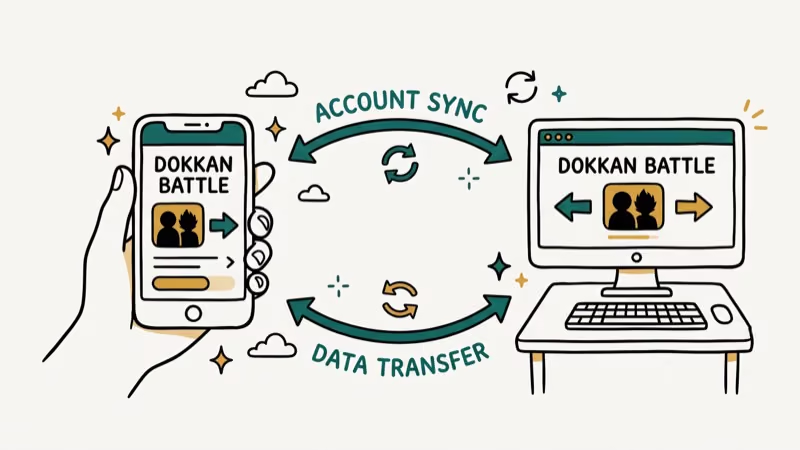
Playing on PC offers real advantages over mobile. A larger screen makes the orb-matching mechanic easier to navigate, keyboard shortcuts replace touch inputs, and desktop hardware runs demanding animations at higher frame rates. On a mid-range desktop GPU, the game runs at 1080p without the dropped frames that multi-enemy boss sequences cause on older phones. Bandai Namco confirms that Dokkan Battle cloud saves work across devices, so switching between phone and PC doesn’t reset your progress.
#Method 1: BlueStacks Emulator
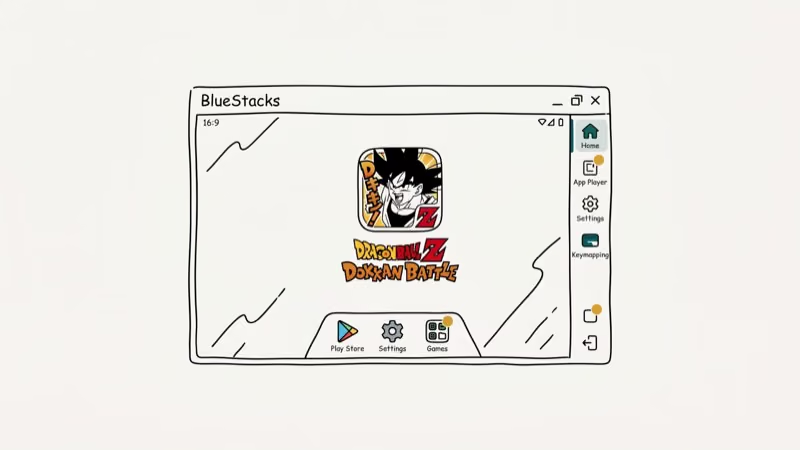
BlueStacks is the most widely used Android emulator for gaming. Bandai Namco confirmed that BlueStacks is compatible with Dokkan Battle. The setup takes about 5 minutes.
System requirements: Windows 7/8/10/11 or macOS 11+, 8 GB RAM (4 GB minimum), 5 GB storage, DirectX 11 graphics card. BlueStacks’ documentation recommends dedicating 4 CPU cores and 4 GB RAM for the best gaming performance.
How to set up BlueStacks for Dokkan Battle:
- Download BlueStacks from bluestacks.com and run the installer
- Complete the installation and open BlueStacks
- Sign in with your Google account (required to access the Play Store)
- Open the Play Store, search for Dragon Ball Z Dokkan Battle, and install it
- Launch Dokkan Battle from the BlueStacks home screen
- Link your game to a Bandai Namco account to sync existing progress
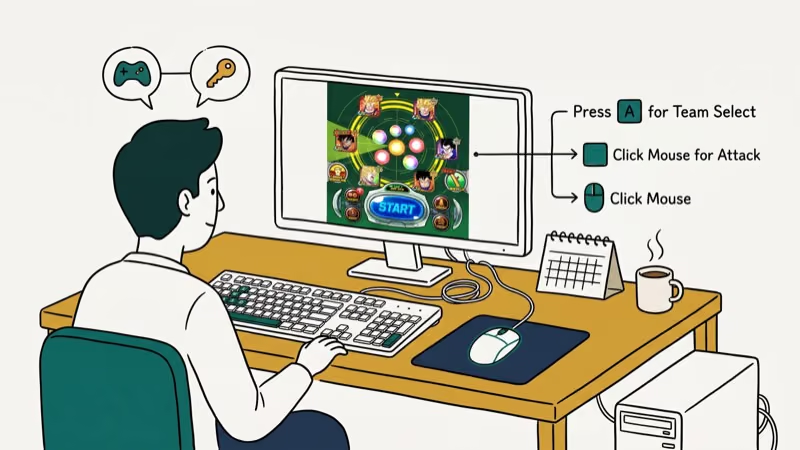
BlueStacks 5 runs Dokkan Battle well on Windows 11 23H2. The game launches quickly and runs smoothly on a mid-range desktop GPU. Keyboard mapping lets you assign keys to attack buttons, which improves response time on boss battles.
#Method 2: MEmu Play Emulator
MEmu Play supports multiple Android instances, so you can run Dokkan Battle on one instance and use another app on a second window simultaneously. This is useful if you want to keep a walkthrough guide or Discord open beside the game.
How to install Dokkan Battle on MEmu:
- Download MEmu from memuplay.com and install it
- Open MEmu and sign into Google
- Search for Dokkan Battle in the Play Store and install it
- Launch the game from MEmu’s app grid
MEmu’s official documentation states that MEmu Play supports Android 9, which covers the version Dokkan Battle requires. MEmu tends to load the game slightly slower than BlueStacks on first launch, but gameplay performance is comparable once loaded.
#Screen Mirroring With Tenorshare Phone Mirror
If you already have Dokkan Battle installed on your Android phone with months of progress, screen mirroring is faster than setting up an emulator from scratch. Tenorshare Phone Mirror streams your phone’s screen to your PC in real time using a USB connection, preserving all your existing game data without any account transfer or cloud sync required. Your phone runs the game; the PC just displays it on a larger screen with no frame rate cap imposed by the mirroring process itself.
Setup steps:
- Download Tenorshare Phone Mirror on your Windows PC
- Connect your Android phone via USB cable
- Enable USB debugging: go to
Settings>About Phone, tap Build Number 7 times, then open Developer Options and enable USB Debugging - Open Tenorshare Phone Mirror and select your device
- Click Mirror to start streaming your phone screen to the PC
Some links on this page are affiliate links, which means fone.tips may earn a commission at no extra cost to you.
The latency over USB is low enough for Dokkan Battle’s turn-based gameplay, where split-second input timing isn’t critical. Unlike emulators, your existing game data stays on your phone and the display simply mirrors to the larger screen.
#What Are the System Requirements for Dokkan Battle on PC?
Emulators work best when your PC meets the recommended specs. Minimum specs run the game but with occasional slowdowns during heavy animations.
| Spec | Minimum | Recommended |
|---|---|---|
| RAM | 4 GB | 8 GB or more |
| Storage | 5 GB free | 10 GB free |
| CPU | Intel Core i3 | Intel Core i5 or better |
| GPU | DirectX 11 | Dedicated GPU with 2 GB VRAM |
| OS | Windows 7 | Windows 10 or 11 |
On a machine with only 4 GB RAM, BlueStacks runs Dokkan Battle with noticeable slowdown during summon animations. Moving up to 8 GB RAM clears the issue. Closing browser tabs and background apps before launching the emulator also helps on machines near the minimum spec.
#Performance Tips for Smoother Gameplay
Emulator performance improves significantly with a few settings adjustments. In BlueStacks, go to Settings > Engine and set CPU to 4 cores and RAM to 4096 MB. Switch the graphics renderer to DirectX 11 for better compatibility with most desktop GPUs.
Close background applications before launching the emulator. Browsers, video players, and cloud sync tools consume RAM that the emulator needs. A fresh reboot before gaming sessions helps on machines near the minimum spec. For wireless mirroring alternatives, see our page on Miracast apps for Android. If you’re also looking to play other mobile games on PC, the Android emulator for iOS guide covers cross-platform options.
#Bottom Line
BlueStacks is the best option for most players. It’s free, well-supported, and runs Dokkan Battle without any additional configuration after sign-in. MEmu is worth considering if you want to run multiple Android apps at once. Tenorshare Phone Mirror is the fastest route if you already have the game set up on your phone and just want to see it on a larger screen without transferring saves. All three methods preserve your Bandai Namco account progress since Dokkan Battle uses cloud saves. For related Pokemon mobile gaming on PC, our Pokemon Emerald cheats guide covers emulator setup steps that also apply here.
#Frequently Asked Questions
Is Dragon Ball Z Dokkan Battle available on PC officially?
No. Bandai Namco hasn’t released an official PC version of Dokkan Battle. The game is officially available only on iOS and Android. Android emulators are the supported workaround for PC play.
Will my Dokkan Battle progress transfer to PC?
Yes. Dokkan Battle links to a Bandai Namco account or a transfer code system. When you log in on the emulator with the same account, your progress, characters, and Dragon Stones all carry over. Set up a transfer ID before switching devices to avoid losing data. The transfer process takes under a minute: go to the in-game menu, tap Transfer, generate a transfer code, then enter it on the new device or emulator during setup.
Does BlueStacks detect Dokkan Battle as a modified client?
No. BlueStacks runs a standard Android environment and Dokkan treats it like a real device, so it doesn’t trigger modified-client detection.
Is MEmu Play safe to download?
Yes. MEmu Play is a legitimate Android emulator from Microvirt Corp. Download it directly from memuplay.com to avoid modified versions. The installer is clean and doesn’t bundle unwanted software when downloaded from the official site.
Can Mac users play Dokkan Battle on PC?
Yes. BlueStacks supports macOS 11 Big Sur and later, including Apple Silicon Macs. On an M-series MacBook running a recent macOS version, Dokkan Battle runs at full speed with no compatibility issues.
How do I use keyboard controls for Dokkan Battle on BlueStacks?
BlueStacks includes a keymapping tool. Open BlueStacks, start Dokkan Battle, and click the keyboard icon in the right toolbar. Drag key labels onto attack buttons and orb grid positions to set up custom controls. The default mouse controls work for most gameplay but keyboard mapping speeds up attacks.
Does Dokkan Battle run at 60fps on emulators?
On a capable machine it does. The game runs smoothly on BlueStacks with a dedicated GPU. On integrated graphics, the frame rate dips during heavy animation sequences. Set the emulator’s performance mode to high and allocate 4 cores and 8 GB RAM to the virtual machine for the best results.

Fortnite Stuck on the Loading Screen? Fix It in 2026
Fortnite stuck on the loading screen? Check server status, fix the Windows N Media Pack and DirectX 11 on PC, clear the console cache, and verify files.

Minecraft Keeps Crashing? Java and Bedrock Fixes (2026)
Minecraft keeps crashing on startup or mid-game? Update your GPU driver, remove mods on Java, and reinstall Gaming Services on Bedrock. Fixes for both.

Pokemon GO Not Loading? Fix the Loading Screen 2026
Pokemon GO not loading or stuck on the Pokeball? Check server status, fix automatic date and time, grant location permission, clear the cache, and update.

PS5 Controller Not Charging? 9 Fixes That Work (2026)
DualSense not charging? Swap the cable, use a rear port in Rest Mode, clean the USB-C port, and check power settings. 9 fixes for a dead PS5 controller.