Apple Watch Not Tracking Steps? 7 Proven Fixes (2026)
Apple Watch not counting steps or counting wrong? Fix wear placement, motion permissions, calibration, sync issues, and reset choices safely.
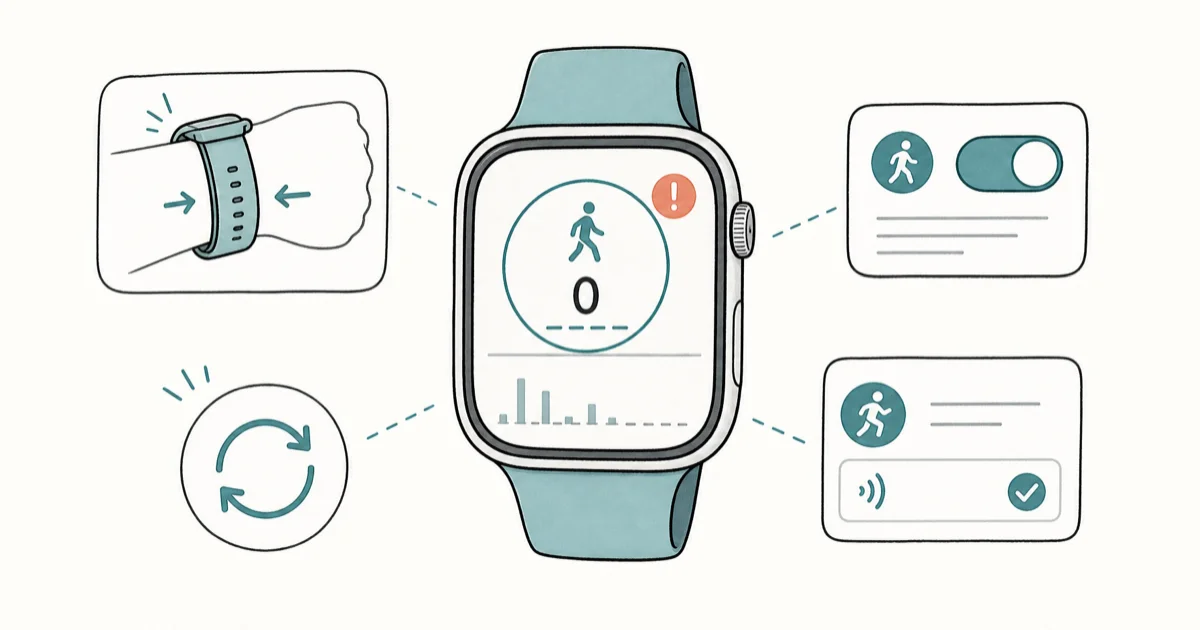
Quick AnswerCheck how you wear it first. A loose band, a sleeve between watch and skin, or wearing it on your dominant wrist throws off the motion sensor more than any software bug. Then confirm Motion Calibration and Fitness Tracking are on.
Apple Watch not tracking steps is usually a wear or settings problem, not a broken sensor. Before you reset anything, the fix is often as simple as tightening the band or flipping one permission back on. Start with the free, non-destructive fixes before you reset calibration data.
- How you wear the watch matters most; a loose band or a sleeve between watch and skin starves the motion sensor.
- Motion Calibration & Distance and Fitness Tracking are two separate permissions, and both must be on to count steps accurately.
- Your height and weight in Health set your stride length, so wrong personal data skews every step count.
- A 20-minute outdoor calibration walk with good GPS retrains the sensor after an update.
- Reset Fitness Calibration Data wipes your history, so save it for absolute last; Reset Sync Data is the safe step before it.
#Why Is Your Apple Watch Not Tracking Steps?
The Apple Watch counts steps with a motion sensor on your wrist, calibrated by GPS and your personal data. When the count goes wrong, the cause is almost always one of three things: how you wear it, a disabled permission, or stale calibration.
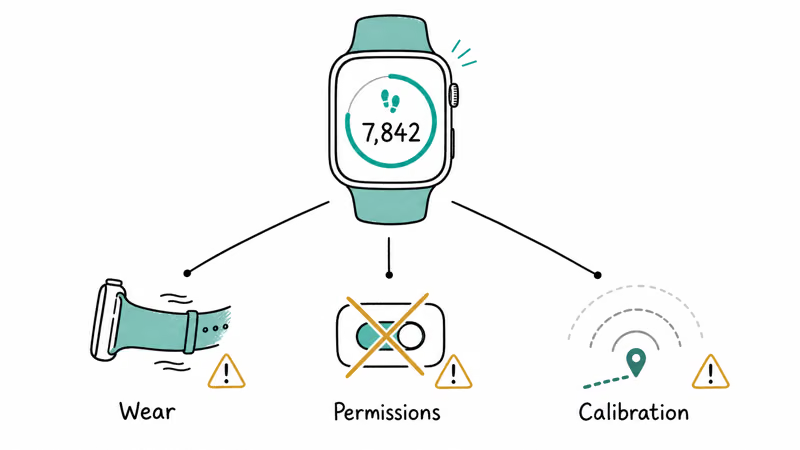
That ordering matters. A reset can’t fix a watch flopping loose on the wrong wrist.
According to Apple’s Apple Watch calibration guide, accuracy depends on Motion Calibration, your personal data, and a proper outdoor calibration walk. Start with the cheapest and safest items first.
#Wear the Watch Snugly on Your Non-Dominant Wrist
Wear comes first because it fixes the most cases. The motion sensor needs steady skin contact to read your stride, and a band that slides around feeds it garbage.
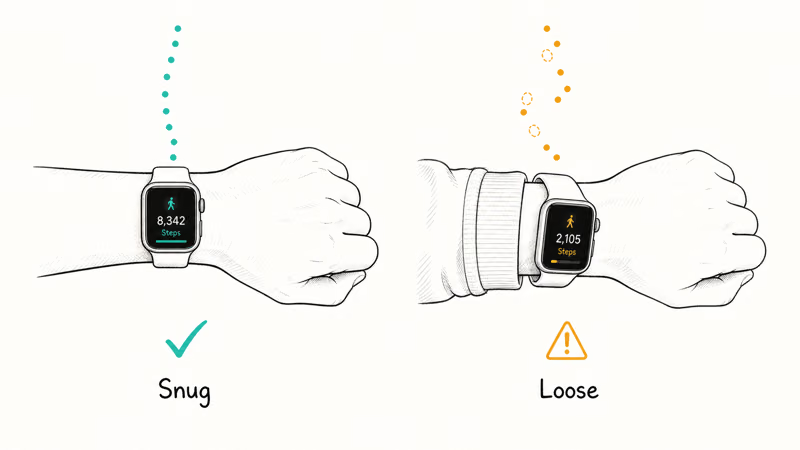
Tighten the band so the watch stays put but doesn’t dig in. Wear it on the back of your wrist, on your non-dominant arm, with no sleeve or sock between the watch and your skin. A watch worn over a sleeve, tucked in a pocket, or strapped to a stroller misses steps badly.
A loose band or fabric between the sensor and your skin can look like a software failure even when the watch is working normally. Apple gear is full of these wear-and-contact quirks, the same way AirPods playing in one ear often comes down to fit rather than a fault.
#Turn On Motion Calibration and Fitness Tracking
Two separate permissions feed step tracking, and either one off will stop the count. People flip these off by accident or after a privacy cleanup.
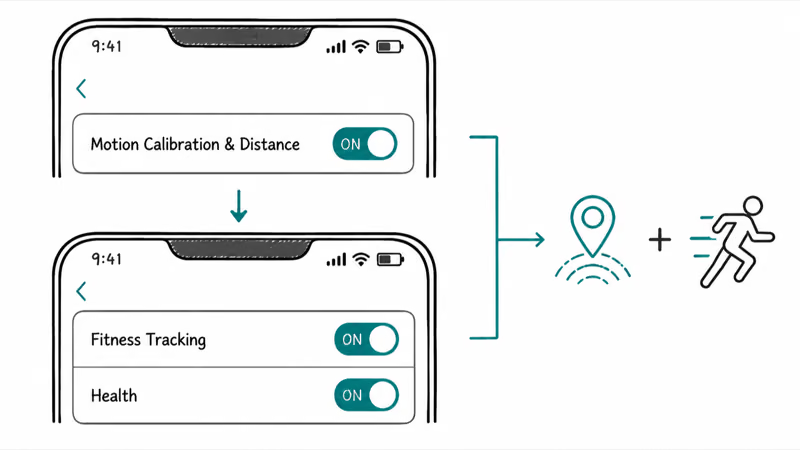
On your iPhone, go to Settings > Privacy & Security > Location Services > System Services and turn on Motion Calibration & Distance. This lets GPS refine the motion data your watch collects.
Next, go to Settings > Privacy & Security > Motion & Fitness and switch on both Fitness Tracking and Health. Apple’s support page confirms that 2 settings, location-based calibration and fitness tracking, drive the accuracy of distance and step data. If either is off, fix it before anything else.
These are your own privacy settings on your own watch and iPhone, so turning them on only affects the health data tied to your account. Under Apple’s privacy policy, that fitness data stays encrypted and private to you.
#Update Your Personal Data and Calibrate Outdoors
Your watch estimates stride length from your height and weight. If those are wrong or missing, every step count drifts.
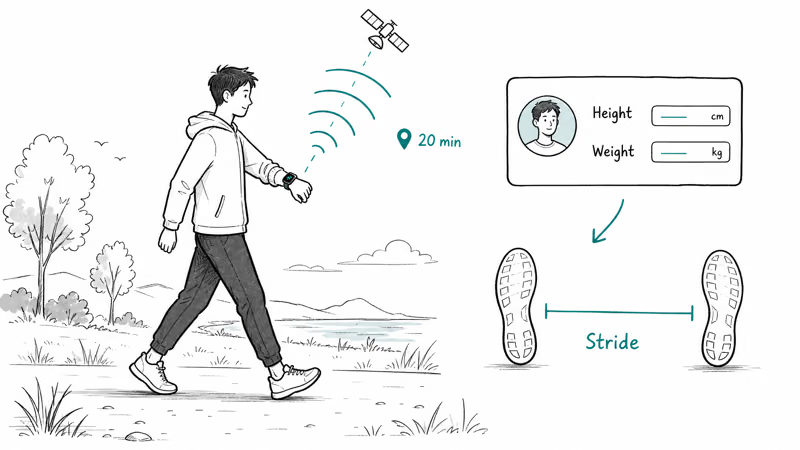
Open the Health app, tap your profile, and confirm your height, weight, age, and sex are current. Then do a calibration walk. Apple recommends walking or running at your normal pace for 20 minutes outdoors in a flat, open area with strong GPS, which you can split across several sessions. Apple’s activity-tracking guide explains how those step and distance readings feed the daily Activity rings, so a miscalibrated sensor throws off your Move and Exercise totals too.
The watch needs that real-world GPS reference to recalibrate its motion model after an update or long stretch of inaccurate readings. If you’re on the latest release, the new watchOS 27 features include updated motion-tracking algorithms that sharpen indoor treadmill distance, so accuracy keeps improving with each cycle.
#Restart the Watch and Reset Sync Data
If wear and settings are correct, refresh the connection between the watch and iPhone. Start with a plain restart of both devices, which clears most temporary glitches.
When a restart isn’t enough, use Reset Sync Data. In the Watch app on your iPhone, go to General > Reset > Reset Sync Data. This forces the watch and phone to re-sync their health and activity data, and it’s non-destructive, so your history stays intact. If the watch and phone won’t talk at all, our guide on how to pair an Apple Watch manually covers re-establishing the link.
This is the right move after an update breaks syncing. iPhone Life’s activity-tracking fixes found that a sync reset resolves most post-update tracking failures.
A stalled update is a common trigger. If your watch couldn’t install the latest version, our guide on the Apple Watch unable to check for update error fixes that first, and battery problems that interrupt tracking are covered in our Apple Watch battery drain walkthrough.
#When Should You Reset Fitness Calibration Data?
Save this for last. Reset Fitness Calibration Data wipes your accumulated calibration and history, and the watch has to relearn your stride from scratch, so it’s a genuine last resort.
Only use it when wear, permissions, personal data, a calibration walk, and a sync reset have all failed. In the Watch app, go to Privacy > Reset Fitness Calibration Data. After it, do a fresh 20-minute outdoor walk to seed the new calibration.
Don’t confuse this with the safe Reset Sync Data step above. One re-syncs your data; this one erases your calibration baseline. If you rely on long-term fitness history, back it up first, the same way you’d protect data before any reset, and our iCloud backup not working guide helps if your backups have stalled.
#Bottom Line
Check how you wear it before touching settings. A loose band, a sleeve between watch and skin, or the wrong wrist throws off the sensor more than any bug. If wear is correct, confirm Motion Calibration & Distance and Fitness Tracking are on, update your height and weight, then do a 20-minute outdoor calibration walk. Reset Sync Data is the safe next step; Reset Fitness Calibration Data is the last resort because it wipes your history.
#Frequently Asked Questions
Why did my Apple Watch stop counting steps after a watchOS update?
An update can break the sync between your watch and iPhone or reset a permission. Go to the Watch app and run General > Reset > Reset Sync Data, which is non-destructive. Then check that Motion Calibration & Distance and Fitness Tracking are still on.
Does which wrist I wear it on affect step accuracy?
Yes, more than most people realize. The watch reads motion best on your non-dominant wrist, where your arm swings in a steady, predictable rhythm as you walk. Worn on your dominant hand, especially if you gesture, cook, or type a lot, the extra movement can make it over-count, while a loose fit on either wrist tends to make it under-count.
How long does calibration take?
About 20 minutes of walking outdoors with good GPS, split across sessions if you like.
Will resetting sync data delete my activity history?
No, it’s safe. Reset Sync Data only re-syncs your watch and iPhone, leaving history intact. Reset Fitness Calibration Data is the one that erases history.
Why are my step counts higher or lower than my iPhone’s?
Because the two devices count separately and you don’t carry both everywhere. Your watch tracks steps on your wrist all day, while your iPhone only counts when it’s in your pocket or hand. Health usually merges them, but a mismatch is normal when one device wasn’t with you.
Does the watch count steps if I carry it instead of wearing it?
Not reliably. The motion sensor is tuned for wrist movement, so a watch sitting in a bag or pocket misses most steps. To count accurately it needs to be on your wrist with steady skin contact.

iOS 26.6.1 Security Update: What Apple Fixed and Who Gets It
Apple released iOS 26.6.1 on August 17 with 29 security fixes, including an IPSec interception bug. See what it patches, who gets it, and how to update.

iPhone Adaptive Power: How It Works and When to Use It
Learn how iPhone Adaptive Power works, which models support it, what it changes, and when Low Power Mode is still the better battery-saving choice.

How to Transfer Data to a New iPhone Without iCloud
Move everything to your new iPhone without iCloud: Quick Start device-to-device transfer, wired migration, and encrypted Finder or iTunes backups.

Group Text Not Working on iPhone? 8 Fixes That Work
Group text not working on iPhone? Turn on MMS Messaging and Group Messaging, check iMessage vs SMS routing, and fix mixed Android group chats fast.