Apple Watch Unable to Check for Update: 7 Fixes (2026)
Apple Watch unable to check for update? Restart both devices, verify Wi-Fi, free up storage, and update your iPhone first. 7 fixes that work in 2026.
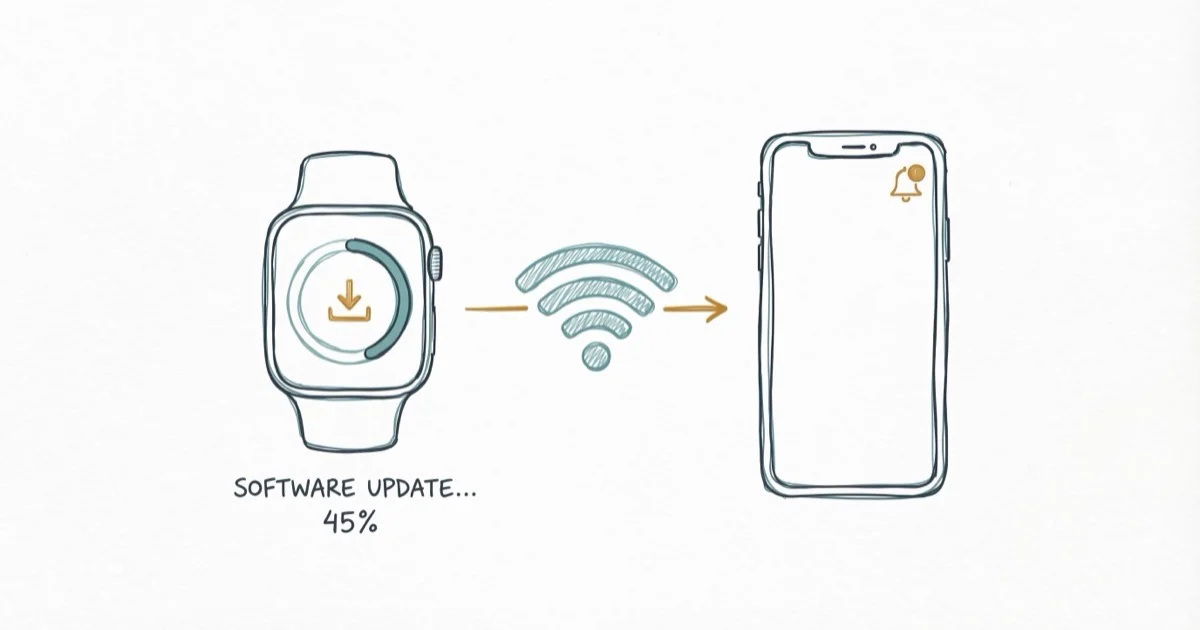
Quick AnswerRestart your Apple Watch and iPhone, check Wi-Fi and charging, then retry in Watch app > General > Software Update. On watchOS 6 or later, you can also update from Settings > General > Software Update on the watch.
Apple Watch unable to check for update errors happen when the watch can’t reach Apple’s servers or meet the current update requirements. These seven fixes use Apple’s current watchOS update flow rather than a hard-coded watchOS generation.
Use these update fixes only on your own Apple Watch and paired iPhone, or on a device you manage with permission. Updates can expose health, location, and account data during backups or unpairing, so stay within legal privacy boundaries, keep consent clear, and avoid changing a family or work watch without approval.
- For an update from the Watch app, the paired iPhone must be on Wi-Fi and remain near the watch
- A watch running watchOS 6 or later can also update directly over Wi-Fi without the iPhone
- The watch needs at least 50% battery and should stay on the charger while the update completes
- If storage blocks the update, remove synced media or unused apps and try again
- Apple Watch Series 5 and earlier and Apple Watch SE support only 2.4 GHz Wi-Fi
#Why Can’t Your Apple Watch Check for Updates?
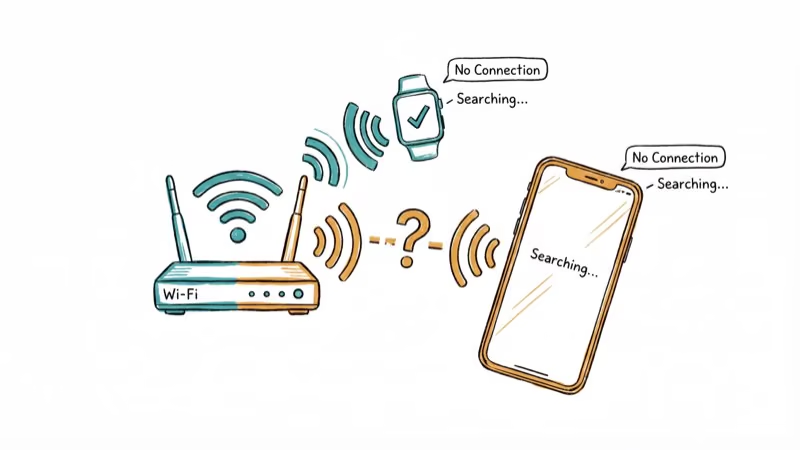
The update check can fail when the watch or paired iPhone can’t reach Apple’s service. Verify the Wi-Fi connection for your update method.
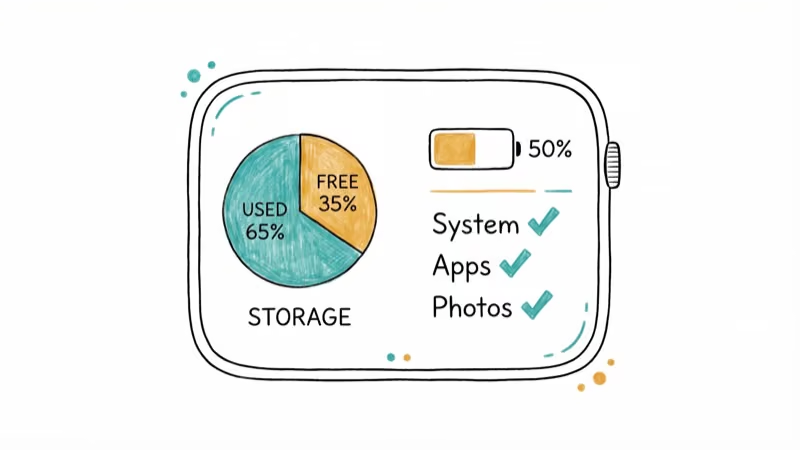
iPhone software version matters too. Each watchOS release has an iPhone and iOS compatibility requirement. Battery level is another gate: Apple says the watch must be at least 50% charged before the update and must remain on its charger while the update completes.
Storage space and temporary connection problems round out the list. Apple doesn’t publish one fixed storage amount for every watchOS update; if the watch reports that it needs more space, remove synced media or unused apps and retry.
According to Apple’s current update guide, use Wi-Fi, keep the iPhone nearby, begin at 50%, and leave the watch charging.
#7 Fixes for the “Unable to Check for Update” Error
#Fix 1: Restart Both Devices
A restart clears temporary network glitches on both sides of the connection. After both devices restart, retry the update before changing deeper settings.
If no update is actively installing, remove the watch from its charger. According to Apple’s current restart guide, hold the side button until the sliders appear, tap the power button, then drag Power Off. Hold the side button again to turn the watch on.
Restart the iPhone through Settings > General > Shut Down, then turn it back on. Once both devices start, open the Watch app and go to General > Software Update.
#Fix 2: Verify Wi-Fi on the Apple Watch
For a direct update, the watch needs Wi-Fi. The iPhone-assisted method needs the paired iPhone on Wi-Fi and nearby.
Go to Settings > Wi-Fi on your Apple Watch and make sure it’s toggled on and connected to a network. If the signal is weak, move closer to the router.
Band support depends on the watch. Apple’s current Wi-Fi guide says Series 6 or later and Ultra models can use 2.4 GHz or 5 GHz, while Series 5 and earlier and Apple Watch SE use only 2.4 GHz. When the watch keeps disconnecting, go to Settings > Wi-Fi, tap the network name, choose Forget This Network, and reconnect.
#Fix 3: Update Your iPhone First
watchOS updates are tied to specific iOS versions. If your iPhone runs an older iOS, the watch update won’t even appear.
Go to Settings > General > Software Update on your iPhone and install any available update. After the iPhone finishes updating, open the Watch app and try the watchOS update again.
Don’t rely on an old watchOS/iOS version pair. Check the compatibility section in Apple’s current update guide and install the newest iOS version available to the paired iPhone before retrying.
#Fix 4: Free Up Storage on the Apple Watch
Clean up storage only when the watch reports that it needs more space.
Go to Settings > General > Storage on the watch to see what’s using space. Delete unused apps by tapping the app name and selecting “Delete App.” If you sync music or podcasts to the watch, remove some playlists to free up room.
According to Apple’s current Apple Watch storage guide, there is no universal gigabyte minimum. Check Settings > General > Storage, remove synced music or photos or unused apps, and retry the update.
#Fix 5: Turn Off Beta Updates
If you enrolled the watch in Apple’s beta program and now expect a public release, turn off beta updates. Current enrollment does not necessarily create a removable profile.
Apple’s current beta unenrollment page says to open the Watch app and use My Watch > General > Software Update > Beta Updates > Off. If an older beta profile is actually listed under My Watch > General > Profiles, Apple’s update guide still documents deleting that legacy profile. After leaving the beta track, you may need to wait for the next commercial watchOS release rather than expecting an immediate downgrade.
#Fix 6: Unpair and Re-pair the Apple Watch
Unpairing resets the connection and erases the watch. Apple backs it up to the paired iPhone, but don’t treat that as a no-loss guarantee.
Open the Watch app, go to My Watch > All Watches, tap the info button next to your watch, and select Unpair Apple Watch. Before erasing, confirm the iPhone has a current iCloud or encrypted computer backup if Health and Fitness history matters. After the watch restarts, pair it again and choose an available backup during setup. Apple’s Apple Watch backup guide explains what a backup includes and excludes.
For step-by-step pairing instructions, see our guide on how to pair your Apple Watch manually.
#Fix 7: Contact Apple Support
If none of the fixes above work, the issue may be server-side or hardware-related. According to Apple’s Watch support page, you can start a chat, schedule a call, or book a Genius Bar appointment for in-person diagnostics.
Before contacting support, note your current watchOS version at Settings > General > About > Version and the paired iPhone’s iOS version. The same support route can help if you’re dealing with Apple Watch activation lock after an update attempt.
#watchOS Update Requirements at a Glance
Here’s a quick reference for what you need before starting an update:
| Requirement | What Apple currently says |
|---|---|
| Battery | Apple Watch at least 50% charged and left on its charger |
| Free storage | Remove media or apps if the watch says it needs more space |
| Wi-Fi | Paired iPhone on Wi-Fi for the Watch-app method; watch on Wi-Fi for a direct update |
| iPhone iOS | Update the paired iPhone to the latest version available to it |
| Proximity | Keep the paired iPhone near the Apple Watch during the update |
If the update won’t start, restart both devices. Use the storage flow only when the watch reports insufficient space.
One more thing to rule out: confirm your watch is even eligible for the version you’re chasing, since our watchOS 27 compatible Apple Watch models list shows several older watches were dropped this year.
#Does Your Apple Watch Need to Stay on the Charger During Updates?
Yes. Apple requires the watch to be on the charger for the entire update process. This isn’t optional. The update will pause or fail if you remove the watch from the charger mid-install.
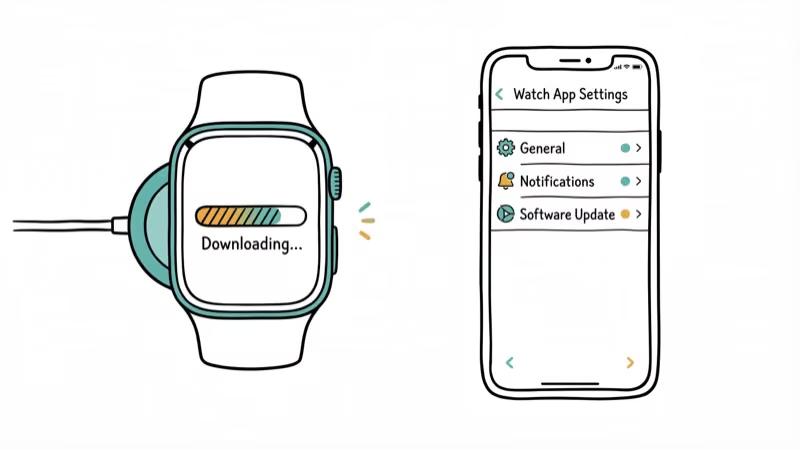
Apple says an update can take from several minutes to an hour. Leave enough time for it to finish, keep the watch charging, and don’t restart the watch during installation. If the Apple Watch battery drains after the update, use that issue-specific checklist rather than assuming a fixed settling period.
#Updating watchOS Over Cellular vs. Wi-Fi
If you have a GPS + Cellular model, use Wi-Fi for the update rather than LTE. For a direct update on watchOS 6 or later, Apple instructs you to connect the watch to Wi-Fi and open Settings > General > Software Update on the watch.
This means you always need access to a Wi-Fi network to update. If you’re traveling and don’t have Wi-Fi, the update will have to wait until you do.
#Common Error Messages During watchOS Updates
The “unable to check for update” error isn’t the only message you might see. Here are other related errors and what they mean:
“Software Update Failed” usually means the download was interrupted by a Wi-Fi disconnect or server timeout. Check your connection and try again from a spot closer to the router where the signal is stronger.
“Not Enough Space” means the watch needs more storage. Delete apps or remove synced media.
“Apple Watch Must Be Charging” means you should place the watch on its charger before retrying and leave it there until the installation completes.
#Bottom Line
Restart both devices and verify Wi-Fi. If the error persists, update the paired iPhone and use the storage flow only when the watch reports insufficient space.
#Frequently Asked Questions
Can I update my Apple Watch without an iPhone?
Yes, if the watch already runs watchOS 6 or later. Connect it to Wi-Fi, then open Settings > General > Software Update on the watch. You can also update through the Watch app on a paired iPhone.
Why does my Apple Watch say “unable to check for update” after a restart?
The error persists if the underlying cause hasn’t been fixed. Check Wi-Fi, charging, compatibility, and the paired iPhone’s iOS version. If those checks pass, restart the watch and paired iPhone and try again; use Apple’s support flow if the update still won’t start.
How much storage do watchOS updates need?
Apple doesn’t publish one fixed amount for every watchOS release. If the watch says it needs more available storage, check Settings > General > Storage, remove synced media or unused apps, and try again.
What happens if the update fails mid-install?
Keep the watch on its charger and don’t restart it while an installation is in progress. Apple does not promise an automatic rollback or guaranteed data preservation after every failed install. If the watch remains stuck, use Apple’s support flow before erasing or unpairing it.
How do I check my current watchOS version?
Go to Settings > General > About on your Apple Watch and scroll to “Version.”
Why does the watchOS update take so long?
Download speed depends on the network and the update. Apple says the complete process can take from several minutes to an hour, so leave the watch charging and avoid interrupting it.
Will updating watchOS fix my Apple Watch performance issues?
It can help if the installed release addresses the specific bug, but an update isn’t a guaranteed performance fix. If the screen keeps getting stuck on the Apple logo, use that recovery flow and check your backup before updating.

Mac mini M6 vs M5 Pro: Which Model Should You Buy?
Mac mini M6 vs M5 Pro compared on price, memory, ports, displays, and real workloads. Find the better 2026 Mac mini for your desk and budget.

Apple Siri Settlement: Who Qualifies and How to Claim
Apple's $250 million Siri settlement covers iPhone 15 Pro and iPhone 16 models bought June 2024 to March 2025. See who qualifies and how claims work.

iOS 26.6.1 Security Update: What Apple Fixed and Who Gets It
Apple released iOS 26.6.1 on August 17 with 29 security fixes, including an IPSec interception bug. See what it patches, who gets it, and how to update.

iPhone Adaptive Power: How It Works and When to Use It
Learn how iPhone Adaptive Power works, which models support it, what it changes, and when Low Power Mode is still the better battery-saving choice.