Apple CarPlay Not Working? 9 Fixes for iOS 26 (2026)
CarPlay not connecting after iOS 26? Use a data cable, check the Screen Time toggle, fix the wireless handshake, disable VPN, and re-pair again.
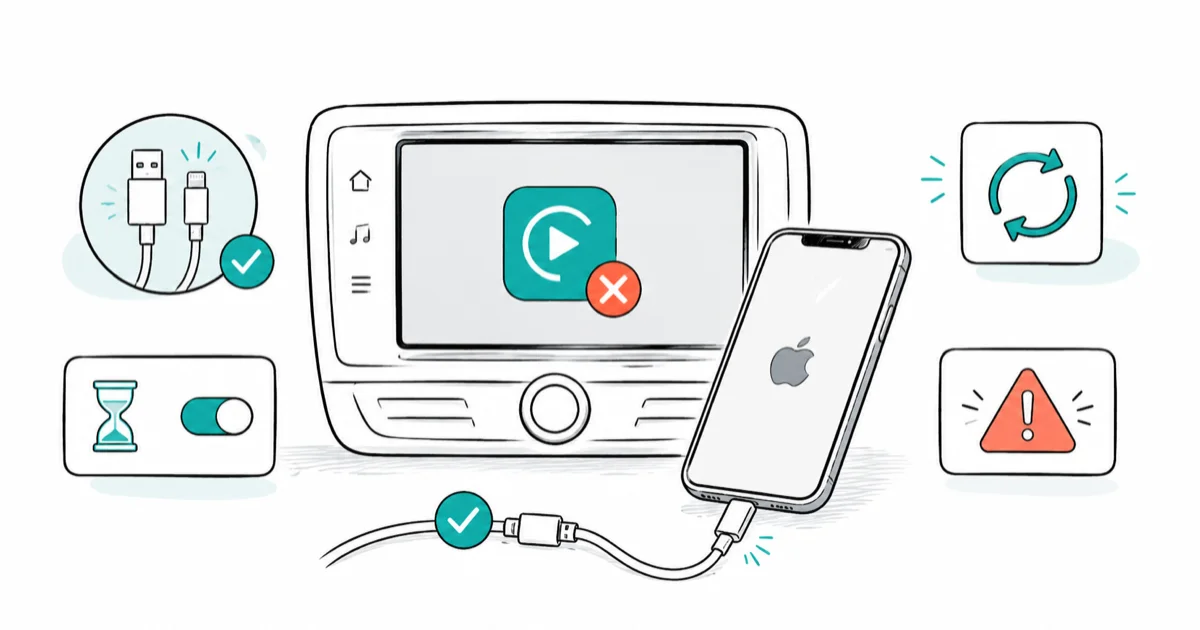
Quick AnswerIf CarPlay broke right after an iOS update, switch to a verified data cable and check the Screen Time CarPlay toggle. Those two fixes resolve most recent cases, and a wired connection is the reliable stopgap while Apple patches lingering bugs.
Apple CarPlay not working usually traces back to a cable, a setting, or a wireless handshake that won’t complete. The fix you need depends on whether you connect wired or wireless and whether the problem started right after an iOS update.
- A charge-only cable or a power-only USB port is the most common wired CarPlay failure, so start with a verified data cable.
- The Screen Time CarPlay toggle is a silent killer; an update can flip it off and hide CarPlay with no warning.
- Wireless CarPlay needs Bluetooth and Wi-Fi both on, plus Auto-Join enabled for the car’s network.
- A VPN can block the wireless handshake, so disable it before deeper resets.
- If an iOS 26 bug lingers, a wired connection is the reliable stopgap until a point release fixes it.
#Why Is Apple CarPlay Not Working?
CarPlay failures split cleanly by connection type. Wired failures are almost always a cable or port. Wireless failures are a Bluetooth, Wi-Fi, or handshake problem.
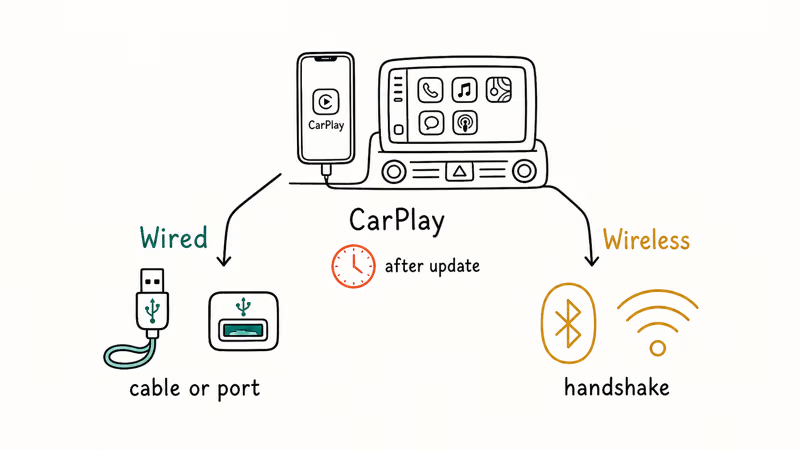
Layered on top of that is timing. If CarPlay worked fine until you updated, the cause is probably the update itself, either a known iOS 26 regression or a setting the update flipped.
According to Apple’s CarPlay help page, the official checklist covers 4 core steps: updating iOS, trying a different cable and port, restarting both devices, and checking Screen Time restrictions. We follow that order, then add the wireless and VPN steps.
#Update iOS and Use a Real Data Cable
Start with the cable. Many cheap cords only carry power, not data, and CarPlay needs a data connection.
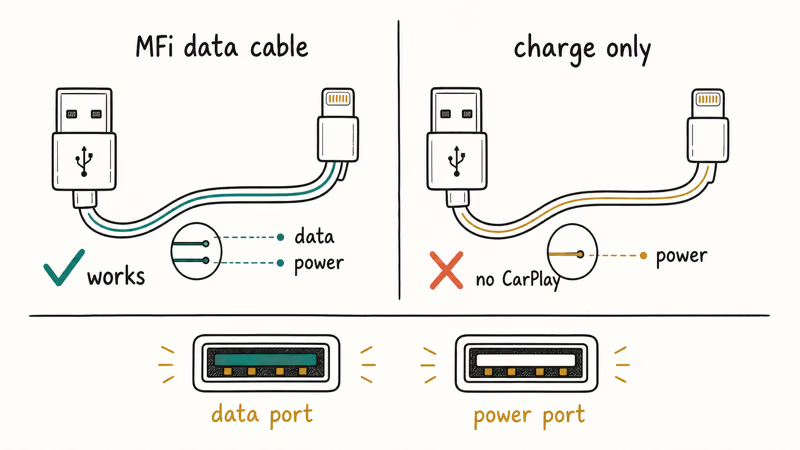
Use a known-good MFi-certified data cable, the kind that syncs your iPhone to a computer, not a random charging cord. Plug it into a USB port that supports data, not a power-only charging port, since some cars have both. This narrow cable-and-port issue is the whole subject of our guide on when your phone charges but CarPlay won’t connect, so start there if charging works but CarPlay doesn’t.
Then update iOS. The iOS 26 cycle brought a wave of CarPlay disconnect reports, and Apple has shipped point releases that address them, so an out-of-date phone may simply be missing the fix. Go to Settings > General > Software Update and install anything pending, then test the connection again before moving on. If the update itself stalls before you can do that, our fix for an iOS 26 update stuck handles the stuck-download problem first.
#Check the Screen Time CarPlay Toggle
This is the fix almost nobody knows. Screen Time can block CarPlay entirely, and an update sometimes flips the toggle off on its own.
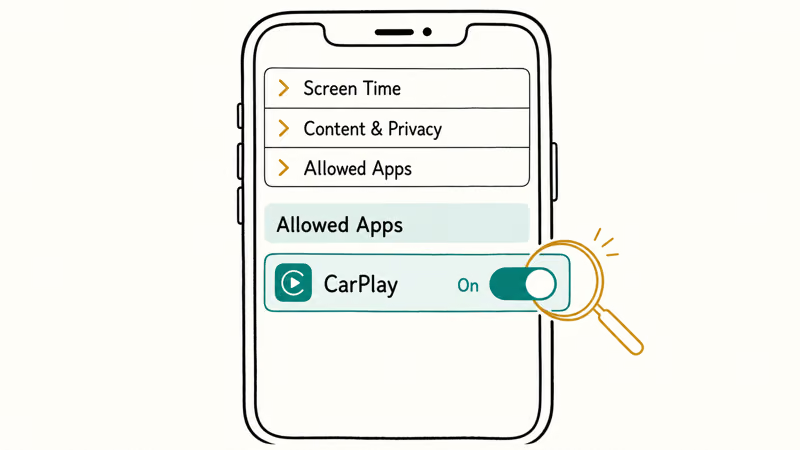
Go to Settings > Screen Time > Content & Privacy Restrictions > Allowed Apps and make sure CarPlay is switched on. If Content & Privacy Restrictions is enabled and CarPlay is off, the car won’t see your iPhone at all, with no error to explain why.
Apple’s CarPlay help page states that checking Screen Time restrictions is an official step for exactly this reason, because that setting can block CarPlay entirely.
#Why Does Wireless CarPlay Keep Disconnecting?
Wireless CarPlay is more fragile because it leans on both Bluetooth and Wi-Fi. Bluetooth handles the pairing; Wi-Fi carries the audio and screen data, so if either drops, CarPlay drops.
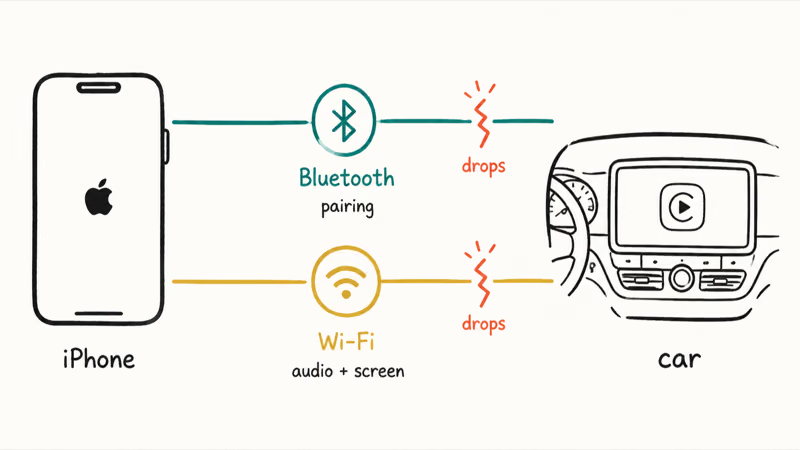
Keep both Bluetooth and Wi-Fi on; wireless CarPlay needs both.
A weak handshake often clears with a clean re-pair, covered below. Interference from a crowded Wi-Fi environment or a flaky iPhone Wi-Fi radio can also cause drops, and our guide on when your iPhone won’t connect to Wi-Fi helps if the radio itself is the problem.
#Disable VPN, Forget the Car, and Re-Pair
A VPN is a frequent, overlooked cause of wireless failures. Some VPNs interfere with the local network handshake CarPlay needs, so disable any active VPN and test again before blaming the car. This one trips up privacy-conscious users constantly, because the VPN that protects your browsing also quietly sits between your iPhone and the car’s network, and CarPlay’s handshake can’t get through it cleanly until you switch it off for the drive.
Still nothing? Do a clean re-pair. On your iPhone, go to Settings > General > CarPlay, tap your car, and choose Forget This Car. Restart both devices, then set CarPlay up fresh.
This clears a stale or half-broken pairing, a common cause after an update. The same registration glitch hits other iOS 26 features, like the ones in our FaceTime not working guide.
#Reset Settings and Check Car-Specific Quirks
When nothing else works, reset your iPhone’s settings. Go to Settings > General > Transfer or Reset iPhone > Reset > Reset All Settings. This clears network and system preferences without erasing your photos, apps, or messages, so it isn’t a factory reset. It’s the broadest software fix short of wiping the phone, and it often resolves a connection bug that no single toggle could, because it rebuilds every network and Bluetooth setting at once.
Some failures are specific to the car, not the phone. According to this iOS 26 CarPlay discussion on Apple’s community, disconnect patterns vary widely by vehicle make. Ford’s CarPlay support guide walks through a SYNC-specific reset, and many makers have their own steps.
Check your car’s own software too. A head unit running old firmware can refuse a current iPhone, so a dealer or manufacturer update sometimes fixes what no iPhone setting can. If you’re on the other ecosystem instead, our Android Auto not working guide covers the parallel fixes.
#Bottom Line
If CarPlay broke right after an iOS update, switch to a verified data cable and check the Screen Time CarPlay toggle, since those two fixes resolve most recent cases. A charge-only cable or a power-only USB port is the most common wired failure. For wireless, confirm Bluetooth and Wi-Fi are on, Forget This Car and re-pair, and disable any blocking VPN. A wired connection is the reliable stopgap until Apple patches a lingering bug.
#Frequently Asked Questions
Why did CarPlay stop working after the iOS 26 update?
The update can flip the Screen Time CarPlay toggle off, break a wireless pairing, or hit a known iOS 26 regression that Apple later patches. Check the Screen Time toggle first, then switch to a wired data cable as a stopgap so you keep navigation and audio while you sort it out. Installing the latest 26.x point release often resolves the underlying bug, so always update before assuming your car or cable is at fault.
How do I know if my cable can do CarPlay?
A cable that can sync your iPhone to a computer carries data and will work; a pure charging cable won’t. Try the cable your iPhone came with, or a known MFi-certified one. If charging works but CarPlay doesn’t, the cable is the likely culprit.
Where is the Screen Time setting that blocks CarPlay?
In Settings > Screen Time > Content & Privacy Restrictions > Allowed Apps. Switch CarPlay on and your car connects again.
Why does wireless CarPlay connect then drop?
Because wireless CarPlay needs both Bluetooth and Wi-Fi, and a drop on either ends the session. Make sure both are on, Auto-Join is enabled for the car’s network, and any VPN is disabled. A clean Forget This Car and re-pair fixes most stubborn drops.
Can a VPN stop CarPlay from connecting?
Yes. Some VPNs block the local network handshake wireless CarPlay needs. Disable it and test again.
Does Reset All Settings erase my data?
No. Reset All Settings clears your network, privacy, and system preferences, but it leaves your photos, apps, and messages intact. It’s a different, much milder option than Erase All Content and Settings, which is a full factory reset.

Apple Siri Settlement: Who Qualifies and How to Claim
Apple's $250 million Siri settlement covers iPhone 15 Pro and iPhone 16 models bought June 2024 to March 2025. See who qualifies and how claims work.

iOS 26.6.1 Security Update: What Apple Fixed and Who Gets It
Apple released iOS 26.6.1 on August 17 with 29 security fixes, including an IPSec interception bug. See what it patches, who gets it, and how to update.

iPhone Adaptive Power: How It Works and When to Use It
Learn how iPhone Adaptive Power works, which models support it, what it changes, and when Low Power Mode is still the better battery-saving choice.

How to Transfer Data to a New iPhone Without iCloud
Move everything to your new iPhone without iCloud: Quick Start device-to-device transfer, wired migration, and encrypted Finder or iTunes backups.