Best Android Root Software: 7 Top Tools Compared (2026)
Compare the 7 best Android root software tools in 2026. A breakdown of Magisk, KingoRoot, Odin Root, and more with pros, cons, and safety tips for each.
Quick AnswerThe best Android root software tools in 2026 include Odin Root for Samsung devices, KingoRoot for one-click rooting, and Magisk for advanced users who want to pass SafetyNet checks while maintaining root access.
Rooting your Android gives you full control over the operating system, from removing bloatware to installing custom ROMs. Among the 7 tools below, Magisk is the only one that maintains root access while still passing Google’s SafetyNet checks, which keeps apps like Google Pay and Netflix working.
- Magisk uses a systemless root method that leaves the system partition untouched and passes SafetyNet
- Odin Root is the top pick for Samsung devices and can unlock bootloaders with minimal risk
- KingoRoot offers true one-click rooting but only works on Android 4.2.2 and earlier versions
- Rooting is legal but voids your manufacturer warranty, so back up all data before starting
- SuperSU gives granular per-app root permission control with temporary unrooting support
#Why Should You Root Your Android Device?
Rooting grants admin-level access to your phone’s operating system. According to XDA Developers, rooting remains popular among Android power users, and the practice is especially common among developers testing custom builds.
Here’s what rooting lets you do:
- Remove bloatware: Delete pre-installed apps your carrier won’t let you uninstall
- Install custom ROMs: Run LineageOS, Pixel Experience, or other custom Android builds
- Block ads system-wide: Use AdAway or similar root-level ad blockers
- Overclock the CPU: Push your processor beyond factory limits for better performance
- Full backups: Use Titanium Backup for complete app + data snapshots
Also read: How to flash a phone for a complete guide on flashing custom firmware.
#Top 7 Android Root Software Tools
Each tool below is compared on compatibility, speed, and reliability. Here’s how they stack up.
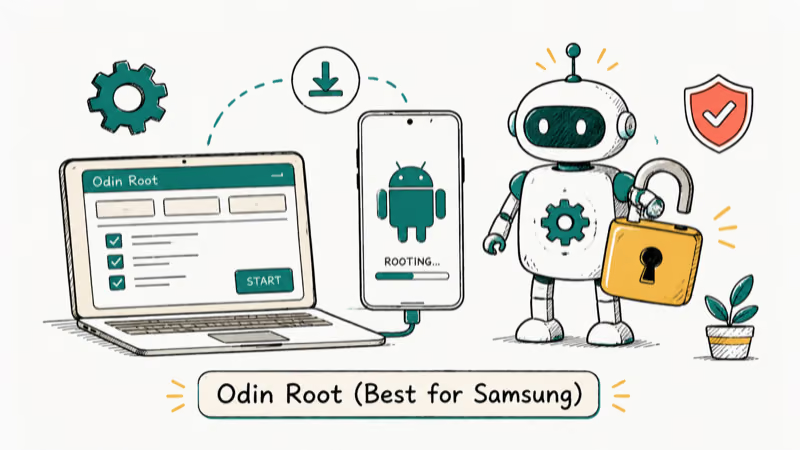
#Odin Root (Best for Samsung)
Odin Root is the go-to option for Samsung users. It’s based on Samsung’s official debugging tool and can unlock bootloaders, flash firmware, and root Galaxy devices safely.
Pros:
- Low risk of bricking your Samsung device
- Full control over the rooting process
- Works with most Galaxy S, A, and Note models
Cons:
- Requires connecting to a PC
- Takes longer than one-click tools
#KingoRoot (Best One-Click Option)
KingoRoot is one of the simplest rooting tools available. One tap and it’s done.
Pros:
- Compatible with Android 4.2.2 and earlier
- Includes an unroot option to reverse the process
- Completely free
Cons:
- Doesn’t work on Android 5.0+, which limits its usefulness on modern devices
- Not as powerful as PC-based tools
#King Root (Best Without a Computer)
King Root roots your phone directly on the device with no PC needed. The entire process starts with a single tap.
Pros:
- No computer required
- Clean interface that’s straightforward to use
Cons:
- Higher bricking risk than Odin or Magisk
- Rarely updated, which means newer devices may not be supported
#iRoot (Most Versatile)
iRoot goes beyond rooting. It also removes unnecessary apps, improves boot performance, and unlocks hidden Android features. According to Android Authority’s rooting guide, iRoot supports over 5,000 device models across 40+ manufacturers.
Pros:
- Supports a huge range of Android devices
- Higher success rate than most competitors
- Free to use
Cons:
- No unroot option after rooting
- Limited advanced features
#Root Genius (Best for Flash ROM)
Root Genius requires a PC and USB debugging mode. It’s designed for users who want to root and immediately flash a custom ROM.
Pros:
- Works with a large range of devices
- Straightforward operation
- Can enable Flash ROM and remove built-in apps
Cons:
- No unroot option
- PC connection required
#Magisk (Best for Advanced Users)
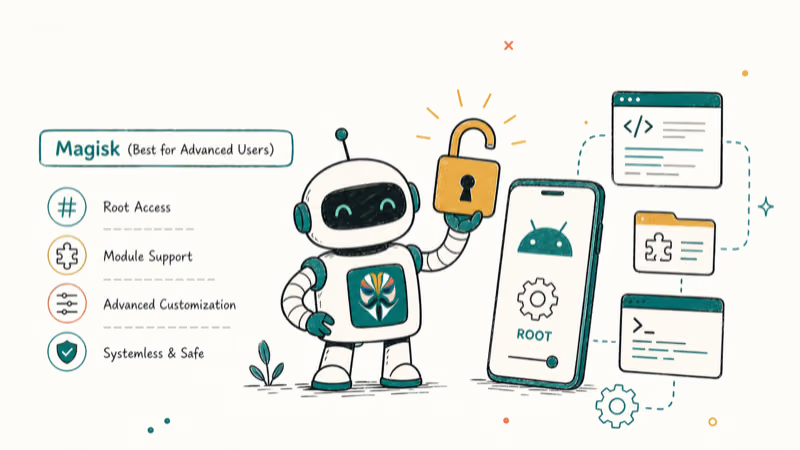
Magisk is the gold standard for Android rooting in 2026. It uses a systemless root method, meaning it doesn’t touch the system partition. On modern devices, Magisk maintains root access while passing SafetyNet checks, which means apps like Google Pay and Netflix still work normally.
Pros:
- Passes SafetyNet and Play Integrity checks
- Strong module system for adding features without modifying system files
- Active developer community with regular updates
- Works on most modern Android devices
Cons:
- Requires unlocking the bootloader first (which wipes your data)
- Steeper learning curve than one-click tools
#SuperSU (Best for Permission Management)
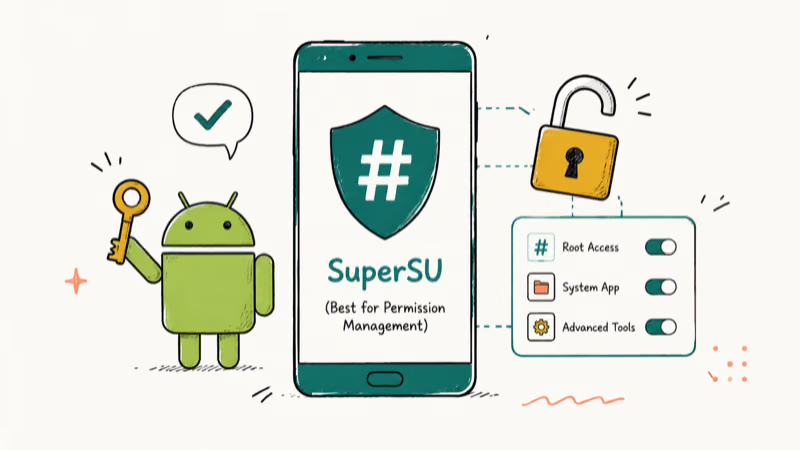
SuperSU was created by Chainfire and remains one of the most trusted root management tools. It doesn’t root your device itself but manages root permissions after rooting with another tool.
Pros:
- Per-app root permission control with logging
- Temporary unroot support for banking apps
- Detailed process identification
Cons:
- Doesn’t perform the root itself; you need another tool first
- Development has slowed compared to Magisk
Also read: unlock your Android with Google’s Find My Device.
#What Are the Risks of Rooting Your Android?
Rooting isn’t without downsides. Samsung’s warranty policy states that modifications to the operating system, including rooting, void the manufacturer warranty on all Galaxy devices. Google’s SafetyNet documentation confirms that rooted devices fail integrity checks by default unless using Magisk’s systemless approach.
Key risks include:
- Voided warranty on most devices
- Bricking risk if the process is interrupted or done incorrectly
- Security vulnerabilities from apps gaining root access
- Failed banking apps that detect root status (unless using Magisk)
If rooting goes wrong and you’re locked out, check our guides on Samsung FRP bypass and FRP bypass tools for recovery options.
If you also lose access at the lock screen on a device you own, our walkthrough on bypassing Android lock screens covers the legitimate paths for your own hardware.
#How to Choose the Right Root Tool
| Your Situation | Best Pick | Why |
|---|---|---|
| Samsung device | Odin Root | Designed for Galaxy firmware |
| Older Android (4.x) | KingoRoot | One-click, proven on legacy devices |
| No PC available | King Root | Roots directly on the phone |
| Want root + normal apps | Magisk | Passes SafetyNet |
| Need root permission management | SuperSU | Granular per-app control |
#Bottom Line
Use Magisk if you want the best combination of root access and compatibility with modern apps. It’s the only tool that consistently passes SafetyNet checks, which means your banking apps and Google Pay won’t break. For Samsung-only users, Odin Root is the safer, more specialized choice. Whichever tool you pick, back up your data first because rooting can always go wrong.
#Frequently Asked Questions
Can Android rooting damage my device?
There’s a real risk of “bricking” your device if the process gets interrupted or you use an incompatible tool. Using a reliable tool like Magisk or Odin Root significantly reduces this risk. Always keep your phone charged above 70% before starting.
Is it legal to root an Android device?
Yes, rooting is legal in the US and most countries. However, it voids your manufacturer warranty in virtually all cases. Samsung, Google, and OnePlus all explicitly state this in their warranty terms.
Does rooting erase data?
The rooting process itself usually doesn’t erase data, but unlocking the bootloader (required for Magisk) wipes the device completely. Back up everything before you start.
Will rooting speed up my device?
It can. Removing bloatware frees up RAM and storage, and overclocking the CPU can improve performance by 10-20% in benchmarks. However, aggressive overclocking can cause instability and reduce battery life.
Can I unroot my device after rooting?
Yes, most tools offer an unroot option. KingoRoot and SuperSU both include one-tap unrooting. Magisk can be uninstalled through its manager app. Unrooting doesn’t always restore warranty status, though.
Which root tool works on Android 14 and 15?
Magisk is the only tool on this list that reliably works on Android 14 and 15 as of 2026. Odin Root works on newer Samsung devices but through firmware flashing rather than direct root. KingoRoot, King Root, and iRoot are all limited to older Android versions.

Pixel 11 vs Pixel 10: What Changed and Who Should Upgrade
Pixel 11 vs Pixel 10: same screen and camera resolution, new Tensor G6, 25W wireless, and Gemini Intelligence. Here is who should actually upgrade.

Verizon Not Receiving Texts? How to Fix It in 9 Steps
Verizon not receiving texts? Fix it in 9 steps: check Message Blocking in My Verizon, reset network settings, deregister iMessage, and call support.

Pixel Battery Drain: What Google's July Fix Really Covers
Google marked the Pixel idle battery drain bug fixed in July, but only some phones got the patch. Here is who is covered, who is not, and what to try.

iPhone Stuck on EDGE? How to Get 5G or LTE Back (2026)
iPhone stuck on EDGE with crawling data? Here's why the E icon appears, which settings force 5G or LTE back, and when the problem is your carrier.