Pixel Camera Not Working? 7 Fixes That Work (2026)
Pixel Camera app crashing, black screen, or won't focus? Clear the cache, update, and use Safe Mode to find a bad app. 7 proven fixes for Google Pixel.
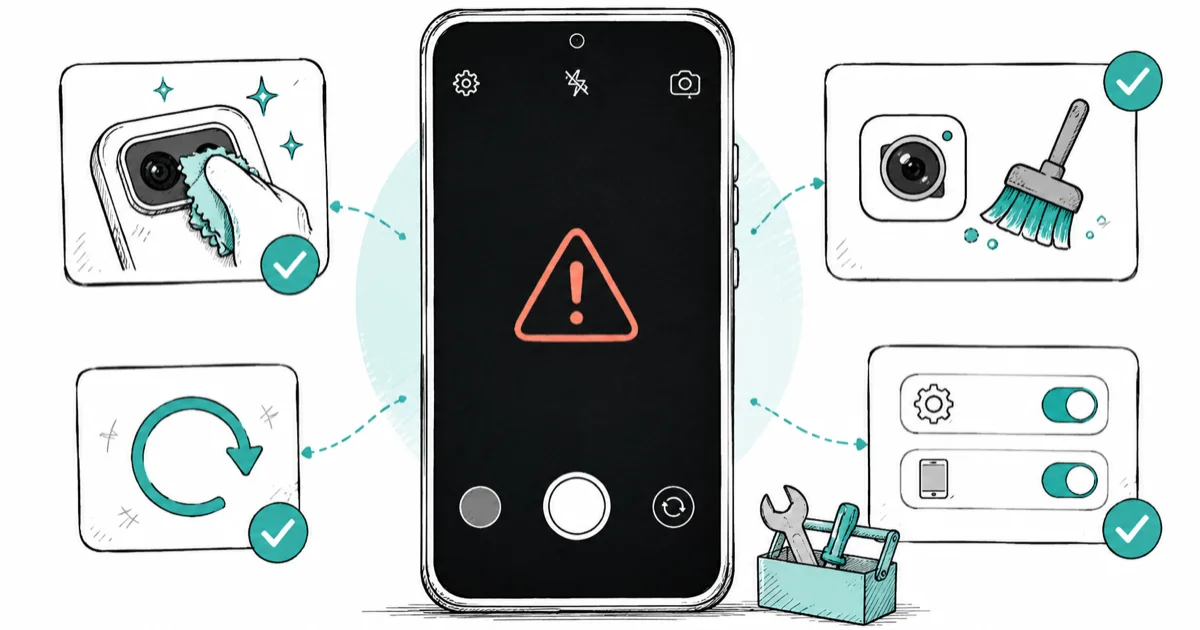
Quick AnswerWhen the Pixel Camera app crashes or shows a black screen, follow Google's order: clean the lens, restart, clear the Camera cache, then update the app and system. If it still fails, use Safe Mode to find a bad app. When every camera app crashes, the problem is hardware.
Pixel camera not working is one of the more alarming faults, because a phone you bought largely for its camera suddenly can’t take a photo. The good news is that most Pixel Camera failures, whether the app crashes on launch, freezes on a black screen, or won’t focus, are software problems with a clear fix order. Google publishes that order, and following it resolves the majority of cases without touching a repair shop.
This guide applies to Google Pixel phones, roughly the Pixel 6 through current models, that you own.
- Following Google’s order, clean lens, restart, clear cache, then update, fixes most Pixel Camera crashes
- Clearing the Camera app cache doesn’t delete any of your photos, it only removes temporary files
- A simple restart clears the memory overload that’s a common cause of the app crashing on launch
- Safe Mode loads only built-in apps, so if the camera works there, a downloaded app is the culprit
- If every camera app crashes or shows black, even after a reset, the fault is hardware and needs a repair
#Why Is Your Pixel Camera Not Working?
A Pixel Camera failure usually traces to one of a few software causes: memory overload from too many open apps, a corrupt camera cache, an outdated app or system, a third-party app conflict, a changed permission, or simply a dirty lens. Hardware faults exist too, but they’re the minority, and there’s a clean test to confirm them.
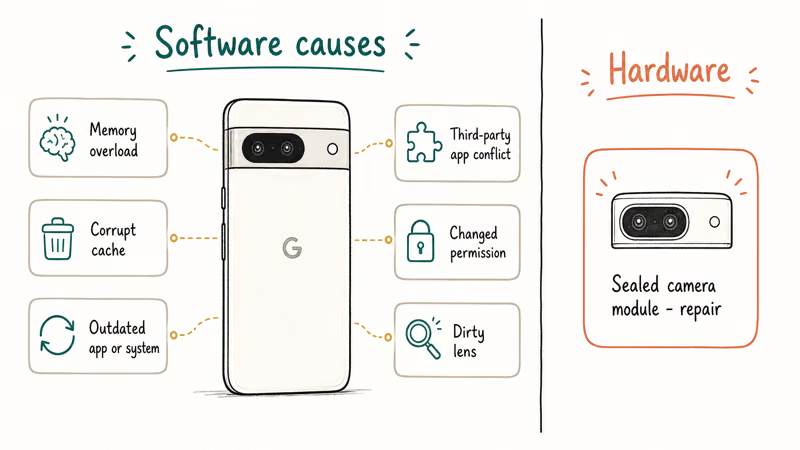
The symptom hints at the cause. A black screen on launch often means a cache or memory problem, the same pattern behind a generic Android camera not working error. A persistent inability to focus can be a dirty lens or a failing module.
Crashes on launch often point to temporary files or memory state, which is why cache clearing and restart sit near the top of Google’s order. According to Google’s fix-the-Pixel-Camera support page, working through the recommended sequence in order is the fastest path to a fix.
#Clean the Lens and Restart Your Pixel
Begin with the two easiest steps, because they cost nothing and resolve a real share of complaints. Wipe the rear and front lenses with a soft, lint-free cloth. Fingerprints, grease, and pocket grime cause blurry shots and hunting autofocus that look like a software fault.
Then restart the phone. A camera that crashes on launch is frequently the result of memory overload, where too many background apps have starved the system of the resources the camera needs.
Hold the power button, tap Restart, and let the phone boot fully before opening the Camera app again. A black preview after heavy app use can clear after a restart, so this step is worth trying before cache resets.
#Clear the Camera App Cache
If the camera still misbehaves, clear its cache. The app stores temporary files that can become corrupt and cause crashes, and clearing them forces a clean rebuild.
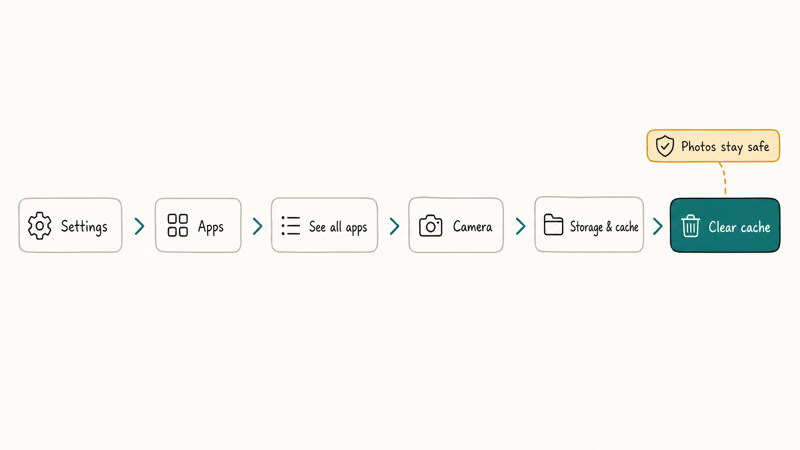
Google recommends clearing the Camera app’s cache early when the app crashes or freezes. Go to Settings > Apps > See all apps > Camera, then tap Storage & cache and choose Clear cache. Reopen the Camera app and test.
Critically, this clears only temporary files, so your photos and videos are completely safe, since they live in Google Photos and your device storage rather than inside the Camera app cache that you just cleared. The same logic applies to a routine Android cache and history clear, which never touches your saved media even though it clears stored app data, so there’s no reason to back up before doing it.
If Clear cache alone doesn’t fix it, tap Clear storage to reset the app. That keeps your saved photos but wipes the Camera app’s settings, so use it only after Clear cache fails.
#Update the Camera App and System
An outdated Camera app or system build can carry a bug a newer version fixes. Google ships camera improvements through the Play Store and system updates, so check both. It’s an easy step to overlook when you’re focused on the app itself, yet a single pending update often clears a crash that no amount of cache clearing or restarting will.
Open the Play Store, search for Pixel Camera, and install any pending update. According to the Google Play Store update help, you can update an individual app from its listing if the button appears. Then go to Settings > System > Software updates and download anything available.
Keeping the system current matters on Pixel especially, because Google delivers camera and stability fixes through its regular update cadence. If your phone is several versions behind, an update alone can resolve a long-standing crash, and it’s worth doing before the more involved Safe Mode test. If you arrived here from broader common Pixel problems, updating is the same first move for most of them.
#Is a Third-Party App Causing the Crash?
If the camera crashes only when a particular app uses it, or it started right after you installed something new, a third-party app conflict is likely. The way to confirm this is Safe Mode, which boots the phone with only its built-in apps and every downloaded app temporarily disabled.
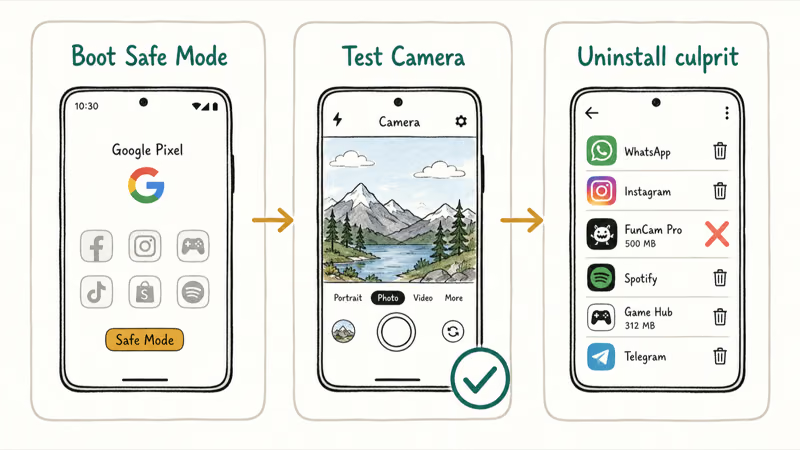
Press and hold the power button, then touch and hold Restart until the Safe Mode prompt appears, and tap OK. Once in Safe Mode, open the Camera app and try a few photos.
If the camera works perfectly in Safe Mode, a downloaded app is the culprit. Restart normally to exit, then uninstall recently added apps one at a time, testing the camera after each, until the crash stops. Apps that request camera access, like social, scanning, or video apps, are the usual suspects, and the same Safe Mode logic helps with a Pixel fingerprint not working sensor problem too.
#Check Permissions and Test for Hardware Failure
A revoked permission can stop the camera cold, especially for third-party apps. Go to Settings > Apps > Camera > Permissions and confirm Camera, and Microphone for video, are allowed.
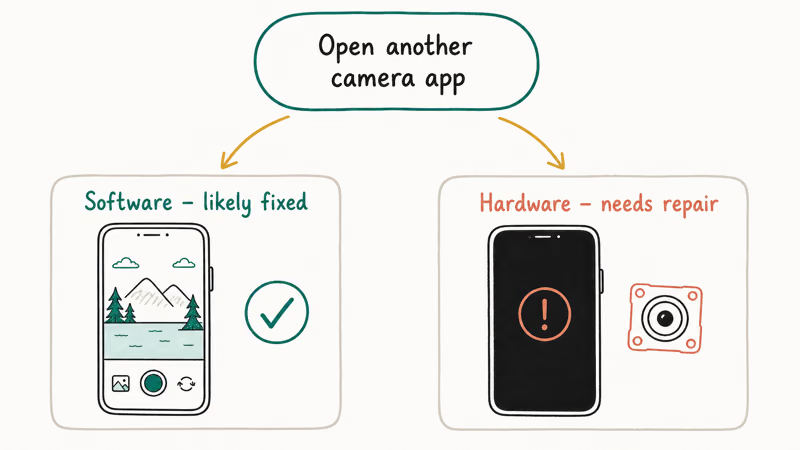
Now run the decisive test. Open a different camera app and try to take a photo. This separates software from hardware cleanly.
If the alternate camera app works, your problem was the Pixel Camera app or its settings, and you’ve likely already fixed it.
If every camera app crashes or shows a black screen, the camera module itself has failed and no amount of software troubleshooting will help. As the Wikipedia overview of the camera module explains, these are sealed hardware assemblies, so a failure is a repair job, the same hardware-versus-software line you’d draw on an iPhone camera not working too. Contact Google support or an authorized repair center, especially under warranty.
#Bottom Line
Follow Google’s order: clean the lens, restart to clear memory overload, then clear the Camera app cache, which often fixes crashes without deleting a single photo. If it still crashes, update the app and system, then boot into Safe Mode to find out whether a third-party app is the culprit.
The decisive test is trying another camera app. If every camera app crashes or shows black, the problem is hardware, not software, and a repair is the realistic next step rather than more troubleshooting.
#Frequently Asked Questions
Why does my Pixel Camera app keep crashing?
The most common causes are memory overload from too many open apps, a corrupt Camera cache, an outdated app or system, or a conflicting third-party app. Working through Google’s order, restart, clear the Camera cache, then update, resolves the majority of crashes. If it persists, Safe Mode tells you whether a downloaded app is to blame.
Does clearing the Camera cache delete my photos?
No. Clearing the Camera app cache only removes temporary files the app rebuilds. Your photos live in Google Photos and device storage, so even Clear storage leaves your media intact.
How do I use Safe Mode to find a bad app?
Press and hold the power button, touch and hold Restart until the Safe Mode prompt appears, and tap OK. Open the Camera and test. If it works in Safe Mode, restart normally and uninstall recently added apps one at a time until the crash stops, starting with anything that uses the camera.
Why is my Pixel camera showing a black screen?
A black preview on launch usually points to memory overload or a corrupt cache. Restart to free memory, then clear the Camera cache. If it persists in every camera app, the hardware has likely failed.
How do I know if it’s a hardware problem?
Open a second camera app and try a photo. If it works, your issue was the Pixel Camera app or a setting. If every camera app crashes after a cache clear and update, the module has failed and a repair is next.
Why won’t my Pixel camera focus?
Start with the lens, since fingerprints, grease, or a screen-protector edge over the camera make autofocus hunt and shots blur. Clean it with a soft cloth and remove any obstruction. If focus still fails across multiple camera apps after a restart and cache clear, the focus mechanism may be a hardware fault that needs servicing rather than another round of software steps.

Pixel 11 vs Pixel 10: What Changed and Who Should Upgrade
Pixel 11 vs Pixel 10: same screen and camera resolution, new Tensor G6, 25W wireless, and Gemini Intelligence. Here is who should actually upgrade.

Verizon Not Receiving Texts? How to Fix It in 9 Steps
Verizon not receiving texts? Fix it in 9 steps: check Message Blocking in My Verizon, reset network settings, deregister iMessage, and call support.

Pixel Battery Drain: What Google's July Fix Really Covers
Google marked the Pixel idle battery drain bug fixed in July, but only some phones got the patch. Here is who is covered, who is not, and what to try.

iPhone Stuck on EDGE? How to Get 5G or LTE Back (2026)
iPhone stuck on EDGE with crawling data? Here's why the E icon appears, which settings force 5G or LTE back, and when the problem is your carrier.