Samsung Find Not Working? Fix Device Locating 2026
Samsung Find not working or showing offline? Check your Samsung account, Find settings, offline finding opt-in, and location permissions for your device.
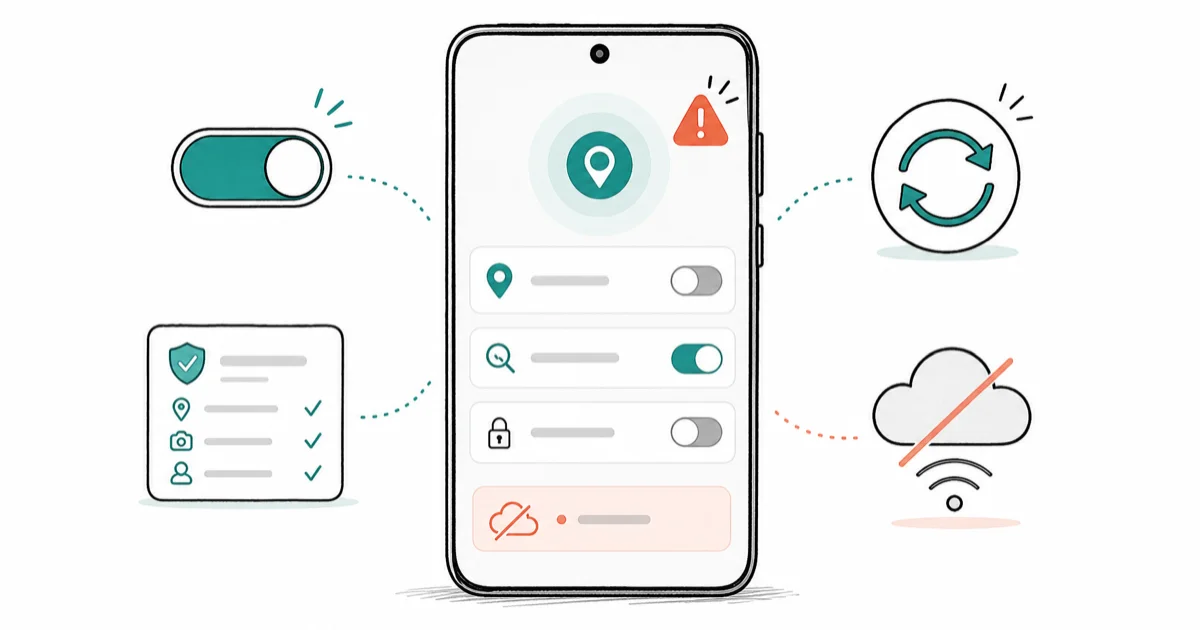
Quick AnswerSamsung Find usually fails because the Samsung account is not fully signed in, Find settings are off, or offline finding was never enabled. Confirm the account, turn on Find, and opt into offline finding on your own device.
Samsung Find not working almost always traces back to a setup gap on your own device rather than a broken service. The feature, recently renamed from Find My Mobile, relies on a signed-in Samsung account, an enabled Find toggle, and an opt-in to the offline finding network.
The offline-finding switch is one of the first settings to check.
This guide covers locating a device you own and have a right to access. Set everything up before a device goes missing, since most “offline” results come from a missed opt-in rather than the network failing. Keep every step scoped to your own account and your own hardware, and use official Samsung tools rather than any workaround.
- Samsung Find replaced the Find My Mobile name, but the same account and settings still apply
- The offline finding network only locates a device that opted in before it lost connection
- A device shown as offline often just needs the right Samsung account signed in to track it
- Location permissions and a powered-on device are required for live location to appear
- Set up Find on your own device in advance, because most failures are missed prep, not bugs
#Why Is Samsung Find Not Working?
Samsung Find fails for a short list of reasons, and nearly all of them are settings on your own device. The most common is that the Samsung account isn’t fully signed in or differs from the one tied to the device you want to locate. Next is the Find toggle being off, followed by the offline finding network never being enabled. Location permissions and a powered-down device round out the list.
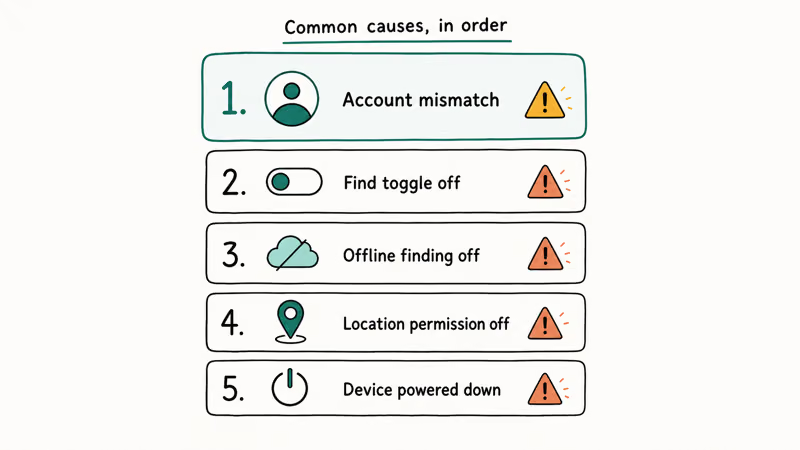
The order is worth following because each cause has a quick check.
Confirm the account first, since locating any device requires it to be linked to the same Samsung account you’re signing into. An account mismatch and a missed offline-finding opt-in are the two quickest checks when the map shows nothing or marks the phone offline. Knowing which one applies tells you whether to fix a sign-in or flip a settings switch.
Keep the scope to your own device throughout. Samsung Find is built to locate hardware on your account, and it respects security and admin policy.
Locating someone else’s phone without consent can be illegal and breaches their privacy rights, so consent is required for any device that isn’t yours. There’s no legitimate path to locate a device you don’t own, and this guide doesn’t cover one. If a phone is actually stolen, work with your carrier and local authorities instead of tracking it yourself.
#Is Your Samsung Account and Find Setup Correct?
Start with the account. Open Settings, tap your name at the top to open the Samsung account screen, and confirm you’re signed in with the exact account linked to the device. If you have more than one Samsung account, signing into the wrong one shows the device as missing or offline even when everything else is correct. Sign out and back in with the right credentials if you’re unsure.
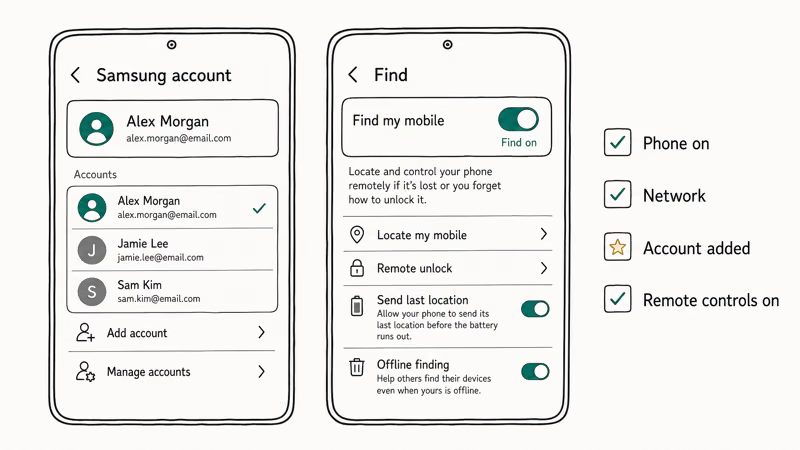
Next, confirm Find is enabled.
Go to Settings, Security and privacy, then Samsung Find or Find My Mobile depending on your One UI version, and make sure the main Find toggle is on. According to Samsung’s guide to locating a lost Galaxy device, the service needs the phone turned on, a network connection, a Samsung account added, and remote controls enabled, so a device missing any of those 4 conditions won’t appear.
The feature is supported on Galaxy phones running One UI 2 or later, so very old devices may not have it at all.
While you’re in the account area, it helps to know that some content stays sandboxed. Items kept in the Samsung Secure Folder sit under separate protection, which is unrelated to Find but useful context when you audit what your account controls. If you can’t sign in at all, our Forgot Samsung Galaxy Password guide covers account recovery on your own device.
#Enable Offline Finding and Location Permissions
The offline finding network is the piece most people miss. It lets nearby Galaxy devices relay an encrypted location for your device even when it has no internet of its own. The catch is that it only works if your device opted in before it went offline.
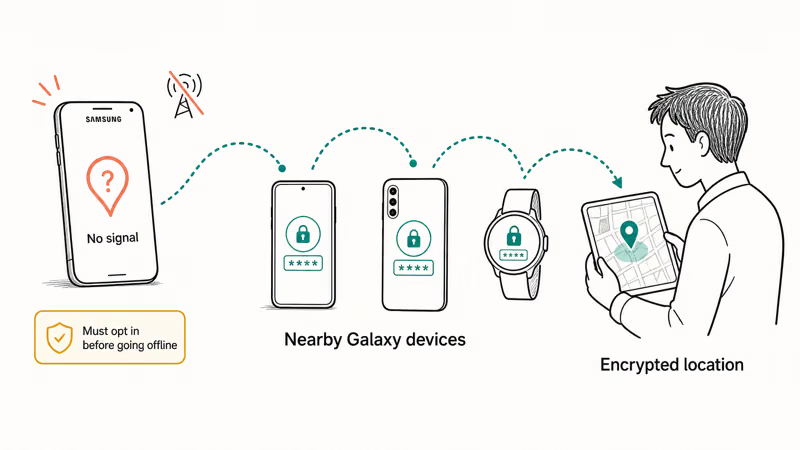
Enabling it after the fact doesn’t retroactively locate a phone that’s already lost.
Turn it on now, while the device is in your hands. In the Samsung Find or Find My Mobile settings, look for Offline finding and enable it, then choose the broadest finding option you’re comfortable with so coverage is strongest.
Samsung’s SmartThings Find and Samsung Find tools page confirms that the location, lock, and erase controls all depend on the device being signed into your account first, so the account step is what unlocks the rest. Location permissions also have to be in place: open Settings, Location, and confirm location is on and high-accuracy is enabled, because a device with location off can still appear in Find but won’t report a precise live position.
If you also use Google’s ecosystem, our Google Find My Device guide explains how that separate network behaves so you don’t confuse the two. Set the opt-in and permissions together before relying on either.
#Fix an Offline or Missing Device
When Find shows your device as offline, the location you see is the last known position, not a live one. A device that’s powered off, out of battery, or fully out of network range can’t send a fresh update, and only the offline finding network can fill that gap if it was enabled in time. Refresh the map a few times, since updates can lag by minutes.
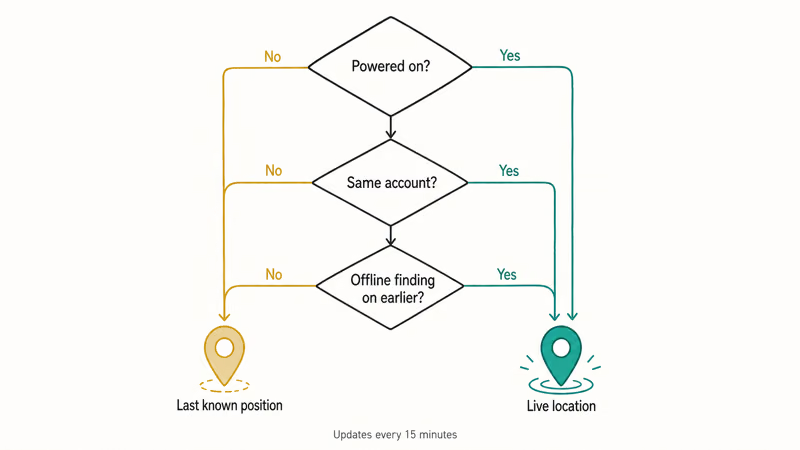
Walk through this short triage. Confirm the device is powered on, signed into the same Samsung account, and that you enabled offline finding earlier.
Samsung’s guide to locating family devices states that the Track location feature sends fresh updates every 15 minutes once you start it, which helps when a device is on the move rather than sitting still. If all the conditions are met and the map still shows only an old position, the device is likely off or has no path to relay its location right now.
For physical items rather than phones, a dedicated tracker is often more reliable, and our Best Bluetooth Tracker roundup compares the options. If you instead worry that an unknown tracker is following you, our AirTag Tracking You guide covers that privacy side.
#Contact Samsung Support as a Last Step
Reach out to Samsung support only after you’ve verified the account, the Find toggle, the offline-finding opt-in, and location permissions. Contacting support before those checks usually ends with them walking you through the same settings. Have your device model, One UI version, and the exact Samsung account email ready so the agent can confirm enrollment on their side.
Support is the right step when the settings are confirmed correct but the device still never appears, or when you suspect the account itself has an issue such as a locked profile or a sign-in loop.
Samsung can verify whether the device is properly registered and whether the service is operating normally in your region. They can also confirm whether a sign-in problem is on your account or theirs. Keep the request scoped to a device you own, and let Samsung handle anything that touches account security rather than attempting a workaround yourself or following an unofficial bypass guide.
#Set Up Samsung Find Before You Need It
The best fix for a missing-device panic is the setup you do beforehand. Sign into your Samsung account on every Galaxy device you own and turn Find on for each one, so a lost phone is already enrolled rather than scrambling after the fact.
Opt into the offline finding network on each device while it’s in your hands, since that single switch is what lets the network relay a location when the phone has no signal of its own. Keep location services and a stable network connection on for normal use, and review your enrolled devices in Samsung Find every few months so a device you replaced or reset doesn’t clutter the list. A two-minute setup pass now saves a frantic search later.
#Bottom Line
Confirm you’re signed into the correct Samsung account, turn on Find, and opt into the offline finding network on your own device before it ever goes missing, since a missed opt-in causes most offline results. Keep location services on and the device online when you can.
Use the official Samsung tools throughout and keep everything scoped to hardware you own. Contact support only after the settings are verified, and route a stolen phone through your carrier and the authorities.
#Frequently Asked Questions
Why is Samsung Find not working?
The usual causes are a Samsung account that isn’t fully signed in, the Find toggle being off, or the offline finding network never being enabled. Location permissions and a powered-down device also cause failures. Check the account first, then the Find and offline-finding settings on your own device.
Is Samsung Find the same as Find My Mobile?
Yes. Samsung Find is the current name for what was previously called Find My Mobile. The account requirement and the core settings are the same, so older guides referring to Find My Mobile still apply.
Why does my device show offline in Samsung Find?
An offline status means the device can’t send a live location right now because it’s powered off, out of battery, or out of network range. You see its last known position instead. The offline finding network can still relay a location, but only if you enabled that opt-in before the device went offline, which is why advance setup matters so much.
How do I enable offline finding?
Open Settings, Security and privacy, then Samsung Find or Find My Mobile, and turn on Offline finding. Do this while the device is in your hands, because it only helps if it was enabled before the device lost connection.
Do I need a Samsung account for Find?
Yes. Samsung Find requires a Samsung account, and the device must be signed into that same account. A mismatch between accounts shows the device as missing.
When should I contact Samsung support?
Contact Samsung support after you’ve confirmed the account, the Find toggle, the offline-finding opt-in, and location permissions, but the device still doesn’t appear. Support can verify enrollment and whether the service is normal in your region. Keep the request to a device you own, and route a stolen phone through your carrier and authorities.

Pixel 11 vs Pixel 10: What Changed and Who Should Upgrade
Pixel 11 vs Pixel 10: same screen and camera resolution, new Tensor G6, 25W wireless, and Gemini Intelligence. Here is who should actually upgrade.

Verizon Not Receiving Texts? How to Fix It in 9 Steps
Verizon not receiving texts? Fix it in 9 steps: check Message Blocking in My Verizon, reset network settings, deregister iMessage, and call support.

Pixel Battery Drain: What Google's July Fix Really Covers
Google marked the Pixel idle battery drain bug fixed in July, but only some phones got the patch. Here is who is covered, who is not, and what to try.

iPhone Stuck on EDGE? How to Get 5G or LTE Back (2026)
iPhone stuck on EDGE with crawling data? Here's why the E icon appears, which settings force 5G or LTE back, and when the problem is your carrier.