Galaxy Watch Not Pairing? Fix the Connection in 2026
Galaxy Watch not pairing to your phone? Install Galaxy Wearable and its plugins, reset Bluetooth and the watch, and check Android compatibility in order.
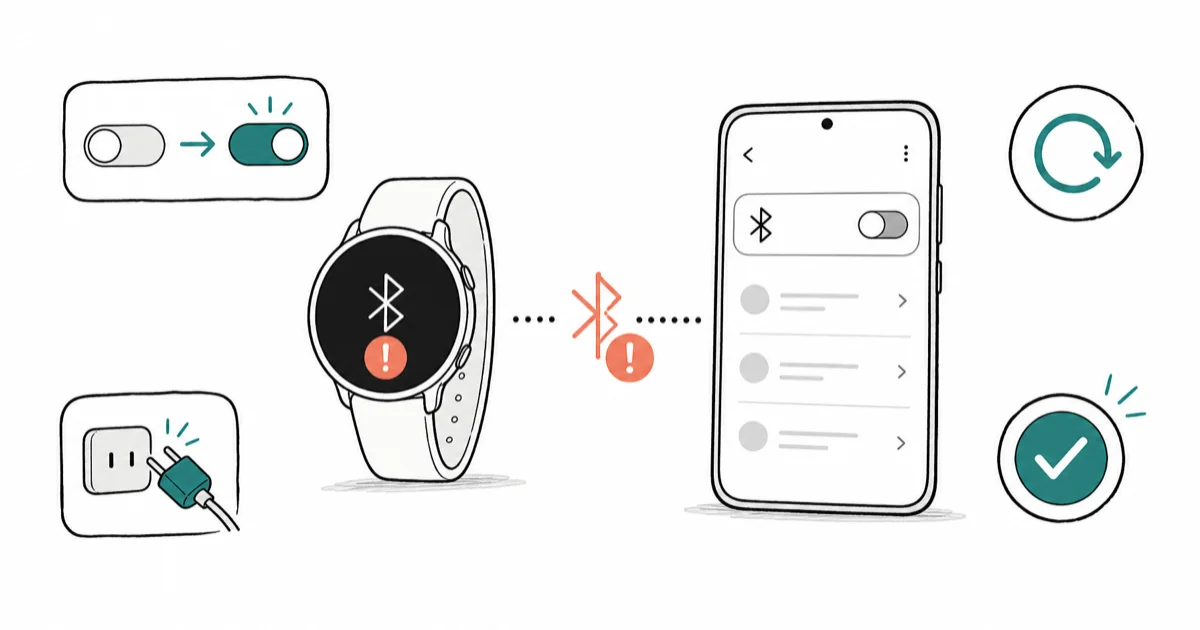
Quick AnswerA Galaxy Watch usually won't pair because the Galaxy Wearable app or its required plugins are missing or outdated, or Bluetooth is glitching. Install and update Galaxy Wearable, then toggle Bluetooth and restart both devices.
Galaxy Watch not pairing is almost always an app or compatibility problem, not a broken watch. A watch-specific plugin can be the missing piece: the watch may not appear until the Galaxy Wearable app finishes pulling that plugin from the Play Store. The fixes below walk that order, from the easy app checks to a full reset.
- The Galaxy Wearable app plus a watch-specific plugin must both install before your phone can find the watch.
- A stale Galaxy Wearable version is a top cause; updating it from the Play Store fixes many failed pairings.
- Toggling Bluetooth and restarting both devices clears the temporary glitches behind most “can’t find watch” errors.
- Galaxy Watch4 and later can’t pair with an iPhone, so an iOS phone will never complete setup.
- A factory reset of the watch is the last step, only after the app, Bluetooth, and compatibility checks fail.
#Why Will My Galaxy Watch Not Pair?
Galaxy Watch not pairing usually traces to one of three things: a missing or outdated app, a Bluetooth hiccup, or a phone that doesn’t meet the watch’s requirements. The Galaxy Wearable app is the bridge between watch and phone, and it relies on extra plugin apps to talk to your specific model.
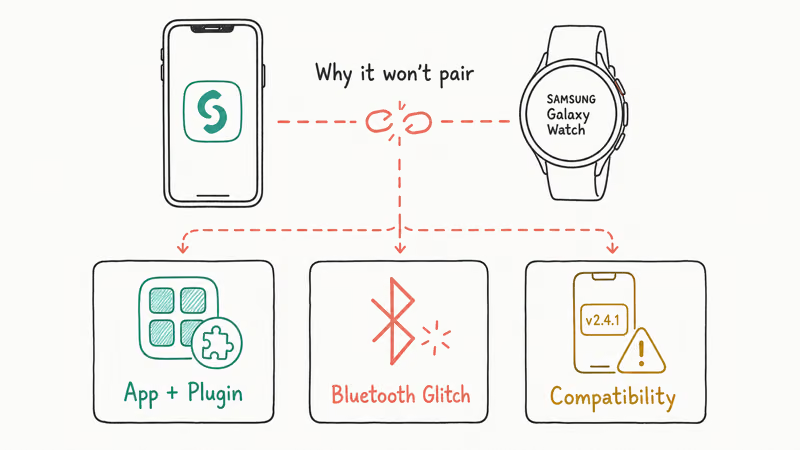
When that bridge is incomplete, your phone never sees the watch. The watch may even show “ready to connect” while the phone’s search spins and times out.
According to Samsung’s Galaxy Wearable support page, the app pulls in model-specific plugins to connect the watch. Most failed pairings stall at exactly that plugin step, which is why the next section starts there before anything else.
#Install the Required Apps and Plugins
This is the first thing to check. It’s the most common cause. Pairing needs two pieces: the Galaxy Wearable app and a watch-specific plugin, such as the Galaxy Watch Plugin. A weak connection can leave the plugin half-installed.
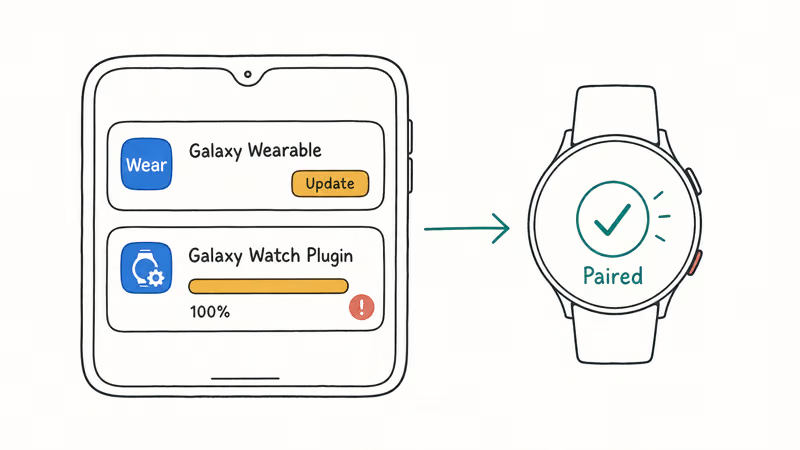
Open the Play Store, search Galaxy Wearable, and tap Update. Start setup and let any plugin download finish. The watch may only appear after the plugin download fully finishes, so don’t cancel that download or back out of setup while the progress bar is still moving toward the end.
If the plugin won’t download, your phone may be low on space. Our Clear Other Storage Samsung guide shows how to reclaim space fast. A clean Play Store cache also helps when downloads stall partway, and a quick reboot of the phone clears a wedged Play Store queue more often than people expect, so try that before you blame the watch hardware itself.
Permissions are easy to miss. The Galaxy Wearable Play Store listing states that the app needs Nearby devices access on Android 12 or higher just to scan for a watch over Bluetooth. Deny it and the search finds nothing.
#Re-Pair After Switching Phones
A watch bonded to an old phone often won’t show up on a new one. The pairing record still points at the previous device, so your new phone’s search comes up empty and you assume the watch is broken when it simply already has a partner it’s loyal to.
Remove the watch from the old phone’s Galaxy Wearable app, or put it back into pairing mode from its own settings. If the old phone is gone, a watch reset clears the stale bond.
#Reset Bluetooth and the Watch
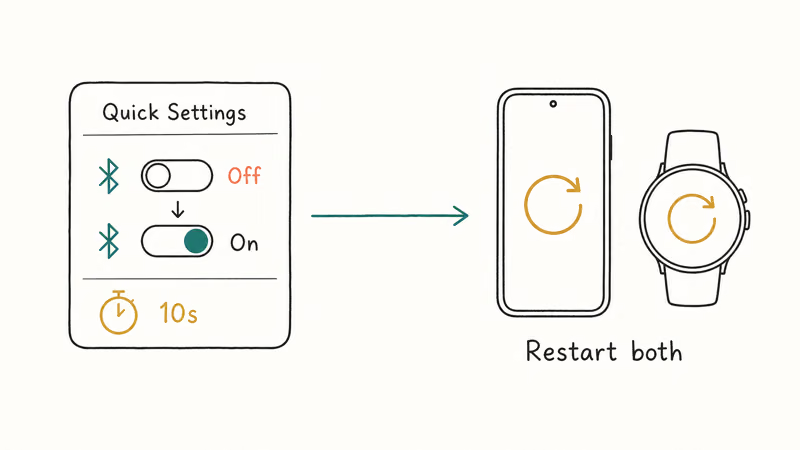
If the apps are in place but pairing still fails, the next layer is Bluetooth. Open Quick Settings, turn Bluetooth off, wait ten seconds, and turn it back on. Then restart both devices to clear the temporary radio and cache glitches that sit behind a surprising share of pairing failures, especially right after a software update or a forced reboot.
Bluetooth trouble that affects more than just the watch points to a phone-side issue. Our guide on Bluetooth Not Working on Android covers the deeper radio resets. If your phone also runs hot or drains while searching, Samsung Galaxy Battery Draining Fast explains how a stuck background process can interfere with pairing.
#Check Account and Android Compatibility
Compatibility is the silent killer of Galaxy Watch pairing. Not every phone can run the Wearable app for every watch, and the requirement changes by model and region.
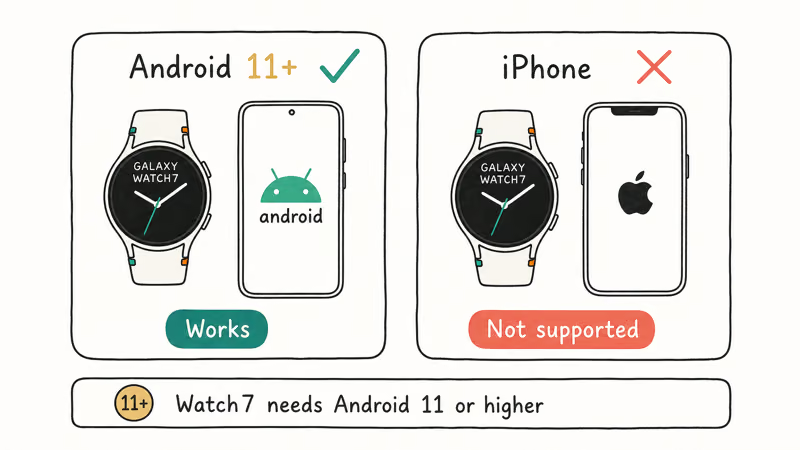
According to Samsung’s smartwatch and phone compatibility page, newer models like the Galaxy Watch7 require a phone on Android 11 or higher, while older watches accept older Android versions. Samsung also confirms that Galaxy Watch4 and later can’t be set up with an iPhone at all. If you’re on iOS, that’s the whole answer: setup will never complete.
Check your phone’s Android version under Settings, About phone, then confirm it meets the requirement for your exact watch model on Samsung’s page. A Samsung account is needed for some features and for full setup on Samsung phones. If your account is the sticking point, our Samsung Secure Folder guide touches on account sign-in behavior that can block linked services.
#When Should You Factory Reset the Watch?
A factory reset wipes the watch and is the last resort. Try it only after the app, plugin, Bluetooth, and compatibility checks have all failed, since it erases your watch data and settings.
On the watch, go to Settings, General, Reset (the path varies slightly by model), confirm, and let it restart. The watch returns to its out-of-box state and broadcasts for pairing again. Start the Wearable setup from scratch afterward.
If you recently updated the phone’s software and pairing broke right after, the new OS build may be the trigger. Our One UI 8 Problems guide lists known post-update connectivity bugs and their workarounds, which is worth a look before you wipe a watch that was working fine last week.
#Bottom Line
Install and update the Galaxy Wearable app and let its watch-specific plugin finish downloading first, because a missing plugin is the single most common reason a Galaxy Watch won’t pair. If it still fails, toggle Bluetooth and restart both devices, then confirm your phone meets the Android version requirement for your model. Save the factory reset for last, after every app, connection, and compatibility check has come up empty.
#Frequently Asked Questions
Why will my Galaxy Watch not pair?
The usual causes are a missing or outdated Galaxy Wearable app, an unfinished plugin install, a Bluetooth glitch, or a phone that doesn’t meet the watch’s requirements. Start by updating Wearable and letting its plugin install fully. Then toggle Bluetooth and restart both devices.
What apps do I need to pair a Galaxy Watch?
You need Galaxy Wearable and a watch-specific plugin. Both must be installed and current.
Why can’t the Wearable app find my watch?
Usually the plugin didn’t finish installing, or the watch is still bonded elsewhere. Confirm the plugin hits 100 percent, then unpair the watch from any old phone.
Does Android version affect pairing?
Yes. Each Galaxy Watch model lists a minimum Android version, and newer watches require newer Android. The Galaxy Watch7, for example, needs Android 11 or higher. Check your phone’s version against Samsung’s compatibility page for your exact model.
How do I reset a Galaxy Watch?
On the watch, open Settings, General, then Reset, and confirm. The exact path varies by model. A reset wipes the watch and returns it to its factory state, so use it only after app, Bluetooth, and compatibility fixes fail, then run Wearable setup again from scratch.
Do I need a Samsung account to pair?
For full setup on a Samsung phone, yes, a Samsung account is needed, and several features depend on it being signed in. You can complete basic Bluetooth pairing without one in limited cases, but signing in unlocks the watch’s full feature set, syncing, and Find My Watch. If account sign-in is where setup stalls, clear and re-enter your credentials before assuming the watch itself is at fault.

Pixel 11 vs Pixel 10: What Changed and Who Should Upgrade
Pixel 11 vs Pixel 10: same screen and camera resolution, new Tensor G6, 25W wireless, and Gemini Intelligence. Here is who should actually upgrade.

Verizon Not Receiving Texts? How to Fix It in 9 Steps
Verizon not receiving texts? Fix it in 9 steps: check Message Blocking in My Verizon, reset network settings, deregister iMessage, and call support.

Pixel Battery Drain: What Google's July Fix Really Covers
Google marked the Pixel idle battery drain bug fixed in July, but only some phones got the patch. Here is who is covered, who is not, and what to try.

iPhone Stuck on EDGE? How to Get 5G or LTE Back (2026)
iPhone stuck on EDGE with crawling data? Here's why the E icon appears, which settings force 5G or LTE back, and when the problem is your carrier.