Pixel Fingerprint Not Working? Fix the Sensor 2026
Pixel fingerprint not working or slow? Check screen protector compatibility, run the calibration prompt, re-enroll prints, and handle update bugs in order.
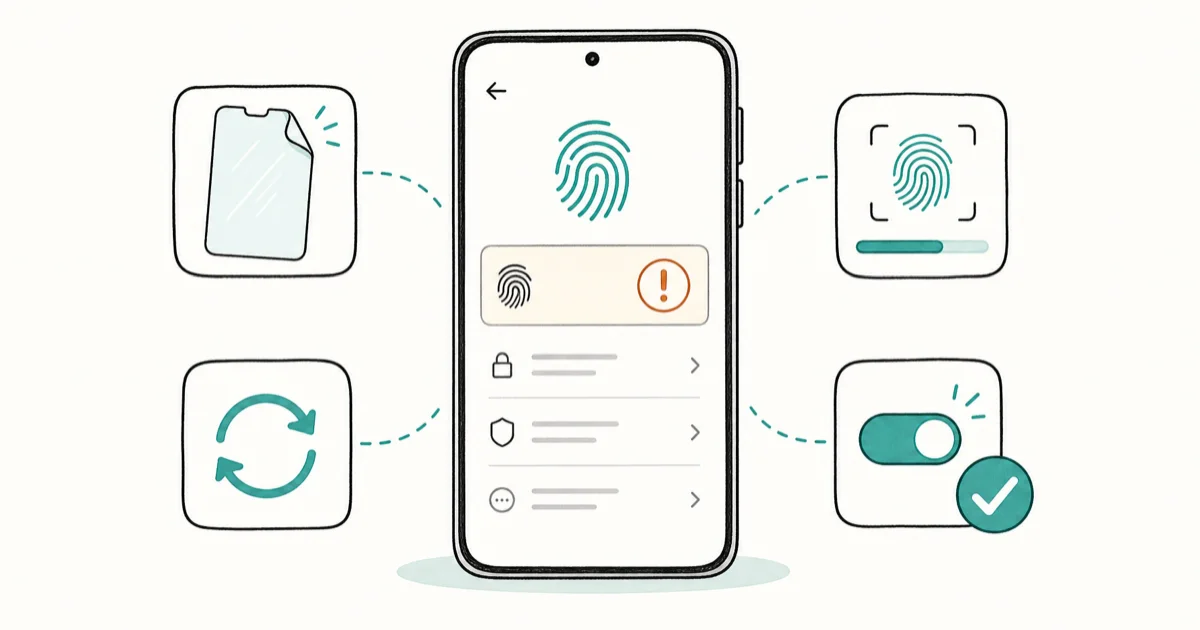
Quick AnswerA Pixel fingerprint sensor usually fails because of an incompatible screen protector or prints that need re-enrolling after a screen change. Use a sensor-compatible protector and re-enroll your fingerprints.
Pixel fingerprint not working is usually a screen problem, not a sensor failure. Modern Pixels read your print through an under-display sensor, so a thick or incompatible screen protector, a smudged screen, or prints enrolled before a screen change will all cause rejected unlocks. The practical fix order is protector compatibility first, then calibration, cleaning, re-enrollment, and software updates before repair.
Using these methods on devices or accounts you don’t own may violate applicable laws and platform terms.
- Most Pixel fingerprint failures come from an incompatible screen protector blocking the under-display sensor
- After applying a new protector, run the on-screen calibration prompt so the sensor relearns the surface
- Delete and re-enroll your fingerprints, since prints saved before a screen change often stop matching
- Accuracy that drops right after an update is usually a known bug fixed in the next security patch
- Suspect hardware only after a clean protector, calibration, and re-enrollment all fail
#Why Is My Pixel Fingerprint Not Working?
The under-display sensor reads your fingerprint through the glass, so anything between your finger and the sensor degrades the read. A screen protector that isn’t rated for under-display sensors, a dirty or wet screen, or a cracked panel all reduce accuracy.
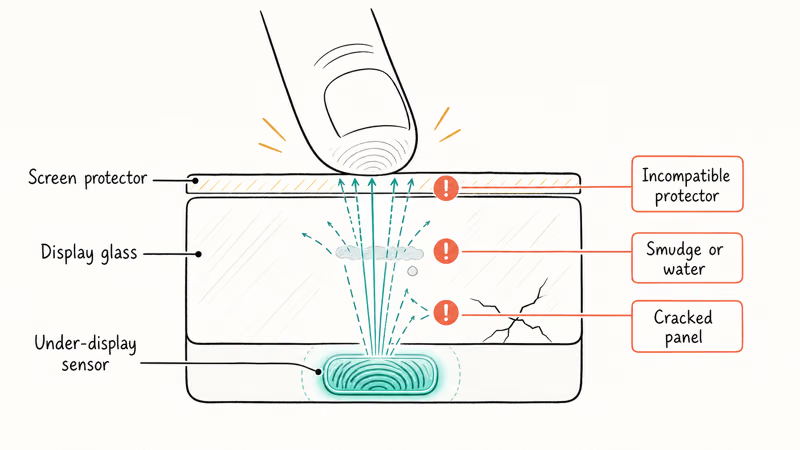
The second big cause is stale enrollment. When the screen or its surface changes, prints captured under the old conditions no longer match cleanly. According to Google’s Pixel fingerprint help, re-adding fingerprints is part of the standard fix when unlocks stop working, which is why re-enrollment sits near the top of this guide.
#Is a Screen Protector Blocking the Sensor?
This is the first thing to check, because it’s the most common cause of a Pixel that suddenly won’t read prints.
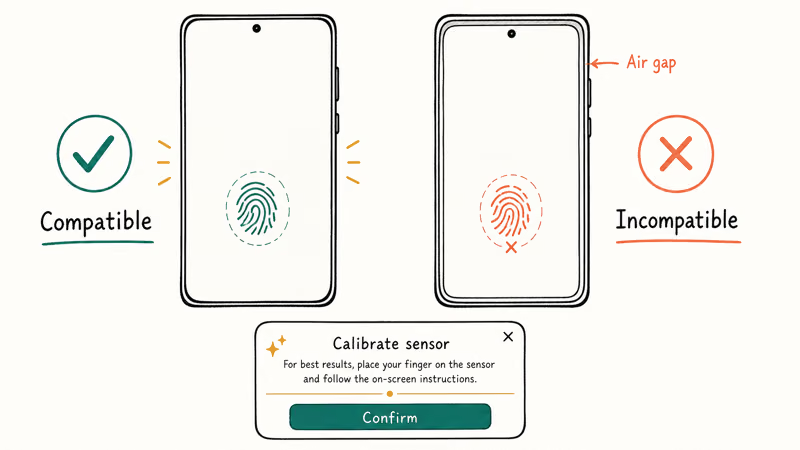
Not every protector works with an under-display sensor. Cheap or thick films, and many tempered-glass options, create an air gap or block the optical read. According to Google’s screen protector guidance, you should use a protector designed for fingerprint-sensor compatibility, and applying the wrong type degrades unlock performance.
When you install a compatible protector, the Pixel shows a calibration prompt asking you to confirm. Run it. This step tells the sensor about the new surface, and skipping it often leaves a freshly protected phone unable to unlock. If unlocks get worse right after a new protector, remove and re-run calibration before assuming the sensor failed.
#Re-Enroll Your Fingerprints
If the protector is compatible and calibrated and unlocks still fail, delete your saved prints and add them again.
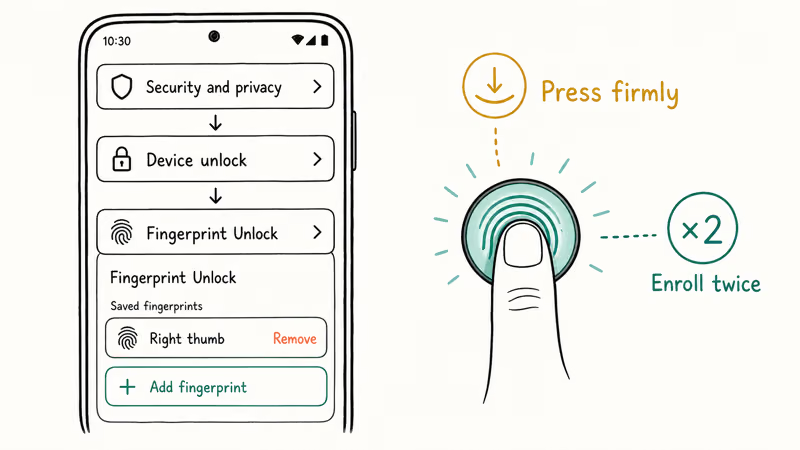
In Settings, open Security and privacy, then Fingerprint Unlock, and remove every saved print. Add fresh ones, pressing firmly. A slow enrollment beats a rushed one.
Enroll your most-used finger twice. Two templates give the sensor more data and sharpen accuracy on under-display readers. If security is your wider concern, the walkthrough on how to set up passkeys on Android covers a stronger sign-in method for apps and sites.
#Clean the Screen and Adjust Sensitivity
A grimy or wet screen ruins an under-display read more than people expect. Wipe the area over the sensor with a soft, dry cloth, and make sure your finger is clean and dry too. Oil, lotion, and water all scatter the optical or ultrasonic read.
Brightness matters on optical sensors, which briefly light up the screen to capture the print. According to Android’s biometric documentation, under-display sensors depend on the display itself to read, so a very dim auto-brightness setting can weaken captures. Raise brightness for a test unlock, and if your model has a fingerprint enhancement or high-sensitivity toggle in Settings, turn it on.
#Fix Sensor Bugs After a Software Update
If your fingerprint worked fine until a recent update, the update is the likely cause, and the fix is usually another update.
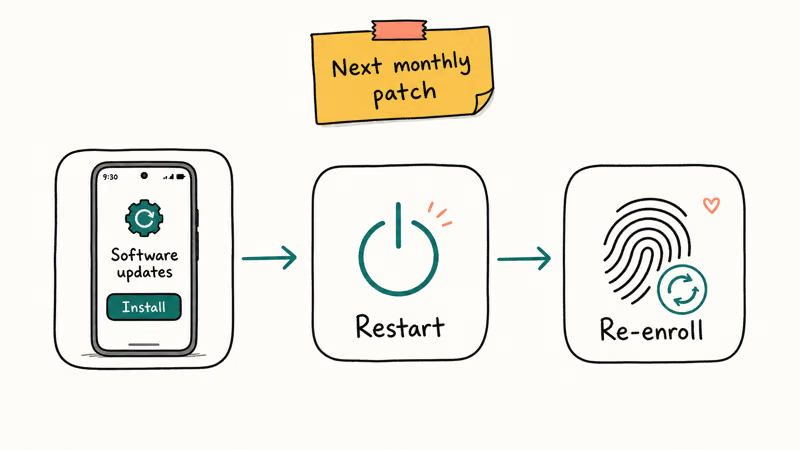
Pixel feature drops and security patches occasionally introduce sensor regressions, and Google typically corrects them in the following monthly patch. Open Settings, then System, then Software updates, and install any pending Pixel update. Installing the latest patch is the fastest fix for an update-induced fingerprint bug.
After updating, restart the phone, then re-enroll your prints once more so the sensor recalibrates on the new build. A clean restart clears stuck biometric services. If your Pixel also feels slow or buggy after the same update, the Pixel 10 problems guide maps the launch bugs to the patches that fixed each one.
#When the Sensor Is a Hardware Fault
Hardware failure is rare and should be your last conclusion, not your first.
Suspect hardware only after you’ve used a compatible, calibrated protector, cleaned the screen, re-enrolled prints, and installed the latest update. A cracked panel over the sensor, water damage, or a sensor that fails even with the screen protector removed points to a physical fault. Treat persistent failure with the protector removed as a repair case, especially if the panel is cracked over the sensor area.
At that point, contact Google support or an authorized repair center, and check warranty coverage before paying out of pocket. While you wait, set a strong PIN as a backup unlock, or lean on face unlock if your phone supports it, which the Android face unlock guide walks through.
If you suspect software rather than hardware, rule it out cleanly. The guide to remove malware from Android helps confirm no rogue app is hijacking the sensor, and a quick Galaxy battery drain check spots a background process eating resources.
#Bottom Line
Use a fingerprint-sensor-compatible screen protector and run the calibration prompt after applying one, then delete and re-enroll your prints with a slow, firm capture. If accuracy dropped after an update, install the latest security patch, since sensor bugs are usually fixed there. Suspect hardware only after a clean protector, calibration, and re-enrollment still fail, and set a backup PIN so you’re never locked out while you sort it.
#Frequently Asked Questions
Why is my Pixel fingerprint not working?
The under-display sensor reads through the glass, so an incompatible screen protector, a dirty screen, or stale enrolled prints usually cause rejected unlocks. Check the protector first, then re-enroll your prints. Hardware failure is uncommon.
Does a screen protector affect the Pixel sensor?
Yes, a lot. Use a sensor-compatible protector and run the calibration prompt it triggers.
How do I re-enroll fingerprints on a Pixel?
Open Settings, then Security and privacy, then Fingerprint Unlock. Remove each saved print, then add fresh ones, pressing firmly and capturing the finger at a few angles. Enrolling your main finger twice improves accuracy.
Did an update break my Pixel fingerprint?
It can happen, since Pixel updates sometimes introduce sensor regressions. Google usually fixes them in the next monthly patch, so install the latest update from Settings, then System, then Software updates. Restart the phone afterward, then re-enroll your prints so the sensor recalibrates on the new build. This two-step order resolves most update-related fingerprint failures.
How do I run the fingerprint calibration?
The Pixel shows the prompt automatically when you apply a compatible protector. If you skipped it, reseat the protector or re-enroll your prints.
When is the Pixel sensor a hardware fault?
Only after a compatible protector, calibration, cleaning, re-enrollment, and the latest update all fail. A cracked panel over the sensor, water damage, or failure with the protector removed points to hardware. Contact Google support and check your warranty before paying for a repair.

Pixel 11 vs Pixel 10: What Changed and Who Should Upgrade
Pixel 11 vs Pixel 10: same screen and camera resolution, new Tensor G6, 25W wireless, and Gemini Intelligence. Here is who should actually upgrade.

Verizon Not Receiving Texts? How to Fix It in 9 Steps
Verizon not receiving texts? Fix it in 9 steps: check Message Blocking in My Verizon, reset network settings, deregister iMessage, and call support.

Pixel Battery Drain: What Google's July Fix Really Covers
Google marked the Pixel idle battery drain bug fixed in July, but only some phones got the patch. Here is who is covered, who is not, and what to try.

iPhone Stuck on EDGE? How to Get 5G or LTE Back (2026)
iPhone stuck on EDGE with crawling data? Here's why the E icon appears, which settings force 5G or LTE back, and when the problem is your carrier.