Samsung Keyboard Keeps Stopping? Fix the Crash Loop
Samsung Keyboard keeps stopping on your Galaxy? Clear cache then data, update One UI, disable Good Lock themes, and test Safe Mode in a safe repair order.
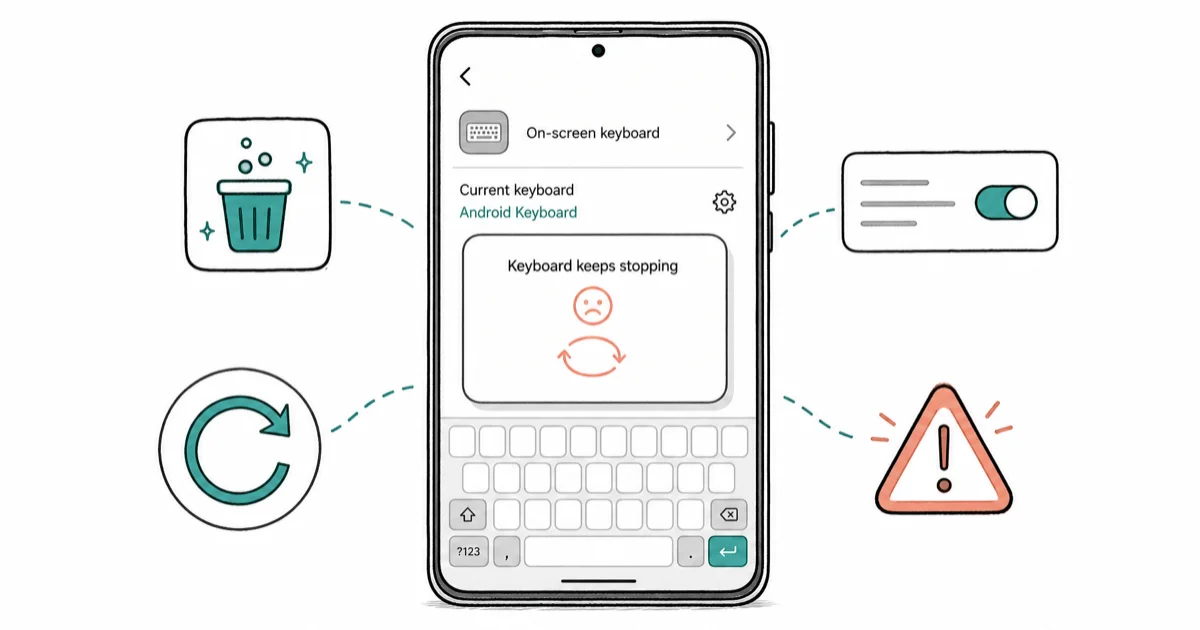
Quick AnswerSamsung Keyboard usually keeps stopping after a One UI update or a corrupt cache. Clear the Samsung Keyboard cache first, then its data, and restart the phone before deeper steps.
When Samsung Keyboard keeps stopping in a loop, every text field throws the “Samsung Keyboard has stopped” popup the second you tap it. The safest order is cache before data, because cache clearing preserves saved words while data clearing resets them. This guide stays on the repeating crash loop and its One UI causes.
- Clear the keyboard cache before its data so you keep custom words when the cache alone is the problem
- Crash loops spike right after a One UI update, then settle once Samsung ships a patch
- A Good Lock keyboard theme is a common One UI culprit that generic fix lists skip
- Setting a default keyboard like Gboard keeps you typing while you troubleshoot
- Safe Mode tells you in one boot whether a downloaded app is triggering the loop
#Why Does My Samsung Keyboard Keep Stopping?
A repeating crash means the Samsung Keyboard service fails every time Android tries to load it. That’s different from a one-off glitch.
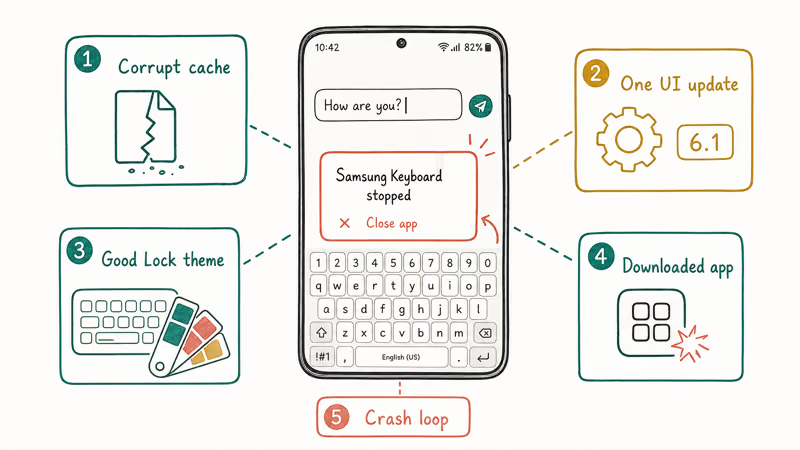
A corrupt cache is the most frequent trigger. The keyboard stores predictions, custom words, and theme data locally, and a half-written file after an interrupted update can crash the app the instant it tries to launch into a text field.
One UI updates are the second cause. The timing is the tell: if the loop started the same day your phone updated, a version mismatch between the keyboard and the new firmware is the likely reason.
A Good Lock module is the cause people miss. Keyboard themes installed through Good Lock change how Samsung Keyboard renders, and a theme that hasn’t been updated for your One UI version can force the app to crash on every launch. If a Keys Cafe theme is out of date, removing that theme can stop a loop that survives cache clearing.
A faulty downloaded app is the last common cause. Clipboard managers, accessibility tools, and rival keyboards can grab the input service and break it. This guide stays scoped to the keeps-stopping loop. For the broader method dump plus the recovery-mode and factory-reset paths, see the companion guide on the Samsung Keyboard Has Stopped error.
#Clear the Cache, Then the Data, in That Order
Order matters here, and it’s the part most lists get wrong. Clear the cache first.
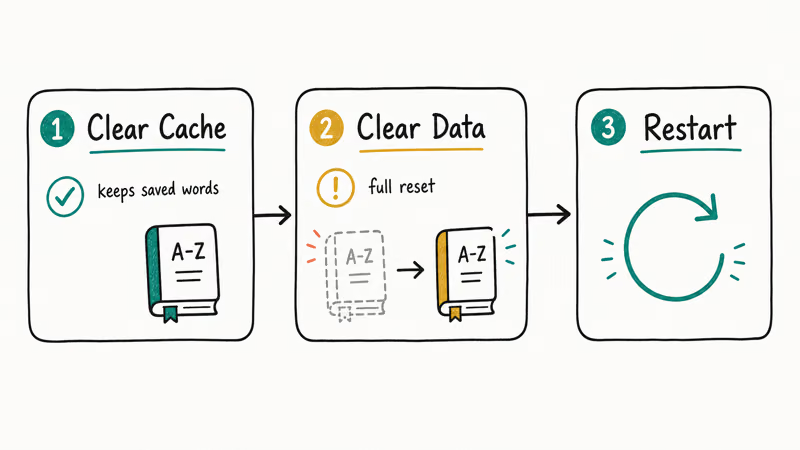
Why first? The cache alone is corrupt in many loops, and clearing it keeps your dictionary. Open Settings > Apps, search for Samsung Keyboard, tap Storage, then tap Clear Cache. If the cache is the corrupt piece, clearing only the cache can stop the popup while leaving saved words intact.
If the loop continues, return to the same Storage screen and tap Clear Data. This resets the keyboard fully and does fix stubborn loops, but it erases your custom dictionary and learned predictions, which rebuild as you type. Reboot after either step to reload the input service, then test a few text fields to confirm the popup is gone for good.
If the phone won’t boot cleanly afterward, a Samsung black screen points to a deeper issue.
#Update the Software to Close Version Bugs
If the crash loop began after an update, the fix is often another update. According to Samsung’s keyboard troubleshooting steps, Force stop and Clear data is the documented first response to a misbehaving keyboard, and pairing that with current firmware closes most version-mismatch loops.
Go to Settings > Software Update and tap Download and Install. Also check the Galaxy Store for a separate Samsung Keyboard app update. According to Samsung’s guide on how to update your Galaxy phone or tablet, both paths matter. Installing the newest build is why an update-triggered loop usually ends after the next patch lands on your device.
#Set a Default Keyboard So You Can Keep Typing
Keep typing while Samsung Keyboard is down by switching to Gboard. Install it, open Settings > General Management > Keyboard List and Default, enable Gboard, and tap Default Keyboard.
Google’s Gboard setup guide states that the keyboard installs from the Play Store and that some features need Android 7.0 or later, so it’s a safe stopgap on any modern phone. Once Gboard is enabled, you can keep texting while Samsung Keyboard is down. Switch back to Samsung Keyboard once the loop is gone.
#Is Good Lock or a Theme Causing It?
This is the One UI culprit that earns its own check. Good Lock and its Keys Cafe module let you build custom keyboard themes, and a theme that predates your current One UI version can crash Samsung Keyboard on launch.
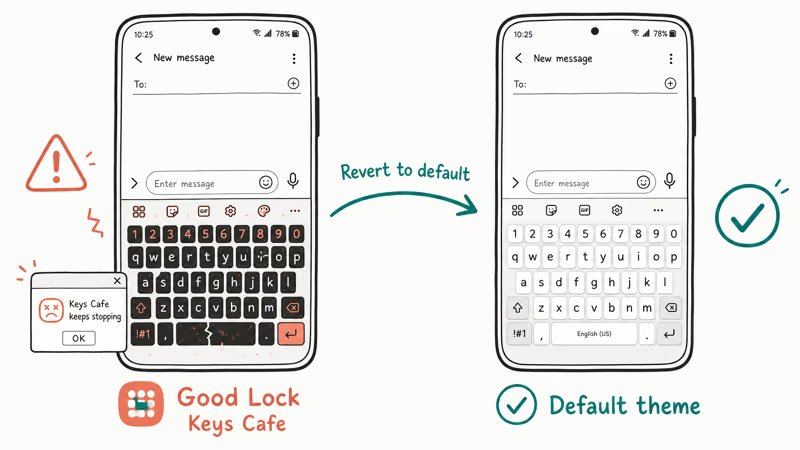
Open Good Lock, go to Keys Cafe, and switch the active keyboard back to the default Samsung theme. If Good Lock won’t open, go to Settings > Apps > Keys Cafe > Storage and tap Clear Data to drop the custom theme. Test a text field right after. If the loop stops the moment you revert to stock, the theme was the cause.
If reverting the theme ends a loop that survived cache wipes, leave the stock theme in place until Keys Cafe gets an update for your One UI build.
A standalone keyboard theme from the Galaxy Store can do the same thing without Good Lock, so remove any recently added theme and retest with the stock look first. While you’re auditing storage, a bloated keyboard folder can also surface as Other storage on Samsung, worth clearing if your phone is tight on space.
#Test Safe Mode and Watch for Update Bugs
Reach for Safe Mode when the cache wipe, the update, and the Good Lock revert all fail. Safe Mode boots Android with only built-in apps. That isolates whether a downloaded app is the trigger, since nothing you installed runs in this mode and the keyboard either crashes or behaves normally.
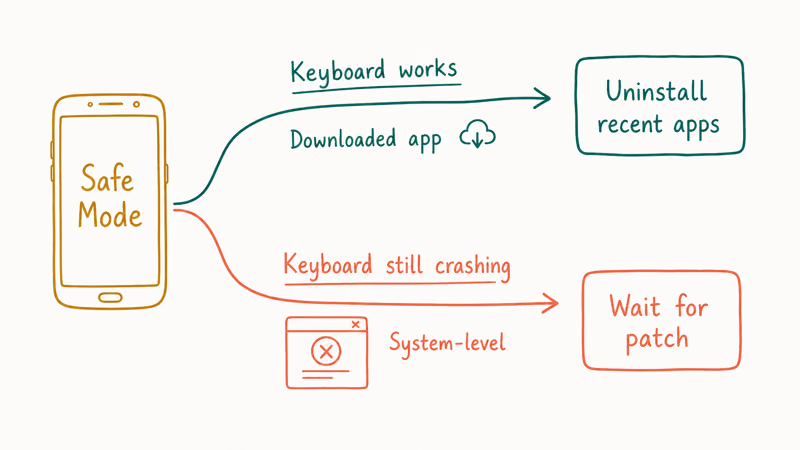
Press and hold the Side Key and Volume Down, then long-press Power Off until the Safe Mode prompt appears, and tap it. If the keyboard works in Safe Mode, an app is the culprit.
Restart normally to exit, then uninstall recent apps one at a time, starting with clipboard managers, rival keyboards, and accessibility tools. Test after each removal so you can name the offender instead of guessing.
If the keyboard still crashes even in Safe Mode, the cause is system-level rather than an app. Wide One UI rollouts ship with rough edges, and keyboard crashes have shown up among the wider One UI 8 problems reported after major updates. Hold off on a factory reset until a pending patch lands. A separate Samsung service crash like com.samsung.android.incallui follows the same cache-then-update logic if other built-in apps start failing too.
The same pattern applies when the Galaxy home screen keeps crashing: clear the launcher cache and test Safe Mode before a reset.
#Bottom Line
Clear the Samsung Keyboard cache, then its data, and restart the phone first; that ends most keeps-stopping loops while protecting your saved words on the cache-only pass. If the loop started after a One UI update, install the latest patch and disable any Good Lock keyboard theme, the culprit most fix lists never mention. Test in Safe Mode to rule out a downloaded app before you ever consider a factory reset.
#Frequently Asked Questions
Why does my Samsung Keyboard keep stopping?
A repeating crash usually comes from a corrupt cache, a One UI version mismatch after an update, or a Good Lock theme built for older firmware. Clearing the cache first, then data, fixes the cache cases, while reverting a custom theme handles the Good Lock cause.
How do I clear the Samsung Keyboard cache?
Go to Settings > Apps, find Samsung Keyboard, tap Storage, and tap Clear Cache. Clearing only the cache keeps your custom dictionary, so try it before Clear Data.
Did a One UI update cause the keyboard crashes?
If the loop started the same day your phone updated, a version mismatch is the likely cause. Install the newest software patch and update the Samsung Keyboard app, since the fix for an update-triggered loop is often a later update. Samsung typically ships these patches within a week or two of a buggy rollout.
Does Good Lock break the Samsung Keyboard?
It can. A Keys Cafe theme made for an older One UI version sometimes crashes the keyboard on every launch. Switch back to the default theme in Keys Cafe, or clear the Keys Cafe app data.
How do I set the default keyboard?
Open Settings > General Management > Keyboard List and Default, enable the keyboard you want, then tap Default Keyboard and pick it. Setting Gboard as the default keeps you typing while Samsung Keyboard is down, and you can switch back at any time once the loop is resolved.
When should I test in Safe Mode?
Test in Safe Mode after the cache wipe, the software update, and the Good Lock revert all fail. If the keyboard works in Safe Mode, a downloaded app is the trigger.

Pixel 11 vs Pixel 10: What Changed and Who Should Upgrade
Pixel 11 vs Pixel 10: same screen and camera resolution, new Tensor G6, 25W wireless, and Gemini Intelligence. Here is who should actually upgrade.

Verizon Not Receiving Texts? How to Fix It in 9 Steps
Verizon not receiving texts? Fix it in 9 steps: check Message Blocking in My Verizon, reset network settings, deregister iMessage, and call support.

Pixel Battery Drain: What Google's July Fix Really Covers
Google marked the Pixel idle battery drain bug fixed in July, but only some phones got the patch. Here is who is covered, who is not, and what to try.

iPhone Stuck on EDGE? How to Get 5G or LTE Back (2026)
iPhone stuck on EDGE with crawling data? Here's why the E icon appears, which settings force 5G or LTE back, and when the problem is your carrier.