Wireless Android Auto Not Connecting? Fix It in 2026
Wireless Android Auto not connecting or dropping? Confirm phone and car support, fix the Bluetooth and 5 GHz Wi-Fi handshake, and re-pair cleanly.
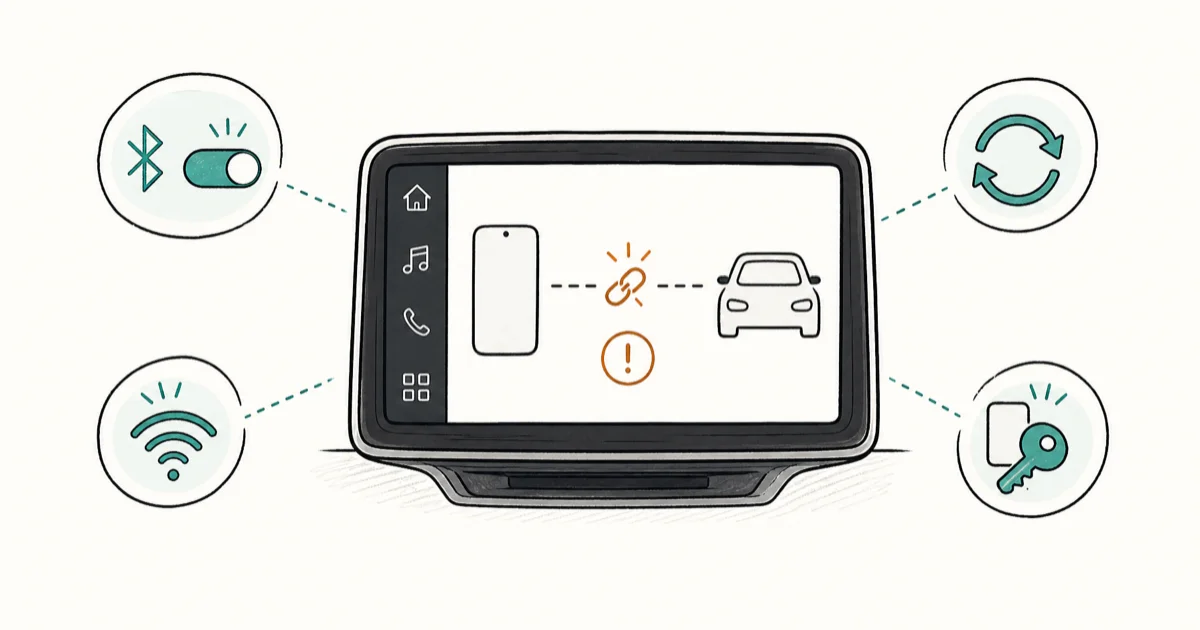
Quick AnswerWireless Android Auto usually fails because the phone or head unit lacks support, or the Bluetooth and Wi-Fi handshake is stale. Confirm both ends support wireless, then forget and re-pair.
Wireless Android Auto not connecting means your phone won’t start the in-car interface over Bluetooth and Wi-Fi, or it connects and then keeps dropping. The cause is almost always one of two things: one end doesn’t actually support wireless, or the Bluetooth-to-Wi-Fi handshake that wireless Android Auto depends on has gone stale. Generic fix-lists skip that handshake entirely. This guide leads with it.
- Wireless Android Auto needs both a 5 GHz Wi-Fi phone and a wireless-capable head unit
- Bluetooth handles the initial pairing, then playback jumps to a 5 GHz Wi-Fi link
- A stale stored pairing is the most common cause of drops, and forgetting it fixes most cases
- The phone must keep Bluetooth, Wi-Fi, and Location all on for the handshake to complete
- A certified USB-C cable is the reliable fallback when wireless keeps dropping on the road
#Why Is Wireless Android Auto Not Connecting?
Wireless Android Auto isn’t one connection, it’s two working in sequence. Bluetooth does the initial pairing and tells the phone which car to talk to, then the actual screen projection jumps to a 5 GHz Wi-Fi link between the phone and the head unit. If either half of that handshake fails, you get nothing or a connection that drops.
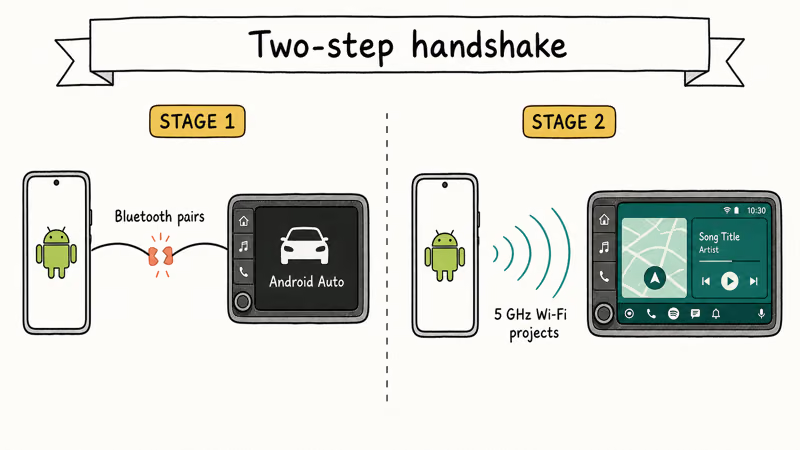
That two-step design is why “just restart it” rarely works. A stale Bluetooth pairing, a phone without 5 GHz Wi-Fi, or a head unit that only supports wired Android Auto each break the chain at a different point.
A stale stored pairing can make the connection drop repeatedly until both the phone and the head unit forget it and set it up fresh. In that case, the stored handshake, not the hardware, is the likely fault.
Match your symptom to the cause below and work the steps in order. Most drops trace back to the handshake, not the phone or the car.
#Confirm Your Phone and Car Both Support Wireless
This is the first thing to confirm, because no amount of re-pairing fixes hardware that can’t do wireless in the first place. According to Google’s Android Auto setup guide, wireless mode requires a phone with 5 GHz Wi-Fi support and a compatible head unit, since the projection runs over that 5 GHz link.
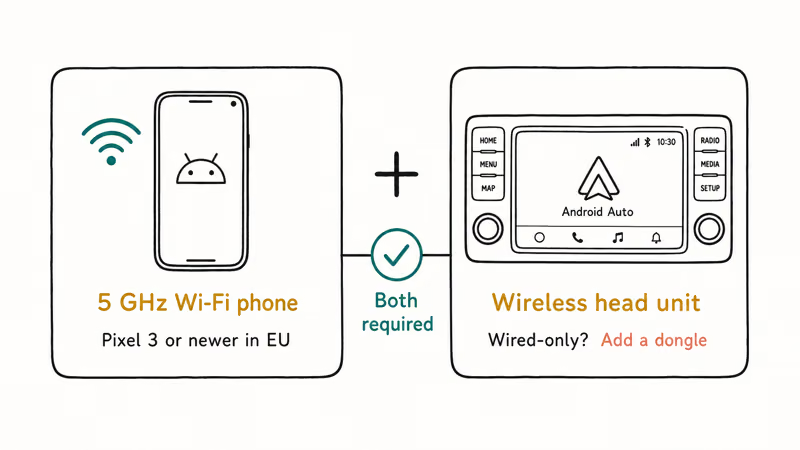
Most phones from the last several years have 5 GHz Wi-Fi, but check yours if you’re unsure. In the EU, the bar is higher: Google states that a Pixel 3 or newer meets the regional 5 GHz requirements for in-car use, and older or budget phones may not qualify.
The car side is the other half. Many factory head units support only wired Android Auto, even on recent vehicles. If your stereo never offered wireless, a wireless dongle is the only route.
#Fix the Bluetooth and Wi-Fi Handshake
When both ends support wireless but the connection won’t hold, the handshake is the problem. The phone needs every piece of the chain switched on.
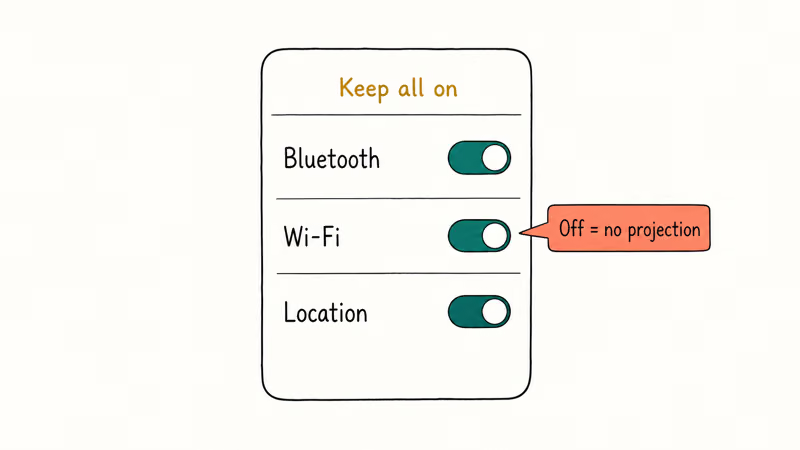
Turn on Bluetooth, Wi-Fi, and Location and leave them on. Google’s Android Auto wireless setup steps state that all 3 must stay enabled for the connection to complete, because the phone uses Bluetooth to find the car and Wi-Fi to project. Turning Wi-Fi off to “save battery” silently kills wireless Android Auto.
If the link still won’t form, check that no other 5 GHz device is hogging the band, and that the car isn’t trying to connect to a second paired phone at the same time.
#Stop Battery Optimization From Killing the Link
Aggressive power saving is a quiet cause of mid-drive drops. Android can suspend Android Auto in the background to save battery, which severs the Wi-Fi link without warning.
Disable battery optimization for Android Auto so the system leaves it running. Set it to unrestricted under the app’s battery settings. A draining phone makes this worse, and our guide on a Galaxy battery draining fast covers the power settings that also govern background connections. Low-power modes are the usual culprit, so turn yours off while you test.
#Update Apps and Re-Pair the Connection
A stale pairing is the single most common cause of wireless drops, and the fix is to forget it and start clean.
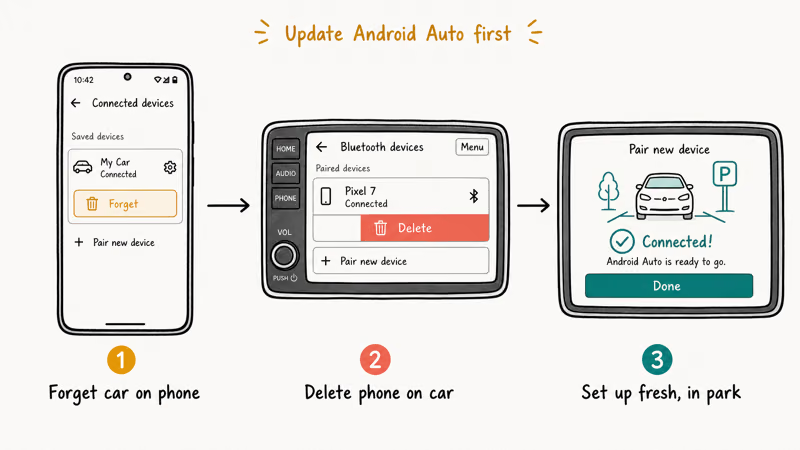
On your phone, open Settings > Connected devices, find the car, and choose Forget. On the head unit, delete the phone from its Bluetooth list too, since a half-deleted pairing on either side causes the handshake to fail. Then run the setup fresh with the car in park, following Google’s Pixel Android Auto setup steps if you’re on a Pixel.
Before you re-pair, update the pieces. Make sure Android Auto and Google Play services are current, and install any pending phone system update. Google recommends keeping Android Auto on its latest version, since an outdated build is a frequent cause of handshake failures that a re-pair alone won’t fix.
If a single Bluetooth device misbehaves more broadly, our guide on Bluetooth not working on Android covers the wider connection fixes, and our Android Auto not working walkthrough handles the general wired and wireless faults.
While you’re in the connectivity settings, our guide on how to enable Wi-Fi calling on Android shows where the same Wi-Fi toggles live if you want to verify them.
The forget-and-re-pair sequence is the cleanest next step when repeated drops continue after a simple reconnect.
#When Should You Fall Back to a Cable?
You reach this point after confirming support, fixing the handshake, and re-pairing all came up short.
If wireless keeps dropping on the road despite a clean setup, a wired connection is the dependable fallback. Wired Android Auto runs over USB and sidesteps the Wi-Fi handshake entirely, so it’s immune to the 5 GHz interference and stale-pairing problems that plague wireless.
Use a certified USB-C data cable, not a charge-only one, since cheap cables that only carry power won’t pass the data Android Auto needs. A short, certified cable is more reliable than a long bargain one. For other quick phone-to-phone or phone-to-device transfers in the car, our guide on how to use Quick Share covers Android’s fast local sharing.
Keep wireless as the goal and a cable as the safety net. If the cable works perfectly while wireless keeps failing, the fault is in the wireless handshake, not Android Auto itself.
#Bottom Line
Confirm both the phone and head unit support wireless Android Auto first, then forget the stored pairing and re-pair so Bluetooth and 5 GHz Wi-Fi hand off cleanly, because a stale pairing causes most drops. Keep Bluetooth, Wi-Fi, and Location all on and Android Auto updated. Use a certified USB-C cable as the reliable fallback when wireless keeps dropping on the road.
#Frequently Asked Questions
Why is wireless Android Auto not connecting?
Usually a stale handshake, or one end doesn’t support wireless. Forget the stored pairing and re-pair fresh.
Does my phone support wireless Android Auto?
It needs 5 GHz Wi-Fi support, which most phones from the last several years have. In the EU, Google notes a Pixel 3 or newer meets the regional requirements. If you’re unsure, check your phone’s Wi-Fi specs or ask the manufacturer.
Why does wireless Android Auto keep disconnecting?
A stale stored pairing is the most common cause of repeated drops. Forget the car on your phone and delete the phone on the head unit, then re-pair cleanly. Battery optimization suspending Android Auto in the background is the other frequent culprit, so set the app to unrestricted, and turn off any low-power mode while you test, since those throttle the background connection that wireless projection depends on the whole drive.
Does Wi-Fi matter for wireless Android Auto?
A great deal. After the Bluetooth pairing, the actual screen projection runs over a 5 GHz Wi-Fi link between your phone and the car. If you turn Wi-Fi off, wireless Android Auto stops working entirely, even though Bluetooth is still on.
How do I re-pair Android Auto?
Forget the car on your phone, delete the phone on the head unit, then redo setup with the car in park and Bluetooth, Wi-Fi, and Location on.
Should I switch back to a cable?
Switch to a cable when wireless keeps dropping after a clean re-pair. Wired Android Auto runs over USB and skips the Wi-Fi handshake, so it’s far more stable. Use a certified USB-C data cable, since charge-only cables won’t carry the data the connection needs.

Pixel 11 vs Pixel 10: What Changed and Who Should Upgrade
Pixel 11 vs Pixel 10: same screen and camera resolution, new Tensor G6, 25W wireless, and Gemini Intelligence. Here is who should actually upgrade.

Verizon Not Receiving Texts? How to Fix It in 9 Steps
Verizon not receiving texts? Fix it in 9 steps: check Message Blocking in My Verizon, reset network settings, deregister iMessage, and call support.

Pixel Battery Drain: What Google's July Fix Really Covers
Google marked the Pixel idle battery drain bug fixed in July, but only some phones got the patch. Here is who is covered, who is not, and what to try.

iPhone Stuck on EDGE? How to Get 5G or LTE Back (2026)
iPhone stuck on EDGE with crawling data? Here's why the E icon appears, which settings force 5G or LTE back, and when the problem is your carrier.