AirPods Pro 2 Not Charging? Fix the Real Cause in 2026
AirPods Pro 2 not charging or only one bud charging? Isolate the case, bud, and charger, clean the contacts, update firmware, and reset in a safe order.
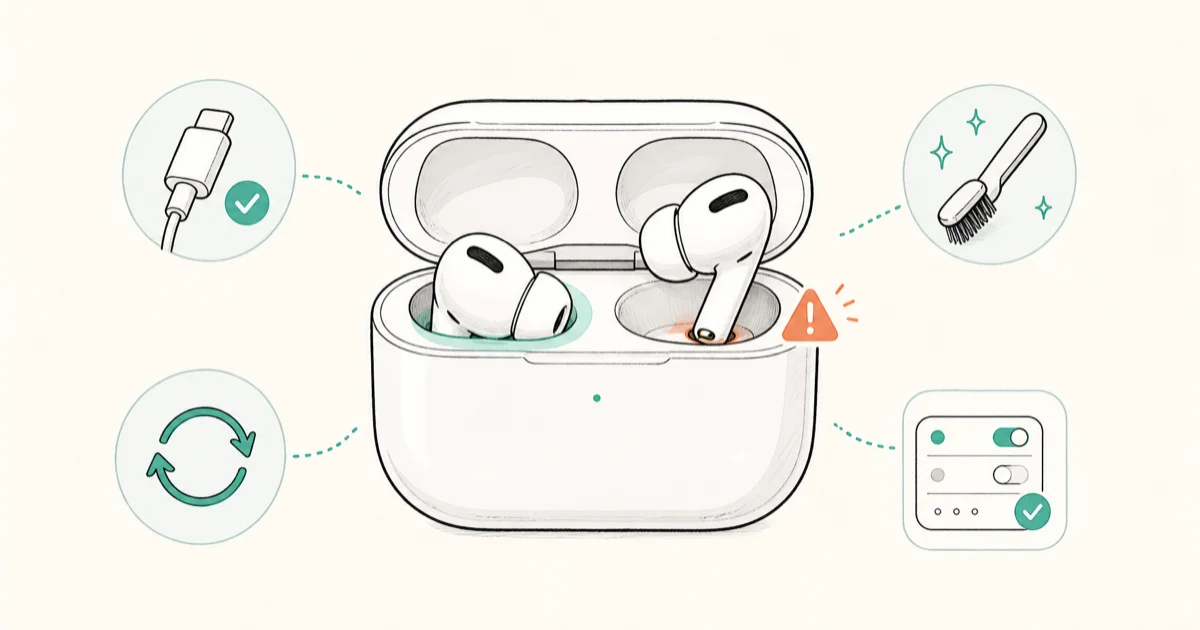
Quick AnswerAirPods Pro 2 usually stop charging because of dirty contacts, a weak charger, or a bud that is not seated. Isolate whether the case, one bud, or the charger is at fault, then clean the contacts.
When your AirPods Pro 2 are not charging, the real skill is figuring out which part actually failed before you fix anything. The case, a single bud, and the charger each fail differently, and the fix for one does nothing for the others. The isolation method below separates case, bud, and charger problems before you fix anything.
This guide focuses on triage rather than a generic fix list.
Here we untangle the trickier “one bud charges, the other doesn’t” and “everything looks fine but nothing charges” cases.
- Test each layer alone: case from the wall, then each bud in the case, then the charger
- One bud refusing to charge almost always means debris on that bud’s two metal contacts
- The USB-C AirPods Pro 2 case charges from a phone charger, but a weak port may trickle slowly
- Firmware only updates while the case charges near a paired iPhone, so charging issues block it
- A reset fixes intermittent charging glitches and does not erase your audio or Find My setup
#The Charging Chain Behind a Dead AirPod
AirPods Pro 2 charge in a chain, and a break anywhere in it looks the same from the outside: no charge. The wall outlet feeds the case, the case feeds each bud through tiny metal contacts, and a firmware glitch can stall the whole process. When one link fails, the battery popup on your iPhone shows a dash or a stuck percentage.
If the case takes no power at all from the wall, our AirPods case not charging guide goes deeper on the port and the LED.
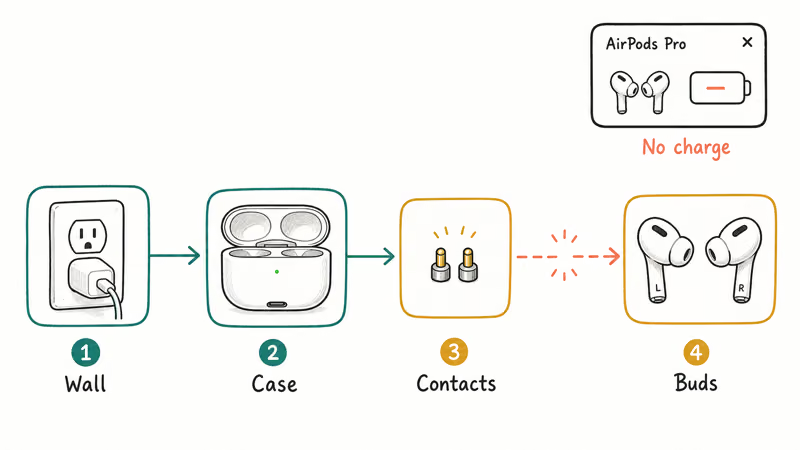
The fastest path is to find where the chain broke instead of trying every fix at random.
A dirty contact on one bud, a charger that can’t deliver enough power, and a case that takes no wall power are three different problems with three different fixes. Contact debris on a single bud is a common cause, and it stays invisible until you look closely under good light. Resist the urge to reset first, because a reset helps software glitches but won’t clean a contact or revive a dead charger.
#Is It the Case, a Bud, or the Charger?
Run three quick tests in order, each isolating a single layer. First, test the case alone. Plug the case into a wall charger with both buds removed, wait 30 seconds, then open the lid near your iPhone. If the case battery shows a charging bolt, the case and charger work, so your problem is at the bud level.
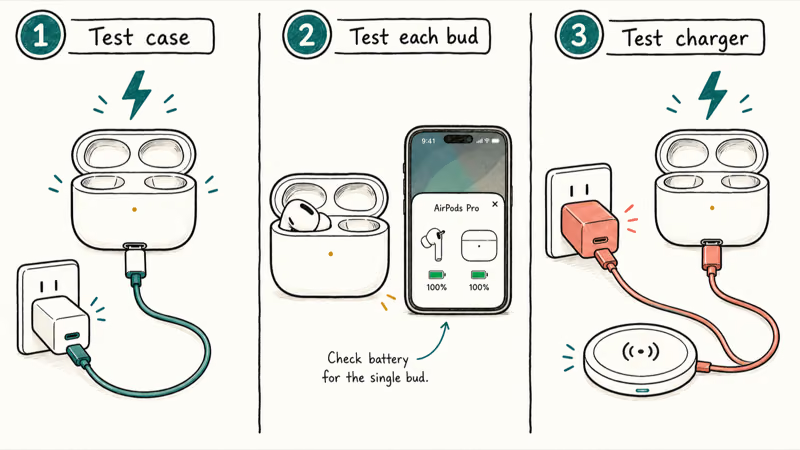
Second, test each bud separately. Place only the left bud in the case and check the popup, then do the same with only the right bud.
If one bud charges and the other doesn’t, you’ve isolated the fault to that single bud, either its contacts or, less often, its battery. This split is the most useful result you can get, because it rules out the case and charger entirely. Third, test the charger by swapping to a different cable and a different wall adapter or wireless pad. The original USB-C cable or a low-output port is a frequent quiet culprit.
If charging behavior is fine but the buds won’t connect afterward, that’s a pairing issue, and our AirPods Connection Failed guide covers it. Note which test changed the outcome before you move on.
#Clean the Contacts and Check the Charger
Once you know a bud is the problem, look at its two small metal contacts near the speaker mesh. Earwax, lint, and skin oil build a film that blocks the connection. Wipe each contact with a dry, lint-free cloth or a clean dry cotton swab.
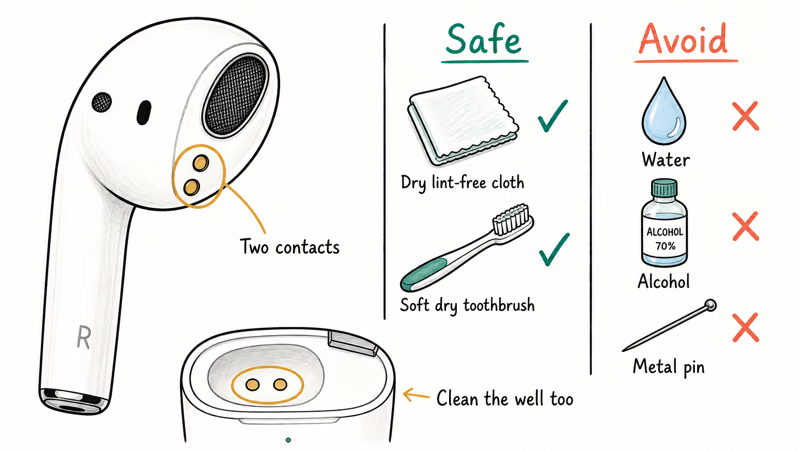
For stubborn buildup, a soft dry toothbrush lifts grime out of the recess. Do the same for the matching contacts inside the case wells, since debris collects there too. Avoid water, alcohol, and sharp metal tools, because liquid can seep into the bud and a pin can scratch the plating so it never conducts well again.
According to Apple’s AirPods charging guide, the status light pulses amber below 95% and turns green when full. That light tells you fast whether power is reaching the case.
A dim or dead light after you connect power points back to the contacts or the charger. Apple’s guide for AirPods that won’t charge recommends charging the case for at least 15 minutes before judging it dead, since a deeply drained case needs time to wake.
The USB-C case is more forgiving than older Lightning cases but not immune. A very low-output laptop port or a frayed cable may only trickle a charge. Use a charger you know is good and reseat the cable firmly, since a half-inserted USB-C plug looks connected but carries nothing.
#Update Firmware and Reset the AirPods
Firmware bugs occasionally cause odd charging behavior, but updating them requires charging to work at least partly. AirPods Pro 2 firmware installs automatically only while the case is plugged in or on a wireless charger and sitting near a paired iPhone with internet. There’s no manual update button. Leave the case charging next to your iPhone for 30 minutes to let any pending update apply, then check the version under Settings, Bluetooth, the info button by your AirPods.
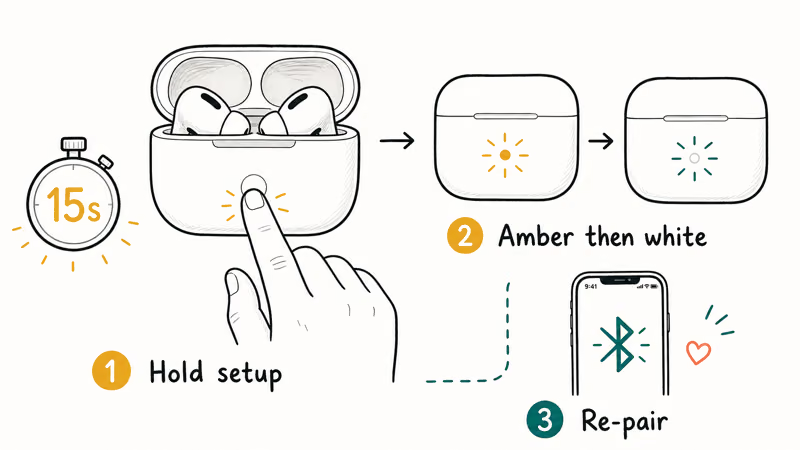
If charging is intermittent rather than dead, reset the AirPods. Apple’s reset guide confirms that you hold the setup button for about 15 seconds, with both buds in the case and the lid open, until the front light flashes amber and then white.
This clears the pairing and resolves software glitches that can stall charging. A reset doesn’t erase audio settings tied to your Apple ID, and you simply re-pair afterward.
When the buds won’t even flash during a reset, the case may be the deeper issue. Our AirPods Won’t Flash White guide handles a case stuck without the status light. If you mainly use the buds with a Mac and they charge but never reconnect there, AirPods Not Connecting to Mac covers that separately.
#When Is the Battery Worn Out?
A worn battery is the last suspect, not the first. The telltale sign is a bud or case that charges fully but drains in minutes, even after a clean contact and a known-good charger.
If a single bud charges to full and dies almost immediately while the other holds a normal charge, that bud’s cell is likely spent. Apple doesn’t sell user-replaceable AirPods batteries, so a worn cell means a battery service or a replacement bud through Apple. Before you pay for service, confirm you’ve ruled out contacts, charger, firmware, and a reset, since those account for most charging failures.
#Stop AirPods Charging Problems From Returning
Most repeat failures trace back to two habits, and fixing them once pays off. Wipe the bud contacts and case wells every couple of weeks, especially if you wear the buds during workouts, because sweat and earwax are what coat the contacts in the first place.
Store the case away from pockets full of lint, and keep a known-good USB-C cable as your dedicated charging cable rather than grabbing whichever thin data cable is nearest. Turn on Optimized Battery Charging in the AirPods settings to slow long-term wear.
Notice audio problems too? Our AirPods Sound Muffled guide covers the same mesh debris. Done once, these habits turn the next scare into a quick clean.
#Bottom Line
Isolate before you fix. Test the case from the wall, then each bud alone, then the charger, so you know exactly which link broke. A single non-charging bud almost always means dirty contacts on that bud, cleared in under a minute with a dry cloth or a soft dry toothbrush worked gently into the recess.
The USB-C case charges from a phone charger, but a weak port can trickle slowly, so use a known-good cable and adapter. Update firmware and reset only after the hardware checks pass, and suspect a worn battery only when a clean, reset bud still drains within minutes of a full charge.
#Frequently Asked Questions
Why are my AirPods Pro 2 not charging?
The usual causes are dirty contacts, a weak charger, or a bud that isn’t seated. Test the case, each bud, and the charger separately to find which one failed.
Why is only one AirPod charging?
When one bud charges and the other doesn’t, the fault is almost always on the non-charging bud. Debris on its two metal contacts blocks the connection. Wipe the contacts with a dry cloth or soft toothbrush, and clean the matching well inside the case. If a clean bud still fails, that bud’s battery may be worn out.
Does dirty contacts stop AirPods from charging?
Yes. A dry cloth or soft toothbrush usually clears it in under a minute.
How do I reset AirPods Pro 2?
Put both buds in the case, open the lid, and hold the setup button on the back for about 15 seconds until the front light flashes amber and then white. Then re-pair the AirPods with your iPhone. The reset clears software glitches without erasing your audio settings.
How do I update AirPods firmware?
There’s no manual update button. Plug the case in near a paired iPhone with internet and leave it about 30 minutes. Check the version under Settings, Bluetooth, the info button by your AirPods.
When is the AirPods battery worn out?
Suspect a worn battery only after clean contacts, a known-good charger, a firmware check, and a reset all fail. The clearest sign is a bud that charges to full but drains within minutes while the other bud holds a normal charge. AirPods batteries aren’t user-replaceable, so a worn cell means Apple battery service or a replacement bud.

iOS 26.6.1 Security Update: What Apple Fixed and Who Gets It
Apple released iOS 26.6.1 on August 17 with 29 security fixes, including an IPSec interception bug. See what it patches, who gets it, and how to update.

iPhone Adaptive Power: How It Works and When to Use It
Learn how iPhone Adaptive Power works, which models support it, what it changes, and when Low Power Mode is still the better battery-saving choice.

How to Transfer Data to a New iPhone Without iCloud
Move everything to your new iPhone without iCloud: Quick Start device-to-device transfer, wired migration, and encrypted Finder or iTunes backups.

Group Text Not Working on iPhone? 8 Fixes That Work
Group text not working on iPhone? Turn on MMS Messaging and Group Messaging, check iMessage vs SMS routing, and fix mixed Android group chats fast.