Fix Windows Has Detected an IP Address Conflict (2026)
Windows says it detected an IP address conflict? Release the DHCP lease, swap static IPs for automatic, restart the router, and the duplicate clears.
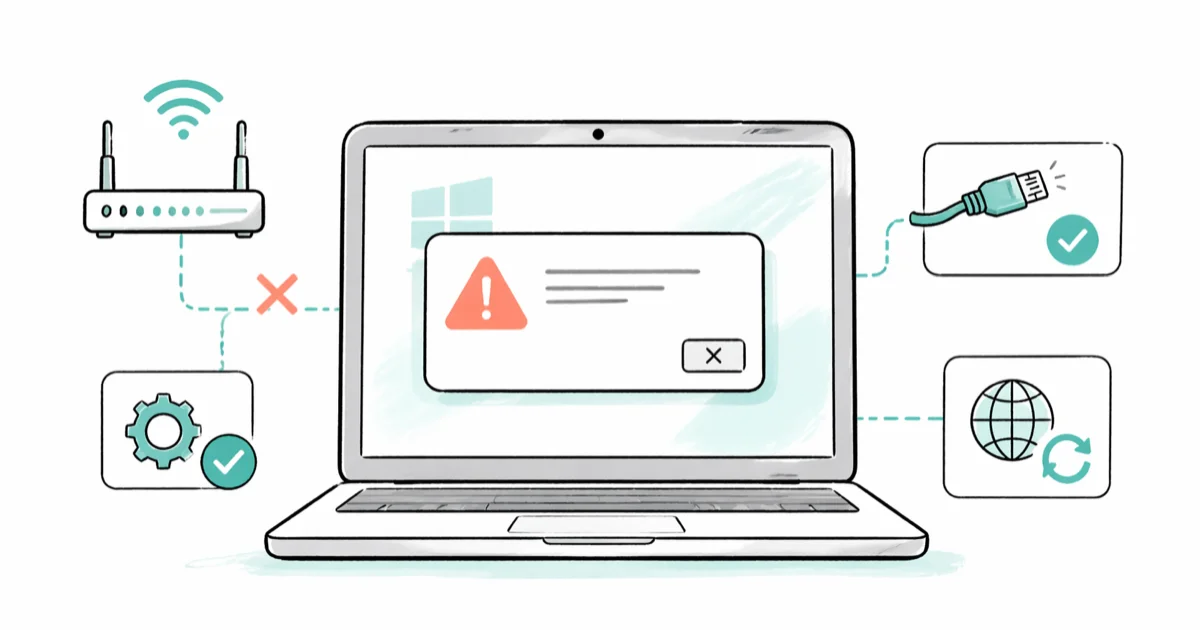
Quick AnswerRelease and renew the DHCP lease with ipconfig /release and ipconfig /renew, then switch the adapter from a static IP to Obtain an IP address automatically. If the duplicate sticks, power-cycle the router for 60 seconds so the lease pool resets.
The error Windows has detected an IP address conflict pops up when two devices on the same local network end up claiming the same IPv4 address. Windows blocks the duplicate before traffic gets corrupted, then shows you the warning.
The notification almost always points to one of three things: a stale DHCP lease, a hand-set static address that overlaps the router’s pool, or a router that handed out the same lease twice after a reboot. The fixes below walk through both the 30-second recoveries and the durable changes that stop the conflict from coming back.
- Releasing and renewing the lease with
ipconfig /releaseandipconfig /renewis the fastest first fix for transient DHCP conflicts. - Static IPs that sit inside the router’s DHCP range are the most common root cause; moving the adapter back to automatic assignment prevents repeat collisions.
- Power-cycling the router for at least 60 seconds forces the DHCP server to rebuild its lease table, which fixes conflicts caused by orphaned reservations.
- IPv4 and IPv6 dual-stack conflicts are rare; disable IPv6 only as a diagnostic test, not as a permanent fix, because modern Windows services expect it on.
- Driver mismatches on Realtek and Intel adapters trigger phantom conflicts after Windows 11 feature updates; reinstalling the OEM driver resolves them.
#What Is an IP Address Conflict in Windows?
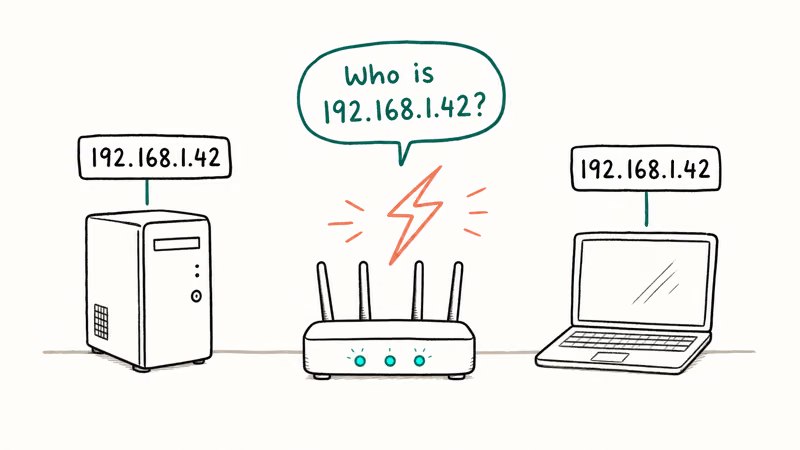
An IPv4 address conflict happens when two devices on the same subnet broadcast the same address at the same time. Windows uses an Address Resolution Protocol probe at the moment a network adapter activates. When another machine answers that probe, Windows shows the conflict notification and disables the duplicate address until you step in.
The error message has been worded the same way since Windows Vista. The conflict itself isn’t harmful to the network at large because other devices keep talking to the router. Only the two systems holding the duplicate address lose connectivity.
According to Microsoft’s Windows networking troubleshooting guide, the offending adapter stays in a limited-connectivity state until it either grabs a new lease or you assign a different address manually. That’s why a reboot alone doesn’t always work.
#Why Does Windows Say It Detected an IP Conflict?
Four causes explain most IP address conflicts. Each one has its own fix, so the diagnosis matters before you start changing settings.
Stale DHCP leases. A router hands out IP 192.168.1.42 to your laptop. The laptop sleeps for two days. During that sleep, the router gives the same address to a phone. When the laptop wakes, both devices claim the lease.
Hand-set static IPs inside the DHCP pool. Someone pins a printer or PC to a fixed address that happens to sit inside the router’s automatic range. After the router cycles its lease table, it has no record of the static reservation and assigns the same address to another client.
Multiple DHCP servers on the same LAN. This usually shows up in offices where someone plugs a personal router into a corporate Ethernet jack, and the rogue router hands out a second pool of leases that overlaps the production DHCP scope. The two servers race, and the same address ends up assigned twice within minutes of each other, which is why this cause produces conflicts faster than any other on the list.
Driver bugs after a Windows update. Realtek and Intel adapters sometimes send duplicate ARP packets after feature updates.
If you don’t know which cause applies to you, work through the fixes in order. Fix 1 is quick, reversible, and resolves many transient DHCP conflicts.
#Fix 1: Release and Renew the IP Lease
This is the first thing to try because it costs nothing and almost always works for transient DHCP conflicts.
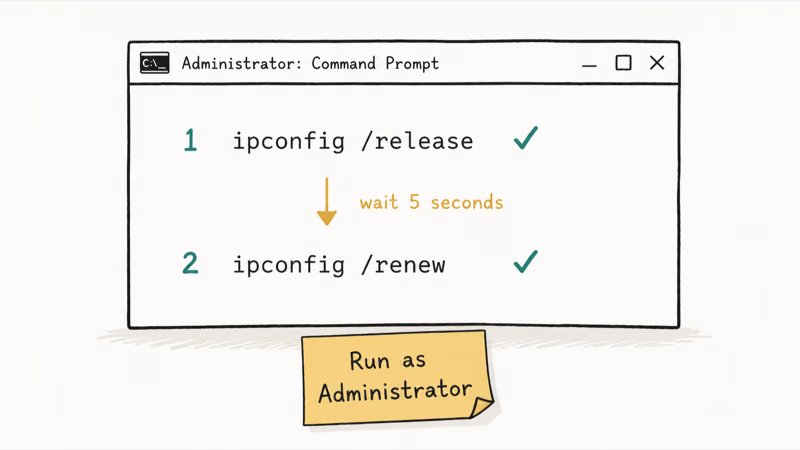
- Press Windows + S and type
cmd. Right-click Command Prompt in the results and choose Run as administrator. - Approve the User Account Control prompt.
- At the prompt, type the following two commands, pressing Enter after each:
ipconfig /release
ipconfig /renew- Wait for the second command to finish; the adapter will be down for about five seconds while the router issues a fresh lease.
- Run
ipconfig /alland confirm the new IPv4 address is different from the one Windows flagged.
According to Microsoft’s ipconfig command reference, /release sends a DHCPRELEASE message to the router so it knows the old address is free, and /renew triggers the standard 4-step DORA exchange (Discover, Offer, Request, Acknowledge) to pull a new one.
If the renew fails, skip to Fix 3 and power-cycle the router; DHCP is out of leases or unreachable.
#Fix 2: Switch the Adapter From Static IP to Automatic
A static IP that overlaps the DHCP pool keeps producing conflicts no matter how many times you renew. The lasting fix is to let Windows obtain both the IP and the DNS server automatically.
- Press Windows + R, type
ncpa.cpl, and press Enter to open Network Connections. - Right-click the active adapter (usually Ethernet or Wi-Fi) and select Properties.
- In the list, select Internet Protocol Version 4 (TCP/IPv4) and click Properties.
- Choose Obtain an IP address automatically and Obtain DNS server address automatically.
- Click OK, then Close, and run
ipconfig /renewto pick up a fresh lease.
If you actually need a stable address for a printer or homelab server, use a DHCP reservation on the router instead of a static IP on the device. Microsoft’s DHCP documentation states that the default Windows Server lease duration is 8 days. Router-side reservations prevent the DHCP server from handing the same address to another client.
For deeper Windows networking issues that surface alongside a conflict, the default gateway not available guide covers the related gateway recovery steps.
#Fix 3: Power-Cycle the Router for at Least 60 Seconds
Routers cache DHCP leases in volatile memory. A quick reboot doesn’t always clear that table. A full power-cycle does.
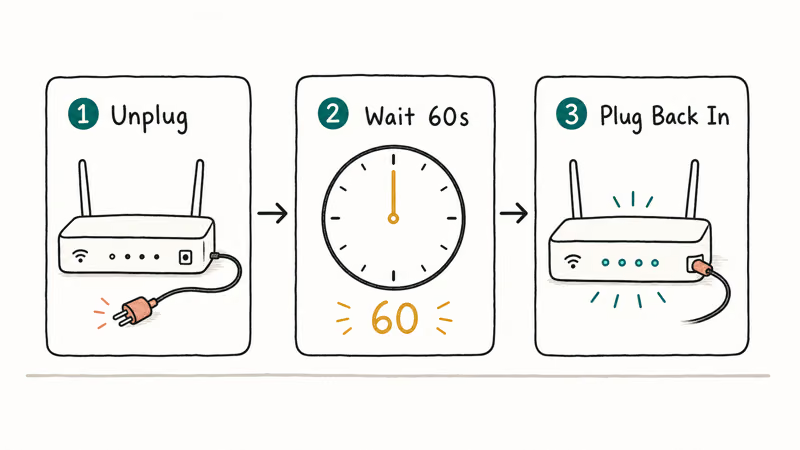
- Unplug the router from the wall outlet. Don’t just toggle the power button; some consumer routers keep the lease table alive on standby power.
- Wait at least 60 seconds. This is the interval most consumer router firmware uses to flush its DHCP cache.
- Plug the router back in and let it complete its boot sequence, which usually takes 90 seconds to 2 minutes.
- On the Windows machine, run
ipconfig /releasefollowed byipconfig /renew.
Why 60 seconds? Shorter waits can leave the router’s DHCP service holding stale leases in RAM, and those leases may reappear after boot. A full power-cycle gives consumer routers time to drop volatile lease state before they rebuild the table.
If conflicts keep reappearing after a clean power-cycle, the router itself may have a duplicate-lease bug. Check the firmware page; both ASUS and Netgear have shipped patches for this exact behavior between 2022 and 2024.
#Fix 4: Update or Reinstall the Network Adapter Driver
Driver-level conflicts look identical to real address collisions. No amount of releasing and renewing will clear them.
- Press Windows + X and choose Device Manager.
- Expand Network adapters, right-click your active adapter, and select Uninstall device.
- Tick Attempt to remove the driver for this device and click Uninstall.
- Restart the PC. Windows will reinstall the in-box driver on boot.
- Open Device Manager again, right-click the adapter, and select Update driver to fetch the latest Microsoft-signed package.
For Realtek and Intel chipsets, the in-box driver is often older than the OEM release. Microsoft recommends downloading the latest driver directly from the laptop or motherboard manufacturer rather than relying on Windows Update alone.
If the conflict follows a driver update, replace the Windows Update driver with the latest OEM network driver from the laptop or motherboard support page. OEM packages often include chipset-specific fixes that the in-box driver doesn’t carry yet.
If the conflict followed a blue screen, the tcpip.sys blue screen guide covers the kernel-driver fixes.
#Fix 5: Test Whether IPv6 Is Triggering the Conflict
This step is diagnostic, not a permanent fix. Disable IPv6 to see if the conflict notification stops; if it does, the root cause is dual-stack confusion and you should re-enable IPv6 after applying Fix 2 or Fix 4.
- Open
ncpa.cplagain and go to your adapter’s properties. - Uncheck Internet Protocol Version 6 (TCP/IPv6) and click OK.
- Disconnect and reconnect the adapter.
- Watch for the conflict notification over the next 24 hours.
If the error stops, you’ve confirmed an IPv6 stack issue. Re-enable IPv6, install the latest adapter driver from Fix 4, and the conflict should stay gone. Modern Windows services including Delivery Optimization and HomeGroup discovery expect IPv6 to be on, so leaving it disabled long-term causes side effects.
#Stop Future IP Conflicts From Coming Back
Three configuration habits prevent the conflict from ever showing up again.
Set DHCP reservations on the router for any device that needs a fixed address. Printers, NAS units, and homelab servers should get a reserved address from the router, not a static IP set on the device itself. The reservation takes the address out of the rotating pool but lets DHCP still issue it, which is the only way to guarantee no overlap.
Keep the DHCP pool large enough. If you have 30 devices on your home network and the pool is set to 192.168.1.100-130, every reboot is a chance for a collision. Widen the pool to 192.168.1.100-200 and the math stops working against you.
Update router firmware twice a year. Many duplicate-lease bugs that produce repeated conflicts are firmware regressions that vendors patch quietly. Set a calendar reminder.
Related Windows-side networking guides:
- The failed to obtain IP address walkthrough covers the symptom where the adapter can’t pull a lease at all.
- The why does my internet keep disconnecting guide handles the intermittent drops that sometimes follow an unresolved conflict.
- Chrome users seeing matching browser errors during a conflict can cross-reference the ERR_CONNECTION_RESET fix.
#Bottom Line
The fastest path through “Windows has detected an IP address conflict” is the two-command release-and-renew sequence in Fix 1, followed by Fix 2 if the same conflict comes back within a day. Power-cycling the router for a full 60 seconds is the third step, and it catches the cases where the router itself is the source of the duplicate.
Driver reinstallation is reserved for conflicts that survive all three of those. Skip the registry-edit advice on legacy how-to pages.
#Frequently Asked Questions
Can an IP address conflict happen on Mac and Linux too?
Yes — the conflict is a property of the IPv4 protocol itself, not Windows. macOS shows a similar warning. Linux logs it in the kernel ring buffer. The fix concept is identical across all three: release the lease, then request a new one from the DHCP server.
Will the conflict break internet access for every device on my network?
No. Only the two devices holding the duplicate address lose connectivity.
Is it safe to disable IPv6 permanently to avoid conflicts?
Not recommended. Microsoft confirms that Windows is tested with IPv6 enabled and that disabling it can break Delivery Optimization and certain Microsoft 365 features. Use the IPv6 toggle in Fix 5 as a diagnostic only.
Why does the conflict come back after I renew the lease?
Two reasons. Either another device on the network is also using a static IP that overlaps the DHCP pool and keeps re-grabbing the address, or the router has a stale lease table that needs a full power-cycle. Work through Fix 2 and Fix 3 in sequence; one of them resolves the recurrence in almost every case.
Do I need a static IP, or is a DHCP reservation enough?
A DHCP reservation is enough.
How do I find which other device is using the same IP?
Open Command Prompt and run arp -a. The output lists every IP on your local segment alongside its MAC address. The duplicate of your own address appears with a different MAC. Most routers also have a Connected Devices page with hostnames, which is usually faster.
Does a VPN cause IP address conflicts?
A VPN can cause an internal conflict if its virtual adapter is configured with a static address that overlaps your local subnet, but this is uncommon. If you only see the conflict when the VPN connects, change the VPN client’s local subnet setting or have the VPN provider’s network choose a different range, such as 10.x.x.x instead of 192.168.x.x.

Pixel 11 vs Pixel 10: What Changed and Who Should Upgrade
Pixel 11 vs Pixel 10: same screen and camera resolution, new Tensor G6, 25W wireless, and Gemini Intelligence. Here is who should actually upgrade.

Verizon Not Receiving Texts? How to Fix It in 9 Steps
Verizon not receiving texts? Fix it in 9 steps: check Message Blocking in My Verizon, reset network settings, deregister iMessage, and call support.
Pixel Battery Drain: What Google's July Fix Really Covers
Google marked the Pixel idle battery drain bug fixed in July, but only some phones got the patch. Here is who is covered, who is not, and what to try.
iPhone Stuck on EDGE? How to Get 5G or LTE Back (2026)
iPhone stuck on EDGE with crawling data? Here's why the E icon appears, which settings force 5G or LTE back, and when the problem is your carrier.