What Is Web Companion? A Security Review and Removal Guide
Web Companion by Adaware/Lavasoft installs alongside free software and changes browser settings. Here is what it does and how to remove it safely.

Quick AnswerWeb Companion is a browser-protection utility from Adaware (formerly Lavasoft) that often installs silently bundled with free software and changes search, homepage, and DNS settings. To remove it safely, uninstall it from Windows Settings > Apps, then run a follow-up scan with Microsoft Defender or Malwarebytes to clear leftover entries.
Web Companion is a Windows browser-protection utility from Adaware (the company formerly called Lavasoft) that has earned a bad reputation for arriving silently bundled with free software and rewriting browser settings. It isn’t classified as malware by mainstream antivirus engines, but most security researchers list it as a potentially unwanted program. This guide explains what the app actually does, why it raises privacy and security concerns, and how to remove it cleanly on Windows 10 and Windows 11.
- Web Companion ships as bundled software with free PDF tools, video converters, and download managers; most users never install it directly.
- The app changes the default search engine, browser homepage, and DNS to its own settings, sometimes without an obvious opt-out checkbox in the installer.
- A 2015 third-party audit found an earlier “Security” feature relied on the Komodia SDK, the same SSL-interception code behind the Superfish vulnerability.
- Standard removal:
Windows Settings>Apps>Installedapps, search “Web Companion”, then click Uninstall. Reboot before checking browser settings. - Leftover scheduled tasks and registry traces often remain after uninstall, so a follow-up scan with Microsoft Defender Offline or Malwarebytes is part of safe cleanup.
#What Web Companion Is and What It Does
Adaware markets Web Companion as a Windows-only utility that sits next to your antivirus, blocks malicious websites, warns about phishing pages, and stops third-party software from rewriting your browser settings. The installed package adds a Windows service, a tray icon, and a set of scheduled tasks that monitor Chrome, Firefox, and Edge in the background once the PC boots.
The app isn’t a full antivirus.
Adaware states that Web Companion sets its own provider as the default search engine, browser homepage, and “new tab” page, and that the user can revert these from the app’s dashboard. Wikipedia’s Lavasoft entry states that Adaware, previously known as Lavasoft, was acquired by the Solaria Fund in 2011.
A 2015 review by independent researchers found that an earlier Web Companion build included an HTTPS-inspection module built on Komodia’s SSL Digester SDK.
That’s the same SDK behind the Superfish scandal on Lenovo consumer laptops.
According to CERT/CC Vulnerability Note VU#529496, Komodia-based products install a self-signed root certificate that lets the software intercept and rewrite HTTPS traffic. If attackers extract the private key, the certificate can expose the entire system to man-in-the-middle attacks against every HTTPS site the browser loads, including banking and email, which is why the advisory ranks the impact as severe.
Adaware removed the Komodia component years ago. Old installers can still leave the root certificate behind, so audit certmgr.msc on any machine that ever ran a Lavasoft-branded Web Companion.
#Is Web Companion Safe to Keep?
Web Companion’s basic browser-protection layer is meant to flag known phishing pages and show a warning through its tray icon.
The trade-off shows up in browser settings. If search protection is enabled, Web Companion can push the default search engine back to its own provider after the browser relaunches.
The same setting can also affect the homepage, which is why the app feels like a browser hijacker to many users.
Mainstream anti-malware engines don’t flag Web Companion as malware; the accurate label is potentially unwanted program (PUP). Bleeping Computer’s removal write-ups describe it the same way, as a browser hijacker or PUP that’s technically legal but designed in a way that reduces user control over the default search engine, homepage, and new-tab page on every launch.
Three questions decide it.
- Did you install it on purpose, or did it arrive bundled with another download?
- Are you comfortable with the app rewriting your search engine and homepage every time you launch a browser?
- Do you already run a modern antivirus (Microsoft Defender, Malwarebytes, Bitdefender, Kaspersky) that covers the same phishing and malicious-URL ground?
If the answers are “bundled” and “yes”, there’s no security upside to keeping Web Companion.
#Signs Web Companion Is Running on Your PC
Most people find out the same way. The browser homepage flips to an unfamiliar search page, or a tray icon they don’t recognize keeps popping up after every reboot.
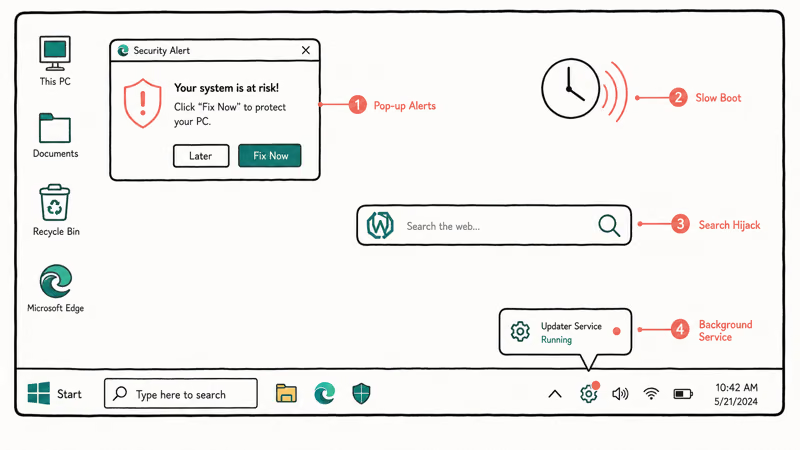
Three concrete signals confirm it. A tray icon labeled “Web Companion” or showing the Adaware shield logo, processes named WebCompanion.exe or Lavasoft.WCAssistantService.exe inside Task Manager, and an entry called “Web Companion by Lavasoft” (or similar) under Settings > Apps > Installed apps. If you see any one of these alongside a hijacked search engine, the app is active.
The user feedback is mostly the same complaint pattern. People didn’t pick it from a list, they don’t recognize the brand, and the change to their browser homepage is the first visible symptom.
#Why Web Companion Appears Bundled With Free Software
Web Companion almost always arrives as part of a bundled installer. When you download a free utility (a PDF converter, a YouTube grabber, an archive tool), the installer presents Web Companion as a “recommended” component during one of the setup steps.
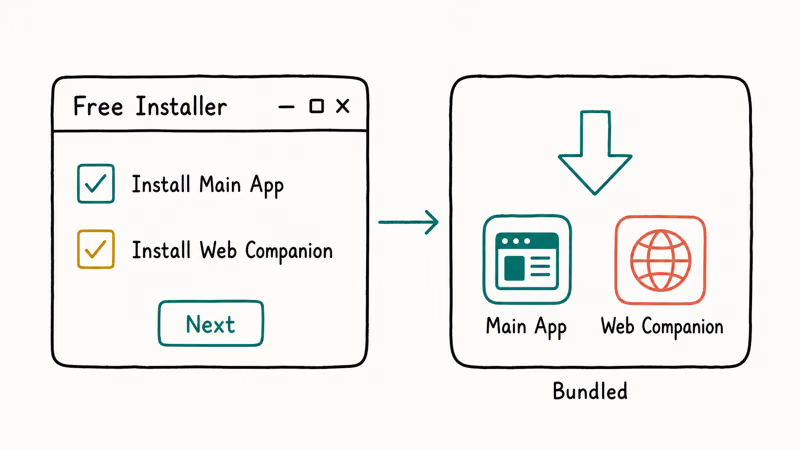
The opt-in box is often pre-checked.
The Express setup path hides the toggle behind a Custom or Advanced button that few people click, so by the time the installer finishes, the Web Companion service is already running on the machine. Click-through-fatigue does the rest, and the user lands in their browser to find the homepage has changed.
This pattern is the same one behind other Windows processes that people search for after spotting them in Task Manager. The “is this thing safe?” reaction shows up across several adjacent guides:
According to Microsoft’s documentation on potentially unwanted apps, Microsoft Defender can block PUP installers before they finish downloading, but only when PUP protection is enabled. The toggle lives under Windows Security > App & browser control > Reputation-based protection settings, and on older Windows 10 builds it was off by default, which is how a lot of bundled installs slipped through onto machines that already had Defender running.
#How Do You Uninstall Web Companion on Windows?
The clean removal path uses only built-in Windows tools and a follow-up scan. Don’t delete files by hand from Program Files; that leaves services, scheduled tasks, and registry entries running in the background and the app can effectively rebuild itself on the next reboot.
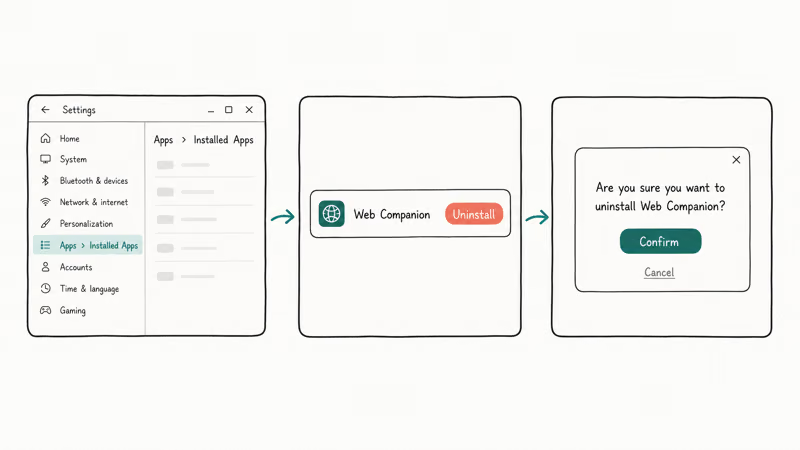
Step 1: Close the app. Right-click the Web Companion icon in the system tray and pick Exit. If the tray icon is missing, open Task Manager (Ctrl + Shift + Esc), look for any process named WebCompanion.exe or Lavasoft.WCAssistantService.exe, and end the task. A running protection service can intercept the uninstaller and silently roll back the changes Windows tries to apply, so closing every Web Companion process first matters.
Step 2: Uninstall through Settings. Open Settings > Apps > Installed apps. Search “Web Companion”, click the three-dot menu, and choose Uninstall.
If you also see entries for “Adaware Antivirus” or “Lavasoft Web Companion”, uninstall those as well. Microsoft recommends removing apps through the Settings panel rather than direct file deletion so that the app’s services and scheduled tasks unregister cleanly during the uninstall. Direct deletion from Program Files works for portable apps but breaks for any installer that registers with the Windows service manager, which is every Adaware product since the rebrand.
Step 3: Reset browser settings. Each browser has its own search-engine and homepage panel that needs a manual reset.
In Chrome, go to Settings > Search engine > Manage search engines and remove any “Web Companion” or “MyWay” entry, then set your preferred default. In Edge, go to Settings > Privacy, search, and services > Address bar and search. In Firefox, the same options live under Settings > Search. Clear the homepage and new-tab page too if those changed.
Step 4: Run a follow-up scan. Microsoft Defender Offline reboots into a clean environment and removes leftover scheduled tasks.
The full path is Settings > Privacy & security > Windows Security > Virus & threat protection > Scan options > Microsoft Defender Offline scan. Expect the reboot plus scan to take a little while, especially on slower drives.
Standalone Web Companion uninstallers can leave the Lavasoft folder, browser-shortcut overrides, scheduled tasks, or browser policies behind. A follow-up scan with Malwarebytes Free or Microsoft Defender is useful because it can catch leftovers that the uninstaller misses.
Step 5 (optional): Audit certificates. If your Web Companion install dates from 2015 or earlier, open certmgr.msc and expand Trusted Root Certification Authorities > Certificates. Look for entries issued by “Komodia” or “Adaware Web Companion” and delete any matches. The cert names changed between Lavasoft and Adaware rebrand cycles, so search both vendor names rather than trusting a single label match across years of installer revisions and the rebranded certificate roots that came with each version of the product.
A leftover Komodia root certificate undermines HTTPS verification across the whole system, which is the core finding from the CERT/CC advisory above. If registry-related errors pop up during cleanup, our registry error troubleshooting guide covers invalid-value and access-denied prompts.
#Prevent Future Bundled Installs
Three settings changes and one habit prevent most repeat installs.
Turn on PUP blocking in Windows Security. Open App & browser control > Reputation-based protection settings and enable “Potentially unwanted app blocking” with both Block apps and Block downloads on. Modern Microsoft Defender catches the common bundled PUPs before they finish downloading once this is enabled, and it stays on across Windows updates.
Skip the “Recommended” install path.
Pick Custom or Advanced on every free installer, and uncheck every preselected component that isn’t the app you actually wanted. The extra thirty seconds catches Web Companion, browser toolbars, “system optimizers”, and similar entries that pad a free download with paid extras.
Pull installers from the official site of the app. Mirrors and download portals repackage installers with their own bundled extras, so verify the URL matches the developer’s main domain rather than a redirect through softonic, softpedia, or download.com. Bookmark the official domain after a verified download so the next update pulls from the same source instead of a search-engine result that may have been replaced with a clone built specifically to drop bundled installers.
The same “is this process suspicious?” reflex applies to other Windows components. Background entries like yourphone.exe and Wondershare Helper Compact look strange on first sight but have legitimate origins, while Web Companion is the opposite case: legitimate vendor, questionable install method.
#Bottom Line
Uninstall Web Companion. Current Adaware builds aren’t classic malware, but the bundling pattern, automatic browser-setting overrides, and 2015 Komodia history make it a poor trade compared to Microsoft Defender plus a reputable second-opinion scanner like Malwarebytes Free. After removing it, turn on Windows PUP blocking and pick Custom install on every free utility going forward. Those two changes block the bundled-installer pathway Web Companion arrives through, and they cost less than five minutes total.
#Frequently Asked Questions
Is Web Companion the same as Adaware Antivirus?
No. Web Companion is a separate browser-protection layer, while Adaware Antivirus is the company’s full antivirus product that competes with Microsoft Defender and Bitdefender. Web Companion can ship bundled with the Antivirus installer, or as a standalone bundled extra inside other free apps.
Is Web Companion a virus?
No. Reputable engines classify it as a potentially unwanted program (PUP), not malware.
Will uninstalling Web Companion break my browser?
No. Bookmarks, saved passwords, and extensions stay intact. You’ll need to manually reset the default search engine and homepage if Web Companion changed them.
What if Web Companion won’t uninstall from Settings?
Boot Windows into Safe Mode with Networking through Settings > System > Recovery > Advanced startup, then re-run the uninstall from Settings > Apps > Installed apps. The protection service can block its own uninstaller in normal mode, and Safe Mode disables those background services so the uninstaller finishes the job cleanly.
If Safe Mode also fails, grab the standalone removal tool from the official Adaware support page. As a last resort, create a Windows restore point first and use Microsoft Sysinternals Autoruns to disable Web Companion services before retrying the uninstaller.
Why does Web Companion keep coming back after I remove it?
It’s reinstalling from a bundled installer you ran later, or a scheduled task from an older version is fetching it in the background. Run a full Microsoft Defender Offline scan plus a Malwarebytes Free scan, then open Task Scheduler and delete any tasks listed under “Lavasoft” or “Adaware”. Disable any browser extensions you didn’t install on purpose, since some bundled installers add a companion extension that quietly reinstalls the parent app on the next launch.
Is the Komodia or Superfish issue still a risk on current versions?
Not on current Adaware builds. Adaware removed the Komodia component years ago, and recent installers don’t add the root certificate. The leftover risk is the old certificate from pre-2017 installs, so audit certmgr.msc on machines that ever had a Lavasoft-branded Web Companion.
Can I trust Web Companion as my main security tool?
The safer choice is Microsoft Defender, or a major commercial antivirus engine like Bitdefender, Kaspersky, ESET, or Norton. Web Companion isn’t a complete antivirus, doesn’t include real-time file-system protection, doesn’t scan downloads against a maintained malware signature database, and doesn’t include ransomware shields. It’s a browser-layer filter at best, and the bundling behavior conflicts with the trust signal you want from your primary security tool, so use a full antivirus instead.

Best Laptop for Running LLMs in 2026: Memory Comes First
The best laptop for running LLMs is a memory purchase first. Compare MacBook unified memory against NVIDIA laptop VRAM, and see what each tier really runs.

Pixel 11 vs Pixel 10: What Changed and Who Should Upgrade
Pixel 11 vs Pixel 10: same screen and camera resolution, new Tensor G6, 25W wireless, and Gemini Intelligence. Here is who should actually upgrade.

Best Power Bank for iPad in 2026: Pro, Air, and Mini
Best power bank for iPad in 2026. Compare mAh tiers and USB-C PD wattage for iPad Pro, Air, and mini, plus airline Wh math, cables, and travel tips.
Best Power Bank With Built-In Cable: Top 2026 Picks
Best power bank with built-in cable picks for 2026. Compare single USB-C, multi-connector, and retractable laptop banks, plus airline Wh math.