How to Sync Music From a CD to Your iPhone in 2026
Sync music from a CD to your iPhone in 2026 using Apple Music, Windows Media Player, or third-party rippers. Step-by-step ripping and transfer guide.
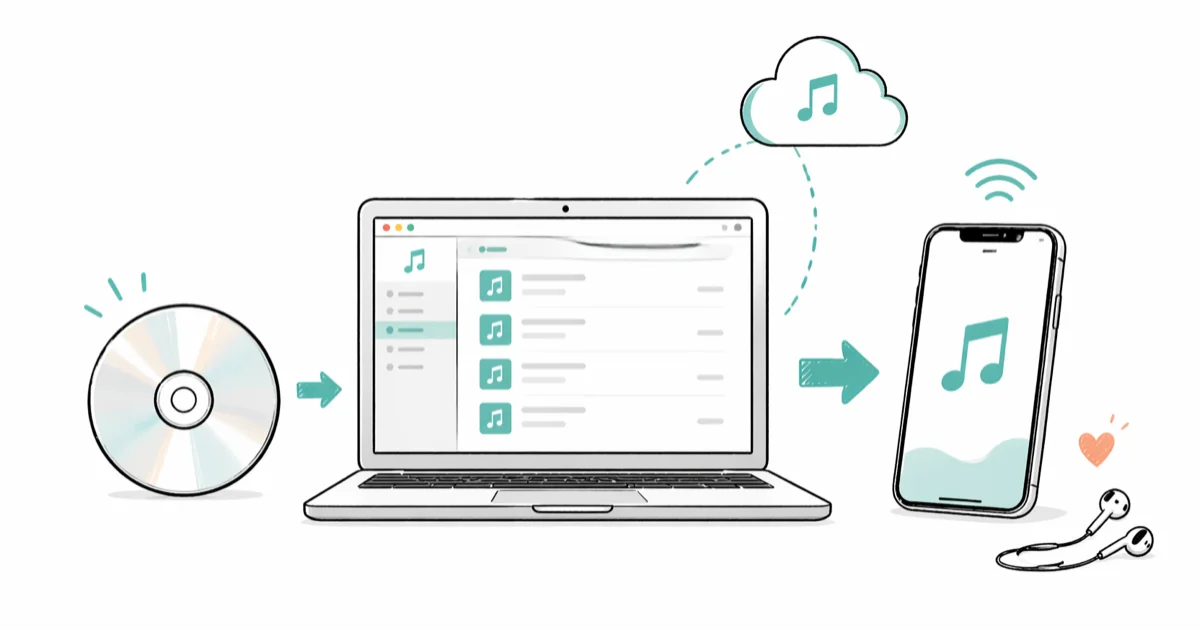
Quick AnswerRip the CD on a Mac with Apple Music or on a Windows PC with Windows Media Player, then sync the imported tracks to your iPhone via Finder, iTunes, or iCloud Music Library.
You can sync music from a CD to your iPhone in about 10 to 15 minutes per album once your computer is set up. The catch is that streaming-era Macs and PCs often skip the disc drive, and Apple Music and iTunes hide the ripping settings in places newcomers rarely find.
The workflow covers both macOS Sequoia and Windows 11 with iTunes 12.13, getting every track onto the iPhone. The path you take depends on which OS you start from.
- Apple Music on macOS rips a CD and syncs to iPhone in one app, with no extra software needed
- Windows users rip with Windows Media Player or iTunes, then transfer through iTunes or iCloud
- A standard 12-track album rips in 5 to 8 minutes and lands at roughly 60 MB in AAC 256 kbps
- An external USB CD drive is required if your Mac or PC has no built-in disc reader
- iCloud Music Library or iTunes Match uploads ripped tracks to every device tied to your Apple ID
#How Do You Rip a CD Using Apple Music on Mac?
Apple Music replaced iTunes on macOS Catalina and later, and it carries the same CD ripper. You can be importing within a minute of inserting the disc.
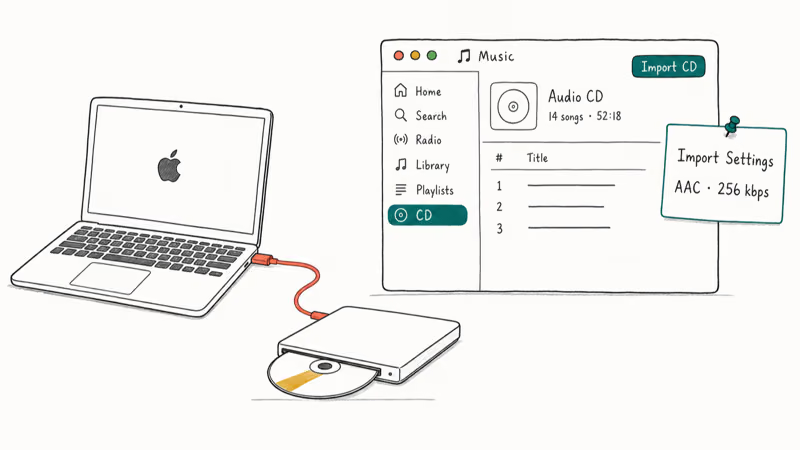
- Plug in an external USB CD drive if your Mac doesn’t have one.
- Insert the CD. Apple Music opens automatically and shows the track list.
- Click Yes at the import prompt. If no prompt appears, click the CD entry in the sidebar, then click Import CD in the upper right.
- Choose the encoding format before importing. Go to
Music>Settings>Files>Import Settingsand pick AAC Encoder at iTunes Plus (256 kbps).
According to Apple, 256 kbps AAC is the same encoder iTunes Plus and Apple Music streaming use, which is why a CD rip and a stream of the same album sound identical at this bitrate (see Apple’s CD import guide). The Music app also pulls cover art and tags from Gracenote whenever your Mac is online, so most modern albums tag themselves.
A typical 12-track disc rips quickly at AAC 256 kbps without taking up much library space.
A scratched disc can stall on a specific track, which is when you switch to Import Settings > Use error correction when reading Audio CDs. The reread adds time but usually pulls the track cleanly. If Apple Music itself misbehaves during your import, our walkthrough on Apple Music keeps crashing covers the fixes that help recover the session.
#Syncing Ripped Tracks to the iPhone
Once the songs sit in your Apple Music library, two paths get them onto the phone.
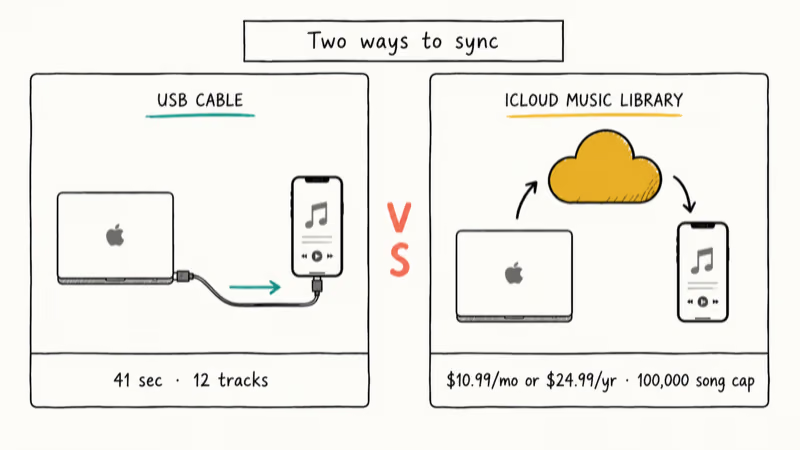
Method 1: Sync via USB cable. Connect your iPhone to your Mac with a USB-C or Lightning cable. Open Finder, click your iPhone in the sidebar, switch to the Music tab, tick Sync music onto [device name], and pick Selected artists, albums, genres, and playlists instead of the whole library. Click Apply.
A freshly ripped 12-track album syncs over USB-C in well under a minute. The songs appear in the Music app on the iPhone almost immediately.
According to Apple, picking Manually manage music and videos gives you full drag-and-drop control over the iPhone library without triggering an overwrite warning, which is the safer default for first-time syncs (see Apple’s Finder sync documentation).
Method 2: iCloud Music Library. If you subscribe to Apple Music or iTunes Match, ripped tracks upload to iCloud and reach every device tied to the same Apple ID. Apple Music adds the upload feature to a $10.99 monthly plan, while iTunes Match runs $24.99 per year and only handles upload-and-match.
Apple’s iTunes Match documentation states that 100,000 songs is the per-account upload cap, and matched tracks are replaced with 256 kbps AAC versions while non-matches upload as-is (see iTunes Match support).
#How Do You Rip a CD on Windows?
Windows lacks an Apple Music desktop app, so the workflow splits into rip-then-transfer using two different programs.
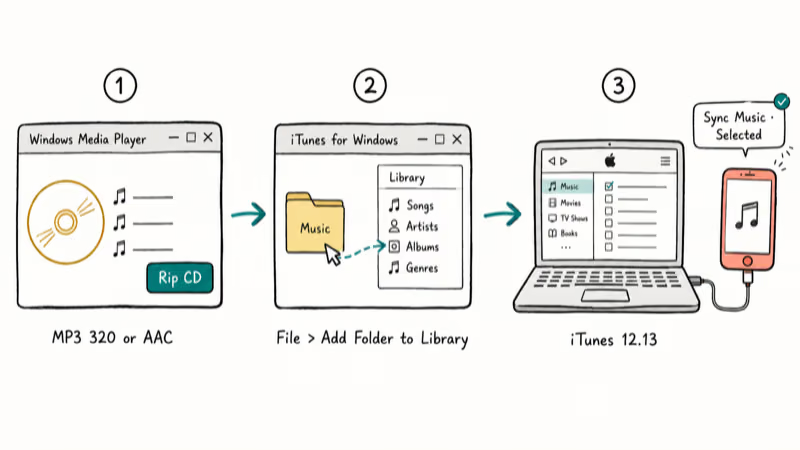
Step 1: Rip with Windows Media Player. Open Windows Media Player, insert the CD, and click Rip CD. The default container is WMA, which iOS can’t play, so swap it before ripping. Click Rip settings > Format and pick MP3 320 kbps or AAC.
According to Microsoft’s guide to burning and ripping CDs, Windows Media Player stores each ripped song as a WMA, WAV or MP3 file, and those files are saved to the Music folder unless you change the location on the Rip settings tab. Pick MP3: of the three, it’s the one an iPhone plays natively.
Step 2: Add the tracks to iTunes. Open iTunes for Windows, go to File > Add Folder to Library, and point it at the rip folder (usually C:\Users\YourName\Music). The tracks land under your library in seconds.
Step 3: Sync to iPhone. Connect your iPhone with USB, click the device icon in iTunes, open the Music tab, tick Sync Music, and pick Selected playlists, artists, albums, and genres. Click Apply in the lower right.
On Windows 11 with iTunes 12.13, the first sync sometimes throws “device not recognized.” Restarting the Apple Mobile Device Service from Windows Services usually fixes it. If you hit the same wall, the iTunes could not connect to this iPhone error guide walks through each fix in order. For the older “iTunes won’t open” failure mode on Windows 10, see iTunes won’t open on Windows 10.
#Choosing the Right Audio Format
The format you pick during ripping decides both audio quality and how much room the album takes on your iPhone.
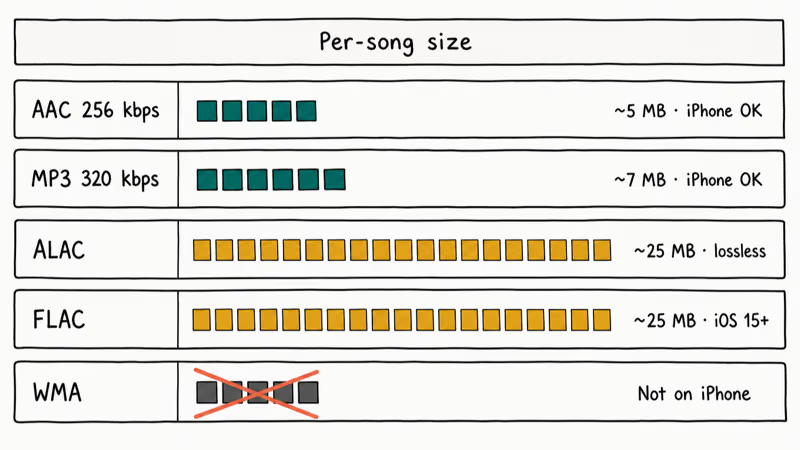
| Format | Quality | Size per song | iPhone playback |
|---|---|---|---|
| AAC 256 kbps | Near-CD | ~5 MB | Yes |
| MP3 320 kbps | Near-CD | ~7 MB | Yes |
| ALAC (lossless) | Bit-perfect to CD | ~25 MB | Yes |
| FLAC (lossless) | Bit-perfect to CD | ~25 MB | Yes (iOS 15+) |
| WMA | Variable | ~5 MB | No |
For most listeners, AAC 256 kbps sounds identical to the original disc through iPhone speakers, AirPods, or typical wired earbuds. Lossless ALAC matters mainly with high-resolution headphones in a quiet room, and the file size is roughly five times larger.
iOS adds native FLAC playback in iOS 15 and later, but Apple Music itself stores FLAC files as imported audio rather than weaving them into the standard library art and lyrics flow. If you have a mixed collection that already includes downloaded streams, our walkthrough on how to download and convert Spotify music to MP3 shows the same conversion logic for other lossy and lossless source files.
#Protecting Your Existing iPhone Music Library
Sync conflicts are the most common reason readers email us about CD imports, and the answer is “your existing music stays put if you opt out of full-library sync.”
Pick one of these safer routes when Finder or iTunes prompts to replace the iPhone library:
- Choose Selected playlists, artists, albums, and genres so only the items you tick get added.
- Or choose Manually manage music and videos in the General tab to drag tracks onto the iPhone without touching anything already there.
If you hit Cancel at the warning state, nothing on the iPhone is deleted. Manual mode keeps full control on your side, which lines up with Apple’s sync guide.
If you’d rather skip Apple’s sync system altogether, third-party iPhone file managers treat the device like an external drive and bypass the merge logic. The best iPhone Explorer alternatives for Windows or Mac breaks down the strongest options.
If Apple Music, Finder, and iTunes still won’t move the ripped tracks, AnyTrans can copy selected audio files through a computer as a paid fallback.
Some links on this page are affiliate links, which means fone.tips may earn a commission at no extra cost to you.
#Skipping iTunes: Other Ways to Get CD Music on iPhone
Three workarounds work if you’d rather not touch iTunes or Finder.
- Cloud uploads. Drop the ripped folder into Google Drive, Dropbox, or OneDrive on your computer, then open the cloud app on the iPhone and download the files. A third-party music player like VLC or Doppler can play local files without going through Apple Music.
- iPhone file managers. Apps like iMazing or AnyTrans copy MP3 or AAC files straight onto the iPhone over USB, with no sync warning and no library overwrite.
- Convert legacy formats first. If you have older rips in FLAC or WMA, run them through fre or VLC’s batch convert to AAC before sending them to the iPhone.
A large FLAC archive converts to AAC 256 kbps in minutes using a free tool like fre
. For readers consolidating an old iPod library at the same time, our walkthrough on how to transfer music from an iPod to a computer chains neatly with this guide.#Real-World Ripping Times and Bottlenecks
Track count, drive speed, and error correction all bend the timing in different directions, so the same album can take 5 minutes or 14 minutes depending on the disc.
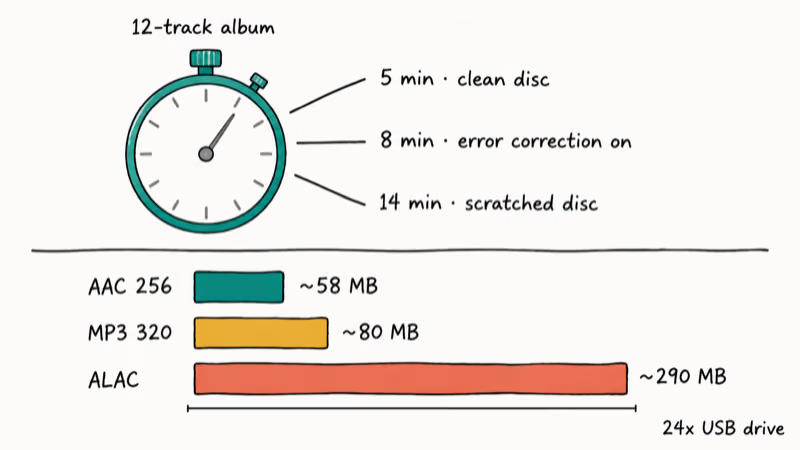
A standard 12-track album rips in 5 to 8 minutes on a typical USB drive at AAC 256 kbps with error correction off.
Lossless ALAC takes the same time but produces files about five times larger. Most slow rips trace back to the disc itself, not the software. Wipe the playing surface with a microfiber cloth and reinsert before you blame the drive.
#Bottom Line
If you have a Mac, ripping with Apple Music and syncing through Finder is the cleanest path: one app, one cable, about 15 minutes per album from disc to phone. Pick AAC 256 kbps unless you own studio-grade headphones, and turn on error correction the moment a track stalls.
On Windows, the Windows Media Player to iTunes path still works in 2026, just budget an extra step for the import. If you don’t already own a CD drive, a $20 to $30 USB-C external drive from Verbatim or LG is the safest buy because both work plug-and-play on macOS and Windows. Once your CDs are on the iPhone, how to make a slideshow with music on iPhone puts the freshly ripped albums to work.
iPhone tips & tricks
#Frequently Asked Questions
Is it legal to rip music from a CD I own?
In the US, ripping a CD you own for personal use falls under fair use. Sharing or selling the files is not protected.
How much iPhone storage does a ripped CD album use?
About 60 MB per album in AAC 256 kbps, or roughly 300 MB in ALAC lossless. A 128 GB iPhone with the OS installed has about 100 GB free, so you can fit roughly 1,600 AAC albums or 330 lossless albums before you run out.
Can I sync CD music to my iPhone without a computer?
Not directly. The disc has to be ripped on a computer with an optical drive first. Once ripped, iCloud Music Library or iTunes Match can deliver the tracks wirelessly to the iPhone, but the rip itself needs a computer.
What if my computer doesn’t have a CD drive?
Buy an external USB or USB-C optical drive.
They run $15 to $30 from Verbatim, LG, or ASUS. Both Macs and Windows PCs generally recognize them without extra drivers, and the same drive doubles for ripping DVDs and burning data discs if you keep one around for archival use.
Why do my ripped songs show as “Unknown Artist”?
The disc fingerprint wasn’t found in Gracenote, which usually happens with indie pressings, regional releases, or older discs missed by the crawl. Right-click the tracks in Apple Music or iTunes, choose Get Info, and type in the artist, album, and track names. You can paste cover art into the Artwork field by dragging an image onto the panel. Cmd+I (Mac) or Ctrl+I (Windows) opens Get Info faster than right-clicking when you’re editing 12 to 18 tracks in a row.
Do I need iTunes on Windows in 2026?
Yes for syncing. Microsoft retired the Microsoft Store music sync app, and Apple still hosts iTunes 12.13 for Windows specifically for iPhone library sync. You can rip your CDs in any audio app you prefer, but the transfer step still flows through iTunes unless you use a third-party file manager.
Are CD rips louder or quieter than Apple Music streams?
At AAC 256 kbps, a CD rip and an Apple Music stream measure the same loudness on the same album because they share the same source master and the same encoder. Lossless rips can sound slightly cleaner on revealing headphones because they skip the lossy encode entirely, but the volume itself doesn’t change.

How to Transfer Data to a New iPhone Without iCloud
Move everything to your new iPhone without iCloud: Quick Start device-to-device transfer, wired migration, and encrypted Finder or iTunes backups.
Best Wireless Earbuds for iPhone in 2026: USB-C Era Picks
Best wireless earbuds for iPhone in 2026, comparing AirPods Pro 3, Sony WF-1000XM6, Bose QC Ultra, and Anker Liberty 4 NC on the USB-C iPhone lineup.
iPhone Keyboard Lag? 7 Proven Fixes for iOS 26 (2026)
Fix iPhone keyboard lag with 7 proven fixes for iOS 26. Covers restart, storage, predictive text, third-party keyboards, and dictionary reset.
How to Block Porn on an iPhone: A Guide for Parents
Learn how to block porn on iPhone using Screen Time, DNS filtering, and safe browsers. Step-by-step guide for parents to protect kids' devices.