How to Make a Slideshow With Music on iPhone Easily
Create an iPhone slideshow or Memory Movie with music using Apple’s current Photos controls, then share it with AirDrop, Messages, Mail, or AirPlay.
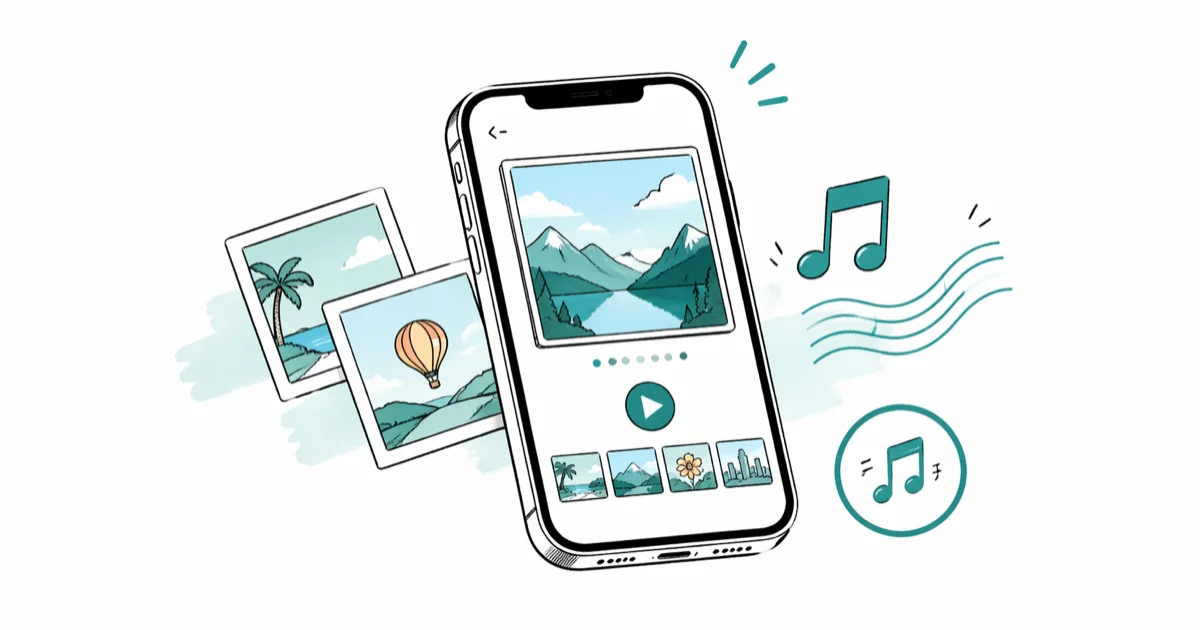
Quick AnswerIn Photos, tap Select, choose the photos, tap More, then Play as Slideshow. For editable music, length, and photo order, play the album as a Memory Movie and use its Memory Mix controls.
The iPhone Photos app offers two related workflows: a standard slideshow that automatically formats selected photos and sets them to music, and an editable Memory Movie. Choose the second workflow when you need to change the song, length, look, or photo order.
- Standard slideshows automatically format selected photos and set them to music
- Memory Movies provide the documented controls for songs, looks, length, and photo order
- Apple Music subscribers can search the Apple Music catalog from a Memory Movie
- Third-party apps like Filmora and SlideLab offer more editing control and custom transitions
- Memory Movies can be shared through AirDrop, Messages, Mail, or AirPlay
#How Do You Create a Slideshow in the Photos App?
The fastest way to make a slideshow is through Apple’s built-in Photos app. No downloads needed.
Open Photos and tap Select, choose the photos and videos you want, tap the More button, then tap Play as Slideshow. According to Apple’s current slideshow guide, the result is automatically formatted and set to music.
Apple now points users who want to change the music, theme, and other details to the Memory Movie controls. That is a separate, more editable workflow; don’t assume an old Options menu or theme list appears on every current iPhone.
#Using Memory Movies for Automatic Slideshows
The Photos app also creates Memory Movies from memories, collections, and albums.
Open Photos, tap Collections, then choose a memory. You can also open an existing collection or album and tap its Play button to watch it as a Memory Movie.
According to Apple’s Memory Movie guide, Memory Mixes provide looks, song selection, photo management, reordering, and short, medium, or long length options. Apple Music subscribers can search the Apple Music catalog from the music picker. Apple does not describe a user-facing beat-sync guarantee, so choose the result by previewing it.
#Adding Your Own Music to a Slideshow
Use a Memory Movie—not the standard slideshow steps above—when you want Apple’s documented music picker.
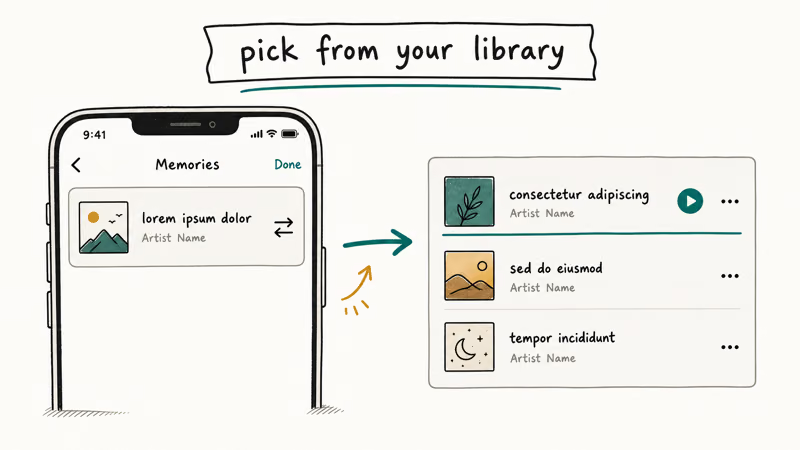
Play the Memory Movie, tap the screen, tap Memory Mixes, then tap the Music button. Choose a suggested song or soundtrack and tap Done. Apple Music subscribers can use Search to find a song in the Apple Music library.
Apple documents short, medium, and long movie lengths; it does not document a current Fit to Music switch or using a speed slider to trim audio. Spotify is not part of Apple’s documented picker, and screen-recording commercial streaming audio can produce muted output or create reuse restrictions. For non-Apple music, use audio you have permission to use in an editor that supports importing it.
#Best Third-Party Apps for iPhone Slideshows
Third-party editors help with text, custom transitions, and precise timing.
#Filmora
Filmora offers picture-in-picture, color tools, audio controls, and additional effects. Its plans and free-export limits change, so check the current product page before choosing it for a paid project.
Some links on this page are affiliate links, which means fone.tips may earn a commission at no extra cost to you.
#SlideLab
SlideLab focuses specifically on photo slideshows with music. It has unique per-photo transitions, a built-in royalty-free music library, and aspect ratio presets for Instagram, TikTok, and YouTube. The app is free with an in-app purchase to remove the watermark.
#Pic Music
Pic Music is lightweight and fast. It includes voice recording, text overlays, and photo reordering. Free with a subscription to remove the watermark.
For more video editing options beyond slideshows, check out the best apps to put videos together or our roundup of photo squarer apps for iOS and Android that help you format images before adding them to your presentation.
#How Do You Share a Finished Slideshow?
Standard slideshows are designed for playback in Photos. Use a Memory Movie when you need Apple’s documented sharing controls.
Open the Memory Movie, tap More > Share, then choose AirDrop, Messages, or Mail. According to Apple’s current memory sharing guide, those destinations and AirPlay are supported; it does not promise a Save Video option or a particular output resolution.
Third-party apps handle export differently, so check the current export menu and plan limits in the app you choose. For AirPlay TV playback, Apple’s current AirPlay guide documents sharing Photos content to an Apple TV or mirroring the iPhone screen. Use the Photos share controls when AirPlay is available, or open Control Center and choose Screen Mirroring.
#Tips for Better iPhone Slideshows
A few things worth knowing up front that’ll save you time.
Pick your photos before starting. Create a dedicated album with just the images you want, arranged in order. This gives you full control over pacing and prevents the app from auto-selecting photos you don’t want.
Match the music to the mood. Preview different suggestions or Apple Music choices and keep the one that fits the photos.
Preview before sharing. A shorter cut may be easier to watch, but there is no universal ideal length or photo count.
If you need to add text to individual photos before including them, do that first.
#Bottom Line
Use Select > More > Play as Slideshow for automatic playback. Use a Memory Movie when you need to choose music, reorder photos, change the look or length, or share through Apple’s documented controls. For text, precise timing, or file-export controls, compare current third-party app features and plan limits.
iPhone tips & tricks
#Frequently Asked Questions
Can you make a slideshow with music for free on iPhone?
Yes. The built-in Photos app can play selected photos as an automatically formatted slideshow with music, without installing another app.
How do you add Apple Music songs to a slideshow?
Use a Memory Movie. While it plays, tap the screen, tap Memory Mixes > Music, then choose a song. Apple Music subscribers can search the Apple Music library.
Can you save an iPhone slideshow as a video?
Apple documents the standard slideshow as a playback feature. Memory Movies have direct sharing controls for AirDrop, Messages, Mail, and AirPlay. If you specifically need a standalone video file, verify the current export option in the editor you choose rather than assuming Photos will show Save Video.
What’s the best app for making slideshows on iPhone?
The built-in Photos app handles automatic slideshows and Memory Movies. If you need custom text, precise timing, or a particular export format, compare the current feature and pricing pages of third-party editors.
How many photos should a slideshow have?
There is no universal ideal. Start with the photos needed to tell the story, preview the result, and remove repetitions. Memory Movies let you choose short, medium, or long and automatically adjust the included photos.
Can you use Spotify music in an iPhone slideshow?
Spotify is not part of Apple’s documented Memory Movie music picker. Don’t rely on screen recording as a workaround: protected audio may be muted, and reusing commercial music can be restricted. Use a permitted audio track in an editor that supports importing it.
How do you share a slideshow from iPhone to TV?
Use AirPlay when the option is available in the Photos share controls. If it isn’t shown there, open Control Center, tap Screen Mirroring, and choose the Apple TV or compatible smart TV. Availability depends on the devices being on a compatible network and signed in or connected as Apple requires.
Can you make a slideshow from iCloud photos?
Yes, after the items are available in Photos. Turn on Settings > your name > iCloud > Photos > Sync this iPhone. Apple’s current iCloud Photos guide notes that Optimize Storage may keep space-saving versions on the device while originals remain in iCloud, so connect to Wi-Fi or cellular and let any needed items download before you rely on offline playback.
How to Transfer Data to a New iPhone Without iCloud
Move everything to your new iPhone without iCloud: Quick Start device-to-device transfer, wired migration, and encrypted Finder or iTunes backups.
Best Wireless Earbuds for iPhone in 2026: USB-C Era Picks
Best wireless earbuds for iPhone in 2026, comparing AirPods Pro 3, Sony WF-1000XM6, Bose QC Ultra, and Anker Liberty 4 NC on the USB-C iPhone lineup.
iPhone Keyboard Lag? 7 Proven Fixes for iOS 26 (2026)
Fix iPhone keyboard lag with 7 proven fixes for iOS 26. Covers restart, storage, predictive text, third-party keyboards, and dictionary reset.
How to Block Porn on an iPhone: A Guide for Parents
Learn how to block porn on iPhone using Screen Time, DNS filtering, and safe browsers. Step-by-step guide for parents to protect kids' devices.