How to Fix Android No Command Error: 5 Proven Methods
Fix the Android no command error with 5 practical methods for Samsung, Pixel, and most Android 10+ devices. Step-by-step recovery mode guide.
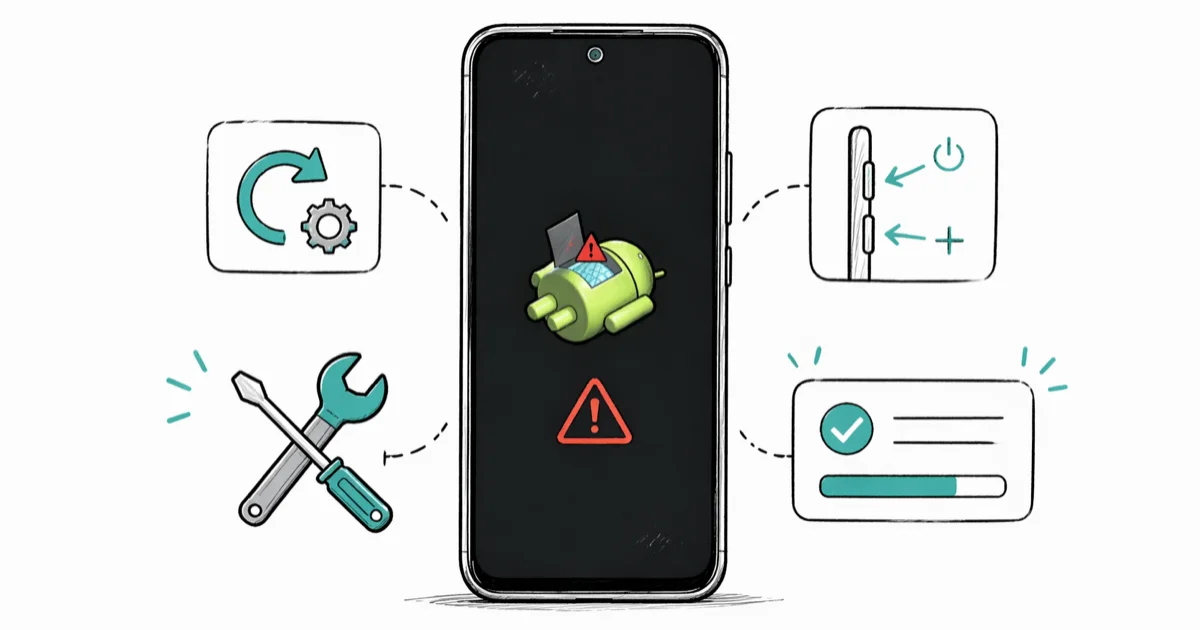
Quick AnswerThe Android "No command" error appears when your phone fails to load the recovery menu. Hold the Power button and tap Volume Up once to access the full recovery options.
Your Android phone shows a dead robot with “No command” on the screen, and the recovery menu refuses to appear. The fix is usually a button sequence that reveals the recovery menu, followed by cache wipe or factory reset only when simpler steps fail.
- The “No command” screen means recovery mode loaded but the menu didn’t display
- Holding Power and tapping Volume Up once is the first fix to try on many Android phones
- Wrong button combinations are the most common cause, and each manufacturer uses different key combos
- Wiping the cache partition fixes the error without deleting personal files or apps
- A factory reset is the last resort and will erase everything on your phone
#What Causes the Android No Command Error?
The “No command” screen appears when your phone enters recovery mode but can’t display the menu. You see an Android robot on its back with a red exclamation mark, and instead of the expected list of options like “Wipe data” and “Reboot system now,” the phone sits on a dead-end screen that ignores taps.
If the phone never gets this far and hangs earlier, our guide to an Android stuck on the boot screen covers that case instead.
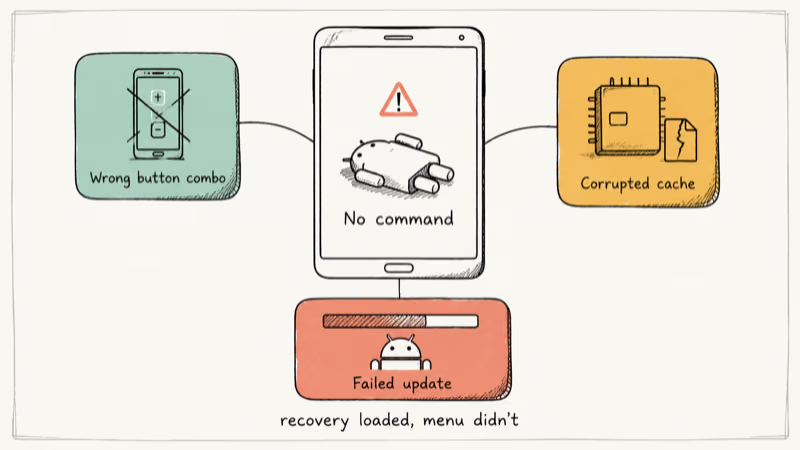
Wrong button combo. That is the most common cause.
Samsung, Google, Motorola, and OnePlus all use slightly different key sequences to enter recovery mode, and pressing even one wrong button brings up the “No command” screen instead. Corrupted system cache is another common trigger, especially after failed Android updates.
Other triggers include interrupted firmware updates, bootloader corruption, and conflicts between system apps. Google’s Android recovery documentation confirms that the recovery image lives on a partition separate from the main OS, which explains why a normal reboot won’t clear this error on its own.
#5 Ways to Fix the No Command Screen on Android
The fastest fix for most people takes about 10 seconds. When you see the “No command” screen, don’t panic and don’t keep mashing buttons.
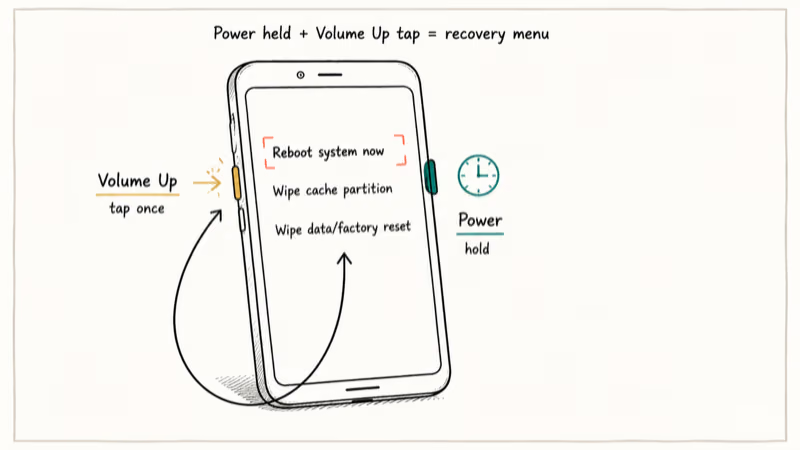
#Method 1: Power + Volume Up Tap
This works on Samsung Galaxy, Google Pixel, Motorola, and most other brands running Android 10 or newer.
- Hold down the Power button and keep holding it
- While still holding Power, tap the Volume Up button once and release it
- Release Power when the recovery menu appears, then use Volume buttons to scroll and Power to select
The full recovery menu should appear shortly after the correct button sequence. The timing matters, so if it does not work, try again with a slightly quicker tap on Volume Up.
#Method 2: Force Restart
If the tap method does not bring up the recovery menu, a force restart gets you back to the normal home screen.
- Press and hold Power and Volume Down together for 10-15 seconds
- Release when you see the manufacturer logo
- Wait for the phone to boot normally
On Samsung devices, this combination is Power + Volume Down. On older models with a removable battery, pull the battery out, wait 30 seconds, and reinsert it. According to Samsung’s guide to restarting a Galaxy phone or tablet, you hold the two buttons until the device turns off and turns back on, and the screen going black is part of the sequence rather than a sign it failed.
#Method 3: Wipe Cache Partition
Wiping the cache partition clears temporary system files without deleting your photos, apps, or personal data. This fixes the “No command” error when corrupted cache is the root cause.
- Power off your phone and enter recovery mode using the right button combo
- Select Wipe cache partition, confirm, then pick Reboot system now
Your phone restarts with a fresh system cache. The first boot after a cache wipe takes longer than usual, sometimes up to 2-3 minutes, because Android rebuilds the cache from scratch. For ongoing maintenance, our guide to clearing cache on Android covers app-level cleanup that complements partition-level wipes.
#What Are the Recovery Mode Button Combos by Brand?
Every Android manufacturer uses different buttons to enter recovery mode. Using the wrong combination is the number one reason people see the “No command” error.
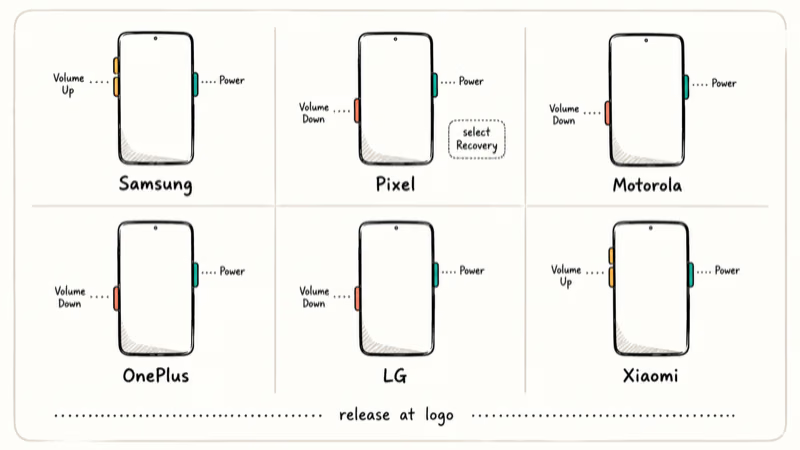
| Brand | Combo |
|---|---|
| Samsung Galaxy | Power + Vol Up |
| Google Pixel | Power + Vol Down, then select Recovery |
| Motorola | Power + Vol Down |
| OnePlus | Power + Vol Down |
| LG | Power + Vol Down |
| Xiaomi | Power + Vol Up |
Google’s Android Help recovery mode page explains that the recovery interface is device-specific because each manufacturer customizes the bootloader. If your brand is not listed, check the user manual that came with your phone or search your model number plus “recovery mode.”
If you need to perform a factory reset using specific dial codes, that is a different process that does not require recovery mode at all.
#Factory Reset From Recovery Mode
A factory reset erases everything and returns your phone to its original out-of-box state. Only go this route when nothing else works.
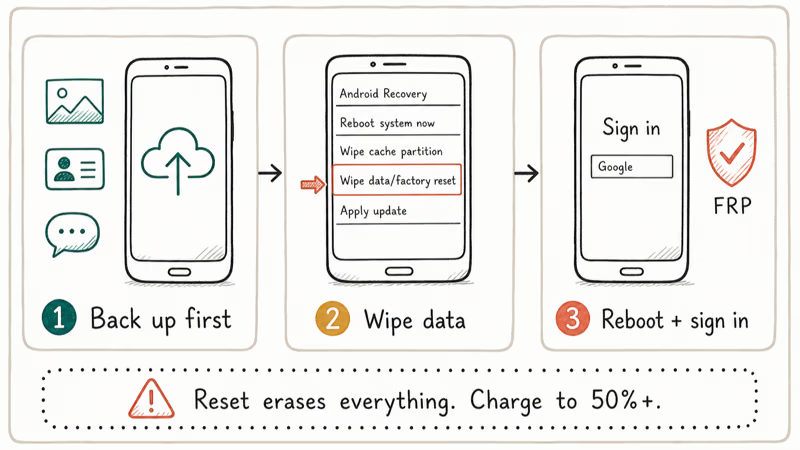
Back up your data before starting. Once the reset begins, photos, apps, messages, and all settings get permanently wiped. If you need to recover photos after a factory reset, specialized data recovery software can sometimes retrieve deleted files from the internal storage, but results depend on how much new data has been written since the reset.
- Power off and enter recovery mode (hold Power + tap Volume Up if you see “No command”)
- Select Wipe data/factory reset, confirm, wait 3-5 minutes, then pick Reboot system now
Your phone boots up like new. You sign into your Google account during setup and can recover your contacts from your backup.
After the reset, Android may ask you to verify your Google account credentials. This is Factory Reset Protection (FRP), a security feature designed to prevent stolen phones from being wiped and resold. If you forgot your Android password before the reset, you need the original Google account email and password to get past this verification screen, so make sure you have those ready.
#Preventing the No Command Error in the Future
Keep your phone’s software up to date. Most “No command” errors trace back to outdated firmware or interrupted system updates. Go to Settings > System > Software update and install any pending patches.
Before entering recovery mode, look up the exact button combo for your specific phone model. Don’t guess. The wrong sequence is the leading cause of this error, and it’s completely avoidable with a 10-second search for your model number plus “recovery mode buttons.”
If you are planning a factory reset, charge your phone to at least 50% battery first. A phone dying mid-reset can corrupt the recovery partition and make the “No command” error much harder to fix. Keeping your Google account credentials written down somewhere safe also prevents lockout issues after a reset. For phones dealing with other Android system problems, keeping the cache partition clean by wiping it after major updates reduces the chance of encountering recovery errors.
#Signs You Need Professional Repair
Not every “No command” error can be fixed at home. Hardware damage sometimes causes it.
Signs that point to a hardware issue include a phone that gets stuck on the “No command” screen every single time you try recovery mode, physical damage to the power or volume buttons, and a device that won’t charge or respond to any button presses. Water damage is another culprit that can corrupt the recovery partition permanently.
Authorized service centers from Samsung, Google, or your carrier can run deeper diagnostics that are not possible at home. According to Google’s Pixel repair pricing, out-of-warranty Pixel software repairs typically cost between $79 and $129. Samsung’s service network is broader, and many repairs fall under their 1-year warranty.
If repair costs seem too high for an older phone, replacement might make more sense. But before giving up, check whether a professional Android repair service near you can flash the firmware.
#Bottom Line
Start with the Power + Volume Up tap, which resolves the “No command” error on many Android phones. If that does not work, force restart and then wipe the cache partition. Save the factory reset for last, and get professional help if the error keeps returning even after you have walked through every method on this page.
#Frequently Asked Questions
Will I lose my data if I fix the no command error?
The Power + Volume Up tap and force restart methods don’t touch your data at all. Wiping the cache partition also preserves your personal files, apps, and settings. Only a factory reset erases everything on your phone, and that should be your last option.
Why does my phone keep showing no command every time I try recovery mode?
You’re most likely using the wrong button combination. Check the brand-specific chart above and try the correct combo for your phone model.
Can I fix the no command error without a computer?
Yes, all five methods in this guide work directly on your phone without needing a computer. The button combinations, cache wipe, and factory reset all happen through the phone’s built-in recovery environment. You only need a computer if you’re flashing new firmware, which is an advanced repair step.
Does the no command error mean my phone is bricked?
No. A bricked phone won’t turn on at all. The “No command” screen means your recovery system is active but the menu didn’t load correctly, which is fixable.
How often should I wipe the cache partition?
There’s no need to wipe it on a regular schedule. Do it when you notice performance problems, after major Android updates that cause issues, or when you encounter errors like the “No command” screen. Wiping cache too frequently provides no benefit because Android rebuilds it automatically.
Is it safe to keep using my phone after fixing the no command error?
Yes, your phone is fine to use after fixing this error. The “No command” screen is a display glitch in the recovery environment, not a sign of hardware failure or data corruption. Once you’ve gotten past the error and your phone boots normally, everything works as intended. If a system update originally triggered the issue, go to Settings > System > Software update and try installing the update again with a full battery.
What should I do if none of these methods work?
Contact your phone manufacturer’s support team or visit an authorized service center. For Samsung, Samsung Support offers live chat and repair booking.
Does a factory reset fix the no command error permanently?
In most cases, yes. A factory reset wipes the entire system and reinstalls Android from the recovery partition, which clears out any software conflicts causing the error. If the error comes back even after a factory reset, the recovery partition itself might be corrupted, and you’ll need a professional to reflash the firmware.

Pixel 11 vs Pixel 10: What Changed and Who Should Upgrade
Pixel 11 vs Pixel 10: same screen and camera resolution, new Tensor G6, 25W wireless, and Gemini Intelligence. Here is who should actually upgrade.

Verizon Not Receiving Texts? How to Fix It in 9 Steps
Verizon not receiving texts? Fix it in 9 steps: check Message Blocking in My Verizon, reset network settings, deregister iMessage, and call support.

Pixel Battery Drain: What Google's July Fix Really Covers
Google marked the Pixel idle battery drain bug fixed in July, but only some phones got the patch. Here is who is covered, who is not, and what to try.

iPhone Stuck on EDGE? How to Get 5G or LTE Back (2026)
iPhone stuck on EDGE with crawling data? Here's why the E icon appears, which settings force 5G or LTE back, and when the problem is your carrier.