Screen Time Not Syncing Between iPhone and Mac? Fix 2026
Screen Time not syncing between iPhone and Mac? Fix Share Across Devices, Apple Account mismatch, Family Sharing, and stale reports in 2026.
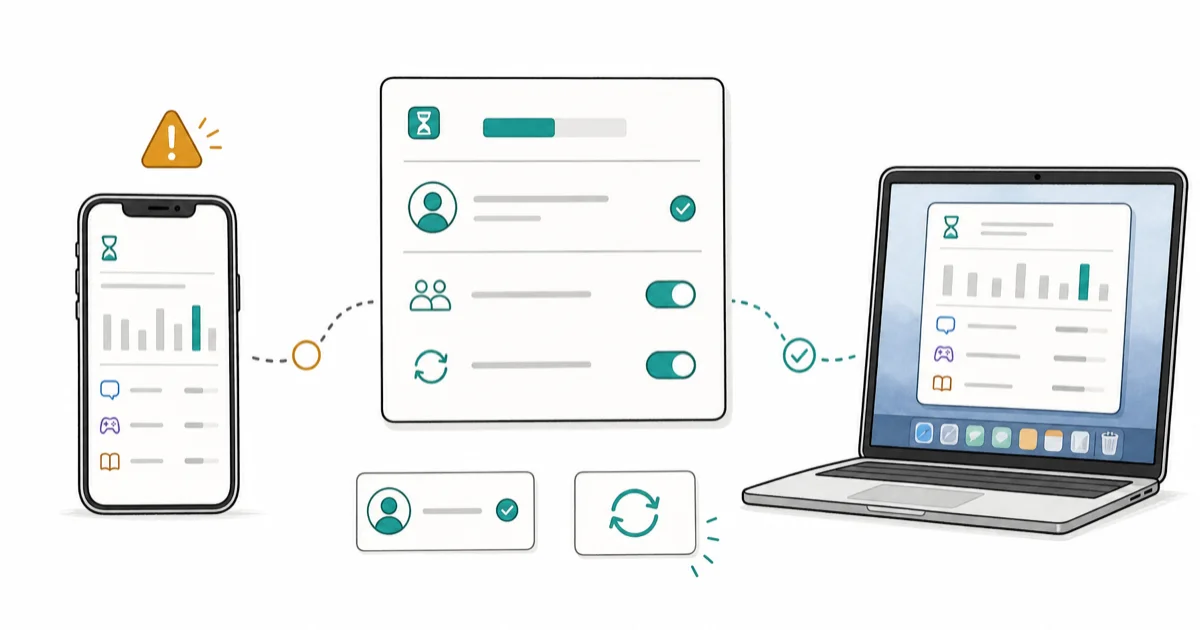
Quick AnswerScreen Time not syncing between iPhone and Mac usually means Share Across Devices is off or the devices use different Apple Accounts. Turn on Share Across Devices in Screen Time settings on every device, confirm the same Apple Account, then allow time for reports to catch up.
Screen Time not syncing between iPhone and Mac comes down to two settings most people overlook: Share Across Devices and the Apple Account each device uses. Screen Time syncs limits and reports through iCloud, so if one device has sharing off, the numbers drift apart until both devices use the same Apple Account and sharing setting.
- Share Across Devices must be on for every device, set separately on iPhone and Mac
- All devices need the same Apple Account or Screen Time data won’t combine
- Family Sharing child accounts sync differently and need the parent’s setup
- Reports can lag by a few hours, so a brief delay isn’t always a bug
- A signed-in iCloud session is required, since Screen Time syncs through iCloud
#Why Is Screen Time Not Syncing Between iPhone and Mac?
The sync depends on iCloud, and it breaks for a short list of reasons. The big ones are Share Across Devices being off, mismatched Apple Accounts, a Family Sharing setup issue, or simple report lag.
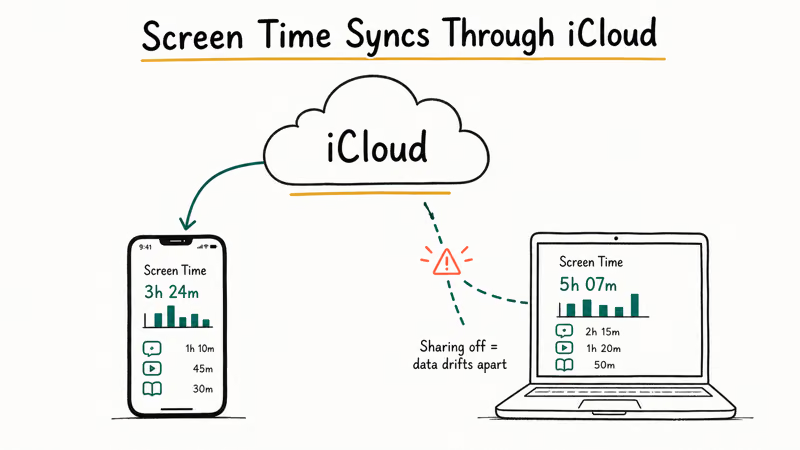
Screen Time stores its data in iCloud so your usage and limits follow you across devices. Apple states that 1 Apple Account ties all your Screen Time data together, which is why a mismatched account breaks everything. The full steps are on Apple’s Screen Time on iPhone page. If the Share Across Devices toggle is off on the Mac but on for the iPhone, each device tracks its own siloed numbers and they never merge.
Screen Time sync problems and first checks
| Symptom | Likely cause | First check |
|---|---|---|
| Numbers don’t combine | Share Across Devices off | Both devices’ toggle |
| Reports totally separate | Different Apple Account | Apple Account on each |
| Child’s limits ignored | Family Sharing setup | Parent device settings |
| Slightly stale totals | Normal report lag | Wait a few hours |
If a specific iOS version broke Screen Time for you rather than sync settings, our iOS 26 Screen Time not working guide covers that release’s bug directly.
#Confirm the Same Apple Account on Every Device
This is the check that catches the most people, especially anyone with a separate work account. Screen Time only combines data across devices signed into the same Apple Account.
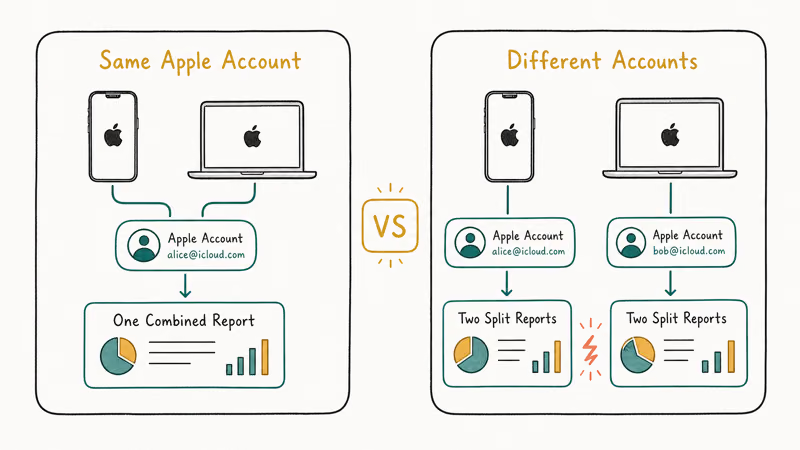
On the iPhone, open Settings, tap your name, and note the Apple Account email. On the Mac, open System Settings, click your name, and confirm it matches exactly. A work or school account on one device, or an old account you forgot to sign out of, splits your Screen Time data into two unconnected buckets that never sync.
If the accounts differ, sign out of the wrong one and sign back in with your primary Apple Account. A Mac signed into a secondary Apple Account will keep separate Screen Time totals until it’s switched to the primary account. For the basics of what Screen Time tracks and where, our Screen Time app guide is a useful reference.
#Fix Share Across Devices and Family Sharing
Share Across Devices is the single setting that controls cross-device sync, and it’s set per device. Turning it on once doesn’t cover your whole fleet.
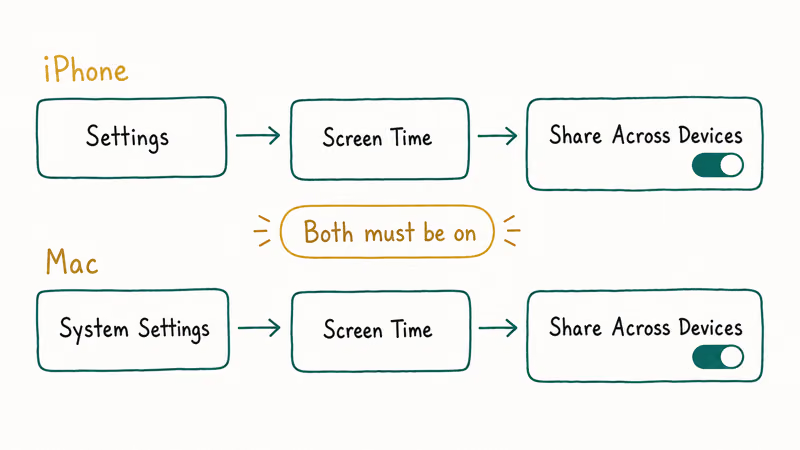
On iPhone, go to Settings, then Screen Time, and turn on Share Across Devices. On Mac, open System Settings, then Screen Time, and enable Share Across Devices there too. Both must be on. Apple’s Screen Time on Mac guide states that you turn on Share Across Devices on the Mac to see combined usage from all your devices.
Family Sharing adds a layer. According to Apple’s Family Sharing setup guide, a child’s Screen Time is managed from the organizer’s device, so if a child’s limits aren’t syncing to their Mac, check that the child account is set up correctly and signed in on every device. If you’re trying to limit a specific app rather than sync totals, our how to block TikTok guide covers per-app limits.
#Fix Stale Reports and App Limit Mismatches
Sometimes the settings are right but the numbers still look off. That’s usually report lag or a sync hiccup rather than a broken setting.
Screen Time reports don’t update in real time across devices. They sync periodically, so a Mac can show yesterday’s totals for a few hours after your iPhone has moved on. Give it time before assuming it’s broken. To force a refresh, toggle Share Across Devices off and back on, or sign out of iCloud and back in on the lagging device.
App limit mismatches often come from the same root cause. If a limit you set on the iPhone isn’t enforced on the Mac, confirm Share Across Devices is on for both and that they share one Apple Account. If you’ve forgotten the passcode protecting these settings, our forgot Screen Time passcode guide handles recovery.
#Restart and Refresh the Sync
When the settings look right but data still won’t reconcile, a clean restart is the fastest reset. It clears stuck iCloud sync states that toggling alone misses.
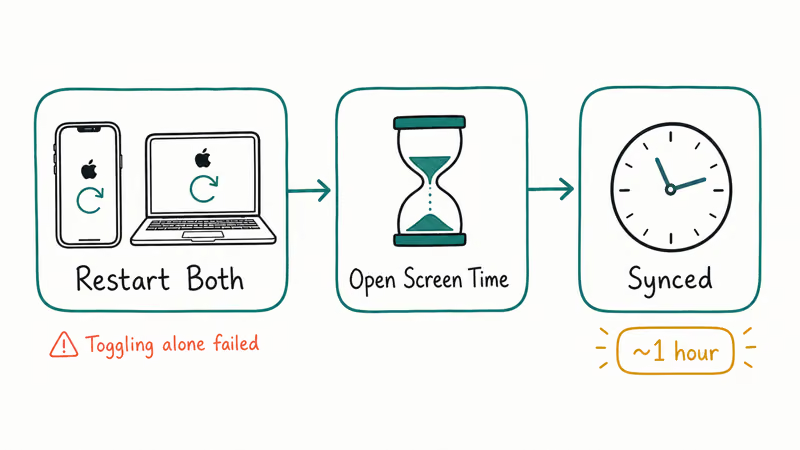
Restart both the iPhone and the Mac, then open Screen Time on each to trigger a fresh sync. A restart can clear a stuck iCloud sync state; after restarting, give Screen Time time to reconcile before changing more settings. If broader iCloud features like this keep failing, the account-level fixes in our iPhone iCloud backup not working guide often clear up Screen Time sync too.
#When Is This an iOS or macOS Bug?
Occasionally the fault is the software, not your settings. Major OS updates have shipped with Screen Time sync bugs before, and when that happens, no amount of toggling fixes it.
Suspect a bug only after you’ve confirmed Share Across Devices is on everywhere, all devices share one Apple Account, and you’ve waited several hours for reports to catch up. If sync still fails under those conditions, check whether your iOS or macOS version has a known Screen Time issue and whether a point update is available.
For privacy and family-safety reasons, only manage Screen Time on your own devices or on a child’s device you legally supervise, never on another adult’s phone without their consent.
Keeping both devices on the latest compatible OS version usually resolves a confirmed sync bug, since Apple patches these in follow-up releases. Rolling back is rarely worth the risk.
#Bottom Line
Start with Share Across Devices, turning it on separately on both the iPhone and the Mac, because that single per-device setting causes most sync failures. Confirm both devices use the exact same Apple Account, then give reports a few hours to catch up before assuming anything is broken. If sync still fails with everything configured correctly and after a wait, suspect an OS bug and update both devices to the latest version rather than digging deeper.
#Frequently Asked Questions
Why is Screen Time different on my iPhone and Mac?
The usual cause is that Share Across Devices is on for one device but off for the other, so each tracks its own siloed data. Turn it on in Screen Time settings on both, and confirm both devices use the same Apple Account.
Does Screen Time sync instantly across devices?
No. Reports sync periodically through iCloud, not in real time, so one device can show older totals for a few hours.
Why don’t my child’s Screen Time limits sync to their Mac?
Family Sharing manages a child’s Screen Time from the parent’s device, so the child account must be set up correctly in Family Sharing and signed in on every device. Confirm the child is signed into the same Apple Account on their Mac and iPhone.
How do I force Screen Time to sync?
Toggle Share Across Devices off and back on, or restart both devices, then wait a few hours to reconcile.
Could a macOS or iOS update break Screen Time sync?
Yes. Major updates have shipped with Screen Time sync bugs before. Suspect a bug only after confirming Share Across Devices is on, the Apple Accounts match, and you’ve waited for reports to catch up. Update both devices, since Apple fixes these in follow-up releases.
What should I avoid doing while troubleshooting?
Don’t sign into a different Apple Account to test, since that splits your data and adds confusion. Avoid turning Screen Time off entirely, which wipes the sync relationship. And never manage another adult’s Screen Time without their consent.

macOS 27 Compatible Macs: Every Supported Model (2026)
macOS 27 Golden Gate runs only on Apple Silicon Macs. Here is the full list of supported M-series models and the four Intel Macs that lose support.

macOS 27 Golden Gate: Every Major New Feature Confirmed
macOS 27 Golden Gate goes Apple Silicon only, adds a Gemini-powered Siri, refines Liquid Glass, and rebuilds Spotlight. Here is every confirmed change.

macOS 27 Liquid Glass: Every Readability Fix Explained
macOS 27 Golden Gate refines Liquid Glass with an intensity slider, better contrast, cleaner window corners, and edge-to-edge sidebars to fix readability.

macOS 27 Performance: What Golden Gate Makes Faster
macOS 27 Golden Gate speeds up AirDrop, network file browsing, Safari, and Spotlight, with core system improvements on the Apple Silicon-only release.