Screen Mirroring Not Working? 7 Apple AirPlay Fixes
Fix AirPlay screen mirroring with Apple-supported checks for compatibility, Wi-Fi, software, receiver access, passwords, app support, and sound.
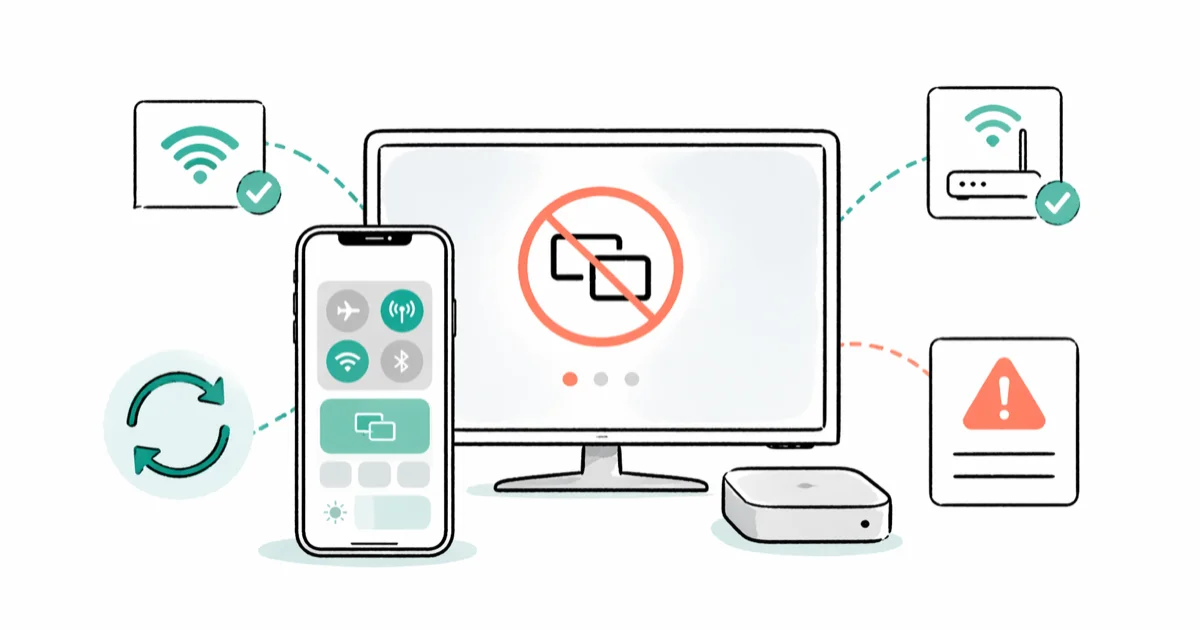
Quick AnswerMake sure both AirPlay devices are on, nearby, updated, and connected to the same Wi-Fi network. Then confirm the receiver allows AirPlay and restart the devices before testing again.
When Screen Mirroring can’t find a TV or Mac, start with Apple’s supported checks: power, distance, software, same Wi-Fi, receiver settings, and restart.
- Confirm the destination is AirPlay-compatible, turned on, and near the iPhone or iPad.
- Put both devices on the same Wi-Fi network; their 2.4 GHz or 5 GHz radio band doesn’t have to match when both bands belong to the same local network.
- Update both devices and restart the sender and receiver.
- On a Mac or iPhone acting as the receiver, make sure AirPlay Receiver is allowed.
- Check Home access, Apple TV restrictions, and AirPlay password settings instead of disabling a firewall or opening undocumented ports.
#Why Is Screen Mirroring Not Working?
AirPlay discovery can fail because the receiver is unavailable, the devices are on different networks, receiving is disabled, access is restricted, or one device needs an update or restart. A video app can also decline to support AirPlay even when ordinary screen mirroring works.
Apple’s current AirPlay troubleshooting page tells users to test after each step: make sure compatible devices are on and near each other, update them, put them on the same Wi-Fi network, allow AirPlay receiving, restart them, and check Home or password restrictions.
That source doesn’t say AirPlay requires the sender and receiver to use the same 2.4 GHz or 5 GHz band. It also doesn’t prescribe TCP ports 7000 and 7001, a dynamic UDP range, or disabling the macOS firewall as universal consumer fixes. Those claims can send readers into router or security changes that aren’t needed for Apple’s supported first-line flow.
#Fix 1: Confirm the Receiver Supports AirPlay
Start with the destination. Apple supports streaming or mirroring to an Apple TV, an AirPlay-compatible smart TV, or a compatible Mac. A television with Wi-Fi, casting, or Bluetooth isn’t automatically an AirPlay receiver.
Open the TV’s settings or manufacturer documentation and look for AirPlay. If AirPlay isn’t listed, the TV won’t appear in iPhone Screen Mirroring without an Apple TV or another receiver. Model year alone isn’t proof; compatibility varies by exact model and region.
For a known compatible receiver, turn it on fully and keep it near the source device while testing. Wake a sleeping Apple TV or TV before opening Control Center.
#Fix 2: Put Both Devices on the Same Wi-Fi Network
According to Apple’s AirPlay 2 instructions, the sender and receiver must use the same Wi-Fi network.
On iPhone or iPad, open Settings > Wi-Fi and note the network name. Check the network shown on the receiver and make sure it’s the same local network. A guest network may isolate devices from one another, so move both to the normal home network for the test.
The network matters; matching a 2.4 GHz or 5 GHz radio band doesn’t.
If you don’t have a usable local network, AirPlay behavior depends on the devices and setup. Use our AirPlay without Wi-Fi guide for those alternatives rather than applying home-network steps that don’t fit.
#Fix 3: Allow AirPlay Receiving
Apple’s troubleshooting page includes a receiver control that older guides often omit.
On an iPhone that should receive AirPlay, go to Settings > General > AirPlay & Continuity and allow AirPlay receiving. On a Mac receiver, go to System Settings > General > AirDrop & Handoff, turn on AirPlay Receiver, and review who is allowed to connect.
If the destination is a smart TV, open its AirPlay settings and make sure AirPlay is enabled. Menu names vary by manufacturer, so use the TV’s current manual rather than copying an Apple TV path onto a different brand.
#Fix 4: Restart the Sender and Receiver
Restart the devices you want to use for AirPlay or screen mirroring. Apple includes this after the network, software, and receiver checks.
Restart the iPhone or iPad normally. On Apple TV, use Settings > System > Restart. For a smart TV or Mac, use its normal restart command. Once both devices are available again, open Control Center, tap Screen Mirroring, and select the receiver.
Apple documents no five-second discovery deadline or mandatory restart timer. Reconnect, then test.
#Fix 5: Update Both Devices
Apple recommends the latest software on both AirPlay devices. On iPhone or iPad, use Settings > General > Software Update. On Apple TV, use Settings > System > Software Updates. For a smart TV, use the manufacturer’s update menu.
An available update is worth installing, but don’t attach a specific AirPlay regression or fix to a tvOS point release unless its actual release notes say so. The Mac Studio specifications page formerly linked from this article isn’t a tvOS release-notes index and provides no evidence about AirPlay bugs.
After updating, test a simple item from Photos as well as Screen Mirroring. That helps distinguish an AirPlay connection problem from one app’s playback restrictions.
#Fix 6: Check Home Access and Apple TV Passwords
If the receiver is part of the Home app, Apple says to open Home > More > Home Settings > Speakers & TV and make sure Home settings aren’t restricting AirPlay.
Apple TV can also limit who is allowed to stream. Apple’s AirPlay password guide documents these choices under Settings > AirPlay and HomeKit: Everyone, Anyone on the Same Network, Only People Sharing This Home, and Require Password. Choose an access level that includes the sender; don’t switch to Everyone permanently just to avoid understanding the restriction.
An onscreen password on first use is expected. Enter the receiver’s code on the sending device.
#Does AirPlay Work in One App but Not Another?
Yes. Apple says some video apps might not support AirPlay. If Photos mirrors correctly but one streaming app doesn’t, the network and receiver are probably functioning; check whether that app offers its own AirPlay control or an Apple TV app.
Don’t rely on a fixed list of blocked services; app capabilities and licensing change.
If video appears but audio doesn’t, Apple’s troubleshooting page says to make sure volume is turned up and not muted on both the iPhone or Mac and the television or receiver. Also confirm the receiver is using the intended audio output.
For cross-platform receivers, compare the options in our screen mirroring apps guide. Windows doesn’t include Apple’s AirPlay receiver flow, so use the platform-specific steps in our AirPlay on Windows guide rather than Mac settings.
#Fix 7: Escalate Without Resetting Everything
If all supported checks fail, capture the exact failure before changing more settings:
- Does the receiver never appear?
- Does it appear but reject the connection?
- Is an AirPlay password requested?
- Does only one app fail?
- Is there video but no sound?
Test with a simple photo or video you created yourself. Then contact Apple Support or the TV manufacturer with the source model, receiver model, software versions, network name, and the result of each check.
Don’t factory-reset Apple TV as a routine seventh fix. A reset erases settings and apps, while the evidence may point to access policy, app support, or a receiver-specific problem. Use Reset only when Apple or the manufacturer recommends it for the diagnosed issue and you are prepared to set the device up again.
If your actual goal is a wired connection, use our screen mirroring without Wi-Fi guide. FaceTime screen sharing is a separate feature with its own FaceTime sharing checks.
#Bottom Line
Use Apple’s order: compatible devices on and nearby, the same Wi-Fi network, current software, receiving allowed, a restart, and the correct Home or password access. Then separate an app-specific failure from an AirPlay-wide failure.
Skip unsupported port lists, same-band rules, fixed timers, and blanket firewall changes. They add risk without establishing why Screen Mirroring failed.
#Frequently Asked Questions
Why doesn’t my TV appear in Screen Mirroring?
It may not support AirPlay, may be asleep, may be on a different network, or may have AirPlay disabled. Confirm those items before changing router or firewall settings.
Must both devices use 5 GHz Wi-Fi?
No. Apple’s requirement is the same Wi-Fi network, not the same radio band. Router isolation rules can still separate devices, especially on guest networks.
Can I mirror to a smart TV without Apple TV?
Yes, if that exact TV supports AirPlay. Check the model’s current settings or manufacturer documentation rather than relying only on its brand or year.
Why do I see video but hear no sound?
Apple says to check that volume is up and not muted on both the sender and the TV or receiver. Then verify the intended audio output.
Does Netflix always support AirPlay?
Don’t assume any named app supports AirPlay today. Apple notes that some video apps might not support it and recommends checking whether the app is available directly on Apple TV.
Should I disable the Mac firewall?
Not as a universal first step. Apple’s current AirPlay troubleshooting flow says to allow AirPlay Receiver on the Mac; it doesn’t instruct users to disable the firewall or open a fixed port list.
Should I factory-reset Apple TV?
Only after the problem is diagnosed and Apple or the manufacturer recommends a reset. A reset erases settings and apps and won’t fix an unsupported app or wrong access policy.

Mac mini M6 vs M5 Pro: Which Model Should You Buy?
Mac mini M6 vs M5 Pro compared on price, memory, ports, displays, and real workloads. Find the better 2026 Mac mini for your desk and budget.

Apple Siri Settlement: Who Qualifies and How to Claim
Apple's $250 million Siri settlement covers iPhone 15 Pro and iPhone 16 models bought June 2024 to March 2025. See who qualifies and how claims work.

iOS 26.6.1 Security Update: What Apple Fixed and Who Gets It
Apple released iOS 26.6.1 on August 17 with 29 security fixes, including an IPSec interception bug. See what it patches, who gets it, and how to update.

iPhone Adaptive Power: How It Works and When to Use It
Learn how iPhone Adaptive Power works, which models support it, what it changes, and when Low Power Mode is still the better battery-saving choice.