How to Remove an Account from Your iPad (Email or iCloud)
Learn how to remove email and iCloud accounts from your own iPad, recover a forgotten password, and handle Activation Lock safely on current iPadOS.
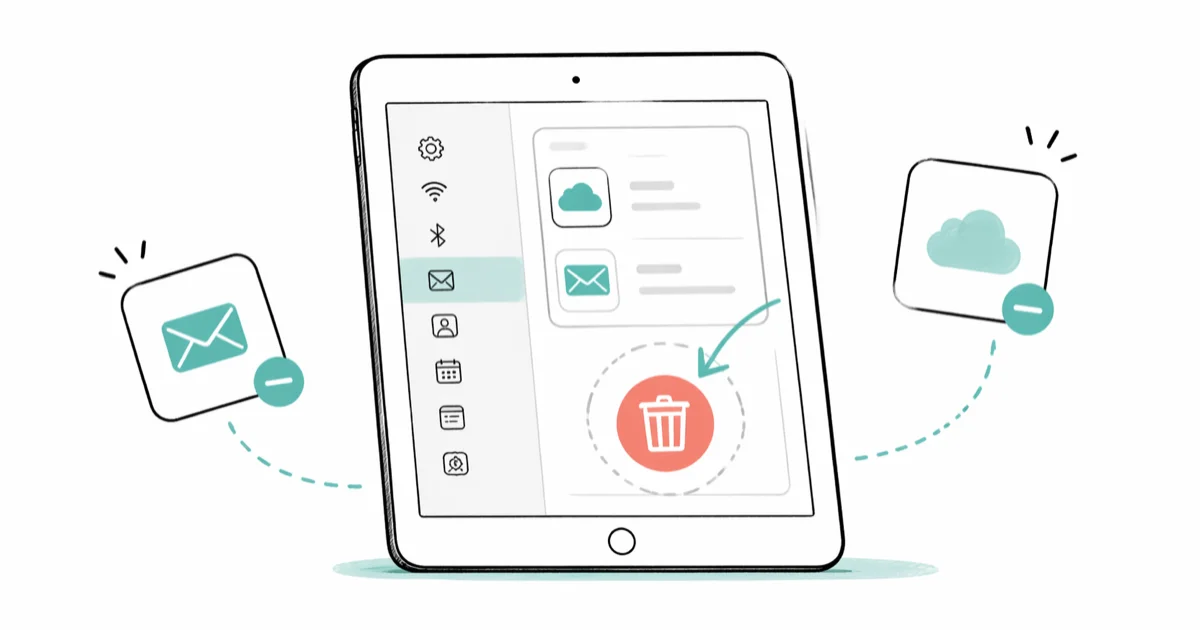
Quick AnswerFor email accounts, go to Settings > Mail > Accounts, tap the account, then tap Delete Account. For iCloud, go to Settings > [your name] > Sign Out and enter your Apple ID password.
Removing an email or iCloud account from your own iPad is straightforward when you have the password. If you’ve forgotten it or the account is locked, there are still official paths to recover access and complete the removal. This guide covers both cases on current iPadOS. Using these methods on devices or accounts you don’t own may violate applicable laws and platform terms.
- Removing an email account only takes a few taps in Settings under
Mail>Accounts - iCloud removal requires your Apple ID password; you can reset it at appleid.apple.com
- Erasing removes local accounts and data, but it doesn’t bypass Activation Lock
- Choose which synced data to keep locally before signing out of iCloud
- Back up any important data before removing your iCloud account
#How Do You Remove an Email Account from Your iPad?
This covers Gmail, Outlook, Yahoo, and any IMAP or Exchange accounts added to the iPad’s Mail app.
Open Settings and go to Mail > Accounts. Scroll down in Settings and tap Mail. At the top of the next screen, tap Accounts. You’ll see a list of every email account configured on this iPad.
Select the account. Tap it.
Tap Delete Account. Scroll to the bottom of the account settings page, tap Delete Account, and confirm when prompted. The account disappears from Mail, Contacts, and Calendar within seconds.
On a typical iPad, the deletion completes almost instantly with no reboot required. Email, contacts, and calendar events synced through that account disappear from the apps immediately. If you have the same address configured in a third-party Gmail or Outlook app, you’ll need to remove it there separately — the Settings removal only affects Apple’s built-in Mail, Contacts, and Calendar apps.
#How Do You Remove Your iCloud Account from an iPad?
Removing your iCloud account signs you out of Apple services on the iPad, including FaceTime, iMessage, App Store, and Find My. Your data in iCloud stays intact in the cloud and won’t be deleted from Apple’s servers.
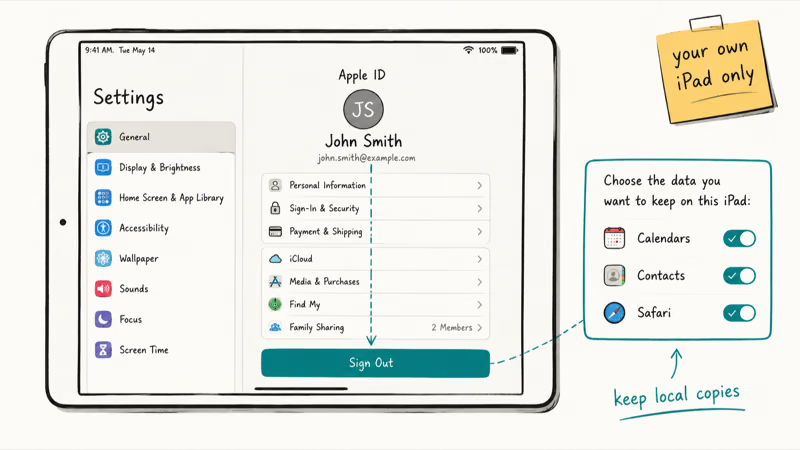
Go to Settings and tap your name. Your Apple ID name is at the very top.
Scroll down and tap Sign Out. You’ll be asked to enter your Apple ID password. This is the password for your icloud.com account (not your screen lock PIN). It confirms you’re the account holder authorizing the removal on your own device.
Choose what to keep, then confirm. Select any data you want to keep on the iPad, tap Sign Out, and confirm.
According to Apple’s current iCloud sign-out guide, information stored in iCloud remains available there after you sign out. Information may be removed from the iPad unless you choose Sign Out But Don’t Erase or keep a copy when prompted, so confirm that recent changes have synced before signing out.
#Removing iCloud When You’ve Forgotten Your Apple ID Password
You can’t sign out of iCloud without your Apple ID password. But you can reset it through Apple’s account recovery process.
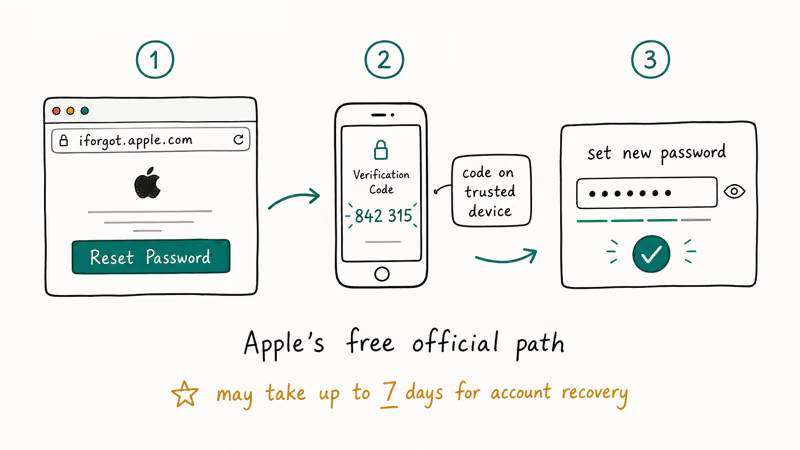
Go to iforgot.apple.com from any browser and enter your Apple ID email address. Apple sends a reset link to your trusted phone number or backup email. Follow the instructions to create a new password, then go back to Settings > [your name] > Sign Out on the iPad and enter it.
If you’ve forgotten the Apple ID email too, use the “Look Up Apple ID” option on the iForgot page. Enter your name and a trusted phone number associated with the account.
Apple recommends enabling two-factor authentication.
#Removing Accounts Without a Password Through Factory Reset
If you can’t recover the Apple ID password through any of Apple’s official methods, and this is your own iPad with no Activation Lock issues, a factory reset removes all accounts at once.
Back up first. Connect the iPad to iCloud or a Mac/PC before you start.
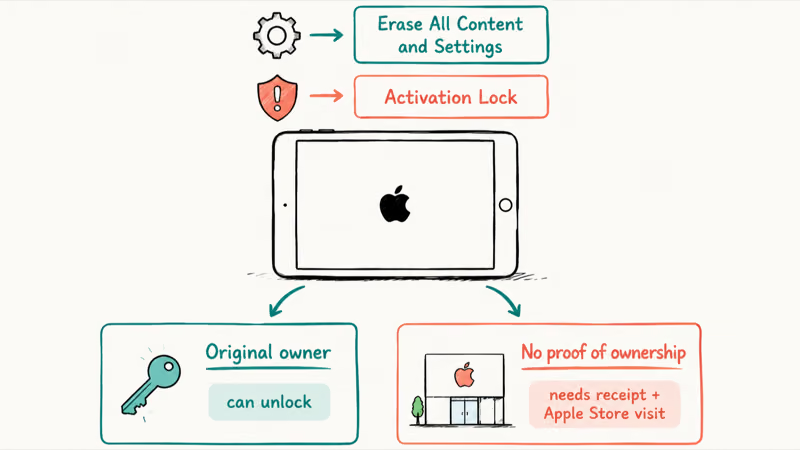
Reset through Settings. Go to Settings > General > Transfer or Reset iPad > Erase All Content and Settings. Follow the prompts to enter the requested device passcode or Apple Account password, then confirm the erase.
The iPad restarts and shows the Hello setup screen. If Activation Lock is enabled, setup still requires the linked Apple Account credentials.
If the iPad is protected by Activation Lock tied to your Apple ID, you’ll need your Apple ID credentials to finish setup. If you’ve forgotten those, use iForgot as described above before starting the reset.
After the erase, local accounts, email, and iCloud data are removed from the device. Activation Lock remains until the linked account holder removes it.
#When to Use a Third-Party Tool
Some users look for third-party tools to remove Apple ID without a password. The only legitimate reason to use one is if Apple’s own recovery process fails and you can prove device ownership. Be cautious: many advertised “iCloud removal tools” are scams or malware disguised as unlock software.
If a previous owner is still signed in, ask them to open icloud.com/find, select the iPad, and choose Remove This Device.
Apple’s current Activation Lock documentation confirms that the linked Apple Account password is required to turn off Find My, erase the device, or reactivate it. If a previous owner is still linked, they need to remove the iPad from their account; a factory reset doesn’t bypass this protection.
If you’re dealing with a situation where sign-out is not available due to restrictions, that’s a separate MDM policy issue typically set by a school or employer. The device’s administrator needs to remove that restriction.
#Verifying the Account Was Removed
After removing an account, confirm it’s gone.
For email: Open the Mail app and check that the deleted account no longer appears in the sidebar. Then confirm in Settings > Mail > Accounts that the account list no longer includes it. Also check Contacts and Calendar apps if the email account was syncing those.
For iCloud: Your name should no longer appear at the top of Settings. You’ll see “Sign in to your iPad” instead.
Related issues that can come up after account changes include iCloud notes not syncing and FaceTime waiting for activation. Both resolve on their own once a new Apple ID is signed in.
#Bottom Line
Removing an email account from your iPad takes under a minute. Removing your iCloud account takes slightly longer because it requires your Apple ID password and a choice about local data.
If you’ve forgotten the password, reset it through iforgot.apple.com first, then complete the sign-out. If the iPad has someone else’s Apple Account still on it, ask them to remove it remotely at iCloud.com/find. A factory reset erases local data but doesn’t remove Activation Lock.
For more help with locked or restricted accounts, check our guide on how to unlock an iPad mini and the article on account not in this store errors.
#Frequently Asked Questions
Will removing my iCloud account delete my photos and contacts?
No. Your photos, contacts, and other content stay stored in iCloud. The iPad just stops syncing. Sign back in with the same Apple ID on any device and everything syncs again.
Can I remove an iCloud account without the password?
Not directly through Settings. Apple requires the password as a security measure to prevent unauthorized removal. Reset the password at iforgot.apple.com or contact Apple Support with proof of ownership. Erasing the iPad doesn’t bypass Activation Lock.
Does removing an email account delete my emails?
Emails stored only on the mail server are not deleted when you remove the account from your iPad. They remain on the server (Gmail, Outlook, etc.) and you can access them by adding the account back or logging in through a web browser. Any email stored locally and not synced to the server would be lost.
What happens to my iCloud data if I sign out on my iPad?
It stays in iCloud. Sign back in on any device to restore access.
Can I delete multiple email accounts at once?
No, not through Settings. Each account must be removed individually through Settings > Mail > Accounts. Select the account, scroll to the bottom, and tap Delete Account.
The only way to remove all accounts at once is a factory reset, which permanently erases all data on the iPad. Use that only if you’re preparing the device for a new owner.
What if the iCloud account belonged to a previous owner?
If the previous owner’s Apple Account is still linked, you can’t remove Activation Lock yourself. Ask the previous owner to go to iCloud.com/find, select the iPad, and choose Remove This Device. If they’re unavailable, contact Apple Support with proof of purchase.
Is it safe to remove my Apple ID from my iPad before selling it?
Yes, and you should always do this before selling. Go to Settings > [your name] > Sign Out to sign out of iCloud, remove the device from your account, and turn off Find My. After signing out, do a factory reset through Settings > General > Transfer or Reset iPad > Erase All Content and Settings. The next owner can then set up the iPad with their own Apple ID.

Mac mini M6 vs M5 Pro: Which Model Should You Buy?
Mac mini M6 vs M5 Pro compared on price, memory, ports, displays, and real workloads. Find the better 2026 Mac mini for your desk and budget.

Apple Siri Settlement: Who Qualifies and How to Claim
Apple's $250 million Siri settlement covers iPhone 15 Pro and iPhone 16 models bought June 2024 to March 2025. See who qualifies and how claims work.

iOS 26.6.1 Security Update: What Apple Fixed and Who Gets It
Apple released iOS 26.6.1 on August 17 with 29 security fixes, including an IPSec interception bug. See what it patches, who gets it, and how to update.

iPhone Adaptive Power: How It Works and When to Use It
Learn how iPhone Adaptive Power works, which models support it, what it changes, and when Low Power Mode is still the better battery-saving choice.