RecBoot Doesn't Work? 8 Fixes That Actually Help in 2026
RecBoot keeps failing to enter or exit recovery mode? Here are 8 fixes plus 4 free and paid alternatives that work on iOS 17 and iOS 18 in 2026.
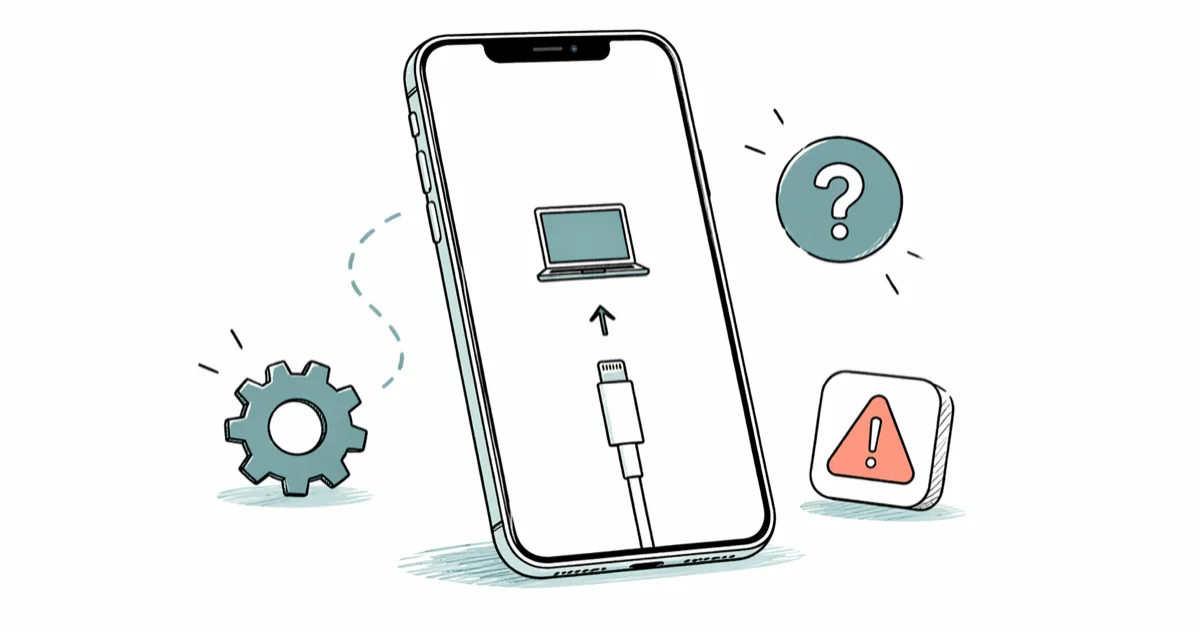
Quick AnswerRecBoot is abandoned and stops working on iOS 13 and newer because Apple changed how recovery mode handshakes happen. Use Finder or iTunes recovery first, then ReiBoot or Apple Configurator 2 if your own iPhone is stuck in a boot loop.
Your iPhone’s stuck on the Apple logo and the RecBoot button does nothing. Skip it. The tool’s been abandoned for years and modern iOS ignores its handshake. Use Finder, Apple Devices, or ReiBoot instead.
- RecBoot’s last public release was a 32-bit Windows binary from 2014, so it can’t drive recovery mode on iOS 13 or newer
- Apple’s free Finder restore on macOS Catalina or later replaces every iTunes-era flow RecBoot was built around
- ReiBoot from Tenorshare is the closest paid drop-in replacement for one-click recovery-mode exits and Standard Repair
- Apple Configurator 2 is the only fully free Mac tool that can re-flash IPSW firmware without erasing data on supervised devices
- If a hardware key combo (Volume Up, Volume Down, hold Side) doesn’t enter recovery mode in 30 seconds, the cable or Lightning port is the real culprit
#Why RecBoot Doesn’t Work on Modern iPhones
RecBoot was a tiny utility built around the iTunes Mobile Device framework that shipped with older Windows iTunes builds. When Apple deprecated that framework, RecBoot lost its connection to modern iPhones. The CNET download page for RecBoot still lists it as a 2014 release, which is why the tool is obsolete on current iOS versions.
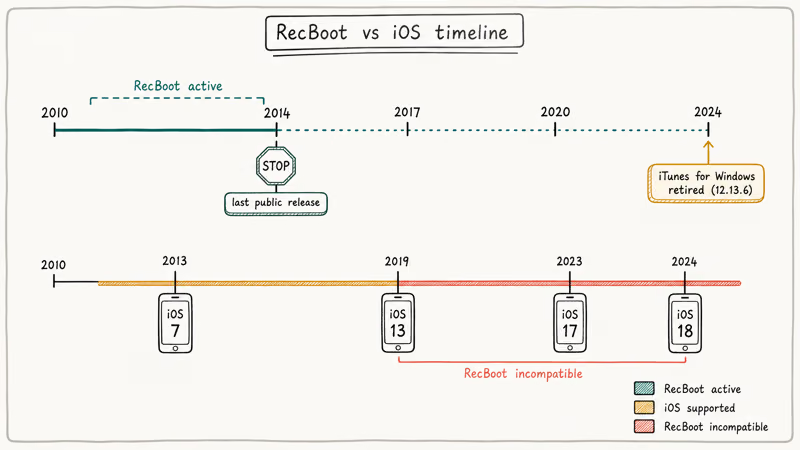
Apple’s release notes confirm that iTunes for Windows shipped its final 12.13.6 build in 2024 before being replaced. The notes are documented in Apple’s iTunes Windows changelog. After that update, every system call RecBoot relies on returns a “device not found” error.
On modern Windows and iOS versions, RecBoot may launch but fail to detect the connected iPhone, often stopping at a “Searching for device” message.
Smaller issues stack up too: a worn Lightning cable, a USB-A hub instead of a direct USB-C port, or an Apple Mobile Device Service that didn’t start at boot. Any one of these blocks recovery mode for any tool. For Windows-side driver issues, see the iPhone won’t restore problem guide.
#How to Confirm Your iPhone Is Actually Stuck
First, rule out a normal install. A frozen Apple logo for two minutes during an iOS update is fine.
Five minutes of nothing on a screen with a progress bar that never moves is when you act.
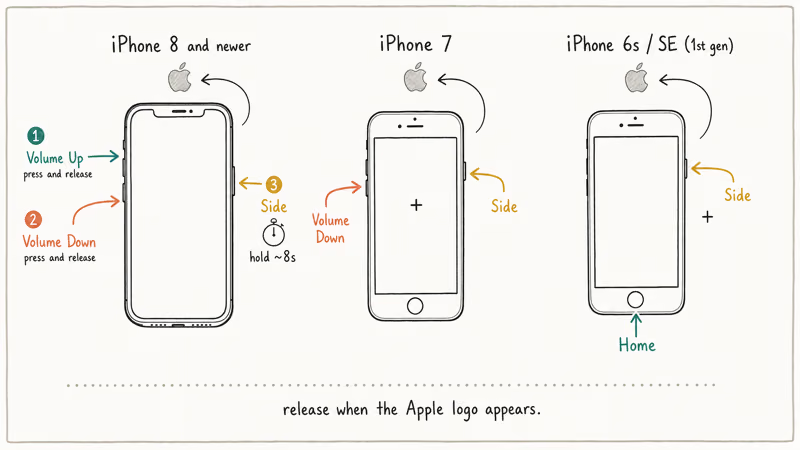
Try a force restart first. On any iPhone 8 or newer: press and release Volume Up, press and release Volume Down, then hold the Side button until you see the Apple logo. About 8 seconds of holding does it.
On iPhone 7 it’s Volume Down plus Side button. On iPhone 6s and SE first generation it’s Home plus Side button.
If a force restart returns the device to your Lock Screen, you’re done. No recovery tool needed.
If the screen goes black and bounces back to the same boot loop, recovery mode is the next step. The iPhone won’t turn on guide covers what to try if even the force restart does nothing.
#What Are the Best Free Alternatives to RecBoot?
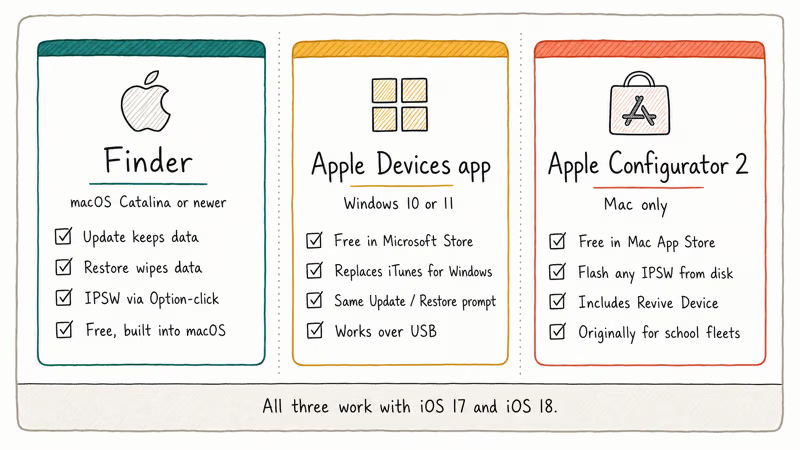
You have three free, official options. All of them work on iOS 17 and iOS 18 today. Pick one based on your computer.
#Finder on macOS Catalina or Newer
Open a Finder window. Plug in your iPhone with a known-good USB-C or Lightning cable. Trigger recovery mode using the hardware keys above while the cable’s connected. Finder pops a dialog offering Update or Restore.
Update keeps your data and only refreshes the system files. The Update path can take a while because Finder may need to download a full IPSW package before reinstalling iOS.
Apple’s iPhone recovery mode walkthrough confirms this is the supported flow and that Update is the safe first attempt. Hit Update first.
Restore wipes the device and is the nuclear option. The restore iPhone explainer covers when to use it.
#Apple Devices App on Windows 10 or 11
The Apple Devices app from the Microsoft Store replaces iTunes for Windows and can drive recovery mode the same way Finder does. Install it. Plug your iPhone in over USB. Then put the phone into recovery mode using the hardware keys.
The Update prompt appears the same way Finder shows it on Mac.
If the Apple Devices app does not see the iPhone right away, reboot Windows once, reconnect the cable directly, and try recovery mode again before switching tools.
#Apple Configurator 2 on Mac
This is the most powerful free tool Apple offers. Apple Configurator 2 was built for schools managing fleets of iPads, but anyone can download it from the Mac App Store at no cost. It can flash a specific IPSW file from disk, which is something Finder can’t do without holding the Option key.
Apple’s documentation states that the tool supports more than 25 device-management commands including the Restore from Backup and Advanced > Revive Device options. Read the official Apple Configurator 2 user guide for the full command list.
Revive is the closest thing to a “fix without erasing” button that exists for iPhone, and it talks to recovery mode reliably even when Finder gives up.
#What Are the Best Paid Alternatives to RecBoot?
Free tools cover most stuck-iPhone cases. Paid tools earn their price when you can’t afford to lose data, when DFU mode’s the only option left, or when the phone reboots into recovery faster than Finder can connect. Two are worth knowing.
#Tenorshare ReiBoot
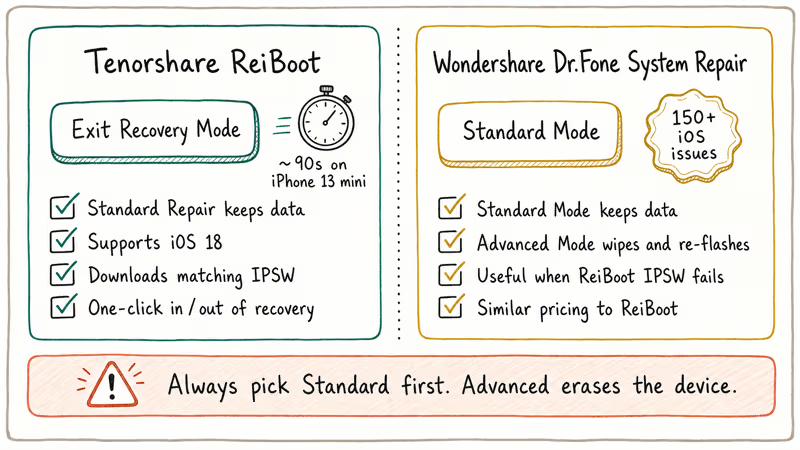
ReiBoot is a paid one-click exit tool with Standard Repair for boot loops.
Tenorshare’s ReiBoot product page states that the tool supports iOS 18 and every iPhone from the 5s up. Treat vendor success-rate claims as marketing, not a guarantee for your device.
ReiBoot for iOS is the closest paid replacement for RecBoot because it keeps the same one-click recovery-mode exit idea while adding a Standard Repair flow for deeper boot-loop cases.
Some links on this page are affiliate links, which means fone.tips may earn a commission at no extra cost to you.
The Standard Repair flow downloads an IPSW package before reinstalling iOS system files. Keep the phone connected, read each mode label before clicking, and avoid the Advanced or Deep Repair modes unless you are ready to erase the device. If the tool warns about data loss, stop and make a backup first.
#Wondershare Dr.Fone System Repair
Dr.Fone is the other big-name iOS repair tool. It has a similar one-click flow plus a deeper Advanced Mode that erases data and re-flashes firmware. Choose Standard Mode first when you want a repair path that is designed to preserve data.
Wondershare’s product page states that the tool fixes more than 150 iOS issues including DFU loops, white screen of death, and frozen activation. Pricing matches ReiBoot’s. Read the iOS System Repair page for the full issue list.
It’s a reasonable fallback when ReiBoot’s IPSW download fails. The white screen recovery walkthrough covers the symptom that overlaps most with stuck recovery mode.
#Step-by-Step: Get Your Own iPhone Out of Recovery Mode
This walkthrough covers the most common scenario: your own iPhone’s stuck in the “connect to computer” recovery screen and you want it out without losing data.
- Plug the iPhone into your Mac or PC using an Apple-branded USB-C or Lightning cable. Cheap third-party cables fail this step more than people realize.
- Open Finder on Mac, or the Apple Devices app on Windows. Wait for the device to appear in the sidebar.
- Click the device name. A banner reads “There’s a problem with this iPhone that requires it to be updated or restored.”
- Click Update first. This downloads the matching IPSW and reinstalls iOS without erasing data. Allow up to 15 minutes for download plus install.
- If Update fails or hangs past 30 minutes, unplug, force-restart the iPhone using the hardware keys, and try ReiBoot’s Exit Recovery Mode button next.
- If both fail, your last resort is Restore. This erases the device. Make sure you’ve got an iCloud or Finder backup before you click it. Apple’s iPhone backup guide explains both backup paths.
#When to Stop and Visit Apple Support
Some failures aren’t software problems. If your iPhone shuts off the moment you unplug it from a wall charger, the battery’s dead and no recovery tool will help.
If recovery mode loads but the screen flickers green or pink lines, the display assembly is failing.
Hardware faults can look like software recovery loops. Book a Genius Bar slot through the Apple Support app when you suspect hardware. Apple’s Get Support flow routes you to the closest authorized service provider.
#Bottom Line
Skip RecBoot. The tool’s more than a decade out of date and modern iOS doesn’t respond to it. Plug into Finder or the Apple Devices app and click Update. That is the safest first attempt because it refreshes iOS without choosing the erase path.
If that fails, ReiBoot is the fastest paid one-click fallback for your own device. Apple Configurator 2 is the free path on Mac for IPSW restores. For Apple-logo-stuck symptoms that only look like recovery mode but actually need a different fix, the iPhone stuck on Apple logo walkthrough is the better starting point and covers the firmware-level steps recovery alone misses.
#Frequently Asked Questions
Is RecBoot safe to download in 2026?
The original RecBoot binary’s safe but obsolete. Most “RecBoot 2026” pages are repackaged installers that bundle adware, so be careful with download sources. Skip the tool entirely and use Finder, the Apple Devices app, or ReiBoot instead.
Does RecBoot work on Mac?
No. Old Mac builds targeted macOS Mavericks and won’t launch on Apple Silicon or any Intel Mac running macOS 11 or newer.
Why does my iPhone keep entering recovery mode by itself?
A repeating recovery loop usually means a failed iOS update, a corrupt firmware partition, or a battery that drops voltage during boot. Try Update via Finder first. If the loop returns within an hour, run ReiBoot’s Standard Repair to re-flash the firmware. If the loop survives a clean firmware re-flash, the battery or logic board needs hardware service.
Can I use Apple Configurator 2 instead of RecBoot for free?
Yes. It’s the most reliable free Mac option and Apple still updates it.
What is DFU mode and do I need it?
DFU stands for Device Firmware Update. It loads firmware before iOS boots, so it can rescue an iPhone that recovery mode can’t reach. The key sequence is the same hardware combo as recovery mode, but you keep holding the buttons longer (about 10 seconds total). The screen stays black when DFU loads, which trips up first-time users.
Will using ReiBoot or Dr.Fone erase my photos?
Not on Standard Repair. Both tools keep your photos, contacts, and apps when you pick the Standard mode in their first dialog. Advanced or Deep Repair erases everything because it rewrites the user partition from scratch. Back up to iCloud or Finder before you start any repair flow, and always pick Standard Repair on the first attempt — that single choice is the difference between a 90-second recovery and a full restore from backup.
How long should I wait before assuming my iPhone is stuck?
A normal iOS install takes 20 to 40 minutes. If the progress bar hasn’t moved for 15 minutes, the device’s stuck.
Can I fix someone else’s iPhone with these tools?
Only with the owner’s explicit permission, and only on a device you’ve got legal access to. Running recovery or DFU flows on a phone that isn’t yours can be illegal under computer-misuse laws in many jurisdictions, and Apple may flag the device’s Activation Lock history if anything looks suspicious. Stick to your own iPhone, or ask the owner to start the process and hand you the unlocked phone.

Mac mini M6 vs M5 Pro: Which Model Should You Buy?
Mac mini M6 vs M5 Pro compared on price, memory, ports, displays, and real workloads. Find the better 2026 Mac mini for your desk and budget.

Apple Siri Settlement: Who Qualifies and How to Claim
Apple's $250 million Siri settlement covers iPhone 15 Pro and iPhone 16 models bought June 2024 to March 2025. See who qualifies and how claims work.

iOS 26.6.1 Security Update: What Apple Fixed and Who Gets It
Apple released iOS 26.6.1 on August 17 with 29 security fixes, including an IPSec interception bug. See what it patches, who gets it, and how to update.

iPhone Adaptive Power: How It Works and When to Use It
Learn how iPhone Adaptive Power works, which models support it, what it changes, and when Low Power Mode is still the better battery-saving choice.