Fix "There Was a Problem Parsing the Package" on Android
Fix "there was a problem parsing the package" on Android with 8 proven methods covering corrupted APKs, version mismatch, ABI errors, and Play Protect.
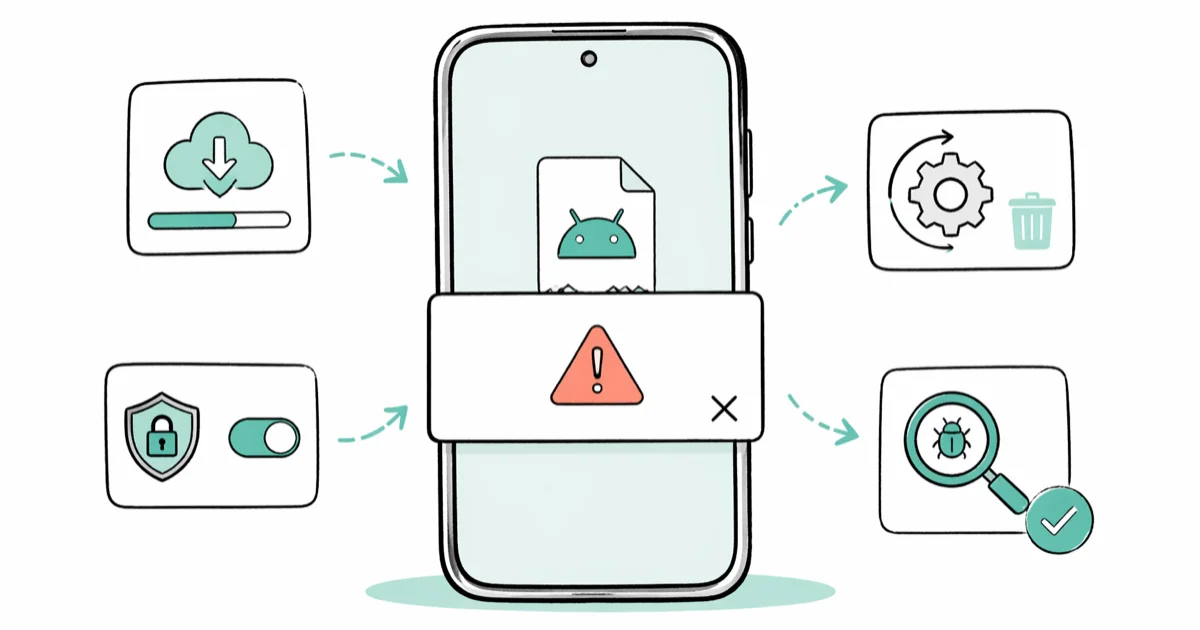
Quick AnswerAndroid shows "there was a problem parsing the package" when the system can not read the APK file. Re-download the APK from the Google Play Store or the official Samsung Galaxy Store, confirm the app supports your Android version, and grant Install Unknown Apps permission to the source app.
Android shows “there was a problem parsing the package” whenever the package parser refuses an APK. The error has eight legitimate causes, from a corrupted download to a version mismatch, and on modern devices like a Samsung Galaxy S24 or a Pixel 8 it shows up most often during sideload attempts. The fix tree below starts with the cheapest checks.
- A truncated or corrupted APK download is the most common trigger, and a fresh re-download from Google Play resolves it in most cases
- Android’s
minSdkfield has to match or be lower than your device API level, so an APK built for Android 15 will refuse to parse on an Android 11 phone - A 32-bit-only APK on a modern 64-bit-only Android device throws the same parse error before the install screen ever appears
- Per-app “Install unknown apps” permission is required on Android 8.0 and later for every source, and Chrome, Files, and messaging apps each need their own toggle
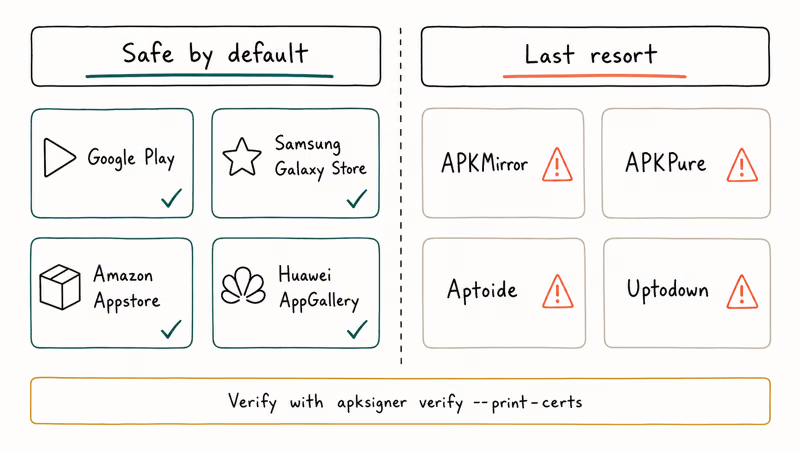
- Third-party APK mirror sites have repeatedly shipped re-signed and trojanized installers, so Google Play, Samsung Galaxy Store, Amazon Appstore, and Huawei AppGallery are the only safe-by-default sources
#What Causes the “Problem Parsing the Package” Error?
Android passes every APK through PackageParser (now PackageParserCacheHelper on Android 13+) before the install UI ever loads. The parser reads the manifest, validates the APK signing block, checks ABI and SDK requirements against the device, and returns a parse exception the moment any one of those steps fails. The system surfaces that as “there was a problem parsing the package” without telling you which check actually failed under the hood.
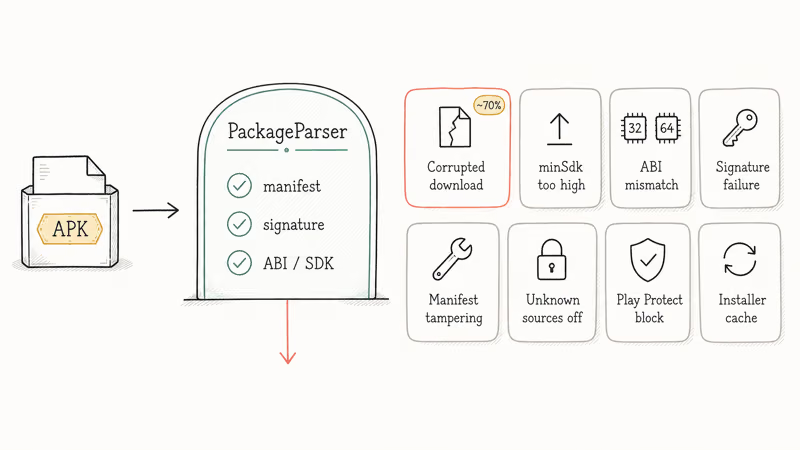
Eight legitimate causes account for almost every parse error.
Corrupted or truncated download. The APK never finished downloading, or transit dropped bytes. The signing block hash no longer matches the file content, so parsing fails immediately on the first verification step the system runs, and a fresh download from a stable connection clears it almost every time without further work. This is the single most common cause behind a parse error during sideloading.
Android version below the APK’s minSdk. Every APK declares a minSdkVersion in its manifest. Trying to parse an APK that targets API 34 on an Android 11 phone returns an immediate version-mismatch error.
ABI mismatch (32-bit APK on 64-bit-only device). Recent Pixel and Samsung devices ship with a 64-bit-only userspace, which means an APK whose native libraries only contain armeabi-v7a or x86 folders has no ABI the device can load, and parsing aborts before install. The condition is invisible until the parser refuses the file.
Signature verification failure. Re-signed APKs from mirror sites or APKs whose v2/v3 signing block was stripped during repacking fail Android’s signature check. According to Google’s APK Signature Scheme v3 reference, the platform verifies the signing block before it will install a package, so any tampering with that block aborts the parse.
Manifest tampering or split APK confusion. A modified AndroidManifest.xml fails the sanity check immediately. Splits trip this too.
“Install from unknown sources” disabled. Android 8.0 and later require per-source approval. Without it, the package installer refuses to even open the APK and surfaces the parse error instead of a permission prompt.
Play Protect block. Google’s Play Protect documentation states that Play Protect scans apps and can warn about or block risky installs. If an APK triggers this warning, treat the file as suspect instead of bypassing the prompt.
Outdated system Package Installer cache. A corrupted installer cache throws parse errors on valid APKs until you clear it.
#Where to Download an APK to Avoid Parse Errors in the First Place
This is the most important section. Most parse errors come from the download source, not the phone. Treat third-party APK mirrors as a malware vector.
#Google Play Store (Default for Every Google-Certified Phone)
If your phone has Google Mobile Services, Google Play is the canonical source. Play handles ABI selection, SDK targeting, and signature checks automatically. Google’s Play Protect overview covers the additional scanning layer that helps catch risky installs before they become parse-error troubleshooting rabbit holes.
#Samsung Galaxy Store (Recommended for Samsung Devices)
The Galaxy Store is publisher-signed and Samsung-curated. Many Niantic, Microsoft, and Samsung-exclusive builds ship there with separate package names. (For example, com.nianticlabs.pokemongo.ares for the Galaxy Store Pokémon GO.) It’s a fully legitimate alternative when Play is unavailable, and Samsung handles the signature verification.
#Amazon Appstore (Fire Devices and Android Phones)
Pre-installed on every Amazon Fire tablet. Available as a standalone APK for regular Android phones too. Amazon-published builds are signed and verified by Amazon, and many publishers including Microsoft, Disney, and Activision maintain a parallel Appstore release. This is the default safe path on Fire OS, and it’s a legitimate sideload option on a regular Android phone when you’ve enabled unknown sources for the Appstore APK itself.
#Huawei AppGallery (Huawei and Honor Devices Without GMS)
Post-2019 Huawei devices ship without Google Mobile Services. AppGallery is the official Huawei-signed alternative, and several major publishers including Niantic announced their AppGallery releases directly on nianticlabs.com. Use it on devices where Play isn’t installed.
#Manufacturer Stores (Xiaomi GetApps, OPPO App Market, vivo Software Store)
These ship as the default alongside Play on regional builds and are signed and curated by the OEM. Stick to publisher-listed apps and avoid sideloading from these stores’ “third-party” sections.
#Third-Party APK Sites (APKMirror, APKPure, Aptoide, Uptodown, ApkFlash)
Treat these as a last resort, not a convenience. Every one of them is a middleman between the publisher and you. Mirror sites have repeatedly shipped trojanized installers, including a 2023 Anubis banking-trojan variant disguised as a popular game release and the 2022 Sharkbot droppers found across multiple Android mirror sites. Even unmodified mirror APKs frequently trigger parse errors because the file was repackaged or the v2 signing block was stripped during upload.
If you must use a mirror, verify the APK signature with apksigner verify --print-certs against a known-good install first. Naked downloads from a search-result mirror are how parse errors and malware infections both begin.
#How Do You Fix a Parse Error on Android?
Start at Method 1 and work down. Each fix targets a specific cause from the list above, and the order runs from the most common cause to the rarest.
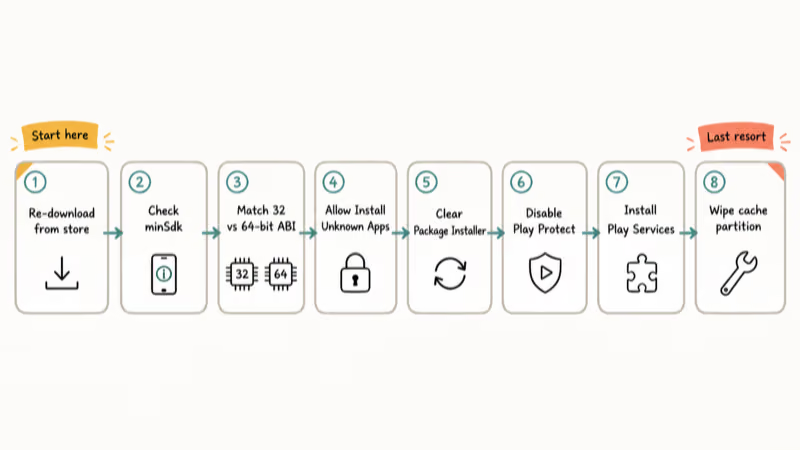
#Method 1: Re-Download the APK From a First-Party Store
The fix that resolves most parse errors is the one most readers skip.
- Delete the existing APK from
Downloads/using the Files app - Open the Google Play Store, Samsung Galaxy Store, Amazon Appstore, or AppGallery (whichever applies to your device)
- Search for the app and tap Install
- Let the install finish over a stable Wi-Fi connection
If a download was canceled halfway, completing the same install through the Play Store on the next attempt usually clears the parse error. Play resumes and verifies the package before handing it to the installer, which sidesteps the corrupted-bytes failure mode entirely.
#Method 2: Confirm Your Android Version Meets the APK’s minSdk
Open Settings > About Phone > Android Version and note the number. Then check the app’s listing on its publisher’s site. If your phone runs Android 11 and the APK targets Android 14, parsing will fail no matter what you try.
For older phones, look for the APK history on the publisher’s site or an LTS branch that still supports your API level.
#Method 3: Match 32-Bit vs 64-Bit ABI to Your Device
Modern Pixel devices (Pixel 7 onward) ship 64-bit only. Some Galaxy A-series and budget devices still support 32-bit. Open the APK’s listing and check the architecture. If the file is *-armeabi-v7a.apk and your device is 64-bit only, the parse error is unavoidable, and you should download the *-arm64-v8a.apk build instead.
A universal APK includes all ABIs and is the safest choice when you’re unsure.
#Method 4: Enable Install Unknown Apps for the Source App
Android 8.0+ requires per-source permission. Granting “unknown sources” globally is no longer an option in the OS.
- Go to
Settings>Apps>Special App Access>Install Unknown Apps - Tap the app you used to open the APK (Chrome, Files by Google, Drive)
- Toggle on Allow from this source
Google’s Android Help guidance walks through the full Play Protect interaction with sideloaded sources. On Android 7.1 and earlier, the toggle is Settings > Security > Unknown sources and applies globally. That path is the only one available on legacy devices.
#Method 5: Clear Package Installer Cache and Data
If parsing fails on every APK including ones that worked yesterday, the Package Installer’s own cache is corrupted.
- Go to
Settings>Apps - Tap the three-dot menu and select Show System Apps
- Scroll to Package Installer and tap Storage
- Tap Clear Cache, then Clear Data, then OK
When a parse error survives several reboots, clearing the Package Installer data often resolves the install on the very next attempt, because the wipe forces the installer to rebuild its parse cache from scratch instead of reusing the corrupted entry that was rejecting every file.
#Method 6: Temporarily Disable Play Protect
Play Protect can block installs without surfacing the reason. Turn it off only long enough to install the verified APK.
- Open the Play Store and tap your profile icon
- Tap Play Protect and then the gear icon
- Toggle Scan apps with Play Protect off
- Install the APK
- Re-enable Play Protect immediately
Skip this method entirely if the APK came from a third-party mirror. If Play Protect blocked it, the warning is probably correct.
#Method 7: Install Missing Dependencies (Google Play Services, WebView)
Some sideloaded apps require Google Play Services or Android System WebView at a minimum version. On a Huawei or Honor device without GMS, an APK that depends on Play Services will parse but fail at launch, and sometimes the package installer surfaces that as a parse error directly. Check the app’s listed dependencies. If you see Google Play Services keeps stopping or Google Play Services has stopped after install, the dependency check is the issue.
#Method 8: Reboot Into Recovery and Wipe Cache Partition
Persistent parse errors that survive every Method 1-7 fix usually mean a system cache corruption.
- Power off the phone
- Hold Power + Volume Down until the recovery menu loads
- Use volume keys to highlight Wipe Cache Partition and confirm with the power button
- Select Reboot System Now
Cache wipe doesn’t touch your apps, photos, or messages. If your phone is also stuck on the boot screen or the system process isn’t responding, this same step often clears both at once.
#Telling Whether the Problem Is the APK or the Phone
Run a one-minute test. Install any free Play Store app you don’t already have. If that succeeds, the phone is fine and the original APK is the problem (Methods 1-3). If the Play install also fails, the phone is the problem (Methods 5-8).
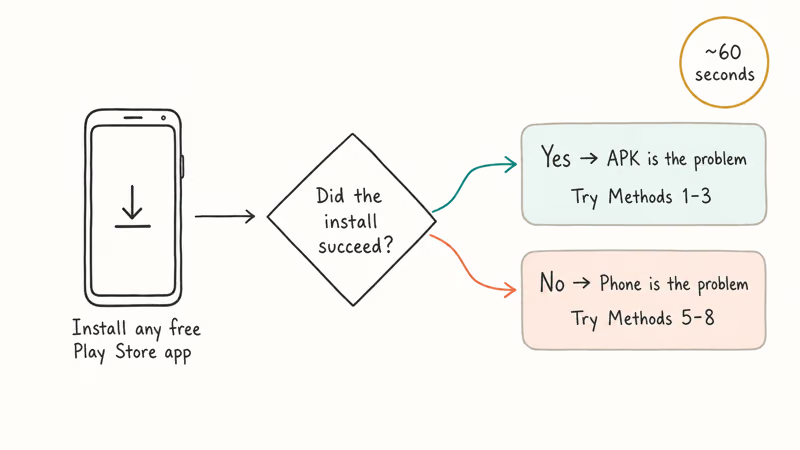
Run this check first. The same isolation step also works for the related app not installed error.
#Preventing Parse Errors Going Forward
A handful of habits eliminate this error category entirely.
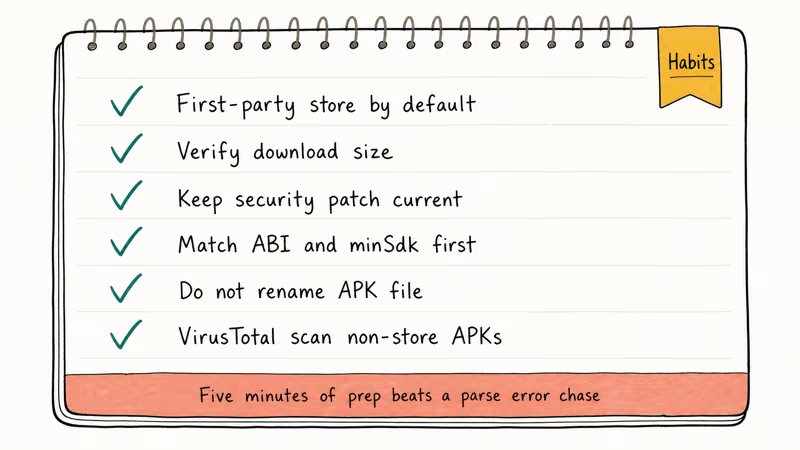
Use a first-party store by default. Play, Galaxy Store, Amazon Appstore, AppGallery. Mirror sites are for emergencies only.
Verify download size. Compare the downloaded file’s bytes to the size on the publisher’s listing. A mismatch means the download is incomplete, and re-trying is the only fix.
Keep your phone on a current security patch. Security updates ship Package Installer fixes regularly. Go to Settings > System > System Update.
Match ABI and minSdk before downloading. A 30-second compatibility check beats a 30-minute parse error chase.
Don’t rename the APK file. The package installer reads the file extension and parses based on it. A renamed .apk with a different extension fails immediately.
Run a virus scan before installing any non-store APK. Upload to VirusTotal if you didn’t get the file from Play, Galaxy Store, Amazon Appstore, or AppGallery.
#When a Factory Reset Is Actually the Right Call
Almost never for parsing alone. The only scenario that justifies a factory reset is the one where every install (including fresh Play Store apps) fails to parse, you’ve cleared Package Installer data, and you’ve wiped the cache partition with no change. That points to system partition corruption, and a reset is the cleanest fix.
Back up downloaded files and clear cached data before you commit, because reset wipes everything.
#Bottom Line
Re-download the APK from the Google Play Store or your device’s official store first. That single change clears most parse errors before you even touch a settings menu. If the install still fails, check the APK’s minSdk against your Android version and confirm the ABI matches your device. Methods 4-8 cover what remains.
Stop treating third-party APK mirror sites as a default download source. The parse errors you’re chasing usually started there.
#Frequently Asked Questions
What does “there was a problem parsing the package” mean?
Android’s package parser couldn’t read the APK. The file is either corrupted, built for a different Android version, blocked by a security setting, or signed in a way the system can’t verify. The error doesn’t damage your phone or affect your existing apps.
Is APK Mirror safe to use for parse error fixes?
It depends. APK Mirror does signature verification on uploads, but it remains a middleman between the publisher and you. Use Google Play, Samsung Galaxy Store, Amazon Appstore, or Huawei AppGallery first. Treat APK Mirror as a last resort, and verify any sideload signature against a known-good install before trusting it.
Can I install a 32-bit APK on a Pixel 8?
No. Pixel devices from the Pixel 7 onward run a 64-bit-only userspace, so an APK that only contains armeabi-v7a or x86 native libraries has no compatible ABI and parsing fails immediately.
Why does the parse error happen with apps from Google Play?
Rare, but possible. Common causes include a Play Store cache corruption that interrupted the download, a Play Services update that lagged the system update, or a cached APK from a previous install attempt sitting in /data/app-staging/. Clear Play Store cache and data, restart, and try again.
Does enabling Install Unknown Apps put my phone at risk?
It depends on which app you grant the permission to. Granting it to Chrome means anything Chrome downloads can prompt an install. Files by Google or your file manager is safer because you control which APKs you open. Revoke the permission after a one-off sideload.
What’s the difference between minSdk and targetSdk?
minSdkVersion is the lowest Android API level the APK supports. targetSdkVersion is the API level the developer optimized for. Parse errors come from minSdk mismatches, not targetSdk.
Can I downgrade my Android version to install an older APK?
Not on most consumer devices. Bootloaders enforce anti-rollback protection that blocks downgrading to an earlier security patch level once you’ve installed a newer one. The supported path is finding an APK build that targets your current Android version, or upgrading the phone if the app you need requires a newer OS. Side-loading older system images is bootloader-locked on retail Pixel and Galaxy devices.
What should I do if every APK fails to parse, even Play Store ones?
That’s a system-level problem. Clear Package Installer data first, then wipe the cache partition from recovery mode. If both fail and even fresh Play Store installs throw the same error, a factory reset is the cleanest fix because the symptoms point to system partition corruption. Back up everything first.

Pixel 11 vs Pixel 10: What Changed and Who Should Upgrade
Pixel 11 vs Pixel 10: same screen and camera resolution, new Tensor G6, 25W wireless, and Gemini Intelligence. Here is who should actually upgrade.

Verizon Not Receiving Texts? How to Fix It in 9 Steps
Verizon not receiving texts? Fix it in 9 steps: check Message Blocking in My Verizon, reset network settings, deregister iMessage, and call support.

Pixel Battery Drain: What Google's July Fix Really Covers
Google marked the Pixel idle battery drain bug fixed in July, but only some phones got the patch. Here is who is covered, who is not, and what to try.

iPhone Stuck on EDGE? How to Get 5G or LTE Back (2026)
iPhone stuck on EDGE with crawling data? Here's why the E icon appears, which settings force 5G or LTE back, and when the problem is your carrier.