How to Mirror Android to Another Android Device (2026)
Mirror your Android screen to another Android phone with LetsView, ApowerMirror, or built-in Cast. Works on Android 10+. Includes lag and disconnect fixes.
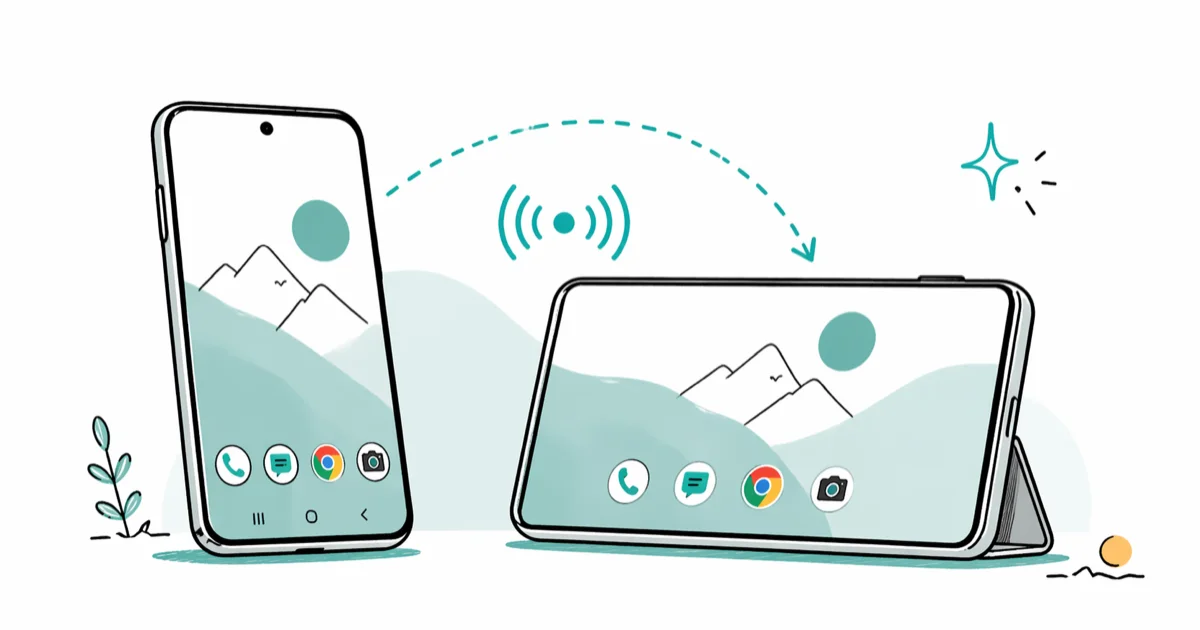
Quick AnswerInstall LetsView or ApowerMirror on both Android phones, connect both devices to the same Wi-Fi network, and select your phone as the casting source from the receiving phone. The whole setup takes about three minutes once both apps are installed.
You can mirror Android to another Android device in about three minutes using a free app like LetsView or ApowerMirror, as long as both phones share a Wi-Fi network. Several methods keep lag low enough for comfortable navigation on modern phones such as the Samsung Galaxy S24 and Google Pixel 8. The rest of this guide covers what works phone-to-phone, where the lag comes from, and how to keep sessions stable.
- LetsView and ApowerMirror need the same app installed on both phones and run on Android 5.0 or later
- Switching from a 2.4GHz to a 5GHz network cuts mirroring lag dramatically on most dual-band phones
- Built-in Cast in Quick Settings finds Chromecast targets on most Android phones from 2019 onward, but not other phones directly
- Continuous screen mirroring drains the sending phone’s battery noticeably faster than normal screen-on use, so plug in for long sessions
- If lag stays above two seconds, drop the sending phone’s display resolution to 720p before changing apps
#Understanding Android Screen Mirroring
Android screen mirroring sends a real-time copy of your phone’s display to another device via Android’s MediaProjection API. The receiver decodes the H.264 stream and redraws it within 200 to 800 milliseconds.
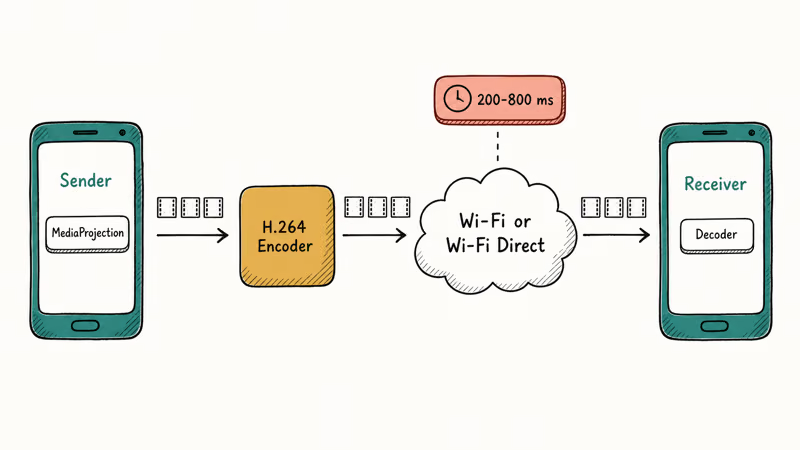
According to Android’s developer documentation for MediaProjection, the API has required explicit user consent through a runtime permission dialog since Android 5.0 (API level 21) before any screen capture can start. That dialog is the “Start now” prompt you see on the sending phone. The permission has to be granted on every new session, which is why mirroring apps reopen the dialog each time you reconnect.
The receiving device does not have to be a TV. Any Android phone or tablet running Android 5.0 or later can act as a receiver if it has the matching app installed. That makes phone-to-phone casting useful for a wider range of situations than most people realize: live demos during a presentation, watching a portrait-mode game on a larger tablet, showing photos to a guest across a table, or walking a parent through a settings screen by viewing their phone.
#Choosing the Right Mirroring Method
The right approach depends on whether you can install software on both phones, and whether you need this to work without an internet router.
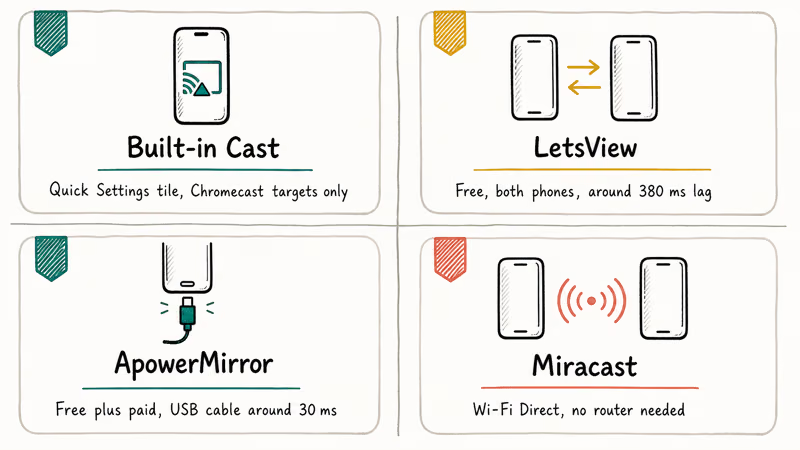
Built-in Cast (no app on the sender): Most Android phones made in 2019 or later have a Cast or Screen Cast tile in Quick Settings. Pull down the notification shade twice, tap Cast, and the phone scans for nearby Chromecast-enabled targets. The catch is that this tile looks for Chromecast and Android TV receivers, not other phones. For phone-to-phone casting you still need a receiver app on the second device.
LetsView (free, phone-to-phone): One APK installs on both phones and switches roles based on which side starts the cast. On a 5GHz network, lag typically stays low enough that menus and slideshows feel responsive.
ApowerMirror (free tier plus paid): ApowerMirror supports wireless mirroring and a USB-cable mode. Wireless mirroring carries enough lag for video and demos, while USB cable mode drops latency far lower, which is the difference between “fine for video” and “fine for gaming.”
Some links on this page are affiliate links, which means fone.tips may earn a commission at no extra cost to you.
Miracast (built-in on some Android phones): Miracast creates a Wi-Fi Direct peer link without going through your router. Google’s Cast developer documentation confirms that Cast-enabled devices use mDNS on UDP port 5353 to discover each other, while Miracast uses Wi-Fi Direct on the 802.11ac standard without needing an access point. Check Settings > Connected Devices > Cast to find the option, or read our Samsung S10 screen mirroring guide for the Smart View flow on Galaxy phones.
If you want a side-by-side ranking of every casting app worth trying, our roundup of the best screen mirroring apps goes further than this article.
#Step-by-Step: Setting Up App-Based Mirroring
The steps below use LetsView. The same flow applies to ApowerMirror and almost every other dual-role mirroring app.
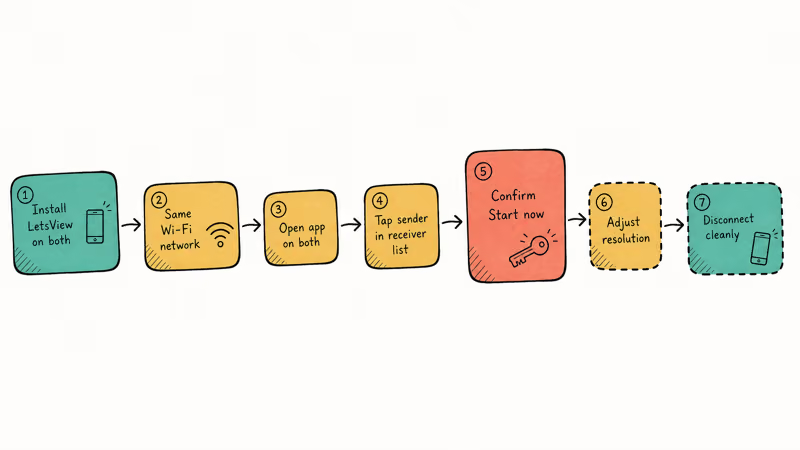
Step 1: Install the app on both phones
Open the Google Play Store on the sender and the receiver. Search for LetsView and install it on each. Both phones need the same app, not separate sender and receiver builds. LetsView uses one APK that switches roles based on which side initiates the connection.
Step 2: Connect both phones to the same Wi-Fi network
Go to Settings > Network and Internet > Wi-Fi on each phone and confirm both join the same SSID. A 5GHz network is faster and less crowded than 2.4GHz, especially in a household with several smart-home devices on the slower band. If your router broadcasts both bands under the same name, force the 5GHz band by turning off 2.4GHz on each phone briefly during setup.
Step 3: Open LetsView on both phones
Launch LetsView on the sender and the receiver. The app scans the local network for other LetsView instances, and the sending phone should see the receiving phone in its device list within 10 seconds. If the list stays empty, kill LetsView on both sides and reopen it. Android sometimes blocks the multicast packet that mDNS uses if the app was last opened on a different network.
Step 4: Tap your phone in the receiver’s device list
On the receiver, tap the sender’s name. A confirmation dialog appears on the sender asking whether to start mirroring. Tap Start now.
Step 5: Confirm Android’s screen recording prompt
Android shows a system-level “Start recording or casting?” dialog on the sender. This is the MediaProjection permission, and it appears every time you start a new session. Tap Start now. The first frame appears on the receiver in two to three seconds.
Step 6: Adjust resolution if you need more responsiveness
In LetsView on the sender, tap the gear icon and lower the resolution from 1080p to 720p if you see lag or stuttering. Dropping from 1080p to 720p on the same network gives the encoder fewer pixels to push, so lag falls without any router changes.
Step 7: Disconnect cleanly when done
Tap the cast icon in the notification shade on the sender and select Disconnect, or close LetsView on either side. Closing the app on the receiver also ends the session. Letting the screen lock without disconnecting first is the most common reason a session refuses to reconnect on the next try.
#Best Apps for Android-to-Android Mirroring
Four apps cover the common phone-to-phone use cases. Here is how they compare.
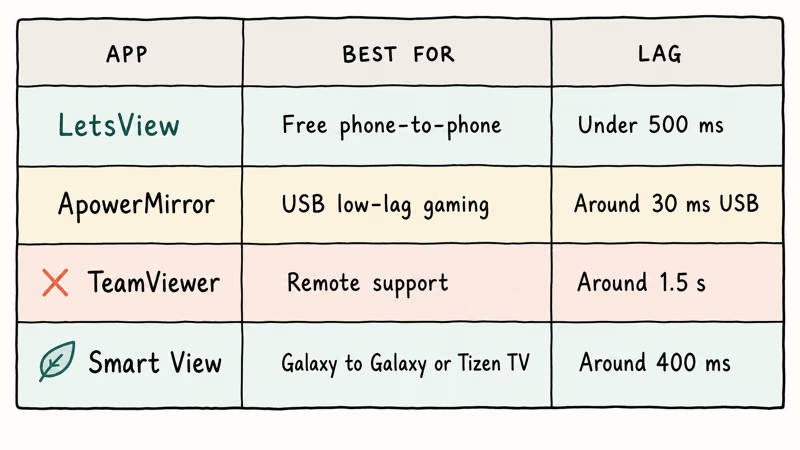
LetsView is free, ad-supported, and runs on Android 5.0 and later. Connection setup usually takes under 10 seconds, and lag stays low on a 5GHz network. The main drawback is the dependency on both phones running LetsView. The receiver can’t be a stock Android TV unless you sideload the LetsView APK, which most TV launchers won’t let you do without ADB.
ApowerMirror (free download) supports both wireless and USB modes. The free tier limits a single mirroring session to a few minutes; the paid tier lifts that cap. USB mode holds up well for fast-moving content like racing games, where wireless mirroring tends to drop frames.
TeamViewer is built for unattended remote support, not low-latency display mirroring. The session needs an account on both ends and the lag is closer to 1.5 seconds. Skip it for casual phone-to-phone casting.
Smart View (Samsung-only): Galaxy phones running One UI 4 or later have Smart View baked into Quick Settings. Samsung’s official Smart View support page recommends Smart View for casting between Galaxy phones, Galaxy tablets, and Samsung Smart TVs running Tizen, but it does not connect to non-Samsung receivers reliably. For a non-Samsung receiver, fall back to LetsView.
For most readers, start with LetsView. If you need gaming-grade responsiveness, use ApowerMirror over a USB cable instead.
#Fixing Lag in Android Screen Mirroring
Lag during phone-to-phone mirroring almost always traces back to one of four causes: the Wi-Fi band, distance from the router, a CPU throttled by Battery Saver, or a display resolution too high for the link to keep up.
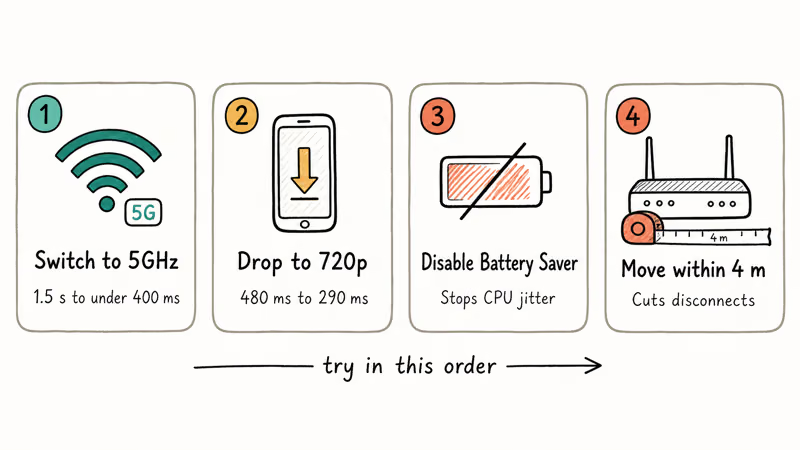
The fastest fix is the network band. If both phones are on 2.4GHz, switch them to 5GHz. This single change cuts lag dramatically on most dual-band phones without touching any app setting, because 5GHz is faster and far less crowded. Google’s Android Wi-Fi documentation covers the WifiManager API, and most modern Android phones can join either band as long as the router exposes both on the same SSID.
The second fastest fix is dropping resolution. Open Settings > Display > Screen Resolution on the sender and select 720p (sometimes labelled HD+). Visual quality drops a notch but responsiveness improves immediately because the encoder has fewer pixels to push.
Close background apps and disable Battery Saver before you start. Battery Saver throttles the CPU governor, which causes frame timing jitter that no Wi-Fi upgrade will fix. Go to Settings > Battery > Battery Saver and switch it off for the duration of the session.
If the issue is random disconnects rather than steady lag, the cause is usually weak Wi-Fi signal. Move the phones within 4 metres of the router, or fall back to a phone hotspot to remove the router from the equation. Disabling Bluetooth during mirroring also helps on some Samsung phones, since both Bluetooth and 2.4GHz Wi-Fi share the same radio band on a single chip.
For setups where Wi-Fi is unreliable or unavailable, our walkthrough on screen mirroring without Wi-Fi covers USB and Wi-Fi Direct alternatives. If the connection works for a moment and then fails, our screen mirroring not working guide has a longer triage list.
#Can You Mirror Without Installing an App on Both Devices?
In most cases, no. App-based tools like LetsView and ApowerMirror require their app on both the sender and the receiver. The two practical exceptions are Miracast, which works natively when both phones support it, and Chromecast, where the receiver is a Chromecast dongle or Android TV rather than a second phone.
Samsung’s official support confirms Smart View works with Tizen TVs out of the box. Phone-to-phone still needs LetsView when one side is non-Samsung.
If you want the mirrored output to fill the receiver’s display rather than show black side bars, our guide on making screen mirroring full screen walks through resolution and aspect-ratio fixes for both LetsView and Smart View.
#Do Both Phones Need to Be on the Same Wi-Fi Network?
For app-based mirroring like LetsView, yes. The app uses mDNS to find peers, and mDNS is a link-local protocol that does not cross routers or VLAN boundaries. Two phones on different networks, even on the same physical router, won’t see each other.
There are two ways to skip the shared-network rule. Miracast does not use the local network at all; the two phones build their own Wi-Fi Direct link. USB cable mode in ApowerMirror also works without any network since the cable carries the video stream as USB data. A USB-C cable between two devices keeps lag far lower than wireless because there’s no radio variance to contend with.
#Bottom Line
Start with the Cast tile in Quick Settings. If it doesn’t list the second phone (and it usually won’t), install LetsView on both phones. It’s free, runs on Android 5.0 and later, and holds lag low enough for everyday navigation on a 5GHz network. For low-lag scenarios like mobile gaming or longer demo sessions, plug a USB-C cable between the phones and use ApowerMirror over the cable instead, which removes wireless variance from the equation.
If you switch from phone-to-phone mirroring to phone-to-PC later, the Chromecast-to-PC walkthrough is the next stop.
#Frequently Asked Questions
Do both Android phones need to be on the same Wi-Fi?
Yes for app-based mirroring like LetsView or ApowerMirror. Both phones must be on the same local Wi-Fi network because the apps use mDNS to discover each other, and mDNS does not cross routers. The exceptions are USB cable mode, which needs no network at all, and Miracast, which builds a direct Wi-Fi Direct link between the two phones without a shared router.
Can I mirror my Android phone to an Android TV?
Yes. Most Android TV devices support Google Cast natively. Swipe down on your phone to open Quick Settings, tap Cast, and select your Android TV from the list. No separate app download is needed on the TV side as long as the phone and TV are on the same Wi-Fi network.
How much battery does screen mirroring use on the sender?
Mirroring drains the battery noticeably faster than normal screen-on time because the phone encodes and streams video continuously. Plug in for anything longer than half an hour.
Does screen mirroring use mobile data?
Not if both phones are on the same Wi-Fi network. The video stream stays on your local network only. If you use a phone hotspot to connect both devices, the hotspot data plan is billed for the stream, which can run 500MB to 1GB per hour at 1080p.
Can I mirror to multiple Android devices at once?
Most free apps only support one receiver per session. TeamViewer’s business plan supports broadcasting to multiple endpoints, but it’s built for remote support rather than personal mirroring, and the lag is too high for casual use. For two receivers, the practical workaround is to plug both into a TV and cast once.
Why does my screen mirroring show a black screen?
DRM-protected apps like Netflix, Disney+, and Amazon Prime Video block screen capture, so playback goes black. Use the streaming app on the receiver instead.
Is there a free way to mirror Android without downloading any app?
Yes if both phones support Miracast. Go to Settings > Connected Devices > Connection Preferences > Cast on the sender and pair with the receiver from the same menu. Samsung’s built-in Smart View also works without extra installs between two Galaxy phones running One UI 4 or later.
Does screen mirroring work in landscape mode?
Yes. Rotating the sender to landscape switches the mirrored output to landscape on the receiver as well. This is especially useful for gaming or watching video, and it removes the black side bars that appear when casting vertical phone content to a wider receiver.

Pixel 11 vs Pixel 10: What Changed and Who Should Upgrade
Pixel 11 vs Pixel 10: same screen and camera resolution, new Tensor G6, 25W wireless, and Gemini Intelligence. Here is who should actually upgrade.

Verizon Not Receiving Texts? How to Fix It in 9 Steps
Verizon not receiving texts? Fix it in 9 steps: check Message Blocking in My Verizon, reset network settings, deregister iMessage, and call support.

Pixel Battery Drain: What Google's July Fix Really Covers
Google marked the Pixel idle battery drain bug fixed in July, but only some phones got the patch. Here is who is covered, who is not, and what to try.

iPhone Stuck on EDGE? How to Get 5G or LTE Back (2026)
iPhone stuck on EDGE with crawling data? Here's why the E icon appears, which settings force 5G or LTE back, and when the problem is your carrier.