Mac Sound Not Working? 8 Fixes for No Audio (2026)
No sound on your Mac or "No Output Devices Found"? Pick the right output, disconnect phantom devices, and restart Core Audio with 8 proven fixes.
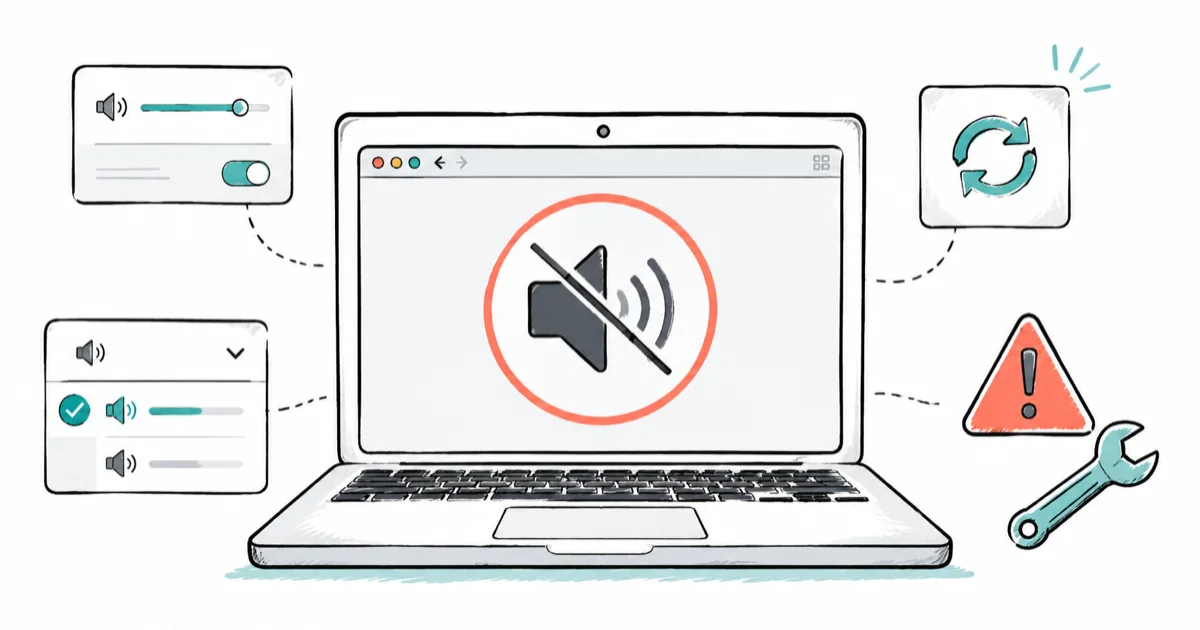
Quick AnswerMac sound not working is usually a wrong output device or a Core Audio hang, not dead speakers. Check the Output device in Sound settings, then restart Core Audio before assuming hardware.
Mac sound not working is almost always a settings or software problem, not a blown speaker. The most common cause is the Mac quietly sending audio to a device that isn’t there, like a Bluetooth speaker it still thinks is connected. Before you book a repair, check the output device and restart Core Audio, since those two steps fix the large majority of no-sound cases.
- Check the Output device first in System Settings, since the most common cause is the Mac routing audio to a phantom Bluetooth or USB device.
- A quick Core Audio restart fixes more no-sound cases than a full reboot, and it takes only a few seconds.
- “No Output Devices Found” almost always points to a Core Audio hang, not a hardware failure, so restart the audio service before worrying.
- NVRAM resets only apply to Intel Macs, because Apple Silicon Macs have no NVRAM to reset at all.
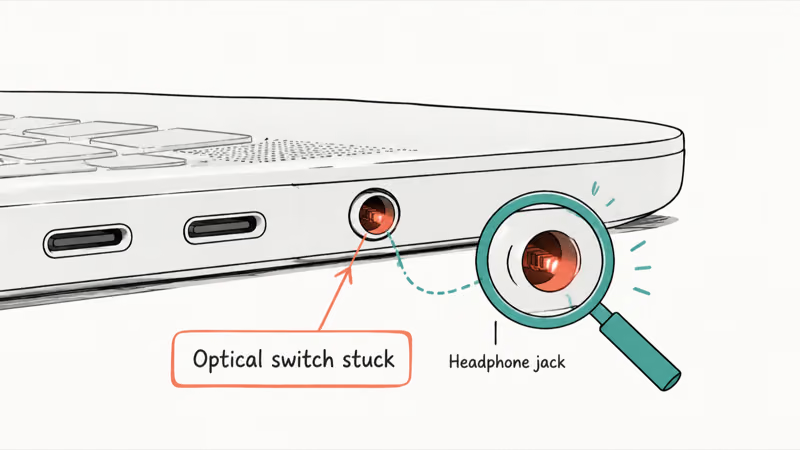
- A red glow inside the headphone jack means a stuck optical switch, which is a hardware repair rather than a settings fix.
#Why Is the Sound Not Working on Your Mac?
No sound on a Mac usually traces to a handful of causes: muted or low volume, the wrong output device selected, audio routed to a phantom Bluetooth or USB device, a Core Audio hang, an app-specific mute, or debris in the headphone jack. Genuine speaker failure is near the bottom of that list, not the top.
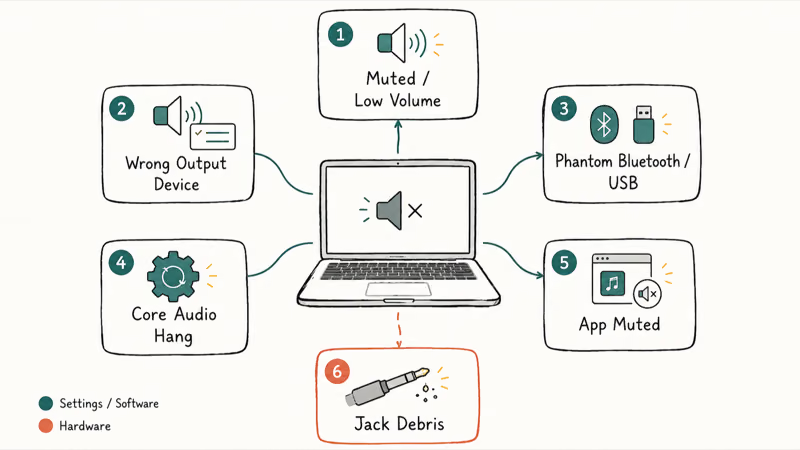
The pattern points you to the fix. If every app is silent, it’s a system-wide issue like output device or Core Audio. If only one app has no sound, the cause is that app’s own settings.
A Mac can keep routing audio to disconnected headphones, so the Output settings screen is the right first stop before deeper audio resets.
#Check Volume, Mute, and the Output Device
Start with the obvious, since it’s the most overlooked. Open Control Center and confirm the volume slider isn’t at the bottom and the system isn’t muted.
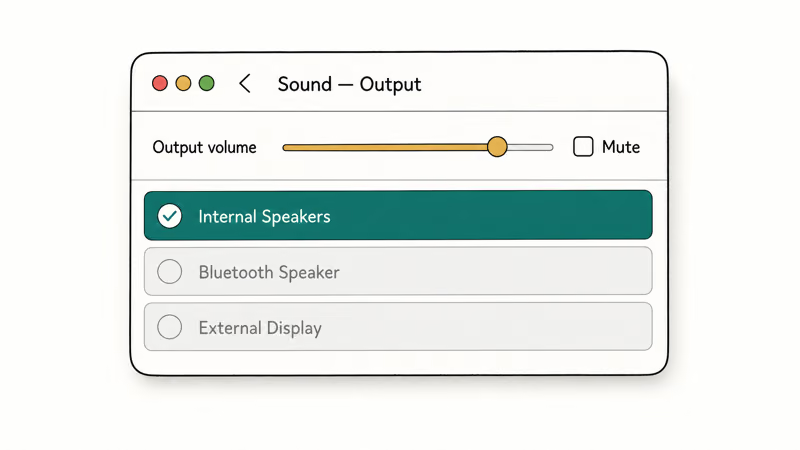
Then go to System Settings > Sound > Output. This is the single most important screen for no-sound problems. Look at which device is selected.
If anything other than your built-in speakers is highlighted, that’s your problem. Select Internal Speakers, then make sure the output volume slider on that screen is raised and the Mute checkbox is unchecked. Apple’s internal-speakers-not-working guide confirms that selecting the built-in speakers and clearing mute in the Output tab is the official first fix.
#Disconnect Bluetooth and USB Audio Devices
A phantom audio device is the sneakiest cause of Mac silence. If your Mac thinks a Bluetooth speaker, AirPods, or a USB audio interface is still connected, it keeps sending sound there instead of to your speakers, even though you hear nothing.
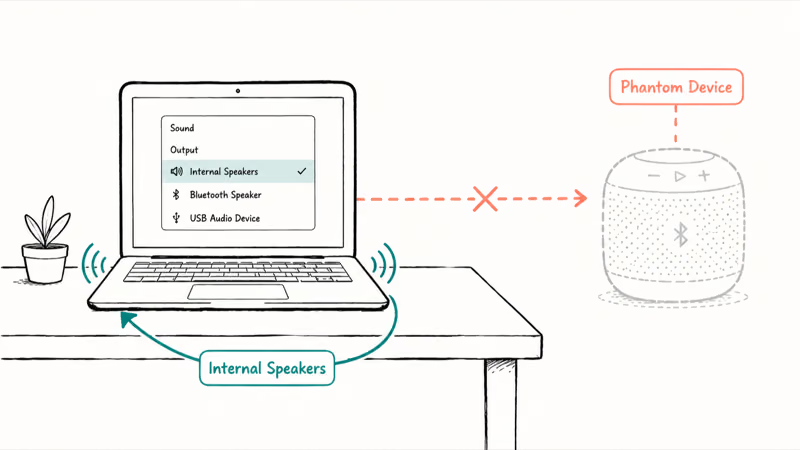
Turn off Bluetooth from Control Center, or open System Settings > Bluetooth and disconnect any audio device. Then unplug USB headphones, audio interfaces, and even HDMI or USB-C displays, since a connected monitor with its own speakers can quietly grab the audio output without any warning, and a docking station or external display is one of the easiest culprits to overlook because you never think of it as an audio device in the first place.
After disconnecting everything, return to Sound > Output and reselect Internal Speakers. This forces the Mac to stop chasing a device that isn’t really there, and sound usually returns the moment you do it.
#Is It One App or the Whole System?
This single question tells you where to look. Dead everywhere means a system-wide cause; dead in one app means that app.
Most apps have their own volume control independent of the system. Safari mutes individual tabs, Music has its own slider, and video apps and games often start muted.
Test a second source to confirm. Play a song in the Music app and a video on a website, and if one works while the other stays silent, you’ve isolated the problem to that app rather than the Mac. For the same symptom on the other major platform, our guide on Windows 11 no sound walks through the equivalent fixes.
#Restart Core Audio and Your Mac
Core Audio is the macOS service that manages all sound, and when it hangs you get silence or the dreaded “No Output Devices Found” message. Restarting it fixes more cases than a full reboot and takes seconds.
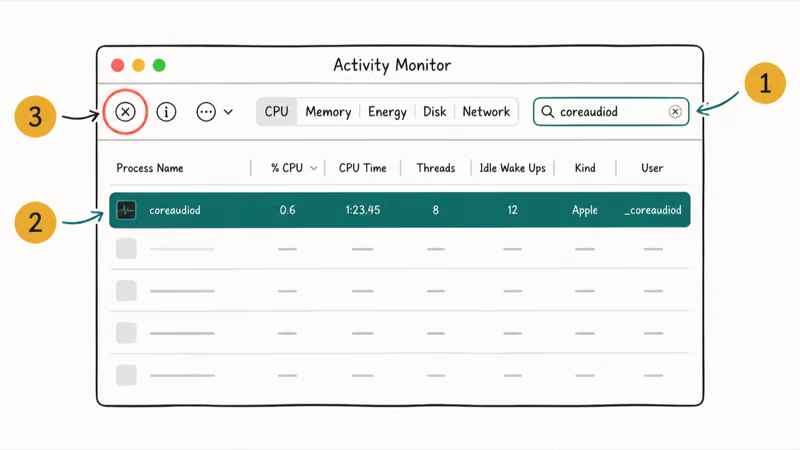
The quick way is through Activity Monitor. Open it, search for coreaudiod, select it, and click the X to quit it. macOS relaunches the service automatically, and sound usually returns at once. MacPaw’s fix-Mac-sound guide recommends this coreaudiod restart as a core step, and power users can run sudo killall coreaudiod in Terminal for the same result.
If Core Audio restart doesn’t help, restart the whole Mac. A reboot clears the broader system states behind audio glitches, and it’s worth doing before hardware checks.
If your Mac also reboots on its own or behaves oddly, see Mac keeps restarting, and for general sluggishness our macOS running slow guide may help.
#Reset NVRAM, Update macOS, and Check the Headphone Jack
On an Intel Mac, NVRAM stores some sound settings, and resetting it can clear an audio glitch. Shut down, then start up holding Option-Command-P-R for about 20 seconds. This step does not apply to Apple Silicon Macs, since they have no NVRAM to reset, and a normal restart does the equivalent job there.
Update macOS too. An audio bug from a recent update is often patched in the next, so go to System Settings > General > Software Update and install anything pending. If trouble started right after an update, our guide on Mac slow after a macOS update covers related post-update gremlins, since the same release that broke audio sometimes drags performance down as well and a single follow-up update can clear both at once.
Finally, check the headphone jack on older Macs. If you see a faint red glow inside the port, the optical-audio switch is stuck thinking a digital cable is plugged in, which routes sound away from the speakers. Try gently inserting and removing a headphone plug a few times, and blow out any debris.
If the red light stays, that’s a hardware fault for Apple Support, not a settings fix. According to Apple’s guide to test your Mac, Apple Diagnostics can help check for deeper hardware faults. If a deeper fault keeps the Mac from even booting, see a MacBook not turning on, since that points to a power or logic-board problem well beyond the audio path, and chasing sound settings there only wastes time you could spend getting it serviced.
#Bottom Line
Before assuming your speakers died, check the output device. The most common cause is the Mac routing audio to a phantom Bluetooth or USB device it still thinks is connected, so confirm volume and mute, select Internal Speakers, and disconnect any wireless audio before you panic about hardware.
If the system still has no sound, restarting Core Audio with a quick coreaudiod quit fixes more cases than a full reboot. NVRAM resets only apply to Intel Macs, and a red glow or debris in the headphone jack on older models points to hardware, which is an Apple Support visit rather than a settings fix.
#Frequently Asked Questions
Why does my Mac say “No Output Devices Found”?
That message almost always means Core Audio has crashed or hung, not that your speakers failed. Quit coreaudiod in Activity Monitor so macOS relaunches it, and the output devices usually reappear within seconds.
How do I restart Core Audio on a Mac?
Open Activity Monitor, search for coreaudiod, select it, and click the X to quit it. macOS relaunches it automatically, and sound typically returns right away.
Why is there no sound even though volume is up?
The volume can be up while the Mac is sending audio to the wrong place. Open System Settings > Sound > Output and check which device is selected, since a phantom Bluetooth or USB device often steals the output. Select Internal Speakers, disconnect any wireless audio, and the sound usually comes back.
Can I reset NVRAM on an Apple silicon Mac?
No. Apple Silicon Macs have no NVRAM, so the Option-Command-P-R reset only applies to Intel Macs. On Apple Silicon, a normal restart does the same job.
What does the red light in the headphone jack mean?
A red glow inside the headphone port means the optical-audio switch is stuck, telling the Mac a digital cable is plugged in when it isn’t, which routes sound away from your speakers. Gently insert and remove a plug a few times to free the switch, and blow out any dust. If the light stays on, that’s a hardware fault for Apple Support.
Why does sound work in one app but not another?
Most apps have their own volume control separate from the system. Safari can mute individual tabs, and Music, video apps, and games each have their own sliders that may be down or muted. Check that app’s volume first. If only one app is silent while others play fine, the fix lives inside that app.

macOS 27 Compatible Macs: Every Supported Model (2026)
macOS 27 Golden Gate runs only on Apple Silicon Macs. Here is the full list of supported M-series models and the four Intel Macs that lose support.

macOS 27 Golden Gate: Every Major New Feature Confirmed
macOS 27 Golden Gate goes Apple Silicon only, adds a Gemini-powered Siri, refines Liquid Glass, and rebuilds Spotlight. Here is every confirmed change.

macOS 27 Liquid Glass: Every Readability Fix Explained
macOS 27 Golden Gate refines Liquid Glass with an intensity slider, better contrast, cleaner window corners, and edge-to-edge sidebars to fix readability.

macOS 27 Performance: What Golden Gate Makes Faster
macOS 27 Golden Gate speeds up AirDrop, network file browsing, Safari, and Spotlight, with core system improvements on the Apple Silicon-only release.