iPhone Stuck on Zoom Mode? 6 Fixes That Actually Work
Stuck with a giant iPhone display? Try the three-finger tap, a Settings toggle, Finder rescue, and recovery mode fixes that bring zoom back to normal.
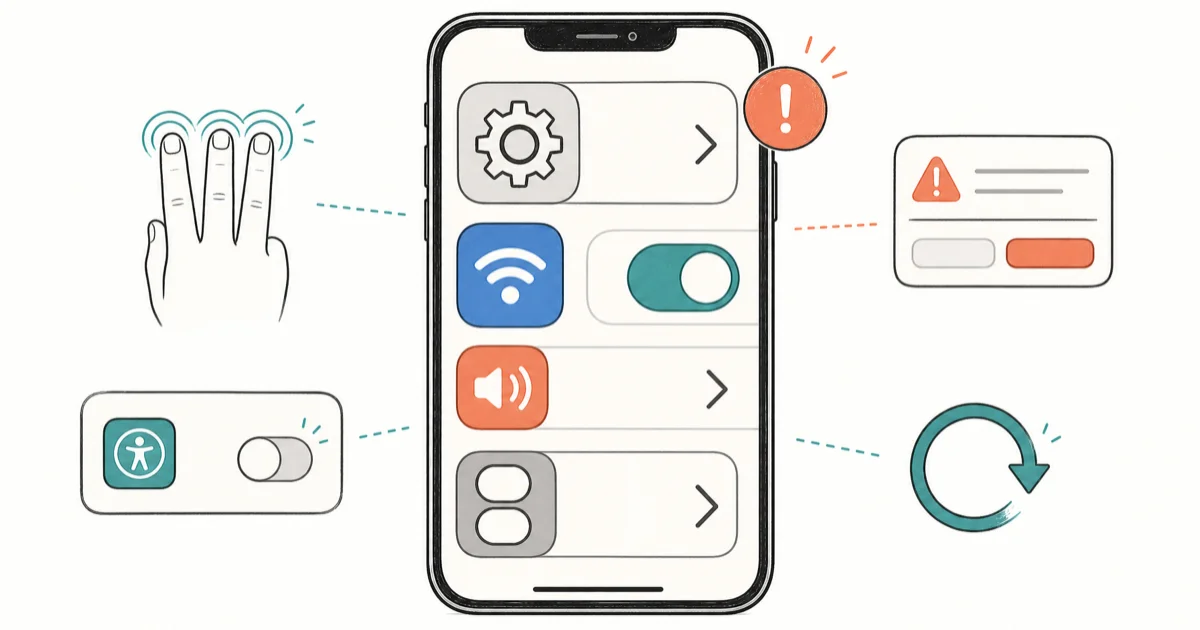
Quick AnswerDouble-tap the screen with three fingers to instantly exit Zoom. To stop it returning, open Settings, tap Accessibility, choose Zoom, and turn the toggle off.
If your iPhone is stuck on Zoom, the screen looks huge and tapping the right icon feels impossible.
- A double-tap with three fingers on the screen exits Zoom instantly on every iPhone running iOS 12 or later.
- The permanent off switch lives at Settings, Accessibility, Zoom and stays off across reboots once disabled.
- Finder on macOS Catalina or later (iTunes on Windows) can disable Zoom remotely when the screen is unreadable.
- A force restart clears stuck Zoom states caused by transient iOS glitches and takes about 15 seconds.
- Enabling Show Controller adds an on-screen icon so the feature never traps you again.
#Why Is My iPhone Screen Stuck on Zoom?
Zoom is part of iOS Accessibility, designed to enlarge the display for users with low vision. Three fingers tapped twice toggles it on. Three fingers dragged moves the magnified window. A pinch with three fingers changes the magnification level.
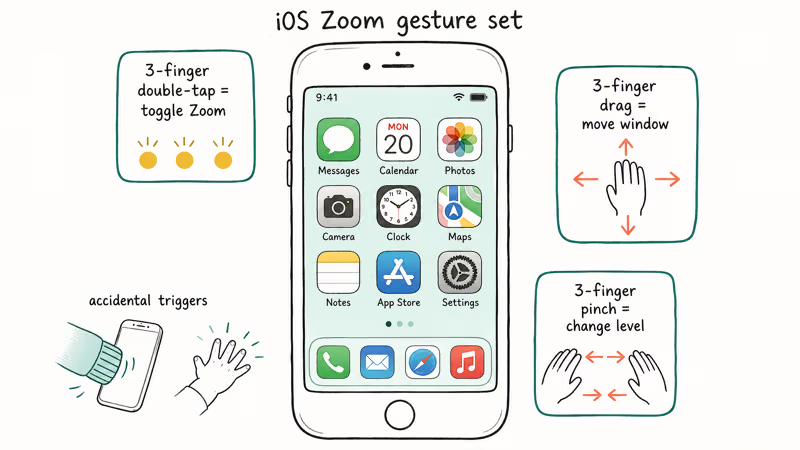
Many “iPhone stuck on Zoom” reports on the Apple Support Community trace back to one of those gestures triggering accidentally. A child holding the phone or a sleeve catching the screen during a call can be enough.
According to Apple’s Zoom support page, the gesture set is enabled the moment you turn Zoom on, which is why a single accidental tap can leave the display locked at up to 15x magnification. A small number of cases trace back to a software glitch after an iOS update where the toggle stays on but the gesture stops responding.
#Tip 1: Double-Tap With Three Fingers to Exit Zoom
This is the gesture every Apple Genius reaches for first. It works on every iPhone shipped since iOS 12. Place three fingers anywhere on the display and tap twice in quick succession. The view snaps back to standard size right away.
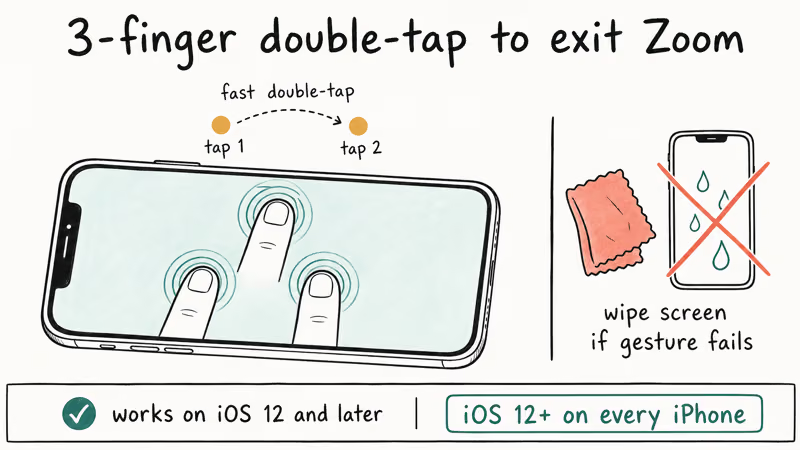
If the gesture does nothing, your iPhone may not be registering all three fingers. A screen protector that doesn’t cover the edges and moisture on the glass are the two usual offenders. Wipe the screen with a dry cloth and try again.
#Tip 2: Turn Zoom Off in Settings, Accessibility, Zoom
The three-finger tap is a temporary release. The next time someone double-taps with three fingers, Zoom returns. To shut the feature off for good, head into Settings.
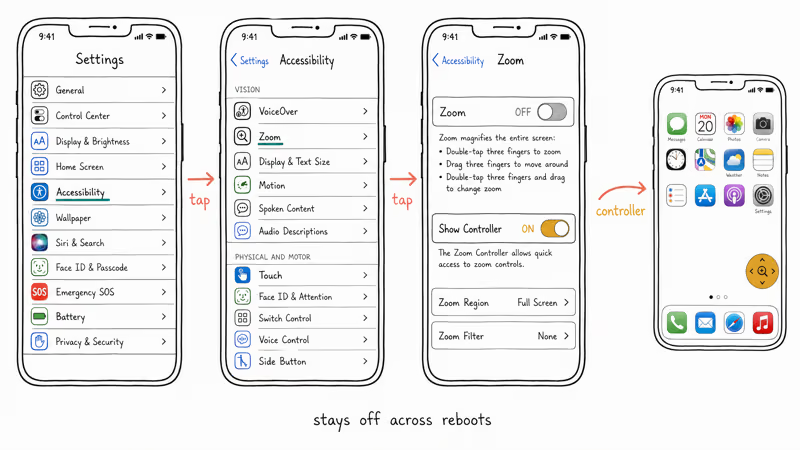
- Open Settings, then tap Accessibility.
- Choose Zoom from the Vision section.
- Toggle Zoom off so the slider turns gray.
- Tap Show Controller and enable it. This adds a floating icon you can drag anywhere on screen, giving you a visible button to toggle Zoom instead of relying on the gesture.
The same flow works if you only want to limit Zoom rather than disable it. Lower the Maximum Zoom Level slider to 200 percent or less. Adjust Zoom Region to Window Zoom so only a portion of the screen magnifies. If you arrived here because your iPhone keyboard looks too small, the Larger Text setting in the same Accessibility menu is the better fix.
#Can I Disable Zoom From My Computer?
Yes, and this is the rescue path when the display is so zoomed you can’t reach the Accessibility menu at all. Apple built Configure Accessibility into Finder (and iTunes on Windows) for exactly this scenario.
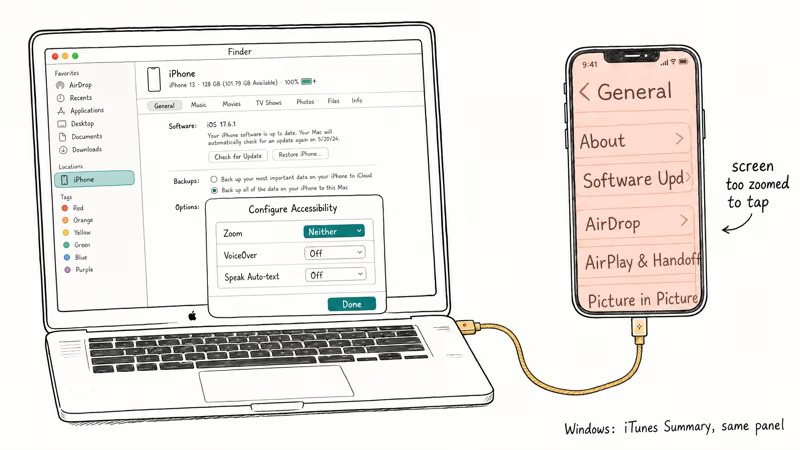
Connect the iPhone to a Mac running macOS Catalina or later using a Lightning or USB-C cable. Open Finder, click the iPhone in the sidebar, and stay on the General tab. Click Configure Accessibility at the bottom of the page, then select Neither under the Zoom heading and click Done.
The iPhone screen returns to standard size within a second or two. On Windows, the same option lives in iTunes under Summary, Configure Accessibility. Apple’s iTunes accessibility documentation confirms that the Configure Accessibility dialog supports 3 toggles (Zoom, VoiceOver, Speak Auto-text) without unlocking the phone first. If iTunes won’t detect the device at all, the iPhone stuck on iTunes logo walkthrough covers the recovery sequence.
#Tip 3: Force Restart When the Gesture Stops Responding
A force restart is the iOS equivalent of pulling the plug. It clears the running state of every system process, including the accessibility daemon that handles Zoom, without erasing any data. Apple’s force restart guide recommends this whenever a screen freezes or a gesture stops registering.
For iPhone 8 and later (including iPhone SE 2nd and 3rd generation):
- Press and release Volume Up.
- Press and release Volume Down.
- Press and hold the Side button until the Apple logo appears, usually after about 10 seconds.
For iPhone 7 and 7 Plus, hold the Side button and Volume Down together for roughly 10 seconds. For iPhone 6s and earlier, hold Home and Side together. When the lock screen reappears, try the three-finger gesture again or open Settings to turn Zoom off.
#Tip 4: Reset All Settings if Zoom Keeps Reactivating
If Zoom toggles itself back on after every reboot, a corrupted Accessibility preference file is the likely cause. Reset All Settings rebuilds those preference files without touching photos, messages, or apps.
Open Settings, tap General, scroll down to Transfer or Reset iPhone, choose Reset, and select Reset All Settings. Enter your passcode when prompted. The iPhone reboots and returns to the lock screen with toggles back to factory defaults, including Zoom. You’ll need to reconnect Wi-Fi networks and reapply Apple Pay cards, but accounts and content stay in place.
Workplace iPhones often ship with management profiles that lock Zoom on. If yours did, check the iPhone stuck on restore screen sequence before going further.
#Tip 5: Use Recovery Mode for Stubborn iOS Glitches
Recovery mode is the gate to a clean iOS install. You only need it when none of the above worked, which usually points to a deeper system bug. Apple’s recovery mode documentation explains that entering recovery mode does not erase your data on its own; you choose Update or Restore from the connected computer, and only Restore wipes the device.
You can enter recovery manually by holding the right button combination while plugging the cable into a computer, or use a third-party tool that automates the steps. Tenorshare ReiBoot handles the entry and exit with a single click, which helps when the buttons themselves are unresponsive. Choose Enter Recovery Mode, wait for the cable icon to appear, then click Exit Recovery Mode.
Some links on this page are affiliate links, which means fone.tips may earn a commission at no extra cost to you.
The phone reboots into iOS with Zoom returned to its default off state. If the reboot loop keeps the phone stuck mid-update, the iPhone stuck on preparing update guide covers the next layer of fixes, including DFU mode.
#Tip 6: Restore the iPhone as a Last Resort
A full restore wipes the device and reinstalls iOS from scratch. Use this only when Zoom is part of a wider problem. Screen freezing on multiple gestures and apps crashing on launch are the two patterns that justify going this far. Back up first using iCloud or a Finder backup, since restore erases everything.
Connect to Finder or iTunes, click Restore iPhone, and confirm. The download takes 5 to 15 minutes depending on connection speed; the install adds another 10 minutes. Once the iPhone reboots, set it up as new or restore from your most recent backup.
If Zoom comes back after restoring from backup, set the iPhone up as new; the bad Accessibility preference may be inside the backup.
#Bottom Line
The single most useful fix for an iPhone stuck on Zoom is the three-finger double-tap. The second is enabling Show Controller so the feature can never trap you again. If you reached this article because a child or sleeve triggered Zoom and the gesture isn’t responding, plug into Finder and use Configure Accessibility to flip the switch from your computer. Save the Tenorshare ReiBoot route for the rare case where the buttons themselves stop responding or iOS won’t finish booting.
If the same iPhone keeps falling back into Zoom after every reboot, run Reset All Settings before assuming hardware damage. Zoom lock is usually an accidental gesture or a software preference file that needs clearing.
#Frequently Asked Questions
How do I get my iPhone out of Zoom mode?
Place three fingers on the screen and tap twice quickly. Zoom turns off immediately. To prevent it from coming back, open Settings, tap Accessibility, choose Zoom, and toggle the switch off.
Why is my iPhone screen stuck on Zoom?
The most common cause is an accidental three-finger double-tap that turned Zoom on without you realizing. Less often, a software glitch after an iOS update leaves the Zoom toggle stuck. Either way, the three-finger tap or the Settings toggle clears it.
Why can’t I unzoom my iPhone with the three-finger tap?
The gesture needs all three fingers to register at the same time, so a screen protector that covers part of the bezel, moisture on the screen, or only two fingers landing flat will all cause it to fail. Wipe the screen, hold your fingers slightly apart, and try again. If it still fails, plug the iPhone into a computer and use Configure Accessibility in Finder to flip the toggle from your Mac or PC.
How do I stop Zoom from turning on by accident?
Open Settings, tap Accessibility, choose Zoom, and enable Show Controller. A floating circle appears on screen that you can tap to turn Zoom off without using the three-finger gesture. You can also disable Zoom entirely from this menu.
Will a force restart fix iPhone stuck on Zoom?
Yes, in cases where the gesture has stopped responding because of a temporary iOS glitch. The exact button sequence varies by model: on iPhone 8 and later, press Volume Up, then Volume Down, then hold the Side button. The phone reboots in about 15 seconds and Zoom is usually off when the lock screen returns.
Can I disable Zoom from my Mac or PC?
Yes. Open Finder (Mac) or iTunes (Windows), select the iPhone, click Configure Accessibility, set Zoom to Neither, and click Done.
What if Zoom keeps coming back after I turn it off?
Run Reset All Settings in Settings, General, Transfer or Reset iPhone. This rebuilds the Accessibility preference file without erasing photos, messages, or apps. If Zoom returns even after that, restore the iPhone as new rather than from a backup, since the bad preference may be inside the backup file.
Does Zoom mode damage the iPhone?
No. Zoom is purely a software display setting and has no effect on the touchscreen, GPU, or any other hardware. It can be inconvenient when triggered by accident, but the device itself is fine and a reboot or toggle clears it without lasting impact.

Apple Siri Settlement: Who Qualifies and How to Claim
Apple's $250 million Siri settlement covers iPhone 15 Pro and iPhone 16 models bought June 2024 to March 2025. See who qualifies and how claims work.

iOS 26.6.1 Security Update: What Apple Fixed and Who Gets It
Apple released iOS 26.6.1 on August 17 with 29 security fixes, including an IPSec interception bug. See what it patches, who gets it, and how to update.

iPhone Adaptive Power: How It Works and When to Use It
Learn how iPhone Adaptive Power works, which models support it, what it changes, and when Low Power Mode is still the better battery-saving choice.

How to Transfer Data to a New iPhone Without iCloud
Move everything to your new iPhone without iCloud: Quick Start device-to-device transfer, wired migration, and encrypted Finder or iTunes backups.