iPhone Notifications Not Working? 10 Fixes for 2026
Missing alerts on your iPhone? Check Focus modes, the Notification Summary, per-app settings, and Silent mode in order, with the fastest fixes first.
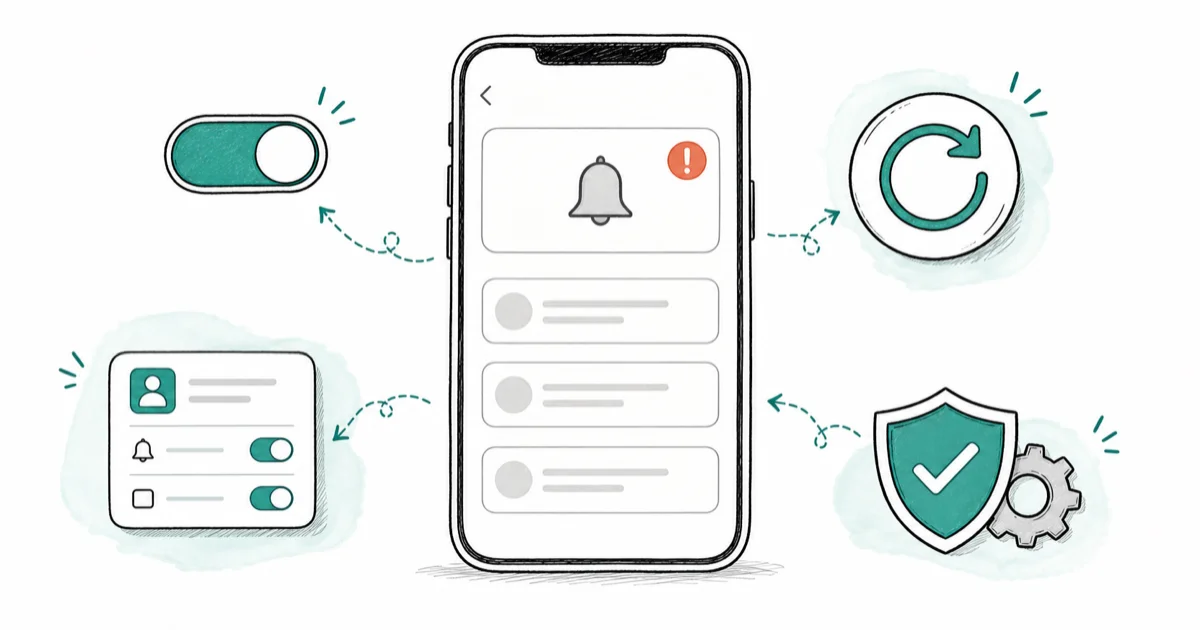
Quick AnswerThe most common reason iPhone notifications stop appearing is an active Focus mode or Do Not Disturb, followed by the Notification Summary holding alerts and per-app toggles being off. Check those three before restarting or resetting settings.
Missing an important text because your iPhone stayed silent is the kind of small failure that erodes trust in the phone fast. The good news: the cause is almost always a setting, not a bug. A Focus mode quietly holding your alerts is the usual suspect, so start with the quickest settings before you reset anything.
- An active Focus mode or Do-Not-Disturb is the number-one reason alerts stop appearing
- The Notification Summary can batch and delay alerts so they never interrupt you
- Per-app toggles under Settings, Notifications control whether each app can alert you at all
- The silent switch and a low volume mute notification sounds without hiding the banners
- A restart or Reset All Settings is a last resort, and resets keep your photos and messages
#Why Did Your iPhone Notifications Stop Working?
Notifications break for boring, fixable reasons, not mysterious ones. The fault sits in one of four layers: a Focus mode, the Notification Summary, a per-app setting, or the sound system.
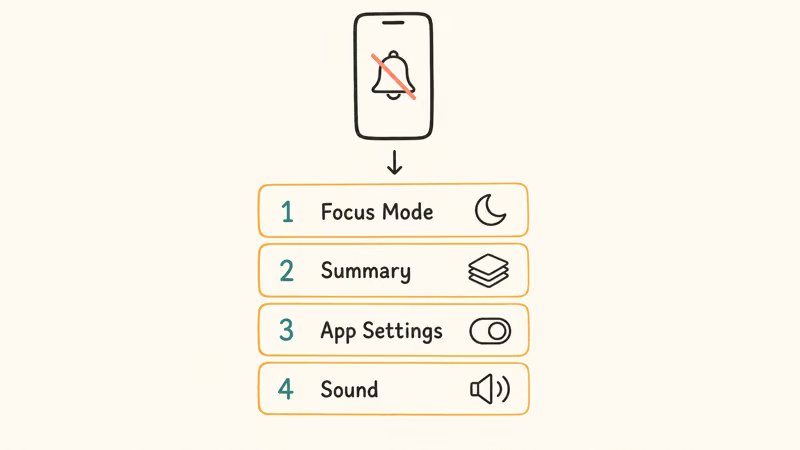
Work down that list in order. The first two catch the vast majority of cases.
If it’s just one app that’s gone quiet, the fix is usually in that app rather than your system settings. Our guides on Instagram notifications not working and Snapchat alerts on iPhone handle the app-specific toggles.
#Is a Focus Mode or Do Not Disturb the Culprit?
This is the first thing to check, every time. A Focus mode silences notifications by design, and it’s easy to leave one running without noticing.
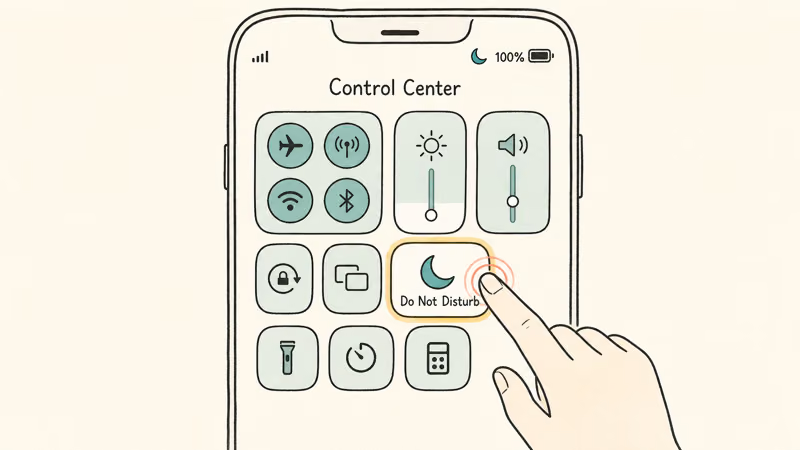
Open Control Center and look for a highlighted Focus icon, like the crescent moon for Do-Not-Disturb. Tap it off and your alerts should return at once. According to Apple’s Focus guide, an active Focus shows its icon “in the status bar and on the Lock Screen,” so that icon is your tell.
Schedules are the sneaky part. A Focus set to turn on automatically, like a Sleep schedule overrunning into your morning, can mute you without a single tap. Check Settings, then Focus, and review every mode’s schedule. Apple states that repeated calls within 3 minutes from the same person can still break through a Focus, so a true emergency reaches you anyway.
#Checking Per-App and Lock Screen Settings
If no Focus is active, the next layer is per-app permission. Every app has its own switch, and one flipped off explains a single silent app perfectly.
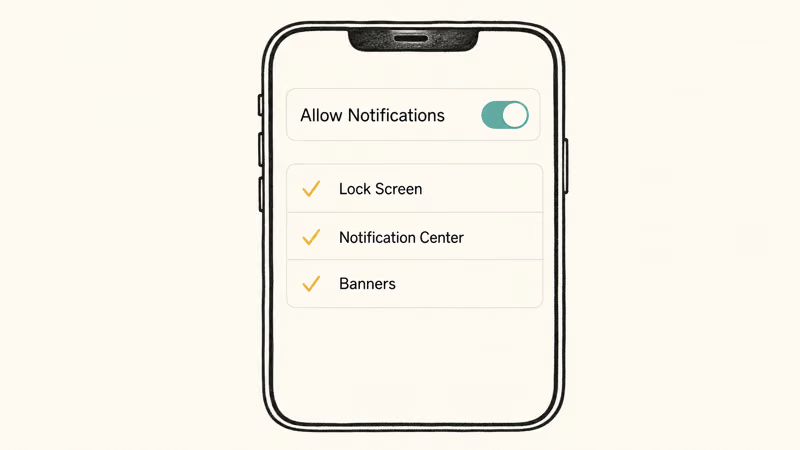
Go to Settings, then Notifications, and tap the app in question. According to Apple’s notification settings guide, you turn an app’s alerts on or off with the Allow Notifications toggle at the top. Below it, confirm Lock Screen, Notification Center, and Banners are all enabled so alerts actually show up where you expect.
One more thing trips people up here. If Allow Notifications is on but you still see nothing on the Lock Screen, check that the Lock Screen style isn’t hiding them. Apple’s guide on how to view and respond to notifications covers where each alert type shows up, and the fix is almost always one of these toggles, not the phone.
#When the Notification Summary Is Hiding Alerts
Apple’s Notification Summary is a feature people forget they enabled. It collects “non-urgent” alerts and delivers them in a batch at set times, which feels exactly like notifications not working.
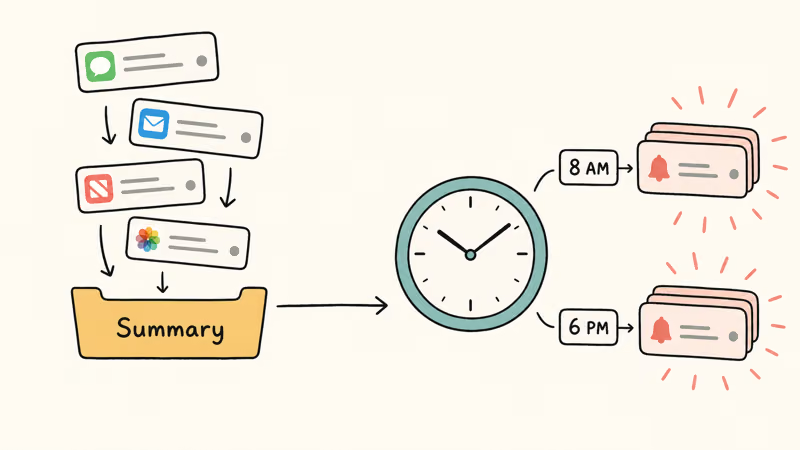
The catch is that batched alerts never interrupt you in the moment. If a messaging app is accidentally added to the Summary, its alerts can stay silent until the next scheduled delivery, then arrive as a stack.
Fix it under Settings, Notifications, then Scheduled Summary. Either turn the whole feature off, or remove the apps you actually want to hear from in real time. Move your messaging and calls out of the Summary, and they’ll alert you the instant they arrive.
#Sound, Silent Mode, and Delayed Notifications
Sometimes notifications are working fine, you just can’t hear them. The banners appear, but no sound plays. That points at the audio layer, not the notification system.
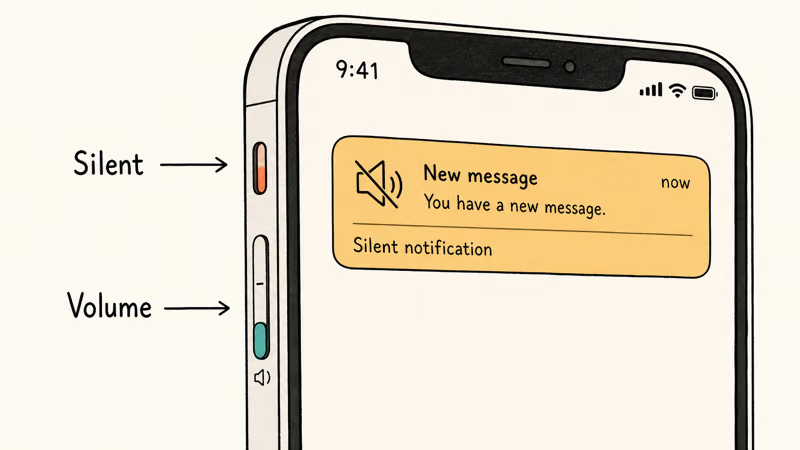
Check the Ring/Silent switch on the side of the phone first, since an orange stripe means silent mode is on. Then raise the ringer volume in Settings, Sounds and Haptics, and confirm the app’s own sound is set to something audible. If alerts arrive late rather than not at all, a weak connection is often to blame, so see our fixes for an iPhone that won’t connect to Wi-Fi. Background App Refresh being off can also delay app alerts.
#Restart, Update, and Reset as Last Resorts
You’ve ruled out Focus, per-app settings, the Summary, and sound. Time for the heavier tools.
Start with a simple restart. It clears temporary glitches that block the notification daemon, and if a frozen phone won’t even restart normally, our guide to an iPhone that’s frozen walks through a force restart. After that, install any pending iOS update, since notification bugs are exactly the kind of thing Apple fixes in point releases, and running an outdated version can keep a known bug alive on your phone long after a patch exists.
If nothing else works, Reset All Settings is the nuclear option that keeps your data. It wipes your preferences, including any tangled notification settings, but leaves photos, messages, and apps untouched. You’ll re-enter Wi-Fi passwords afterward, so treat it as the final step. If a single app like Facebook stays silent, the fix is usually inside that app instead.
#Bottom Line
When iPhone notifications stop working, start with Focus modes. An active or scheduled Focus is the cause far more often than a real bug. From there, check that the app’s own Allow Notifications toggle is on, then pull it out of the Scheduled Summary so its alerts arrive live.
If you see banners but hear nothing, blame the silent switch or volume. Save restart, update, and Reset All Settings for last; a reset keeps your photos and messages.
#Frequently Asked Questions
Why is my iPhone not showing notifications on the lock screen?
Most often a Focus mode is active and hiding them, or the app’s Lock Screen toggle is off. Check Settings, Notifications, the app, and confirm both Allow Notifications and Lock Screen are enabled. Also make sure no Do-Not-Disturb is running in Control Center.
How do I know if a Focus mode is blocking my notifications?
Look for a Focus icon, like a crescent moon, in the status bar. If you see one, tap it off in Control Center.
What is the Notification Summary and is it hiding my alerts?
It’s a feature that batches non-urgent notifications and delivers them at scheduled times instead of the moment they arrive. If an app sits in your Summary, its alerts stay silent until the next scheduled delivery, which can feel exactly like notifications being broken. Remove time-sensitive apps from the Summary under Settings, Notifications, Scheduled Summary.
Why are my iPhone notifications delayed?
Usually a weak network connection or Background App Refresh being turned off. Apps that rely on a server push need a steady connection, so spotty Wi-Fi or cellular delays the alert. Turning Background App Refresh back on in Settings often clears it up.
Why do notifications appear but make no sound?
Because the silent switch is on or the volume is down. The banners still show, but no sound plays. Check the orange stripe on the side switch first, then raise the ringer volume in Settings, and finally confirm the app’s own notification sound isn’t quietly set to None, since any one of those three will mute the alert tone while leaving the visual notification working.
Will Reset All Settings delete my data?
No. Reset All Settings clears your preferences and configurations, including notification and Wi-Fi settings, but it leaves your photos, messages, apps, and other content fully intact. You’ll just need to re-enter some passwords and re-customize a few options afterward.

Apple Siri Settlement: Who Qualifies and How to Claim
Apple's $250 million Siri settlement covers iPhone 15 Pro and iPhone 16 models bought June 2024 to March 2025. See who qualifies and how claims work.

iOS 26.6.1 Security Update: What Apple Fixed and Who Gets It
Apple released iOS 26.6.1 on August 17 with 29 security fixes, including an IPSec interception bug. See what it patches, who gets it, and how to update.

iPhone Adaptive Power: How It Works and When to Use It
Learn how iPhone Adaptive Power works, which models support it, what it changes, and when Low Power Mode is still the better battery-saving choice.

How to Transfer Data to a New iPhone Without iCloud
Move everything to your new iPhone without iCloud: Quick Start device-to-device transfer, wired migration, and encrypted Finder or iTunes backups.