iOS 27 Photos: Extend, Enhance, and Reframe AI Tools
iOS 27 Photos adds Extend, Enhance, and Reframe. Fill beyond the frame, fix color and lighting, and correct perspective. All three run on-device.

Quick AnsweriOS 27 Photos adds three AI tools: Extend generates content beyond the original photo edges, Enhance automatically adjusts color balance and lighting, and Reframe corrects perspective and centering. All three run on-device and work on any iOS 27 compatible iPhone.
iOS 27 brings the biggest set of AI editing tools Apple has added to Photos in years. Three new features (Extend, Enhance, and Reframe) handle editing tasks that previously required third-party apps like Lightroom or Snapseed. They run fully on-device, with no uploading your photos to a server.
- Extend generates AI fill content beyond the original photo edges, useful for widening landscapes or fixing tight framing
- Enhance replaces the existing Auto Enhance with a more aggressive AI adjustment for color, lighting, and shadow recovery
- Reframe corrects perspective distortion and recenters subjects without cropping from the visible frame
- All three tools are Apple Intelligence features and run on-device with no cloud upload required
- Every iPhone that supports iOS 27 (iPhone 12 and later, A14 chip+) gets access to all three tools
#The Three New iOS 27 Photos AI Tools
Apple added three distinct editing features to the Photos app in iOS 27. Each targets a specific type of common photo problem:
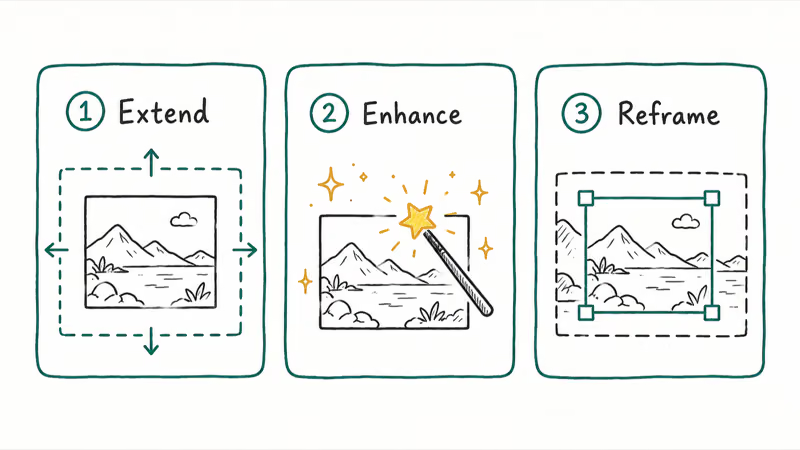
Extend fills beyond the edges of your photo with AI-generated content. If your subject was too close to one side, or you want a wider landscape, Extend expands the frame and fills in what the camera didn’t capture.
Enhance is an upgraded Auto Enhance. The original Auto Enhance made subtle adjustments; the iOS 27 version uses Apple Intelligence to do heavier lifting on exposure, color balance, and shadow recovery.
Reframe fixes perspective. Wrong camera angle, converging lines on tall buildings, a subject drifted to one edge. One tap corrects it.
According to 9to5Mac’s coverage of the iOS 27 Photos editing changes, all three tools use the same on-device Apple Intelligence pipeline that powers Clean Up in iOS 18. No photo leaves the device during processing. For the full list of what Apple Intelligence can do in iOS 27, see the iOS 27 new features overview.
Beta note: iOS 27 hasn’t shipped publicly yet. According to Apple’s August 24 release entry, developer beta 7 is build 24A5424a. Final behavior may still change before the September release.
#How to Use the iOS 27 Extend Feature
Extend fills beyond the original photo’s boundaries. Think of it as the iOS version of Google’s Magic Editor generative expand feature.

Here’s how to use it:
- Open a photo in the Photos app
- Tap Edit
- Tap the Extend button in the editing toolbar (looks like an outward-pointing arrow on a frame)
- Pinch to zoom out (the canvas expands past the photo edges)
- Drag to reposition which part of the frame you want to fill
- Tap Extend to generate the fill
- Review the result, then tap Done to save or Revert to undo
The tool generates fill content that matches the style, lighting, and colors of the existing image. It works best when the edge contains simple patterns like sky, water, grass, or a gradual background.
Results depend on what’s at the edge. Solid-colored skies and gradual landscapes extend cleanly. Faces, hands, or fine detail at the edge are harder. The generation works, but close inspection shows inconsistencies.
Apple Intelligence runs the entire generation locally, so processing speed depends on the area being extended and your iPhone model.
Extend is most useful for fixing three common situations: a group photo where someone is partially cut off at the edge, a landscape shot where you wish you had backed up a step, and a portrait where the subject’s arm exits the frame awkwardly.
#What Enhance Does in iOS 27 Photos
Enhance replaces the old Auto Enhance wand in the editing toolbar. The original Auto Enhance made small automatic adjustments to brightness and contrast. Apple’s new version is substantially more aggressive and adds color correction and shadow recovery to the mix.

Tap Edit on any photo, then tap Enhance (the wand icon). iOS 27 applies a set of AI-driven adjustments in one tap:
- Exposure correction: brings underexposed or overexposed photos back toward neutral without washing out highlights
- Color balance: removes color casts from indoor lighting (orange tungsten tint, green fluorescent cast)
- Shadow lift: recovers detail from dark areas of the frame without creating noise
- Highlight preservation: rolls back blown-out highlights where texture can be recovered
The difference from the iOS 26 Auto Enhance is significant. The iOS 27 Enhance tool is designed to make stronger color, shadow, and exposure adjustments than the older wand, so it’s closer to a one-tap edit than a subtle slider nudge.
You can still go into the manual adjustment sliders after running Enhance and fine-tune from there, so the AI pass acts as a starting point rather than a final answer. Enhance isn’t destructive, which means tapping the wand again after your manual changes resets everything back to the AI baseline, and switching Enhance off entirely returns the photo to its untouched original with no quality loss along the way.
According to MacRumors’ analysis of the iOS 27 beta photo editing tools, the Enhance model was trained on Apple’s own dataset of professionally edited photographs rather than public image data, which accounts for the more natural-looking output compared to generic AI enhancement tools.
#How Reframe Works in iOS 27 Photos
Reframe corrects perspective and repositions subjects after the fact. It addresses two separate problems:
Perspective correction fixes the “falling buildings” effect. When you shoot a tall building or wall by pointing the camera up, vertical lines appear to converge toward the top. Reframe detects those converging lines and adjusts the apparent viewpoint to make them parallel again.
Subject recentering moves the subject within the frame. If your subject ended up off to one edge, Reframe shifts them toward center by filling the exposed edge with AI-generated content, using the same underlying process as Extend.
To use Reframe:
- Open a photo and tap Edit
- Tap Reframe (a rectangle with corner handles and a centering icon)
- The tool analyzes the photo and shows a preview of the corrected perspective and suggested subject placement
- Use the handles to adjust how much perspective correction to apply
- Use the position slider to move the subject if it’s off-center
- Tap Apply
Reframe is meant for photos where straight edges, walls, shelves, or buildings look skewed because the camera wasn’t square to the subject.
#Does iOS 27 Extend Work as Well as Google’s Magic Editor?
Google Magic Editor on the Pixel 9 has been the benchmark for generative photo expansion since 2024. The honest comparison: Extend is competitive but not superior for the most demanding tasks.
Where they’re roughly equal:
- Simple sky and background extensions
- Widening landscape shots
- Fixing minor edge cropping on solid-color backgrounds
Where Magic Editor still has an edge:
- Faces and people at the edge of the frame: Magic Editor’s training data and server-side processing (for premium users) produces more coherent results
- Very complex edges with multiple overlapping elements
Where Extend wins:
- Privacy: everything runs on-device. Magic Editor sends photos to Google’s servers for processing by default
- Speed for simple tasks: on-device processing can feel faster than waiting for a server round trip
Samsung’s AI Edit takes a similar approach to Apple, running on-device for many operations. Quality will vary by scene, so don’t assume any one tool wins on every photo.
For most everyday use cases, Extend is good enough that you won’t need a third-party app. If you’re frequently extending portraits with people at the frame edge, test both and see which output looks better for your photos.
#Which iPhones Support the iOS 27 AI Photo Tools?
All three tools are available on every iPhone that runs iOS 27.
iOS 27 supports:
- iPhone 16 series (all models)
- iPhone 15 series (all models)
- iPhone 14 series (all models)
- iPhone 13 series (all models)
- iPhone 12 series (all models)
The cutoff is the A14 Bionic chip, which launched with the iPhone 12. iPhones older than the 12 series can’t run iOS 27 and won’t get any of these tools. Check the full iOS 27 compatible iPhones list if you’re not sure about your model.
There’s no Pro-only gate on Extend, Enhance, or Reframe. These are Apple Intelligence features, but unlike some Apple Intelligence tools that require an A17 Pro chip or later, the three Photos AI tools run on all iOS 27 compatible chips including A14. According to Apple’s developer documentation on Apple Intelligence system requirements, the Photos editing pipeline was specifically optimized to run on A14 and later so it would reach the largest installed base.
Speed will vary by chip generation and by how complex the generated area is. If you’re running the iOS 27 beta, performance may differ from the final release.
#Bottom Line
Start with Enhance — it delivers the most visible improvement per tap. Open any poorly lit or indoor photo, tap Edit, and hit the Enhance wand. For framing issues, pick Extend for missing canvas or Reframe for perspective correction.
For a full picture of what’s new in iOS 27, see the guides to iOS 27 AI features and iOS 27 Visual Intelligence.
#Frequently Asked Questions
Do you need to pay for iOS 27 AI photo editing tools?
No. All three tools are free. Extend, Enhance, and Reframe are built into iOS 27 with no subscription, no in-app purchase, and no Apple Intelligence paid tier required. They’re available on any supported iPhone the moment you update to iOS 27, with no additional setup or account required.
Does iOS 27 Extend save a new photo or edit the original?
Non-destructive. The original stays intact.
Can you use Extend, Enhance, and Reframe together on the same photo?
Yes, and they work well in combination. Run Enhance first to correct color and exposure, then use Reframe to fix the perspective, then Extend to widen the canvas if needed. Each tool applies as a separate non-destructive layer, so you can undo any individual step.
Does Extend work on video in iOS 27?
No. Extend is a still photo tool only. Video editing in iOS 27 Photos got separate improvements (trimming and color adjustment), but generative fill expansion isn’t available for video clips in the initial iOS 27 release.
How long does iOS 27 AI photo processing take?
Processing time depends on which tool you’re using, your iPhone’s chip, and how complex the generated area is. Enhance is usually the quickest; Extend and Reframe can take longer because they create or reposition image content.
Can you use iOS 27 Photos AI tools on iPad?
Yes. iPadOS 27 ships with the same Photos editing improvements. Extend, Enhance, and Reframe work identically on compatible iPad models. Go to Edit in the Photos app to find the tools in the editing toolbar.
What happens if iOS 27 Extend generates something that looks wrong?
Tap the Revert button in the Edit toolbar to undo. You can also try again. The generation is randomized, so a second attempt sometimes produces a better result for the same area. If Extend consistently fails on a particular edge (usually because there’s a face or complex object right at the boundary), Reframe or manual cropping may be a better approach.

Mac mini M6 vs M5 Pro: Which Model Should You Buy?
Mac mini M6 vs M5 Pro compared on price, memory, ports, displays, and real workloads. Find the better 2026 Mac mini for your desk and budget.

Apple Siri Settlement: Who Qualifies and How to Claim
Apple's $250 million Siri settlement covers iPhone 15 Pro and iPhone 16 models bought June 2024 to March 2025. See who qualifies and how claims work.

iOS 26.6.1 Security Update: What Apple Fixed and Who Gets It
Apple released iOS 26.6.1 on August 17 with 29 security fixes, including an IPSec interception bug. See what it patches, who gets it, and how to update.

iPhone Adaptive Power: How It Works and When to Use It
Learn how iPhone Adaptive Power works, which models support it, what it changes, and when Low Power Mode is still the better battery-saving choice.