Instagram Notes Not Working? Causes and Fixes 2026
Instagram Notes not working or missing? Check feature eligibility, app version, the close-friends audience scope, and cache before reinstalling the app.
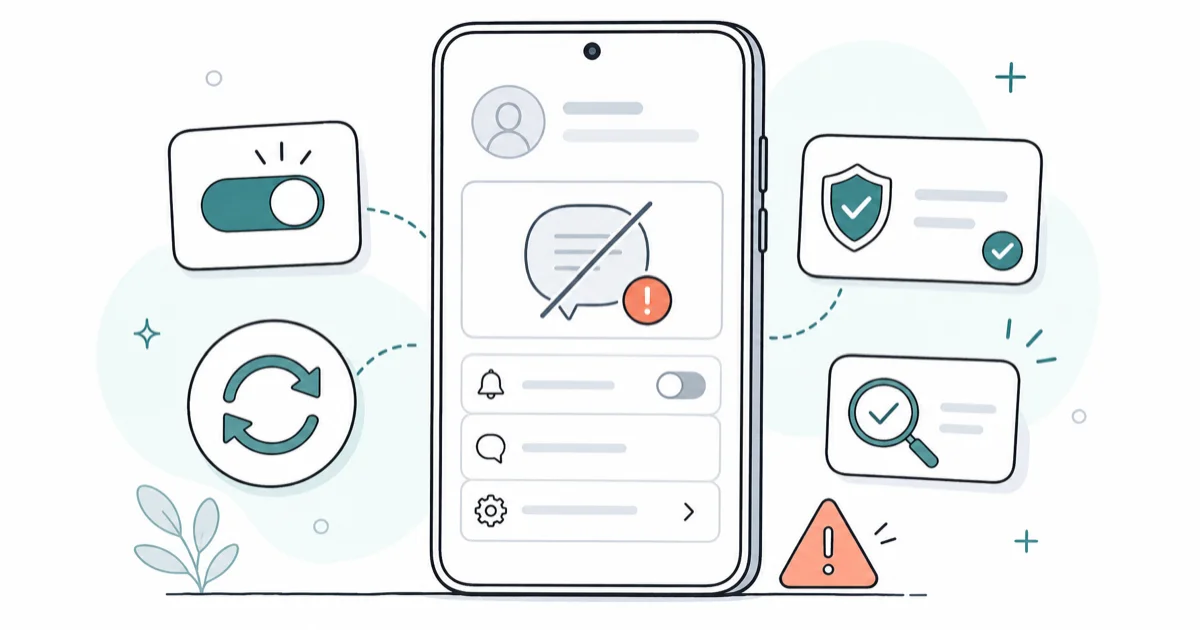
Quick AnswerInstagram Notes usually fail because of an outdated app, a regional or account rollout limit, or a Notes audience set to close friends only. Update the app, confirm eligibility, and check your Notes audience setting.
When Instagram Notes are not working, the first question is whether the feature is actually broken or simply not available to your account yet. Notes roll out by region and account, so a missing bubble at the top of your messages inbox is often eligibility, not a bug. Start by updating the app and checking whether Notes appears in your messages inbox.
Many “missing Notes” cases come down to an outdated app rather than a fault.
This guide separates genuine rollout limits from the everyday problems a quick fix solves: a stale cache, an audience set to close friends, or a version behind on updates. Knowing which one you have saves you from reinstalling the app for a problem a single setting caused.
- Notes roll out by region and account, so a missing feature may be eligibility, not a bug
- An outdated Instagram app is the top fixable cause; update it before trying anything else
- A Notes audience set to close friends hides your Note from everyone outside that list
- Clearing the cache fixes frozen Notes that won’t post or refresh without losing your login
- Reinstall only as a last step, after the app is updated and the cache is already cleared
#Why Are Instagram Notes Not Working?
Instagram Notes fail for a few reasons that range from “nothing is wrong” to a genuine app glitch. The biggest one is eligibility: Notes didn’t launch everywhere at once and still vary by region and account type, so the feature may not be active for you yet. After that come an outdated app, a Notes audience scoped to close friends, and a stale cache that freezes the inbox bar where Notes live.
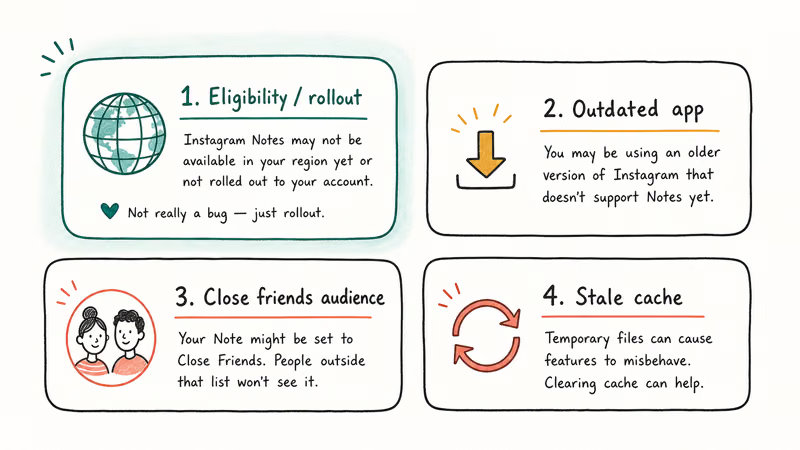
Rule out eligibility and version first.
They explain many “Notes missing” reports and need no troubleshooting at all. An outdated app and a close-friends audience setting can make Notes appear broken while they’re actually working as configured. Resist reinstalling the app early, because a reinstall is disruptive and won’t grant a feature that hasn’t rolled out.
#Is the Notes Feature Even Available to You?
Before treating this as a bug, confirm Notes exists on your account. Notes appear as small circles with text at the very top of your Direct Messages inbox. Open Instagram, tap the messages icon, and look at the top row. If there’s no Notes area at all, even for friends who have posted one, the feature may not be enabled for your region or account yet.
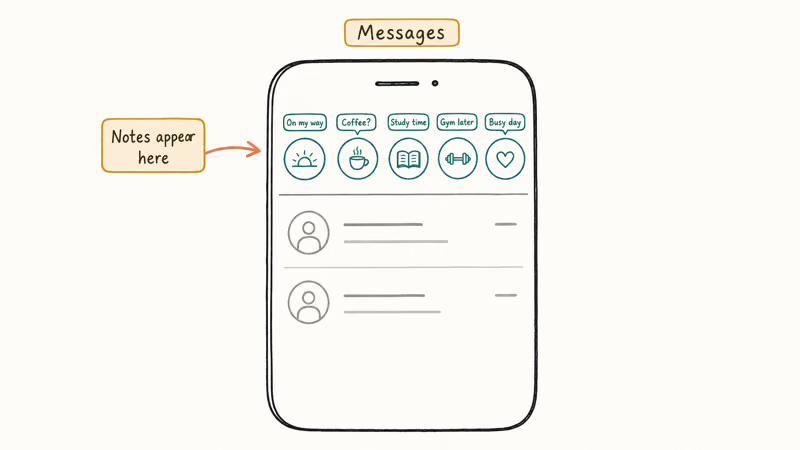
Eligibility isn’t something you can force.
The Instagram Help Center states that a Note is a short post of up to 60 characters shared with mutual followers or close friends, and that it stays visible for 24 hours. If that surface is missing entirely, the rollout simply hasn’t reached your account. Notes also has age and account-type considerations, so a new or restricted account may not see it.
Notes live inside the messaging inbox. If your whole inbox is acting up, the problem is broader than Notes, and our Instagram Direct Messages Not Working guide covers a messaging system that won’t load. For formatting quirks elsewhere, see our Instagram Highlights Tricks guide.
#Update the App and Clear the Cache
An outdated app is the most common fixable cause. An old version may not show the feature at all. Open the App Store or Play Store, search for Instagram, and install any pending update.
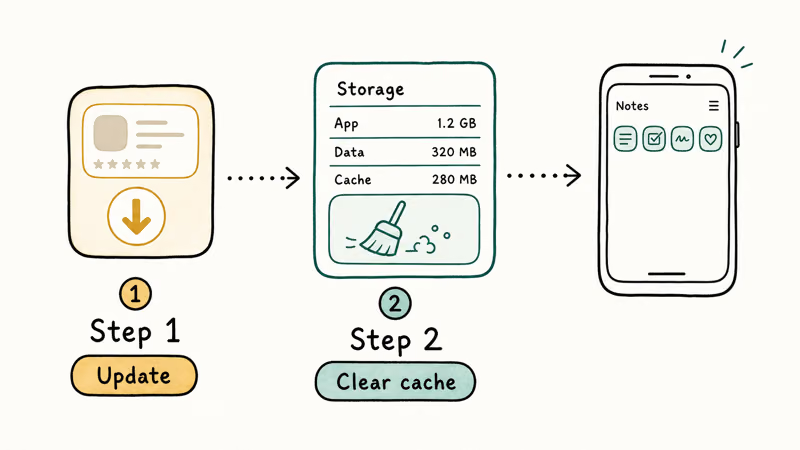
According to Google’s guide to updating Android apps, a sign-in error on your account can quietly block updates, so confirm you’re signed in and that auto-update is on before you assume Notes is broken. Keeping the latest version installed is required for newer features to work correctly, and an update alone often restores a missing or frozen Notes bar.
If Notes appear but won’t post or refresh, a stale cache is the usual reason. On Android, open Settings, Apps, Instagram, Storage, and tap Clear cache, which removes temporary files without logging you out. On iPhone, Instagram has no in-app cache button, so offload the app from Settings, General, iPhone Storage, then reinstall it to clear the same data. Our Clear Instagram Search guide covers the related cache that affects search.
After updating and clearing the cache, force-close Instagram and reopen it before testing. A fresh launch loads the updated code, which is when Notes typically reappears if a version or cache problem was to blame.
#Check Your Notes Audience and Privacy
A working Notes feature that nobody can see is usually an audience problem, not a bug. Instagram’s guide to interacting with notes confirms that replies and likes flow back to you as direct messages, so a Note you posted is live even when friends never react, and the lack of reactions tells you nothing about whether the Note actually published.
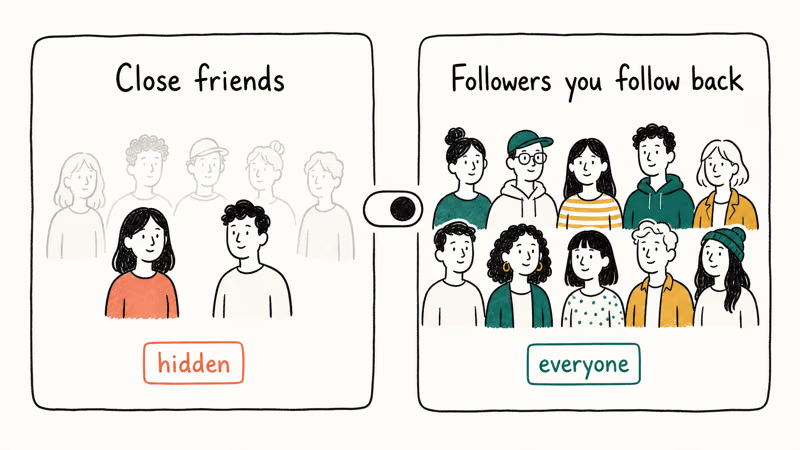
When you post a Note, you choose who sees it: your followers who follow you back, or your close friends list only. If your Note is set to close friends, everyone outside that list sees nothing, which looks like the feature failing even though it posted correctly.
To check, tap to create a Note, then look at the audience selector before posting.
Switch it from close friends to the broader “followers you follow back” option if you want a wider audience. Existing Notes keep the audience you chose when you posted them, so re-post if you set the wrong scope. This setting is the quiet cause behind many “my Note isn’t showing” complaints, and it’s the first thing to check when a Note posts but nobody seems to see it.
Privacy at the account level matters too. A heavily restricted or recently flagged account may have limited access to social features, including Notes. If you’re weighing a fresh start instead, our guide on how to Delete Instagram Account walks through removal, though that’s a last resort.
#Reinstall Instagram as the Last Resort
Reinstalling is the final step, used only after updating the app and clearing the cache both fail. A clean reinstall removes any corrupted local data a cache clear missed and forces the newest version to download fresh. It won’t grant Notes if the feature hasn’t rolled out to your account, so confirm eligibility first to avoid reinstalling for nothing.
Before you reinstall, make sure you know your login details, since the app signs you out completely.
Delete Instagram from your device, restart the phone to clear lingering memory, then reinstall from the App Store or Play Store and sign back in. Test Notes after the first launch.
If Notes still doesn’t appear on a current, freshly installed app while friends in your region have it, the cause is account-level eligibility. Waiting for the rollout or contacting Instagram support is the remaining option. While you wait, saved content still works, and our guide to Find Saved Reels covers one of those features.
#Keep Notes Working Day to Day
Once Notes is back, a couple of habits stop the same problems returning. Turn on automatic app updates so Instagram stays current and a feature change never breaks the bar again, since most Notes faults trace to a version that fell behind.
Set your default Notes audience deliberately. If you keep it on close friends out of habit, your Notes will quietly stay invisible to most of your followers, so pick the wider audience when you actually want reach. Clearing the cache every so often also keeps the inbox bar responsive. These small steps mean the next time a Note misbehaves, the fix is a quick check rather than a full reinstall.
#Bottom Line
Update Instagram and confirm Notes has rolled out to your account before assuming a bug, because many cases are eligibility rather than breakage. If Notes appears but won’t post, check whether your audience is set to close friends, then clear the cache to fix a frozen bar. Reinstall the app only after those steps fail, and remember a reinstall can’t unlock a feature that hasn’t reached your region or account yet.
#Frequently Asked Questions
Why are my Instagram Notes not showing?
The most likely reasons are an outdated app, the Notes feature not being rolled out to your account, or a stale cache freezing the inbox bar. Update the app first, confirm Notes appears for friends in your region, then clear the cache. Reinstall only if those steps fail.
Is Instagram Notes available everywhere?
No. Notes rolled out in stages and still varies by region and account type, so it may not be active for everyone. If friends in your country see Notes and you don’t, an app update is the most likely way to get it.
Why can I not post a Note?
A Note that won’t post usually points to an outdated app or a stale cache. Update Instagram, clear the cache on Android or offload and reinstall on iPhone, then force-close and reopen the app. If the feature is missing entirely rather than failing to post, the cause is likely eligibility, and no amount of clearing the cache will create a feature your account hasn’t received yet.
Does the close-friends setting hide Notes?
Yes. Choosing close friends hides the Note from everyone outside that list, so a posted Note can look invisible. Check the audience selector before posting.
Will clearing the cache fix Notes?
Clearing the cache often fixes a frozen Notes bar that won’t refresh or post, since it removes corrupted temporary files. It doesn’t grant the feature if it hasn’t rolled out and doesn’t change your audience setting. On Android use Clear cache; on iPhone offload and reinstall the app to achieve the same result.
When should I reinstall Instagram for Notes?
Reinstall only after updating the app and clearing the cache both fail. A reinstall removes corrupted local data and forces a fresh version, but it can’t unlock a feature your account isn’t eligible for. Confirm eligibility first, know your login details, and test Notes right after the first launch.

Is This Bank App Real? Spot a Fake App on Your Home Screen
A bank app can land on your home screen from a web page with no install warning. Learn the checks that tell a real banking app from a phishing web app.

Apps Crashing After iOS 27 Update? Fix Order (2026)
Apps crashing after the iOS 27 update? Update the app in the App Store first, then offload and reinstall to clear stale cache, then restart. The fix order.

Do AI Translation Earbuds Work Offline? What to Know
Do AI translation earbuds work offline? A few do with downloaded language packs, but most need the cloud. Here's what works offline and what you give up.
How to Set Up Translation Earbuds (Pairing and Modes)
How to set up translation earbuds: charge, install the app, pair over Bluetooth, pick two languages, and choose a mode. A step-by-step first-use guide.