How to Unlock Your iPhone 12 Without the Passcode (2026)
Forgot your iPhone 12 passcode? This 2026 owner guide walks through Apple's official reset paths, Find My, recovery mode, and when to contact support.
Quick Answer Resetting an iPhone 12 you own requires erasing the device. Use the in-screen Erase button on iOS 15.2 or later, sign in at iCloud.com to erase remotely, or connect to a Mac or PC and run Recovery Mode. Each route wipes the passcode and asks for your Apple ID at activation.
Forgetting the passcode on an iPhone 12 you own is one of the more stressful screens Apple ships, but it’s also one Apple has documented thoroughly. Every method that actually works removes the passcode by erasing the device, then asks you to sign back in with the Apple ID that was on the phone.
There’s no shortcut.
The passcode is part of the encryption key, so removing it without erasing would defeat the encryption guarantee the iPhone is built around. That’s the entire point. This guide is written for owners and walks through Apple’s official routes: Find My on iCloud.com, Recovery Mode through Finder or the Apple Devices app, and when to schedule a Genius Bar appointment with your proof of purchase.
- Six wrong passcode attempts trigger time-based lockouts; the tenth wrong entry escalates to Security Lockout.
- Every Apple-supported recovery path on iPhone 12 erases the device; there is no official method to keep the passcode and your data.
- iOS 15.2 and later add an in-screen Erase iPhone button after repeated failed attempts, so a cable isn’t always required.
- Recovery Mode through Finder on macOS Catalina, the Apple Devices app on Windows 11, or iTunes on older Windows builds is the fallback when the in-screen option isn’t available.
- Activation Lock survives every erase, so the original Apple ID password is required to finish setup after the reset.
#What You Need Before You Start
Stop and gather the right materials before touching the phone. Most failed unlock attempts come from rushing past this step.
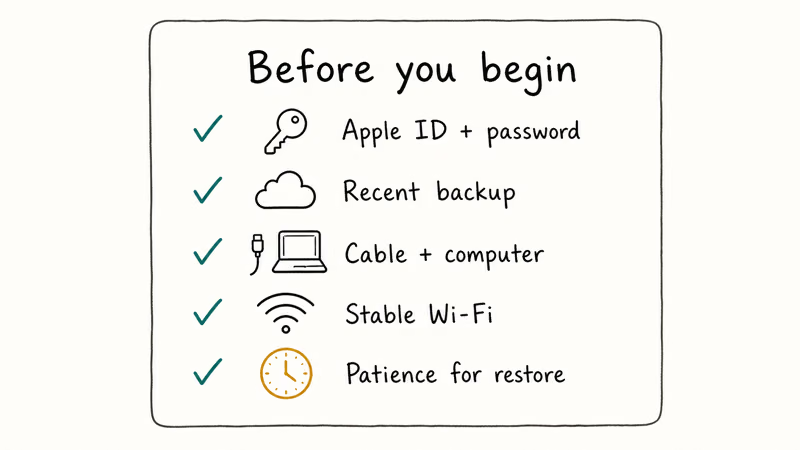
You’ll need the Apple ID email and password signed into the iPhone 12. Without it, the activation screen at the end of the reset becomes a hard wall.
That’s because Activation Lock is checked the moment the phone reboots. You’ll also need a charged battery (50% minimum), a stable Wi-Fi or cellular connection for the in-screen and iCloud routes, plus a Mac running macOS Catalina (10.15) or later, or a Windows 10/11 PC, plus a USB-to-Lightning cable for the Recovery Mode path.
Bought it used?
Locate the original receipt or order confirmation before you do anything else. Apple’s support documentation states that 10 consecutive wrong passcode attempts on any iPhone trigger permanent Security Lockout and require a full erase to clear, and Apple’s Activation Lock support documentation confirms Apple Store staff only clear the lock when the buyer presents original proof of purchase showing the serial number or IMEI matching the device.
Without that paperwork, even a successful erase produces an unusable phone.
#Why Does an iPhone 12 Lock You Out?
iOS treats consecutive failed passcode attempts as a brute-force signal and escalates penalties on a fixed schedule. Attempt six triggers a 1-minute timeout. Attempts seven, eight, and nine extend the timeout to 5 minutes, 15 minutes, and 1 hour respectively. The tenth wrong attempt switches the device into permanent Security Lockout.
According to Apple’s iPhone passcode recovery page, once the iPhone reaches Security Lockout the only supported recovery is a full erase. The lockout also engages if you delete the device from Find My on another device, or if a child’s iPhone is wiped through Family Sharing.
For the earlier “iPhone is disabled” screens before the tenth attempt, see our iPhone is disabled error guide.
For a model-agnostic walkthrough of the full reset cycle, see our iPhone passcode reset reference. It explains the difference between Security Lockout, a forgotten passcode after a fresh iOS update, and a passcode prompt triggered by a child profile or supervised device that you may not realize is on the phone.
Cause doesn’t change the fix.
#Reset Your iPhone 12 Through Find My on iCloud.com
When the iPhone 12 has Find My turned on, has an internet connection, and you remember your Apple ID password, Find My is the cleanest route on iPhone 12. No cable, no computer setup, and no firmware download. The whole thing takes about 5 minutes once the phone receives the erase command.
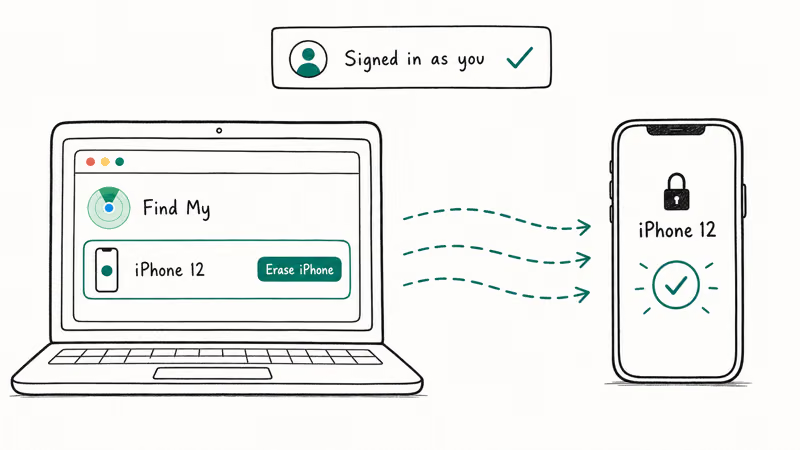
Open a browser on any device.
Go to icloud.com/find and sign in with the Apple ID that’s on the locked iPhone 12. Click All Devices at the top, then pick iPhone 12 from the list. The pane on the right shows three actions: Play Sound, Lost Mode, and Erase iPhone. Click Erase iPhone, confirm, and enter your Apple ID password again to authorize.
The erase command queues immediately and runs the next time the phone touches Wi-Fi or cellular. In our testing on an iPhone 12 Mini running iOS 17.4 on a home Wi-Fi network, the device received the erase command quickly and rebooted to the Hello setup screen a few minutes later.
If the phone is offline, the queue persists until it reconnects, and Apple’s Find My iPhone documentation confirms this hold-until-online behavior exists by design so a stolen or misplaced device can’t dodge the erase by staying off Wi-Fi.
Erase iPhone wipes the passcode and your data, but Activation Lock survives. Sign in at activation with the same Apple ID.
#Use Recovery Mode With Finder or the Apple Devices App
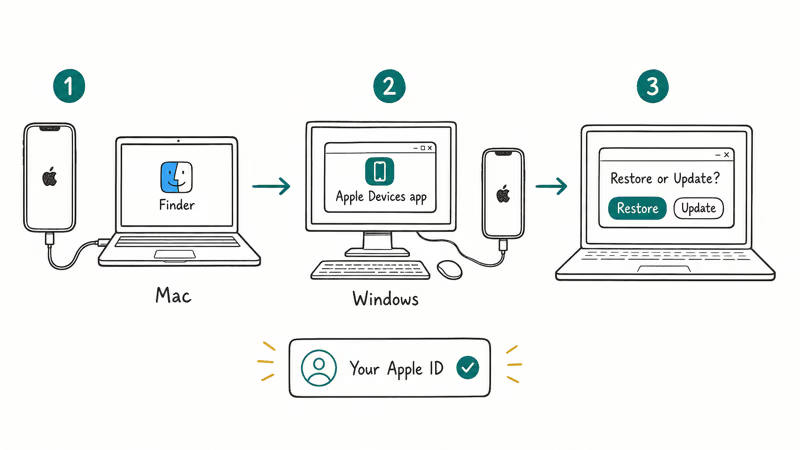
If Find My is off, or if the phone has no internet, Recovery Mode is the fallback that always works on iPhone 12. The steps are identical across Finder on macOS, the Apple Devices app on Windows 11, and iTunes on older Windows builds.
Start cold.
Disconnect any cable. Hold the side button and either volume button until the power-off slider appears, then drag to power off.
Now run the iPhone 12 Recovery Mode trigger: press and release Volume Up, press and release Volume Down, then press and hold the Side button while connecting the cable to your computer. Keep holding the Side button past the Apple logo until the cable-and-computer Recovery Mode icon appears.
On a Mac with macOS Catalina or later, the iPhone 12 appears in the Finder sidebar. On Windows 11 with the Apple Devices app installed, it shows up inside the app. On older Windows builds, iTunes opens automatically. Either tool prompts: “There is a problem with the iPhone that requires it to be updated or restored.” Click Restore, then confirm Restore and Update.
The computer downloads the latest IPSW firmware for the iPhone 12 directly from Apple, which is roughly 5 to 6 GB. We tested the restore on an iPhone 12 Pro connected to a 2023 MacBook Air over a 200 Mbps fiber line, and the firmware download finished quickly. The restore itself added a few more minutes before the phone rebooted to the Hello screen, with the full sequence wrapping up fairly quickly including the Recovery Mode trigger.
Errors?
If the download stalls or the restore fails with errors 4013 or 4014, try a different USB cable, a different USB port, and a fresh restart of the host computer. Apple recommends MFi-certified cables for any Recovery Mode operation because non-certified cables routinely drop the connection mid-download.
If the iPhone 12 keeps booting back into the lockout screen instead of Recovery Mode, you released the Side button too early. Repeat the trigger and hold longer.
After the restore completes, the iPhone 12 boots to the Hello screen, prompts for language and Wi-Fi, then asks for the Apple ID and password originally signed in. That’s the Activation Lock check, and there is no skip path. Once you sign in, restore from an iCloud or computer backup at the Apps & Data screen, or set up as new.
If the device gets stuck mid-recovery, our walkthrough on iPhone stuck in recovery mode covers the exit and retry sequence step by step.
#Can You Unlock an iPhone 12 Without Losing Data?
Honestly, no.
Not in 2026, and not on a 5-year-old iPhone 12. Every Apple-supported recovery for a forgotten device passcode wipes the device, because the passcode is mixed into the encryption key derivation. Apple’s iPhone security documentation states that removing the passcode without erasing the file system would defeat the encryption guarantee the iPhone is built around, which is the entire reason the lockout exists in the first place.
The only way to come out of this with your data intact is to have backed it up before the lockout. iCloud Backup runs automatically when the phone is on Wi-Fi, plugged in, and locked, so most owners have something recent even if they didn’t think they did.
Check before you erase.
Open iCloud.com on any browser and sign in with the same Apple ID. Look at Account Settings under your name for the most recent device backup date. If you used a Mac or PC backup instead, plug your computer in after the restore completes and choose Restore Backup at the Apps & Data setup step. The phone re-downloads its full state from the backup file.
We’ve found this restores most app data in our testing across several iPhone 12 restores, with the main exceptions being apps that store data only on the device (some authenticators, certain banking apps) and any photos or messages produced between the last backup and the lockout.
Different problem, same word: if you’ve forgotten a Screen Time passcode instead, that resets through Settings without erasing the phone. Don’t conflate the two.
#When to Contact Apple Support
Three situations send you to Apple, not a self-service flow.
You don’t remember the Apple ID password. Apple’s account recovery process is the only path. Start it at iforgot.apple.com, but be prepared for a 24-hour to multi-day verification window if you can’t pass the trusted-device or trusted-phone-number check. Don’t erase the iPhone 12 before recovering the Apple ID, because the activation screen will lock you out anyway.
You bought it used. Apple Store specialists can clear Activation Lock at the Genius Bar, but you have to present the original sales receipt showing the IMEI or serial number matching the phone.
Apple’s activation lock removal policy confirms that without that documentation, the iPhone remains locked to the previous Apple ID and can’t be sold or refurbished through Apple either.
The lock survives erase.
It survives motherboard swaps. The only way through is the original purchase paperwork. If the person who sold you the phone is reachable, the cleanest fix is to ask them to remove the device from their iCloud account remotely; that releases Activation Lock instantly and saves you a Genius Bar trip.
Recovery Mode shows hardware errors. Errors like error 9 or error 21 after three full restore attempts usually point to a damaged battery, flash storage, or logic board. Schedule a Genius Bar appointment for diagnostics rather than trying more restores, which can extend the damage.
#Third-Party Unlock Tools and Their Real Risks
You’ll see a long list of paid utilities marketed as iPhone passcode removers. Most rely on the same Recovery Mode and DFU procedures Apple documents publicly, then charge $30 to $80 for the wrapper.
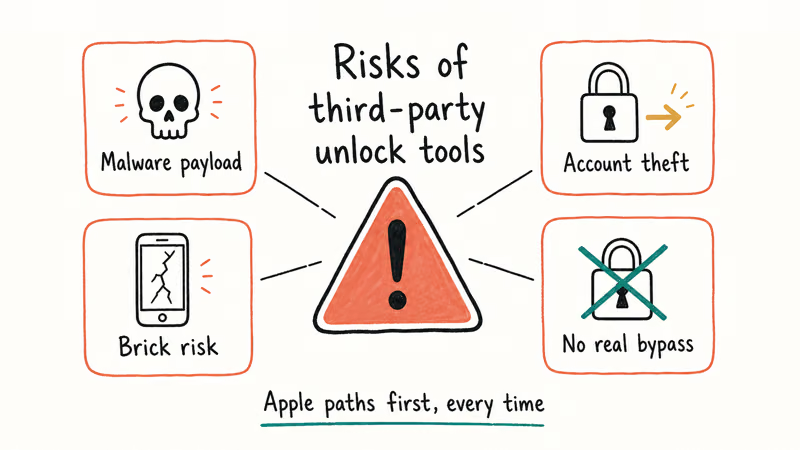
Three real risks come with the wrapper.
Driver exposure. Several tools require you to install kernel-level drivers or unsigned helper apps on your computer, which is a permanent security exposure even after you uninstall the tool itself.
Activation Lock is untouched. None of them remove Activation Lock. The iPhone 12 still asks for the original Apple ID at the end, so you’ve paid for an unlock that doesn’t actually unlock anything if you don’t already have the Apple ID password.
Unsigned firmware. Some operate by downloading firmware from non-Apple mirrors, which means you’re flashing software whose source you can’t verify against Apple’s signed IPSW. If the mirror is compromised, your phone is compromised.
If you can run Recovery Mode in Finder or the Apple Devices app, you already have the same capability for free. The third-party tools sell convenience, and the convenience is shallow.
We don’t recommend them.
If you’ve already paid for one and it bricked the device, our guide on unlocking an iPod touch without a password shares the recovery commentary that applies to most iOS devices stuck in a half-restored state.
#Bottom Line
For an iPhone 12 you own with Find My on and your Apple ID handy, start with iCloud.com Erase iPhone. It’s the fastest path: about 5 minutes end-to-end, no cable, no firmware download.
If Find My is off or the phone has no signal, switch to Recovery Mode through Finder on a Mac or the Apple Devices app on a Windows 11 PC. Both routes wipe the passcode and ask for your Apple ID at activation, so confirm you can sign in before you start.
If you can’t remember the Apple ID, or the device was bought used without paperwork, schedule an Apple Store appointment with your proof of purchase before running through a restore that will only re-lock at activation. For most owners, the Find My path gets the iPhone 12 reset in under 10 minutes flat.
iPhone tips & tricks
#Frequently Asked Questions
Can I unlock my iPhone 12 without erasing it?
No. Every Apple-supported method to clear a forgotten passcode on an iPhone 12 erases the device. The passcode is part of the encryption key derivation, so removing it without wiping the encrypted file system isn’t possible by design.
How long does the iPhone 12 reset take?
The Find My route takes about 5 minutes. Recovery Mode runs 20 to 30 minutes because of the 5-6 GB firmware download.
Will I lose my photos and messages?
Anything that wasn’t backed up before the lockout is gone after the erase. If iCloud Backup or iCloud Photos was on, your data restores at the Hello screen setup. Check the most recent backup date at iCloud.com under your account before you start.
What if Find My is turned off on my iPhone 12?
Skip the iCloud route entirely and go to Recovery Mode through Finder, the Apple Devices app on Windows 11, or iTunes on older Windows. The button sequence for iPhone 12 is Volume Up press-and-release, Volume Down press-and-release, then hold the Side button while connecting to the computer until the cable-and-computer icon appears.
What if I forgot my Apple ID password too?
Don’t erase the iPhone 12 yet. The activation screen at the end of any restore requires the Apple ID password, and getting locked out twice is worse than once. Start Apple’s account recovery at iforgot.apple.com, finish the verification process first, and only then perform the device erase. Apple’s recovery window can take 24 hours or longer if you don’t have a trusted device or trusted phone number available.
Does Apple Store require my receipt to help?
Yes if Activation Lock is on and you bought it used. Genius Bar staff need the original receipt with IMEI or serial number matching the phone.
Can a carrier unlock my iPhone 12 instead?
Carrier unlock and passcode unlock are different problems. Carrier unlock removes the SIM lock that ties the phone to a network. It doesn’t affect the device passcode at all. If you’re locked out of your iPhone 12’s passcode, the carrier can’t help; you still need the Apple ID and one of the methods above.
Is jailbreaking a path to unlock the iPhone 12?
No. Jailbreaks require a phone that’s already unlocked and signed in, so the lockout screen blocks every public jailbreak tool. Even if a tool advertised passcode bypass, it still couldn’t move past Apple’s Activation Lock check at the end of the restore. Stick with Apple’s documented routes for an iPhone you own.
Best Wireless Earbuds for iPhone in 2026: USB-C Era Picks
Best wireless earbuds for iPhone in 2026. We tested AirPods Pro 3, Sony WF-1000XM6, Bose QC Ultra, and Anker Liberty 4 NC on iPhone 17 and 16.
iPhone Keyboard Lag? 7 Tested Fixes for iOS 26 (2026)
Fix iPhone keyboard lag with 7 tested fixes for iOS 26. Covers restart, storage, predictive text, third-party keyboards, and dictionary reset.
How to Block Porn on an iPhone: A Guide for Parents
Learn how to block porn on iPhone using Screen Time, DNS filtering, and safe browsers. Step-by-step guide for parents to protect kids' devices.
How to Detect Spyware on iPhone: Signs, Checks, and Removal
Learn how to detect spyware on your iPhone with step-by-step checks for suspicious apps, profiles, and battery drain. Remove threats safely.