iPhone Photos Not Uploading to iCloud? 9 Fixes (2026)
iCloud Photos stuck uploading or paused? Check Wi-Fi, battery, storage, and the status message, then fix Unable to Upload without risking your library.
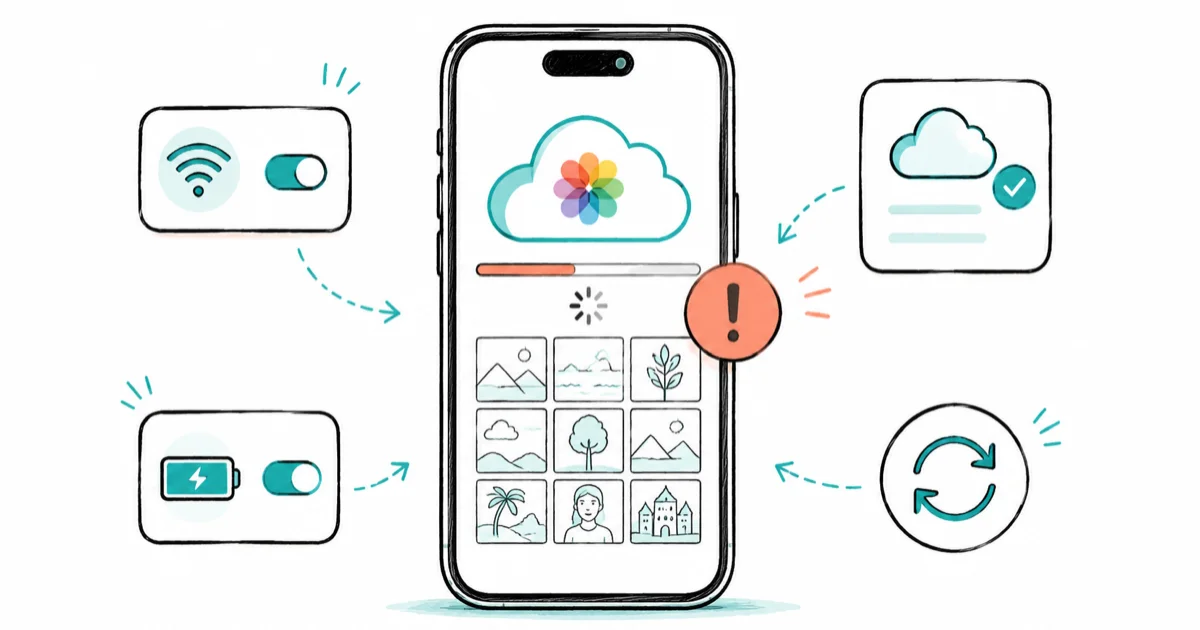
Quick AnswerRead the status message at the bottom of the Photos app first. It tells you whether the pause is from full storage, heat, or cellular. Then connect to Wi-Fi and power, and the upload usually finishes on its own.
iPhone photos not uploading to iCloud is usually a blocker you can clear quickly, not a sign your photos are lost. The trick is to read the status message in Photos before you start changing settings, because it tells you why the upload paused. This guide covers nine fixes in a safe order so you can clear the likely blocker without risking your library.
- The status message at the bottom of the Photos library tells you whether the pause is storage, heat, or cellular before you guess.
- iCloud storage and device storage are different; either one full will stall uploads, so check both.
- Low Power Mode and a battery under 20 percent pause iCloud Photos to save energy.
- Never turn iCloud Photos off to force a refresh; Apple warns against it because it can remove photos from the device.
- The “Unable to Upload” album holds files iCloud couldn’t sync; export and re-import them, accepting that edits may be lost.
#Why Are Your iPhone Photos Not Uploading to iCloud?
iCloud Photos syncs quietly in the background, but it pauses for a long list of reasons: no Wi-Fi, low battery, full storage, a server outage, or a single corrupt file jamming the queue. The good news is your iPhone usually tells you the cause, if you know where to look. That one habit, reading the status line first, is what separates a quick fix from an afternoon of guesswork.
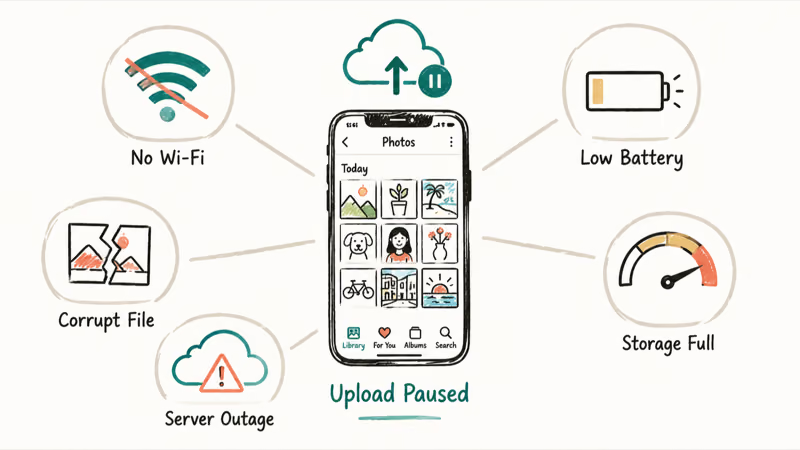
Don’t disable anything yet. Turning iCloud Photos off to “reset” things is the worst move you can make.
According to Apple’s iCloud Photos page, uploads commonly pause for Low Power Mode, Low Data Mode, battery, network, thermal throttling, or full storage. Read the message, then clear whichever blocker it names.
#Confirm Sync Is On and Connect to Wi-Fi and Power
First, confirm syncing is actually on. Go to Settings, tap your name, then iCloud > Photos, and make sure Sync this iPhone is enabled. Then check that you’re signed in with the same Apple ID on every device.
Now remove the common blockers. Connect to stable Wi-Fi, plug into power, and turn off Low Power Mode in Settings > Battery.
A stalled library may finish overnight on a charger and Wi-Fi. Many uploads just need those conditions and time.
#Read the Photos Status Message Before Anything Else
This is the step most guides skip, so make it your habit. Open the Photos app, scroll to the very bottom of your library, and read the small status line under your photos.
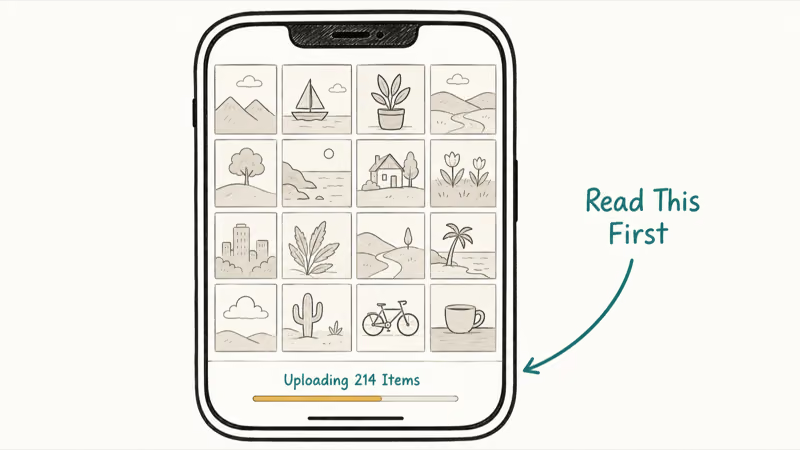
That status message names the blocker directly. It might say uploads are paused on cellular, that the iPhone needs to cool down, that storage is full, or that items are still uploading. Each one points to a different fix.
Apple’s iCloud Photos support page confirms that the library message reflects whether sync is healthy, paused, or blocked. Reading it first prevents unnecessary settings changes.
#Check Both iCloud and Device Storage
Storage is a top cause, and the trap is that two different storages can stall uploads. iCloud storage is the cloud space your photos upload into; device storage is the space on the phone itself.
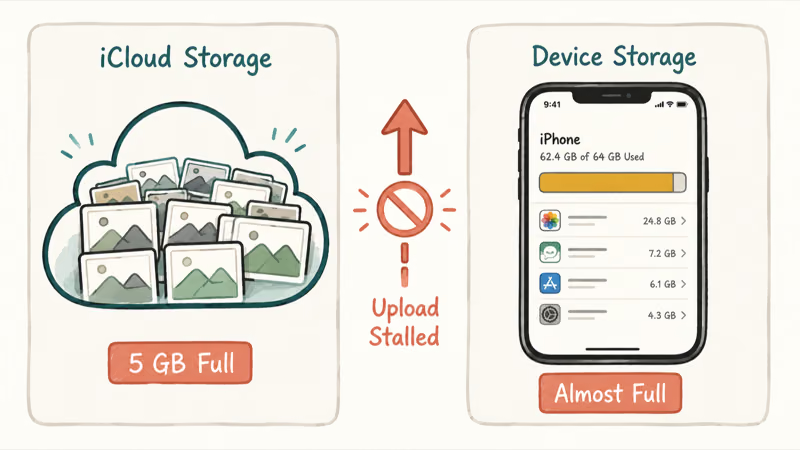
Check iCloud first in Settings > your name > iCloud > Manage Account Storage. The free Apple plan includes 5 GB, which fills fast with photos, so a full tier here stops uploads cold until you free space or upgrade. This is the storage most people forget, because the phone can have plenty of room while the cloud account is jammed and the upload has nowhere to land.
Then check device storage in Settings > General > iPhone Storage. A phone with no free space can’t stage photos for upload either. If your Mac is the device that’s jammed instead, the guide on how to clear system storage helps free room there, and clearing space on the phone can mean safely deleting iPhone photos permanently once they’re confirmed in iCloud.
Uploads can resume as soon as iCloud has enough free space. If the status says “storage full,” treat storage as the blocker before toggling sync.
#What Do You Do With the Unable to Upload Album?
Sometimes iCloud creates an album called “Unable to Upload” with specific files it couldn’t sync. These are usually corrupt or unsupported items, not your whole library.
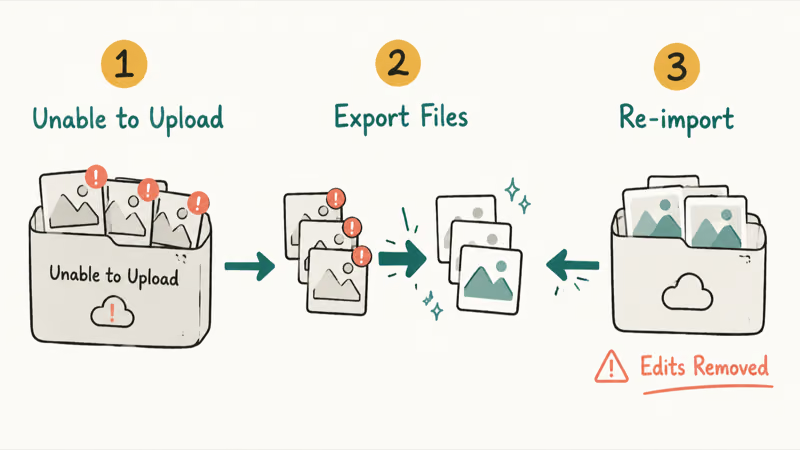
Open that album, select the items, and export them out of Photos, then re-import them as fresh copies. Apple’s Unable to Upload support page states that exporting and re-importing is the fix for files that fail to sync. The catch is that re-importing strips edits, keywords, and some metadata, so accept that trade before you do it.
If the album keeps reappearing with the same files, those originals may be damaged. Re-importing a clean copy is the only reliable way to get them syncing again.
#Fix False Storage Errors and Check Apple’s Server Status
Sometimes iCloud says storage is full when it isn’t. This false error usually clears with an Apple ID refresh.
Sign out under Settings > your name, restart the iPhone, then sign back in. This re-reads your real storage figures. Don’t turn iCloud Photos off as part of this; only the Apple ID sign-out is needed, and the guide on a stuck iPhone updating iCloud settings covers the sign-in hang if it stalls.
Before any of that, rule out an outage on Apple’s System Status page. If the iCloud Photos row is amber or red, the problem is Apple’s, and waiting is the only fix.
A device backup can stall for similar reasons, which the iCloud backup not working guide handles, and the same is true for iCloud Notes not syncing.
#Bottom Line
Read the status message at the bottom of Photos before doing anything, because it tells you whether the pause is from storage, heat, or cellular. Connect to Wi-Fi and power, take the phone off Low Power Mode, and let it sync, since many uploads finish overnight once those blockers clear. Check iCloud storage and device storage separately, because either one full will stall uploads. Never turn iCloud Photos off to force a refresh, which Apple warns against.
#Frequently Asked Questions
Why are my photos stuck on uploading to iCloud?
Usually a blocker is pausing the sync: no Wi-Fi, a low battery, Low Power Mode, or full storage. Read the status message at the bottom of the Photos app to see which one, then connect to Wi-Fi and power. Most stuck libraries finish on their own once the blocker clears, and large ones can take a full night, so give it time on a charger before assuming something is broken.
Why does it say storage is full when I still have space?
You may be looking at the wrong storage, or hitting a false error. Device storage and iCloud storage are separate, so check both. If iCloud really has space, sign out of your Apple ID, restart, and sign back in to refresh the reading.
Will my photos upload over cellular data?
Only if you allow it. By default iCloud Photos prefers Wi-Fi, and Low Data Mode or your cellular settings can block it entirely. You can enable cellular uploads in Settings, but large libraries can eat through your data plan fast.
Should I turn iCloud Photos off and back on?
No. Apple warns against it because it can remove synced photos from your device. Use an Apple ID sign-out instead.
What is the Unable to Upload album?
It’s an album iCloud creates for files it couldn’t sync, usually corrupt or unsupported items. Export those files and re-import them as fresh copies to fix them. Re-importing strips edits and keywords, so you lose those changes.
Does Low Power Mode stop photo syncing?
Yes. Low Power Mode pauses background tasks like iCloud Photos to save battery, and a charge under 20 percent does the same. Turn Low Power Mode off in Settings > Battery and plug in, and uploads resume.

iOS 26.6.1 Security Update: What Apple Fixed and Who Gets It
Apple released iOS 26.6.1 on August 17 with 29 security fixes, including an IPSec interception bug. See what it patches, who gets it, and how to update.

iPhone Adaptive Power: How It Works and When to Use It
Learn how iPhone Adaptive Power works, which models support it, what it changes, and when Low Power Mode is still the better battery-saving choice.

How to Transfer Data to a New iPhone Without iCloud
Move everything to your new iPhone without iCloud: Quick Start device-to-device transfer, wired migration, and encrypted Finder or iTunes backups.

Group Text Not Working on iPhone? 8 Fixes That Work
Group text not working on iPhone? Turn on MMS Messaging and Group Messaging, check iMessage vs SMS routing, and fix mixed Android group chats fast.