iPhone Wi-Fi Calling Not Working? 7 Fixes to Try Now
Fix iPhone Wi-Fi Calling not working with 7 methods. Toggle the feature, update carrier settings, or reset network settings. Works on iOS 15-18.
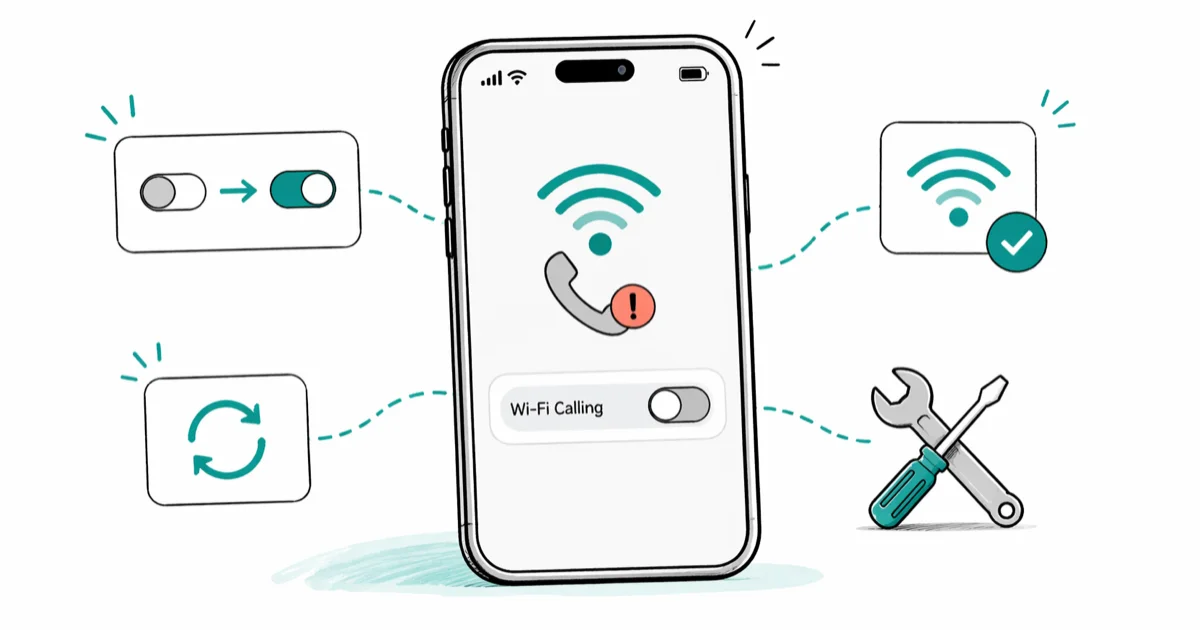
Quick AnswerToggle Wi-Fi Calling off and back on in Settings > Phone > Wi-Fi Calling. If that does not fix it, reset your network settings at Settings > General > Transfer or Reset iPhone > Reset > Reset Network Settings, then re-enable Wi-Fi Calling.
Wi-Fi Calling on your own iPhone usually breaks for one of three reasons after an iOS update: a stale carrier profile, a corrupted network stack, or a feature flag your carrier hasn’t reprovisioned. The fixes below run from the fastest toggle to the heavier network reset, and most readers stop after Fix 2.
- Toggling Wi-Fi Calling off and back on resolves many post-update failures before any deeper steps are needed
- Carrier settings updates ship separately from iOS and are the most common silent break point
- Reset Network Settings rebuilds the Wi-Fi Calling stack but wipes saved Wi-Fi passwords and VPN profiles
- Wi-Fi Calling needs both iOS support and active provisioning on your specific carrier line
- The toggle lives at
Settings>Phone>Wi-Fi Callingon iOS 12 and every later release
#What Causes Wi-Fi Calling to Stop Working After an iOS Update?
iOS updates sometimes overwrite or desync the carrier settings file that tells your iPhone how to reach the IMS server your carrier uses for Wi-Fi Calling. When that file goes stale, Wi-Fi Calling either disappears from Settings or shows enabled while calls quietly route over cellular instead.
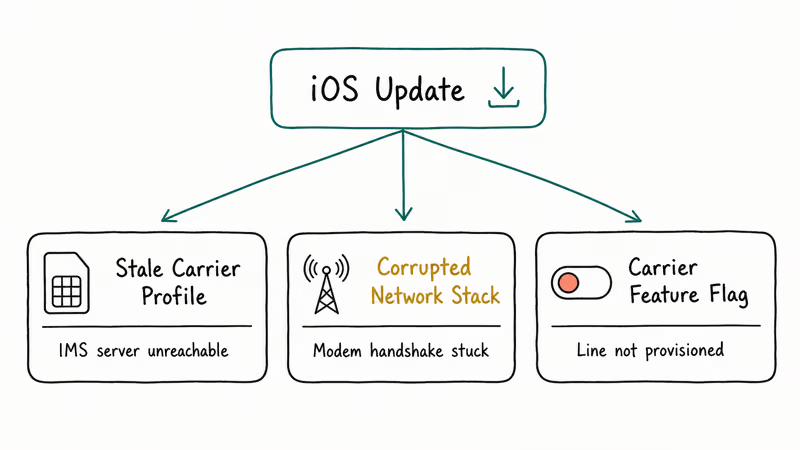
The other common cause is a corrupted network configuration. An update can interrupt the handshake between the modem and your saved Wi-Fi profile, leaving the Wi-Fi Calling stack stuck. A network reset rebuilds it.
According to Apple’s Wi-Fi Calling support page, the feature works on iPhone 5c and later with carrier provisioning. Even after fixing every software issue below, you may need your carrier to re-flag your account. Most carriers turn it on for free in under 10 minutes once you call.
#Fix 1: Toggle Wi-Fi Calling Off and Back On
Quickest fix. Try this first.
Go to Settings > Phone > Wi-Fi Calling. Toggle Wi-Fi Calling on This iPhone off, wait 10 seconds, then toggle it back on. Make a test call to a friend.
If two toggles in a row don’t fix it, move on to Fix 2. Don’t keep cycling the switch. More toggles won’t help past the second try, and you risk burning through battery for nothing if your iPhone keeps re-registering with the carrier on every flip and never gets a clean handshake.
If Wi-Fi Calling is missing from Settings > Phone entirely, your carrier likely hasn’t provisioned it on your plan. Contact your carrier to confirm.
#Fix 2: Check for a Carrier Settings Update
Carrier settings updates ship independently of iOS updates. A pending carrier update is often the entire problem in the days after a major iOS release, and installing it can bring Wi-Fi Calling back without any other action.
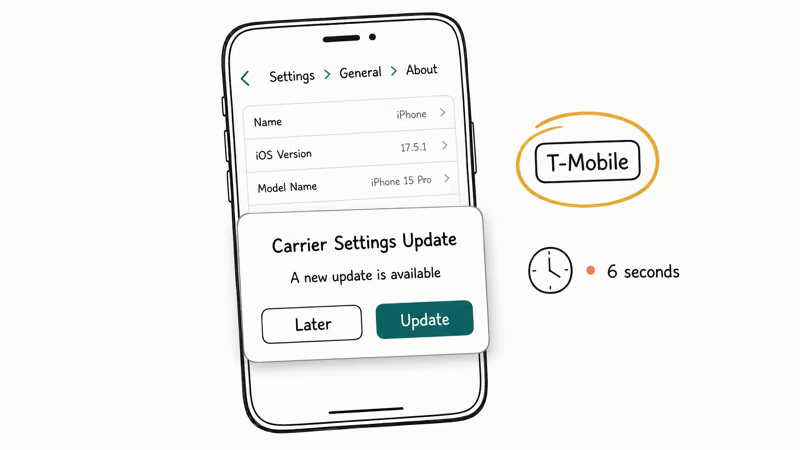
Go to Settings > General > About. If a carrier settings update is available, a prompt appears within 5 to 15 seconds asking you to update. Tap Update if it appears.
No prompt means your carrier settings are current. Move on.
#Fix 3: Toggle Airplane Mode
Airplane Mode forces every wireless radio to disconnect and reconnect from scratch. This often clears Wi-Fi Calling registration glitches that survive a simple toggle.
Open Control Center by swiping down from the top-right corner on Face ID iPhones, or up from the bottom edge on older Touch ID iPhones with a home button. Tap the airplane icon to enable Airplane Mode and watch the status bar drop the carrier name. Wait at least 30 seconds before re-enabling so the cellular modem has time to fully release its session. Tap the icon again to disable Airplane Mode and let the radios reconnect.
Once Wi-Fi and cellular both reconnect, test Wi-Fi Calling by making a call somewhere with strong Wi-Fi and weak cellular. The status bar should show your carrier name followed by “Wi-Fi” once the call connects.
#Fix 4: Forget and Reconnect to Your Wi-Fi Network
A stored network credential issue can block the Wi-Fi Calling handoff even when your Wi-Fi otherwise works fine for browsing and streaming. This shows up most often on guest and co-working networks, where regular browsing runs at full speed but Wi-Fi Calling refuses to register no matter how many times you toggle the feature off and on.
Go to Settings > Wi-Fi. Tap the info icon next to your network name. Tap Forget This Network and confirm. Reconnect by entering your Wi-Fi password.
If you need to recover the password before forgetting the network, see how to see Wi-Fi password on iPhone first.
#Fix 5: Reset Network Settings
Most reliable fix for stubborn post-update failures. This often resolves Wi-Fi Calling quickly when nothing else has worked, because it rebuilds the IMS registration the feature depends on, though it also clears every saved Wi-Fi password in the process.
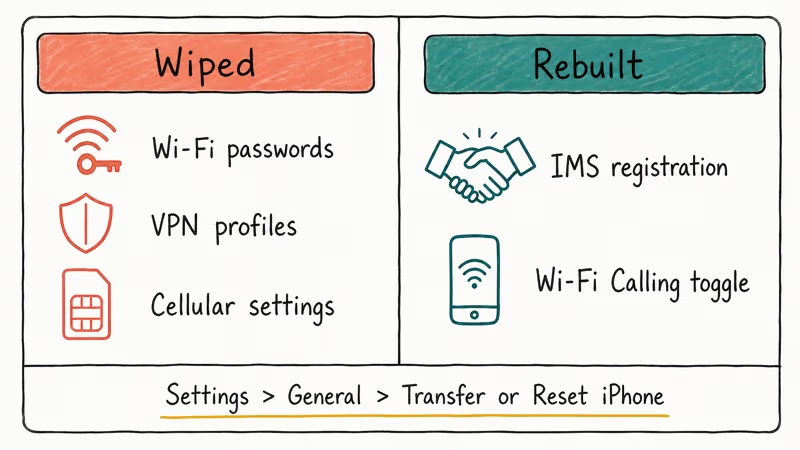
Go to Settings > General > Transfer or Reset iPhone > Reset > Reset Network Settings. Enter your passcode and confirm.
Your iPhone restarts and rebuilds every wireless configuration. Apple’s documentation states that this wipes 3 categories of data: Wi-Fi passwords, VPN configurations, and cellular settings, per their network settings reset page. Have your Wi-Fi password ready before you start, or you’ll be locked out of your own home network until you find it.
After the restart, go to Settings > Phone > Wi-Fi Calling and re-enable it. The toggle resets to off after a network reset.
#Fix 6: Check Your Carrier Plan
Wi-Fi Calling isn’t a free-for-all feature. Prepaid plans, MVNOs (like Mint Mobile, Visible, or US Mobile), and older legacy plan tiers sometimes exclude it even when the parent carrier supports it on premium plans.
Log in to your own carrier’s account portal or call support to confirm Wi-Fi Calling is enabled for your specific line. Some carriers require manual activation through their website, and others gate the feature behind a higher plan tier even though the iPhone itself supports it natively across every model from iPhone 5c forward. Activation typically takes about 10 minutes once a rep flags the line, and most carriers do this for free without pushing an upsell.
Major US carriers that support Wi-Fi Calling include AT&T, Verizon, T-Mobile, and most of their subsidiaries. T-Mobile’s Wi-Fi Calling support page confirms activation requires entering an emergency address first. The address requirement is an FCC rule for E911 routing, not a carrier upsell, so enter your real home address; the privacy trade-off is legally required for the feature to work.
#Fix 7: Update iOS
Apple patches Wi-Fi Calling bugs in point releases. A newer iOS version may have already fixed your specific issue.
Go to Settings > General > Software Update. If an update is available, install it. Plug in to power before you start, since iOS updates over Wi-Fi can take 20 to 40 minutes on older models and the install will pause if the battery drops below 50%.
If your device is stuck on a software update error, see iPhone stuck on verifying update before retrying this fix.
#Wi-Fi Calling Compatibility and Requirements
Wi-Fi Calling works on iPhone 5c and every later model. Every current iPhone supports it.
Some older iPhones (iPhone 6/6s) connected to newer iOS versions may have trouble with Wi-Fi Calling because of older baseband firmware. Updating to the latest iOS available for your model is the first step.
FaceTime Audio is the best free alternative when Wi-Fi Calling isn’t available on your plan. It routes audio over Wi-Fi or cellular data through the FaceTime app and doesn’t need any carrier-side feature flag, so it works the moment both parties have an Apple ID and a working internet connection. The catch: the other person needs an Apple device or it falls back to the regular Phone app. For activation issues, see FaceTime waiting for activation.
#What If Wi-Fi Calling Is Enabled but Still Not Working?
The feature can show enabled in Settings while the actual link to your carrier’s Wi-Fi Calling infrastructure quietly fails. This is a carrier-side issue, not an iPhone bug, and no toggle will fix it on your end.
According to Apple’s iPhone troubleshooting guide, if Wi-Fi Calling fails after both a network settings reset and a current carrier settings update, the issue is on the carrier’s provisioning side. Apple recommends calling the carrier as the next step.
If you’ve completed all seven fixes and Wi-Fi Calling still shows enabled but doesn’t route calls over Wi-Fi, contact your own carrier. Provide your IMEI (Settings > General > About) and ask them to reprovision Wi-Fi Calling on your line. The call typically takes under 10 minutes and resolves most persistent provisioning issues on the first attempt.
For related call problems on dual-SIM iPhones, see last line no longer available. For dropped calls outside Wi-Fi range, see iPhone keeps dropping calls.
#Bottom Line
Start with Fix 1 (toggle) and Fix 2 (carrier settings update). Those two together resolve most cases on iOS 17 and iOS 18.
If neither works, jump straight to Fix 5 (Reset Network Settings) — it’s the most reliable specifically for Wi-Fi Calling because it rebuilds the IMS registration stack. Skip Fixes 3, 4, and 7 if you’re short on time. They help in narrow cases but rarely resolve a stubborn post-update break on their own.
#Frequently Asked Questions
Why did Wi-Fi Calling stop working after I updated iOS?
iOS updates sometimes reset carrier settings or change how Wi-Fi Calling registers with your carrier’s IMS server. Check for a carrier settings update at Settings > General > About first, then toggle Wi-Fi Calling off and back on.
How do I know if Wi-Fi Calling is active during a call?
Your status bar shows your carrier name followed by “Wi-Fi” when Wi-Fi Calling is active. On some carriers, the Phone app also displays “Wi-Fi” on the call screen during an active call. If you don’t see “Wi-Fi” in the status bar, your calls are routing over cellular despite the feature appearing enabled in Settings, which usually means a carrier provisioning issue rather than an iPhone setting issue.
Does Wi-Fi Calling use my cellular data plan?
No. Wi-Fi Calling uses your internet connection. It won’t touch your cellular data allowance.
Can I use Wi-Fi Calling on public Wi-Fi?
Yes, on any open or password-protected network. Call quality depends on that network’s bandwidth. A crowded public hotspot will give you noticeably worse audio than a fast home connection. For most public Wi-Fi situations, audio is acceptable for short calls but stutters during long ones.
Will resetting network settings fix Wi-Fi Calling?
In most post-update cases, yes. The reset clears the corrupted configuration blocking Wi-Fi Calling registration. The downside is real: it wipes every saved Wi-Fi password and VPN profile.
My iPhone shows Wi-Fi Calling is on but calls still use cellular. What’s wrong?
This is a carrier-side provisioning issue on your account. Your line isn’t being recognized as Wi-Fi Calling eligible despite the toggle being on. Call your own carrier, give them your IMEI (Settings > General > About), and ask them to reprovision Wi-Fi Calling. The call takes under 10 minutes and resolves most stuck provisioning cases on the first attempt.
Can I fix iPhone not receiving texts from the same network reset?
Yes, often. A network settings reset clears both Wi-Fi Calling and texting issues at once because both features depend on the same carrier registration stack. For text problems that persist after the reset, see fix iPhone not receiving texts.

Mac mini M6 vs M5 Pro: Which Model Should You Buy?
Mac mini M6 vs M5 Pro compared on price, memory, ports, displays, and real workloads. Find the better 2026 Mac mini for your desk and budget.

Apple Siri Settlement: Who Qualifies and How to Claim
Apple's $250 million Siri settlement covers iPhone 15 Pro and iPhone 16 models bought June 2024 to March 2025. See who qualifies and how claims work.

iOS 26.6.1 Security Update: What Apple Fixed and Who Gets It
Apple released iOS 26.6.1 on August 17 with 29 security fixes, including an IPSec interception bug. See what it patches, who gets it, and how to update.

iPhone Adaptive Power: How It Works and When to Use It
Learn how iPhone Adaptive Power works, which models support it, what it changes, and when Low Power Mode is still the better battery-saving choice.