iPhone Keeps Dropping Calls: 9 Fixes That Actually Work
Fix an iPhone that keeps dropping calls with 9 proven methods. Covers network resets, SIM issues, Wi-Fi calling, and signal checks for iOS 17 and iOS 18.
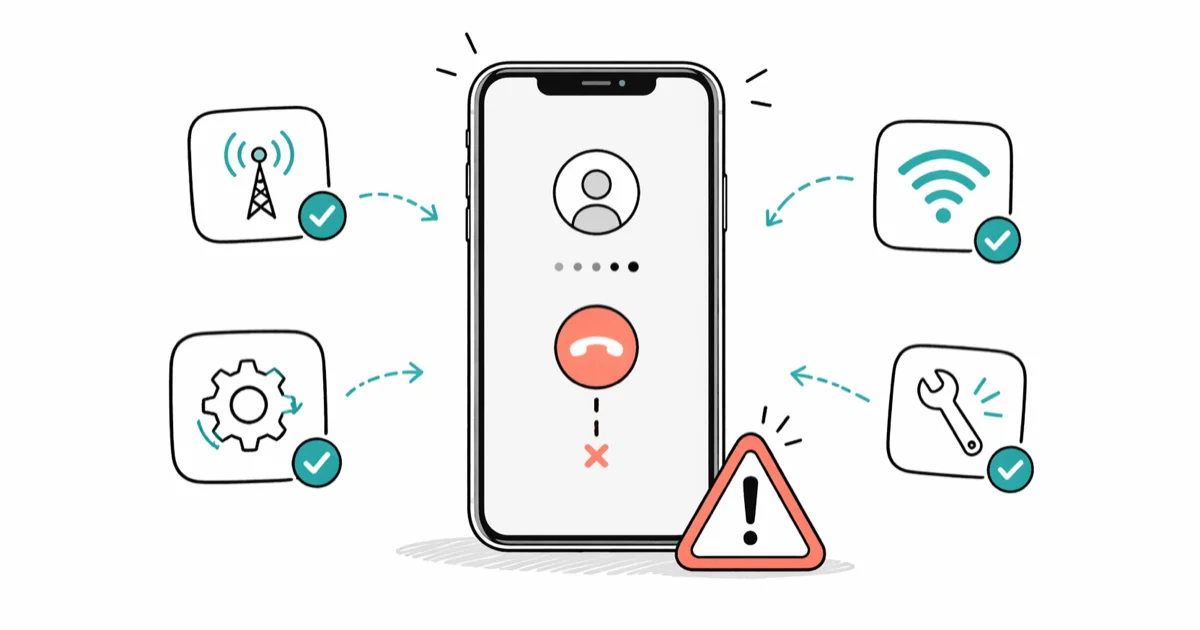
Quick AnswerReset network settings first by going to Settings > General > Transfer or Reset iPhone > Reset > Reset Network Settings. This clears corrupt carrier data and stops most dropped calls in under 2 minutes without erasing photos or contacts.
When your iPhone keeps dropping calls mid-conversation, the cause is usually one of four things: weak tower signal, a stale carrier profile, a loose SIM, or a software glitch in iOS. Start with Reset Network Settings, then work down the list if drops continue.
- Reset Network Settings is the single highest-yield fix and takes under 2 minutes
- Wi-Fi Calling routes voice over your internet, useful when cell signal reads under -100 dBm
- A loose or dirty SIM causes intermittent drops; reseating takes 30 seconds and is free
- Carrier settings updates ship separately from iOS updates; check
Settings>General>About - Drops in the same physical spot every time are a coverage problem, not a device problem
#Why Does My iPhone Keep Dropping Calls?
Dropped calls trace back to four root causes: weak carrier signal at your location, a software glitch in iOS that breaks the voice channel, a poor SIM card connection, or an outdated carrier settings profile. Knowing which one applies saves you from cycling through fixes that target the wrong thing.
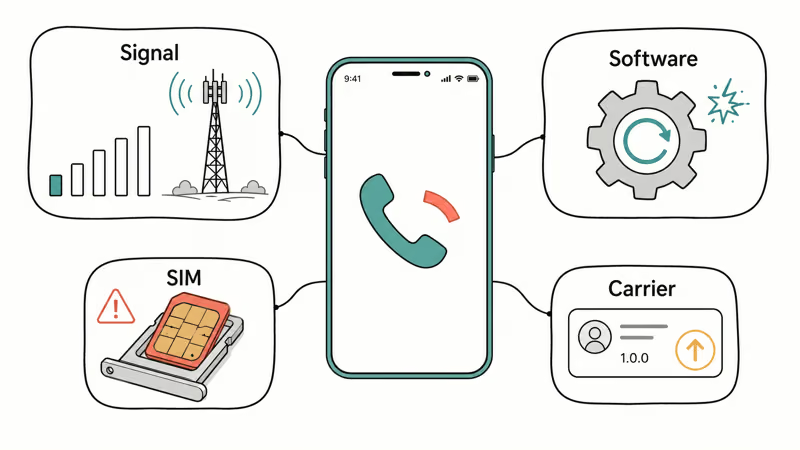
Signal coverage is the most common culprit. According to Apple’s wireless support article on improving cellular reception, Apple recommends checking that you’re in a covered service area before doing anything else, and flags thick-walled buildings, basements, and remote areas as the typical signal killers. If your iPhone drops calls in the same physical spot every time, you’re at the edge of tower coverage and no software change will help.
Coverage first.
Software glitches rank second. A cached network state gets corrupted, the radio fails to renegotiate cleanly with the tower, and the call cuts. Apple’s reset network settings guidance confirms that the reset removes saved Wi-Fi passwords, VPN configurations, and Bluetooth pairings, so write those down before you start.
SIM card problems show up less often, but they’re stubborn. Dirty contacts, a card that’s barely seated, or a damaged tray can all cause the radio to lose registration mid-call with no warning. eSIM users skip this category entirely.
#Fix 1: Reset Your Network Settings
Start here.
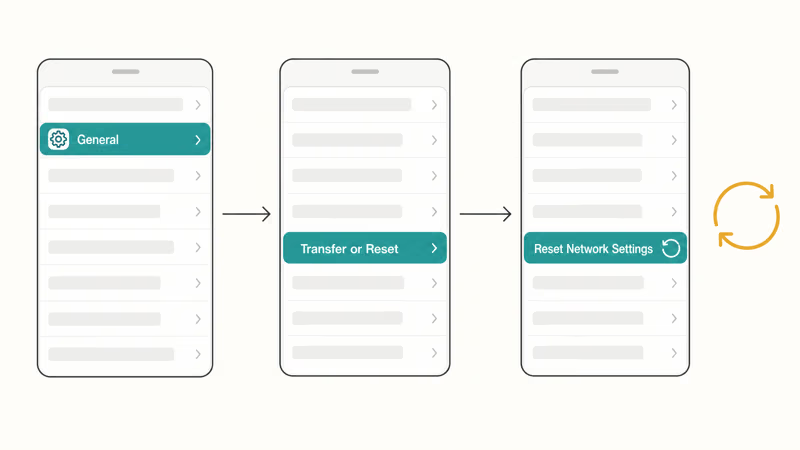
This is the single highest-yield fix and worth doing first.
Go to Settings > General > Transfer or Reset iPhone > Reset, then tap Reset Network Settings. Enter your passcode and let the phone restart. On iOS 15 and earlier, the path is Settings > General > Reset > Reset Network Settings.
Place a test call after the reboot. Reset Network Settings is most useful when the drop comes from cached carrier or Wi-Fi state rather than tower coverage. You’ll need to re-enter Wi-Fi passwords and re-pair Bluetooth headphones afterward, and that’s the only real friction with this method.
If drops return within an hour, software isn’t the cause. Move to Fix 5.
#Fix 2: Turn On Wi-Fi Calling
Wi-Fi Calling routes voice calls over your home or office internet instead of the cell network. It’s the fastest workaround when you have strong Wi-Fi but spotty cellular reception, and it works for most regional carriers in the United States.
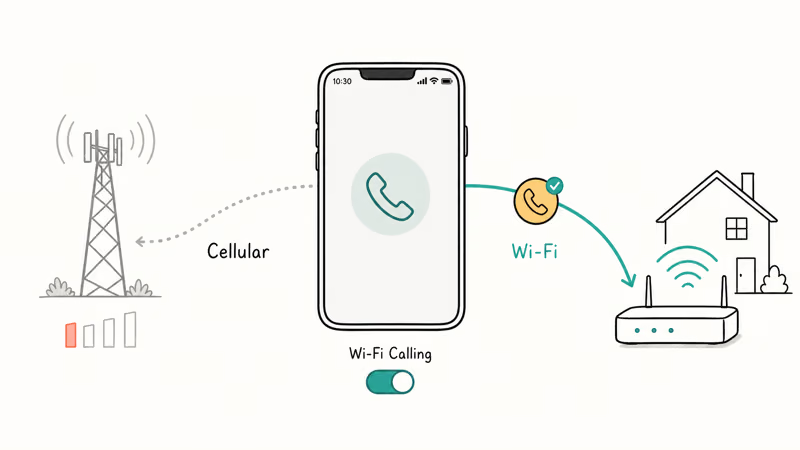
Toggle it on.
Go to Settings > Phone > Wi-Fi Calling and toggle Wi-Fi Calling on This iPhone. Your carrier may ask you to confirm an emergency address for 911 routing. Once enabled, calls quietly switch to Wi-Fi when cell signal weakens.
T-Mobile’s Wi-Fi Calling support page states that the feature works on iPhone 5c and newer at no extra plan charge, and AT&T and Verizon publish similar coverage on their own help pages. If you’re abroad on hotel Wi-Fi, the feature lets you place US calls without roaming charges. Leave it on permanently once you’ve tested it works in your living room.
#Fix 3: Reseat the SIM Card
Power down first. Use the included tool, or the straight end of a paperclip, to eject the SIM tray gently. Don’t force it.
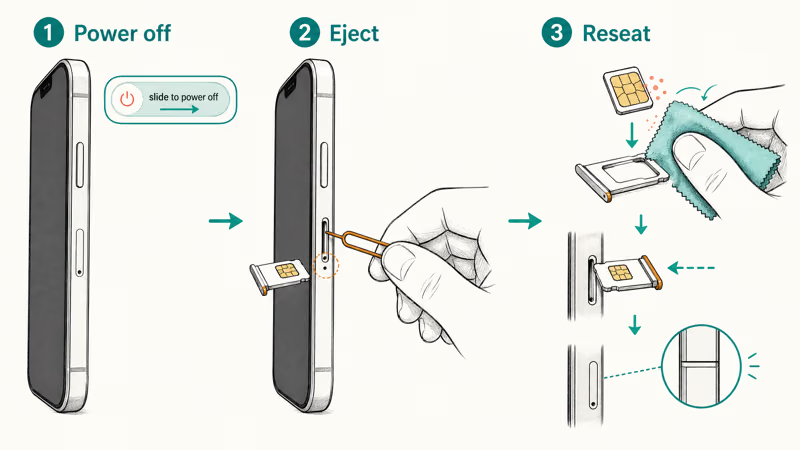
Inspect the gold contacts under good light. If you see dust, lint, or grime, wipe the contacts with a dry microfiber cloth. Slide the SIM back in, push the tray until it clicks, then power on and wait about 30 seconds for the carrier to re-register the device.
If the card looks bent, scratched, or has visibly worn contacts, ask your carrier for a free replacement. Most US carriers issue them at no charge in-store. If the phone was dropped recently, reseating the SIM is especially worth doing because the card can shift inside the tray.
#Does Your Carrier Settings Version Matter?
Yes.
Most people miss this update because it ships outside the iOS release cycle. Carrier settings are small bundles of network parameters that fine-tune how your iPhone talks to a specific carrier’s towers, and they can directly affect call stability.
Connect to Wi-Fi, then go to Settings > General > About. According to Apple’s carrier settings update documentation, a prompt appears within a few seconds if an update is waiting; if no prompt appears, you’re already on the latest version. The files are tiny. They install in about 30 seconds.
If no prompt appears but drops persist, toggle Airplane Mode for 30 seconds and reopen About. A failed carrier settings update shares root causes.
#Fix 4: Update iOS
Plug in and update.
Open Settings > General > Software Update and install anything offered. iOS updates include baseband firmware that controls the cellular radio directly, and Apple has shipped point releases specifically to fix call-quality regressions in past cycles when carrier-specific bugs slipped through internal testing into stable.
One well-documented example: iOS 17.2 caused widespread dropped calls across multiple carriers in late 2023, and Apple issued iOS 17.2.1 within two weeks to address it. Running an outdated version with a known voice bug means no other fix in this guide will hold.
Get on the current point release first.
#Fix 5: Check Your Signal Strength
Your iPhone status bar gives only a rough cartoon of signal strength. For a real number in dBm, dial *3001#12345#* and press the call button to open Field Test mode. The exact menu varies by chipset.
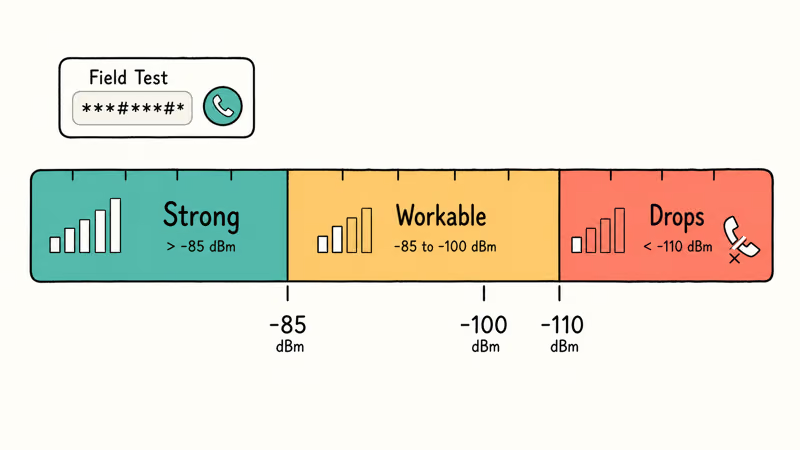
Look for a value labeled rsrp0 or Serving Cell Meas. Above -85 dBm is solid LTE or 5G. Between -85 and -100 dBm is workable. Below -110 dBm, calls will drop regardless of any software fix, because the radio can’t keep a stable voice bearer at that signal level.
If your home or office reads consistently below -100 dBm, the FCC broadband and mobile coverage map lets you compare carriers at your exact address before you switch. A signal booster or carrier-supplied network extender are the realistic fixes for a coverage gap, and most carriers ship them free if you can prove a sustained low-dBm reading at a registered service address.
#Fix 6: Toggle Airplane Mode
Swipe into Control Center and tap the airplane icon. Wait at least 10 seconds, then tap it off again. Your iPhone drops the current tower and re-registers fresh with whichever tower has the strongest signal right now.
The whole sequence takes about 30 seconds. It can help when the phone is clinging to a weak tower after you move through a low-signal area, and it costs nothing.
It’s worth trying anytime drops start suddenly.
#Fix 7: Switch Off 5G or LTE Temporarily
Sometimes the LTE or 5G radio gets stuck in a bad state. Go to Settings > Cellular > Cellular Data Options > Voice & Data, switch from LTE to 3G (or 5G Auto to LTE), wait 15 seconds, then switch back. This forces the radio to renegotiate the data and voice bearers from scratch.
Try LTE-only for an afternoon.
The most common pattern on 5G iPhones is a flaky 5G tower nearby. Switching the device to LTE-only for a few hours can confirm whether 5G is the culprit. If calls hold steady on LTE, you have an unstable 5G coverage area that often shares the same root cause as your dropped calls.
#Fix 8: Disable VoLTE Briefly
This one is rarer.
VoLTE (Voice over LTE) is the technology that lets your iPhone carry a call over the LTE data channel, and it’s on by default on most modern carriers. When the LTE network is unstable in your area, VoLTE can actually cause more drops than legacy 3G voice would.
Go to Settings > Cellular > Cellular Data Options > Voice & Data and try LTE Off (or 3G) for a day. If drops stop, your carrier’s VoLTE coverage is shaky in your area and you should report it. Re-enable VoLTE later for higher call quality. If your iPhone shows No Service after toggling, switch back immediately.
#Fix 9: Factory Reset as a Last Resort
A factory reset eliminates every possible software cause in one move. It’s the right step if Fixes 1 through 8 all failed and drops still happen across multiple SIM swaps and carriers.
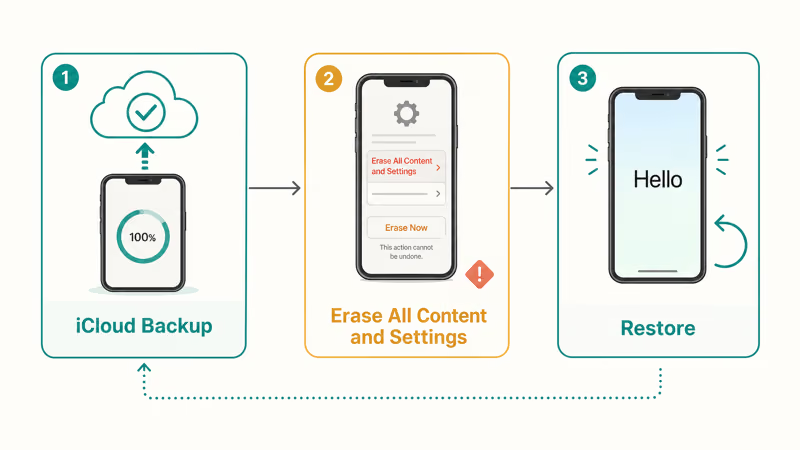
Back up first.
Open Settings > [your name] > iCloud > iCloud Backup > Back Up Now and wait for it to finish. Then Settings > General > Transfer or Reset iPhone > Erase All Content and Settings. Restore from your backup when the phone reboots. Plan a 1-2 hour window because apps re-download afterward and saturate slow Wi-Fi for the rest of the evening.
If calls still drop after the reset, the cause is hardware (antenna damage, water exposure, or a worn radio module) or carrier-side. Book a Genius Bar appointment for an antenna check. If you’re unsure what restoring actually does to your data, restoring an iPhone explains exactly what gets erased and what survives.
#Bottom Line
Here’s the short order.
Start with Fix 1 (Reset Network Settings) for an iPhone that keeps dropping calls; it clears the most common software cause in 2 minutes. If drops continue inside an hour, run Fix 5 to check signal in dBm before doing anything else. Wi-Fi Calling (Fix 2) is the immediate workaround that gets you through any specific bad-signal location while you sort out the root cause.
Two follow-up notes worth knowing.
If a calling failed error appears the moment you press dial rather than dropping mid-call, that’s a different problem with a different fix list. For drops that started right after a phone restore or transfer, suspect a stale carrier profile and rerun Fix 4 first.
#Frequently Asked Questions
Why does my iPhone drop calls in the same spot every time?
That’s a coverage problem, not a device problem. Use Field Test mode (dial *3001#12345#*) to read your actual signal in dBm. Below -110 dBm, no software fix will help in that location. Wi-Fi Calling or a carrier network extender are the realistic options for that specific spot.
Does resetting network settings delete photos or contacts?
No. Reset Network Settings only removes Wi-Fi passwords, VPN configurations, and Bluetooth pairings. Photos, contacts, messages, apps, and Apple ID data all stay intact.
Can a cracked screen cause dropped calls?
Not directly, but cracks reaching the antenna lines along the iPhone’s edges can degrade signal quality. That kind of damage usually shows up as consistently low signal bars rather than random drops. Check Field Test mode to see if your signal reads weaker than it did before the crack appeared.
How do I know if my SIM card is damaged?
Look for No SIM Card or Invalid SIM messages in the status bar; those are the clearest signs. Damaged SIMs also tend to drop calls in repeating patterns rather than random ones, often with a brief Searching status before the drop. Most carriers swap a damaged SIM for free in-store.
Is Wi-Fi Calling free?
Yes. Wi-Fi Calling consumes your existing voice plan minutes and adds no extra charge on the major US carriers. It bills exactly the same as a regular call.
Should I call Apple or my carrier first?
Call your carrier first. The majority of dropped call problems trace to network coverage, SIM provisioning, account issues, or carrier-side outages, and the carrier can check all of those from their end in minutes. Only escalate to Apple after the carrier rules out their side and the issue persists across SIM swaps and carrier-network tests. Apple Support will usually ask you to do that anyway.
How long does a network settings reset take?
About 2 minutes including the reboot. Afterward you’ll need a few extra minutes to re-enter Wi-Fi passwords for any networks you use regularly and to re-pair Bluetooth headphones, car kits, or smartwatches. Real-world time tends to land at 5 to 10 minutes once you account for re-pairing.
Can bad weather cause dropped calls?
Heavy rain, dense foliage, and humid air can degrade signal slightly, but modern LTE and 5G handle weather far better than older 2G and 3G networks did. If your calls drop consistently regardless of weather, one of the software or hardware fixes in this guide is the real answer.

Mac mini M6 vs M5 Pro: Which Model Should You Buy?
Mac mini M6 vs M5 Pro compared on price, memory, ports, displays, and real workloads. Find the better 2026 Mac mini for your desk and budget.

Apple Siri Settlement: Who Qualifies and How to Claim
Apple's $250 million Siri settlement covers iPhone 15 Pro and iPhone 16 models bought June 2024 to March 2025. See who qualifies and how claims work.

iOS 26.6.1 Security Update: What Apple Fixed and Who Gets It
Apple released iOS 26.6.1 on August 17 with 29 security fixes, including an IPSec interception bug. See what it patches, who gets it, and how to update.

iPhone Adaptive Power: How It Works and When to Use It
Learn how iPhone Adaptive Power works, which models support it, what it changes, and when Low Power Mode is still the better battery-saving choice.