Samsung Android InCallUI: What It Is and How It Works
Samsung Android InCallUI runs your Galaxy call screen. Learn what it does, why you can't remove it, and the 5 fixes that solve frozen-screen errors.
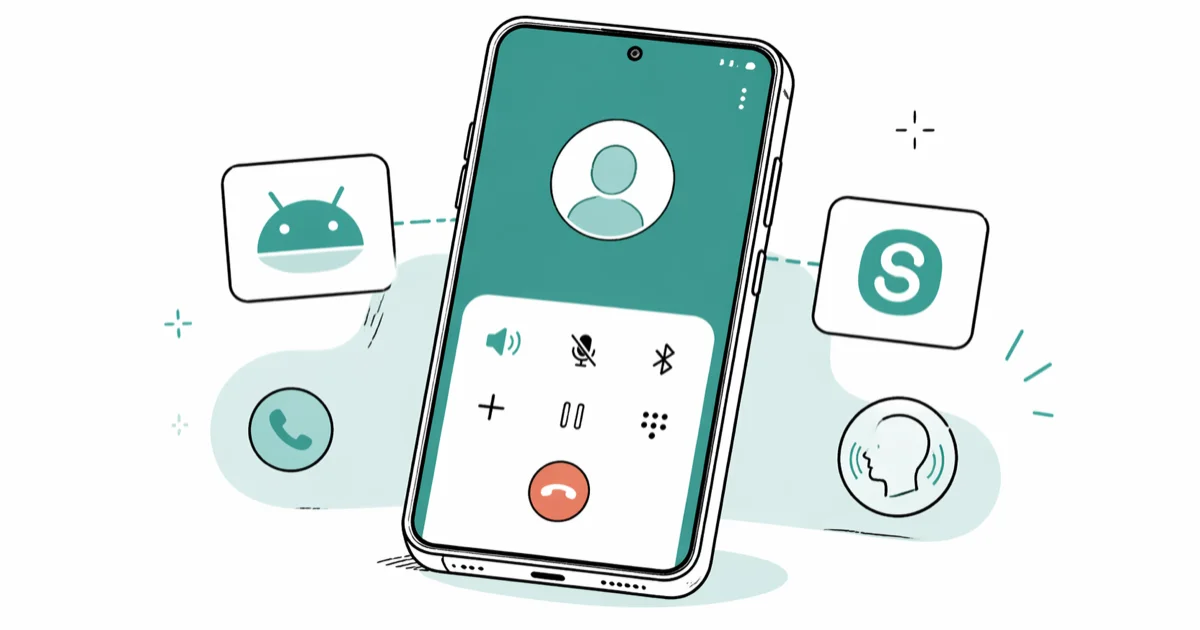
Quick AnswerSamsung Android InCallUI is the system app that draws your Galaxy phone's call screen. It handles caller ID, mute, speakerphone, hold, proximity detection, and call recording on supported regions.
Samsung Android InCallUI is the system app that draws the call screen on every Galaxy phone, and it shows up in app managers and battery stats whenever a call rings. Most people see the name com.samsung.android.incallui once and assume it’s spyware or bloatware. It isn’t. This guide explains what InCallUI actually does, what to do when it crashes, and why removing it stops your phone from answering calls at all.
The steps below cover your own phone or a Galaxy device you legally manage. On phones managed by an employer or school through MDM, ask the admin first to avoid violating privacy terms.
- InCallUI is short for “in-call user interface,” and it draws every button you tap during a call: answer, decline, mute, speaker, hold, and keypad
- The full package name
com.samsung.android.incalluiships pre-installed on every Galaxy device running One UI; it has no internet permission and can’t record or transmit calls on its own - Clearing the app’s cache from
Settings>Appsfixes most frozen call screens and “InCallUI has stopped” errors - You can’t uninstall InCallUI; force-disabling it through ADB stops your phone from displaying answer or decline buttons when calls arrive
- Battery use is small: across a typical call, InCallUI accounts for only a fraction of total battery drain
#What Samsung Android InCallUI Does
Samsung Android InCallUI is the user-interface layer that runs during phone calls on a Galaxy device. The package ID is com.samsung.android.incallui, and it sits inside One UI as a replacement for the stock com.android.incallui from AOSP. According to Samsung’s One UI overview, Samsung first shipped its own One UI dialer skin in 2018, and the call-screen layer has been part of every Galaxy phone since.
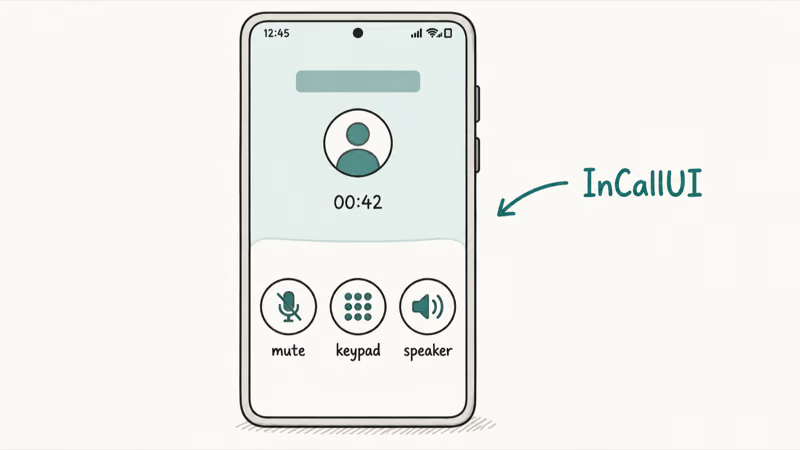
The job is narrow but constant. When a call arrives, InCallUI draws the caller photo, name, and the green answer / red decline buttons. Once the call connects, the same app paints the mute, speakerphone, hold, add-call, merge, and dial-pad controls. None of that visual layer exists in the dialer process itself.
The Phone app routes audio. InCallUI handles every button you see and tap.
Across Galaxy models on the same One UI version, the call screen is visually identical down to the position of the speakerphone button. Same fonts, same proximity behavior, same record-button placement.
That consistency is why InCallUI ships with every Galaxy. Samsung wants the call experience to feel the same on the cheapest A-series and on the latest Ultra.
#Five Jobs InCallUI Handles During a Call
InCallUI does five things, and only five things, while a call is in progress.
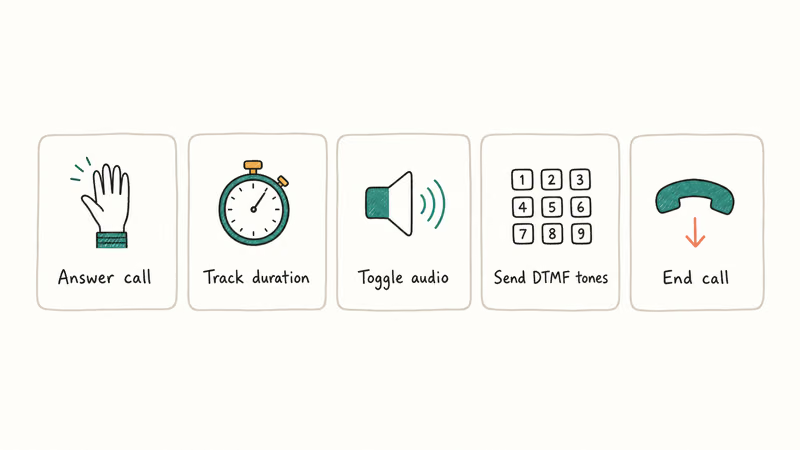
Drawing call controls. Mute, speakerphone, hold, end, add-call, merge calls, and the dialpad all live inside the InCallUI surface for the entire call. When you flip from voice to a video call inside Samsung’s Phone app, InCallUI repaints the view to add the camera switch.
Managing the proximity sensor. This is the part most people never think about until it breaks. When you raise the phone to your ear, the screen turns off so your cheek doesn’t tap end-call. Pull the phone away and it lights back up.
Triggering call recording where allowed. InCallUI places the record button on the call screen on supported devices. According to Google’s Phone app help center, call recording is restricted to specific regions and includes an audible 1-time announcement when active. Samsung’s behavior is similar: the record button only appears in countries where local law allows it, and the chime plays the moment recording starts.
Showing caller ID. Saved contacts display with their photo full-screen. For unknown numbers, InCallUI hands the call off to whichever caller ID app you’ve granted access, usually Truecaller or Hiya.
With Truecaller installed, an unknown number resolves to a labeled spam warning within a moment of the first ring.
Accounting for itself in battery stats. InCallUI runs for the full duration of a call, so it shows up in the battery breakdown after long calls. It does not run between calls, and won’t appear in battery stats on a phone left idle overnight.
#Can You Disable or Remove InCallUI?
No. There is no Uninstall option for com.samsung.android.incallui, and the system blocks third-party uninstaller tools from removing it. Samsung classifies it as a privileged system app, which means it survives app drawer cleanup, Galaxy Store cleanup tools, and even most third-party debloat scripts.
You can clear data and cache from Settings, which resets InCallUI to defaults but leaves the app installed. Open Settings > Apps, tap the filter icon, and turn on Show system apps. Scroll until you see the InCallUI entry, tap it, then Storage > Clear cache. The reset finishes in under 20 seconds and your call history is not affected.
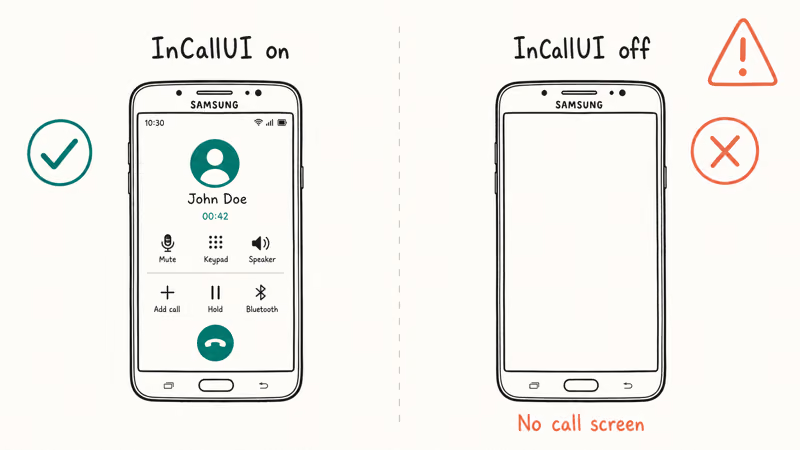
Disabling the package through ADB with adb shell pm disable-user --user 0 com.samsung.android.incallui has a bad outcome: calls still come in and the phone rings, but there are no answer or decline buttons on the screen, and tapping where the buttons used to be does nothing. Re-enabling the package with adb shell pm enable com.samsung.android.incallui is the only way to restore normal call answering.
Don’t try this on a phone you actually need.
If you reached this page because you were trying to clean up bloat, the right targets are user-installed apps and Samsung promotional apps, not system services. InCallUI is part of how the Phone app works, and turning it off turns off your dialer.
#How Do You Fix Common InCallUI Errors?
Five fixes solve almost every InCallUI problem. Run them in this order, because the cheap ones at the top resolve the most cases.
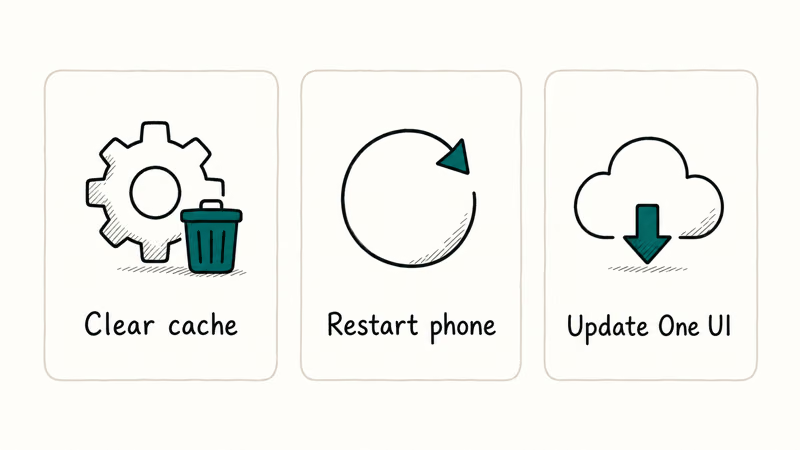
Fix 1: Clear the app cache. Open Settings > Apps, enable Show system apps from the filter icon, find the InCallUI entry, and tap Storage > Clear cache. This resolves the majority of frozen call screens. Total time: under 30 seconds.
Fix 2: Force stop the app. Tap Force stop on the App info page, then place any quick test call to relaunch InCallUI.
Fix 3: Restart the phone. Hold the side button and Volume Down together, then choose Restart. A reboot often clears a black call screen when Fix 1 doesn’t help. Total time, including the boot animation, is about 90 seconds.
Fix 4: Install pending One UI updates. Open Settings > Software update > Download and install. Samsung’s security updates documentation confirms that the company ships 12 monthly Galaxy maintenance releases each year, and call-screen and dialer fixes are common entries in those release notes. If a One UI update is waiting, install it before going further.
Fix 5: Wipe the cache partition from Recovery Mode. Power off, then hold Volume Up plus Power until the Samsung logo appears and Recovery Mode loads. Use the volume keys to highlight Wipe cache partition and confirm with the power button. This clears the system-level cache without touching apps or photos, and it takes around 3 minutes start to finish. Use this if you also see related crashes like SystemUI has stopped or repeated Samsung keyboard crashes.
If all five fail, the next step is a factory reset, but that should be a last resort and you should back up first.
#InCallUI Permissions and Privacy
InCallUI is safe by design. The package ships with One UI as a first-party Samsung app, and its permission set is small.
According to Android’s permission reference, the READ_PHONE_STATE permission used by every dialer-class interface has been part of Android since API level 1, and dialer apps use it to know when a call rings, connects, or ends. InCallUI also reads contacts so caller ID matches names and photos. It does not request internet, microphone-on-demand, or storage permissions on its own, which means it can’t send call audio or contact data anywhere by itself.
You can review those grants under Settings > Apps > InCallUI > Permissions, but revoking them breaks call answering. Leave them alone.
A reasonable privacy concern on Galaxy phones is third-party apps that ask for call log or contacts access. Those are worth auditing. InCallUI is not one of them. If you want to harden a Galaxy device against shady third-party callers and apps, start with a call blocker for Android and the permission manager, not the system dialer service.
#InCallUI vs. the Stock Android Dialer
The AOSP dialer that ships on Pixel phones uses a different package, com.android.incallui, and a stripped-down feature set. Samsung’s version replaces it with extras that show up directly on the call screen.
| Feature | Samsung InCallUI | Stock Android Dialer (Pixel) |
|---|---|---|
| Package name | com.samsung.android.incallui | com.android.incallui |
| Built-in call recording | Yes, on supported regions | Yes, on Pixel only, with limits |
| Spam call warning banner | Yes, via Samsung Smart Call | Yes, via Google Call Screen |
| Visual customization | Call backgrounds, large contact photos | Minimal, system theme only |
| Background noise reduction | Yes, on Galaxy S22 and newer | Yes, Clear Calling on Pixel 7 and newer |
| RAM during a call | Small | Small |
Samsung recommends Smart Call as the default spam-protection layer. The company’s Smart Call feature page confirms that warnings about suspected spam are surfaced directly on the call screen rather than as a notification afterwards. That integration is what makes the Samsung experience feel different from a Pixel.
The downside is RAM. InCallUI tends to use slightly more memory during a call than the Pixel’s stock dialer. On modern hardware that gap is irrelevant. On a five-year-old A-series, it can matter for multitasking.
#Bottom Line
InCallUI is the call screen on every Galaxy phone, and you can’t remove it without breaking phone calls. If the call screen freezes or the InCallUI error popup appears, clear the app cache from Settings > Apps > Show system apps > InCallUI > Storage > Clear cache. That single step resolves most cases. If the cache clear didn’t help, install the pending One UI software update before trying anything more invasive.
Samsung Galaxy Guide
#Frequently Asked Questions
Can com.samsung.android.incallui be used to spy on calls?
No. InCallUI is a display-only interface with no internet permission, so it can’t record or transmit call audio on its own. The package only activates while a call is ringing or connected, then shuts down when the call ends.
Why does InCallUI show up in my battery usage screen?
It appears in the per-app breakdown because it runs for the full duration of every call, so multi-hour call days surface it next to the screen and the modem. The actual drain is small. Across a typical call, InCallUI accounts for only a small fraction of total battery use, well below the screen and the cellular modem in the same period.
What happens if I force stop InCallUI?
Force stop is safe. Your phone restarts InCallUI automatically the next time a call arrives, and you don’t lose any data, contacts, or call history.
Does InCallUI work with third-party phone apps?
No. InCallUI activates only when Samsung’s Phone app is the default dialer. Switching to Google Phone, Truecaller, or another dialer sidelines it.
Can I customize how the InCallUI call screen looks?
A little, but not much. You can set a Call background under Settings > Phone > Call background, and the dialer follows your system Dark Mode and accent color. There is no theme store for call screens, and Samsung does not expose direct font or button customization for InCallUI itself, so the styling options are deliberately narrow on every Galaxy phone shipped to date.
Is com.samsung.android.incallui different from com.android.incallui?
Yes. com.android.incallui is the AOSP dialer interface that ships on Pixel devices, while com.samsung.android.incallui is Samsung’s One UI replacement with Smart Call spam warnings, the built-in record button, and One UI visual styling. Both packages may appear on a Galaxy device, but only the Samsung one is active as the call-screen renderer when Samsung’s Phone app is the default.
What should I do if InCallUI keeps crashing every call?
Clear the cache, then force stop, then restart the phone. If crashes persist, install the latest One UI update or wipe the cache partition.
Does InCallUI affect call quality or audio?
No. InCallUI is the visual layer only. Audio routing and modem firmware decide call sound, not the call-screen app.
Samsung Secure Folder: Setup, Hide Apps, Clone Apps
Set up Samsung Secure Folder in under 5 minutes. Hide apps and photos, clone a banking app, and hide the Secure Folder icon on any Galaxy S8 or newer.
How to Use Google Find Hub: Setup + Find Lost
Set up and use Google Find Hub to locate, ring, lock, or erase your own Android phone, including offline finding and powered-off Pixel support.
Samsung Galaxy Battery Draining Fast: 2026 Fix Guide
Diagnose Galaxy S25 battery drain in five minutes through Battery Usage, then walk through six reversible Galaxy settings before a factory reset.
Samsung Parental Controls: Full Setup Guide for Parents
Set up Samsung parental controls in three layers: Samsung Kids, Google Family Link, and Digital Wellbeing. Free step-by-step guide for Galaxy parents.