Discord Stuck on Connecting? Fix the RTC Loop in 2026
Discord stuck on connecting? Map the RTC Connecting and No Route states to QoS, voice region, VPN, and DNS causes, then fix them in a safe order.
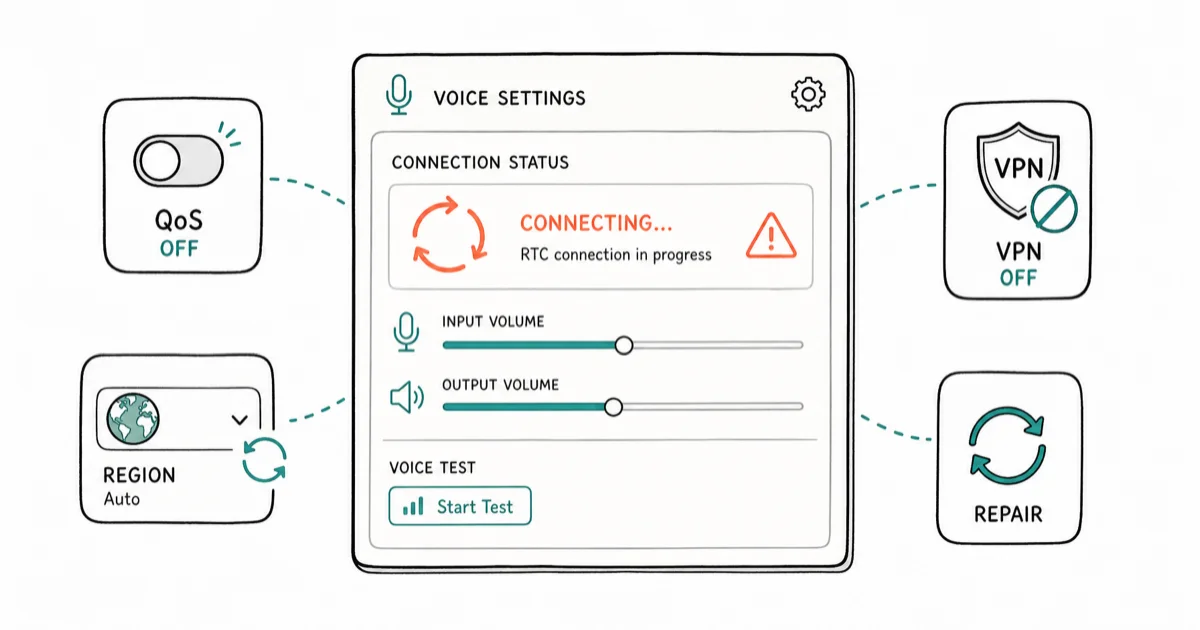
Quick AnswerDiscord stuck on connecting usually means an RTC voice issue, not a crash. Disable Quality of Service High Packet Priority, switch the voice channel region, and turn off any VPN before reinstalling.
Discord stuck on connecting is a network and voice problem far more often than an app crash. That endless “RTC Connecting” spinner means Discord reached your account fine but can’t open a voice connection. Start with the voice and network settings below before reinstalling.
- RTC Connecting means voice is failing, not the whole app. You’re signed in fine.
- Quality of Service High Packet Priority is a common culprit. Turn it off first.
- Changing the voice channel region routes you to a different server and clears many loops.
- A VPN or strict DNS often blocks Discord voice. Disable the VPN to test.
- Reinstalling rarely helps a connecting loop and should be your last step.
#Why Is Discord Stuck on Connecting?
When Discord hangs, it’s usually failing to open a real-time communication (RTC) voice channel. You’ll see states like “RTC Connecting,” “No Route,” or “ICE Checking,” and No Route is the one that means traffic can’t reach the voice server at all.
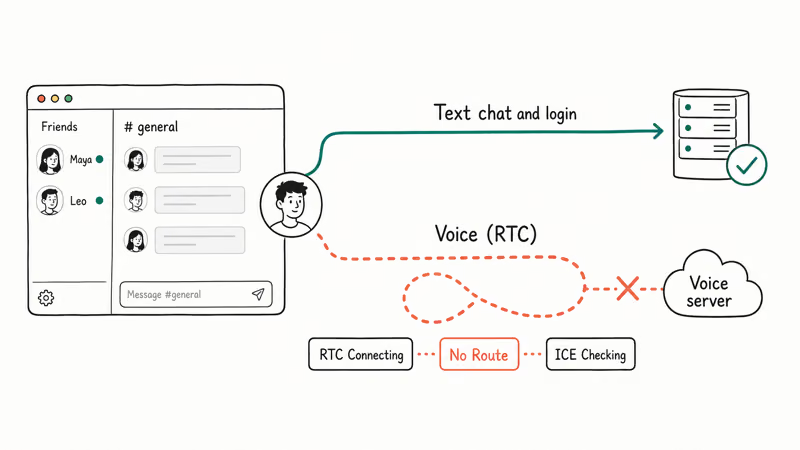
The key insight is that text chat and login use a completely different connection than voice does. If you can read messages and see your friends online but voice never actually joins, the problem is voice routing rather than Discord being down, and that single fact narrows the fix down to a handful of network and settings checks instead of a blind reinstall that wastes your time.
Discord’s connection error troubleshooting guide states that these RTC states tie to network settings and routing rather than the app itself. That’s why settings and network changes fix it, not reinstalls.
#Is It Discord or Your Network?
Before touching settings, rule out a real outage at discordstatus.com. If voice servers show a problem there, no local fix helps. If it’s all green, the issue is on your end.
Next, isolate voice from the app by checking whether text chat still works and whether your friends show as online in the sidebar. If both of those work normally, the app and your login are completely fine, and you’ve confirmed a voice-routing problem that no amount of reinstalling will ever touch, which saves you a lot of wasted effort.
If the app itself won’t even open, that’s a different issue, and the guide on Discord not opening covers launch failures.
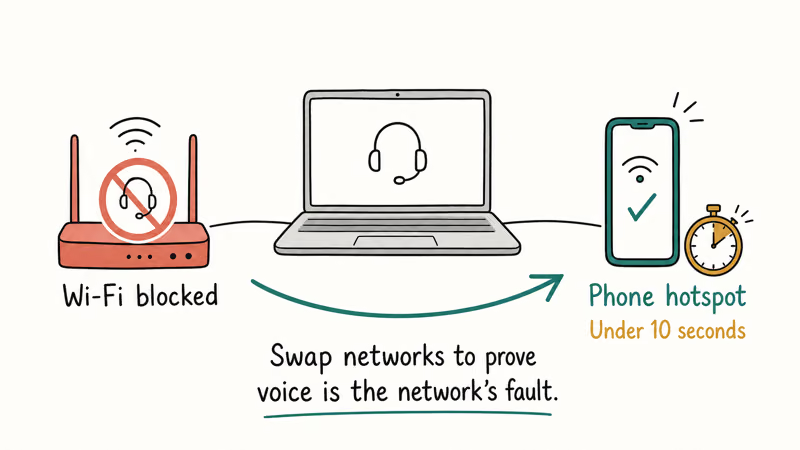
Now run a fast network test. Switch from Wi-Fi to your phone’s mobile hotspot and try joining a voice channel. If voice works on the hotspot while the original Wi-Fi fails, the network is the cause.
#Disable QoS and Change Voice Region
Two in-app settings can clear connecting loops. Start with Quality of Service. Discord’s QoS High Packet Priority tag tells your router to prioritize voice packets, but many routers mishandle it and silently drop those packets, leaving you stuck.
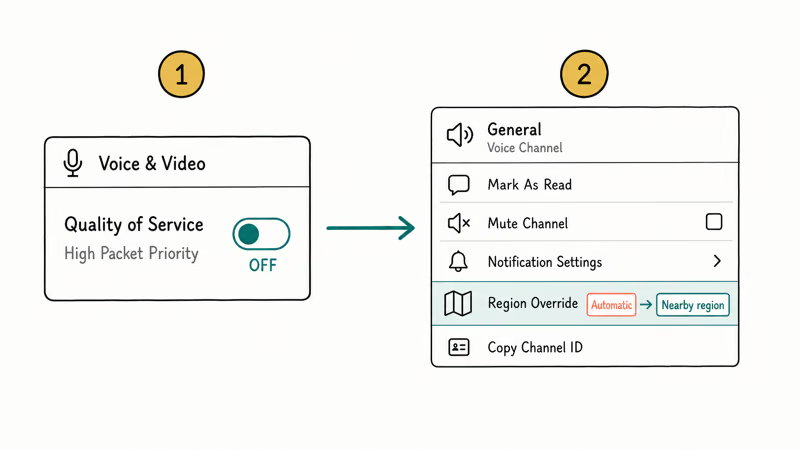
Open User Settings, then Voice & Video, scroll to Quality of Service, and toggle off “Enable Quality of Service High Packet Priority,” then try a voice channel again. Microsoft’s documentation confirms that priority tagging needs 2 parts in sync, the app and the router, and the full mechanism is in their QoS networking guide. A mismatch between them is exactly what strands voice traffic.
If that alone doesn’t fix it, change the voice region. In a server you own or moderate, right-click the voice channel, choose Edit Channel, then Region Override, and pick a different region. This routes your voice through another Discord server and often dodges a bad route.
If an “Awaiting Endpoint” error shows instead, the Discord Awaiting Endpoint guide handles that state.
#Fix DNS and VPN Conflicts
If settings didn’t help, look at what sits between Discord and the internet. VPNs are a frequent cause. Many VPN servers route voice traffic poorly or get blocked, so Discord voice hangs.
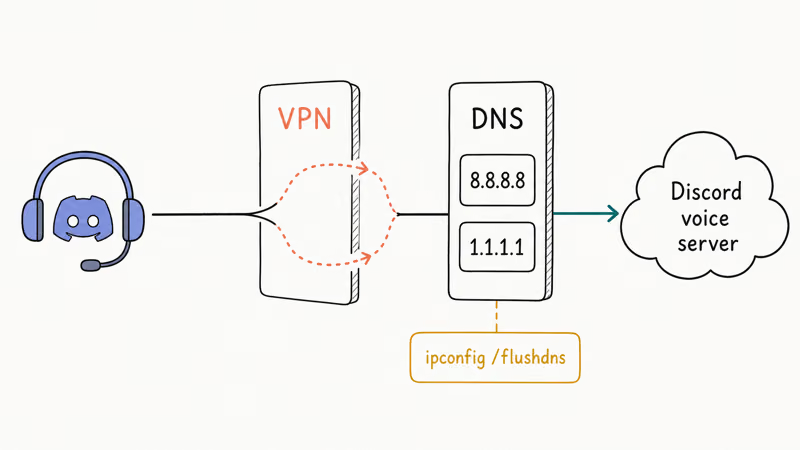
Disconnect your VPN completely and try joining voice. If it connects, your VPN is the problem, so switch servers or leave it off for Discord. The VPN not working guide on mobile covers the same routing conflicts that break voice apps, and if your overlay broke at the same time, the Discord overlay not working guide handles that separately. A VPN re-routes all your traffic, which is exactly why it can strand a latency-sensitive voice app.
DNS is the other layer. Switching to a public resolver often fixes stubborn loops. Google’s Public DNS setup guide recommends the 8.8.8.8 and 8.8.4.4 addresses, and Cloudflare’s 1.1.1.1 works the same way.
On Windows, open Settings, Network & internet, your connection, Edit DNS settings, and enter the public resolver. After changing it, flush the cache with ipconfig /flushdns, then restart Discord. If your stream connects but audio is missing rather than looping, that’s a separate fix in the Discord stream no sound guide.
#Reinstall Discord as a Last Resort
Reinstalling is a last resort, not a first move, because a connecting loop is almost never the app’s files. Reinstall only after QoS, voice region, VPN, and DNS are all ruled out.
If you do reinstall, do it cleanly. On Windows, uninstall Discord, then delete the leftover folders at %appdata%\discord and %localappdata%\Discord so a fresh install doesn’t inherit the broken config, and download the latest installer from discord.com directly. A clean reinstall removes a corrupted voice cache that a normal reinstall keeps.
Before that, try the lightest reset. Fully quit Discord from the system tray, not just the window, and relaunch. Many loops clear after a true restart because the voice session resets.
#Check Your Firewall When It Still Loops
If a clean reinstall on a known-good network still loops, the issue is almost always your network’s firewall or router blocking Discord’s voice port range. This is common on school, work, or guest Wi-Fi where outbound UDP ports are filtered.
Test it by joining voice on a network you control, like a home connection or phone hotspot. If voice connects there but fails on the restricted network, the firewall is the cause and it’s an admin or router-config fix, not anything inside Discord.
A router restart helps too, since it holds its own DNS and connection cache. Power it off for 30 seconds, then back on.
#Bottom Line
Start with QoS. It’s one toggle and fixes more connecting loops than anything else. Turn off Quality of Service High Packet Priority and change the channel voice region first, since those two clear most RTC Connecting loops.
If it persists, disable any active VPN and switch to a public DNS resolver, then flush your DNS cache. Reinstall only as a final step.
#Frequently Asked Questions
Why does Discord get stuck on RTC connecting?
RTC Connecting means Discord is trying to open a voice connection and failing, usually because of a network or routing block. Quality of Service settings, a VPN, or bad DNS are the common causes. Text chat still works because it uses a separate connection.
Is Discord stuck connecting a server outage?
Sometimes, so check discordstatus.com first. If voice servers show a problem there, you just wait for Discord to fix it. If the status page is all green, the loop is a local network or settings issue you can fix yourself, and the steps above apply.
Does a VPN cause Discord connecting problems?
Yes, often. Many VPN servers route Discord voice traffic poorly or are blocked outright, which leaves you stuck connecting. Disconnect the VPN and try joining voice to test.
How do I change the Discord voice region?
In a server you own or moderate, right-click the voice channel, choose Edit Channel, then Region Override, and select a different region. This routes your voice through another server and often dodges a bad route. Regular members can’t change it, so ask a server admin if you don’t have permission.
What is QoS High Packet Priority and should I turn it off?
It tags your voice packets as high priority so routers handle them first, but many routers mishandle the tag and drop the packets, which causes connecting loops. Turning it off in Voice & Video settings is a low-risk early fix. Try it before anything else, since it takes seconds and has no downside.
When should I reinstall Discord?
Only after QoS, voice region, VPN, and DNS fixes all fail and a second network confirms the problem follows the app. If you do reinstall, delete the leftover Discord folders first so the fresh copy doesn’t inherit the broken voice cache.

Is This Bank App Real? Spot a Fake App on Your Home Screen
A bank app can land on your home screen from a web page with no install warning. Learn the checks that tell a real banking app from a phishing web app.

Apps Crashing After iOS 27 Update? Fix Order (2026)
Apps crashing after the iOS 27 update? Update the app in the App Store first, then offload and reinstall to clear stale cache, then restart. The fix order.

Do AI Translation Earbuds Work Offline? What to Know
Do AI translation earbuds work offline? A few do with downloaded language packs, but most need the cloud. Here's what works offline and what you give up.
How to Set Up Translation Earbuds (Pairing and Modes)
How to set up translation earbuds: charge, install the app, pair over Bluetooth, pick two languages, and choose a mode. A step-by-step first-use guide.