How to Delete Download History in Chrome, Firefox, and Edge
Delete download history in Chrome, Firefox, Edge, and Safari in under 2 minutes. Covers browser logs, actual files, and Mac or Windows system records.
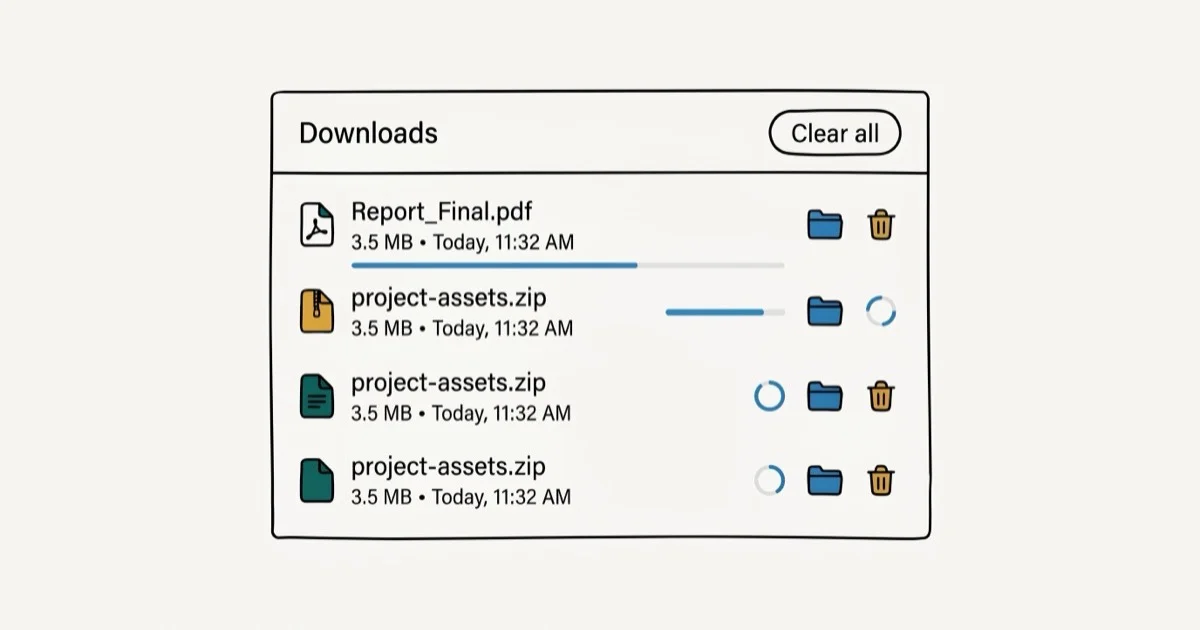
Quick AnswerPress Ctrl+J to open the Downloads panel in Chrome, Firefox, or Edge, then click Clear All or right-click individual items to remove them. This removes the browser download log, not the actual files on your computer.
Clearing your browser’s download history only removes the log of what you’ve downloaded. The actual files stay on your hard drive until you delete them separately. Use the browser’s Downloads panel to clear the log, then remove files from the Downloads folder if you want the storage space back.
Delete download history only on your own computer, your own browser profile, or a device you are authorized to maintain. History can be part of parental controls, workplace audits, or legal records, so stay within legal privacy boundaries, avoid hiding activity on shared systems, and ask the owner or administrator first.
- Press Ctrl+J to open the Downloads panel in Chrome, Firefox, or Edge (Cmd+Shift+J on Mac)
- “Clear All” removes the download log but leaves files on your hard drive intact.
- To delete actual files, open your Downloads folder and remove them manually.
- Chrome’s download history is also cleared via Ctrl+Shift+Delete along with other browsing data
- Clearing download history does not remove the files themselves from your computer
#How Do You Delete Download History in Chrome?
Chrome shows every file you’ve downloaded in its Downloads panel, and clearing that list is a simple menu action.
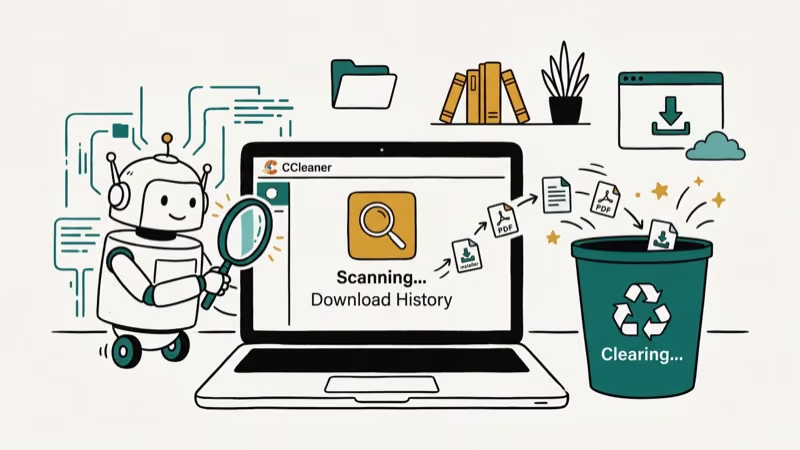
Press Ctrl+J on Windows or Cmd+Shift+J on Mac to open the Downloads page. You’ll see a list of all files downloaded through Chrome. Click Clear All in the top-right corner to wipe the entire list at once.
To remove individual entries, hover over any download and click the X that appears on the right side. That item disappears from the log while everything else stays.
According to Google’s Chrome support page, removing items from the Downloads list doesn’t delete the files from your computer — they stay wherever Chrome saved them, typically your Downloads folder.
#How Do You Clear Download History in Firefox?
Firefox handles downloads slightly differently from Chrome but the process is just as fast.
Press Ctrl+J to open the Downloads library. Right-click any entry and select Remove From History to delete individual items. To clear everything at once, right-click anywhere in the list and choose Clear Downloads.
For a more thorough clearing that includes all browsing data, go to Settings > Privacy & Security > Clear Data, check Browsing History and Downloads History, then click Clear. According to Mozilla’s Firefox privacy documentation, this removes all download records from Firefox’s internal database, though files on your hard drive remain untouched.
#How to Delete Download History in Microsoft Edge
Edge uses the same Ctrl+J shortcut that Chrome does, which makes sense given they share the same Chromium codebase.
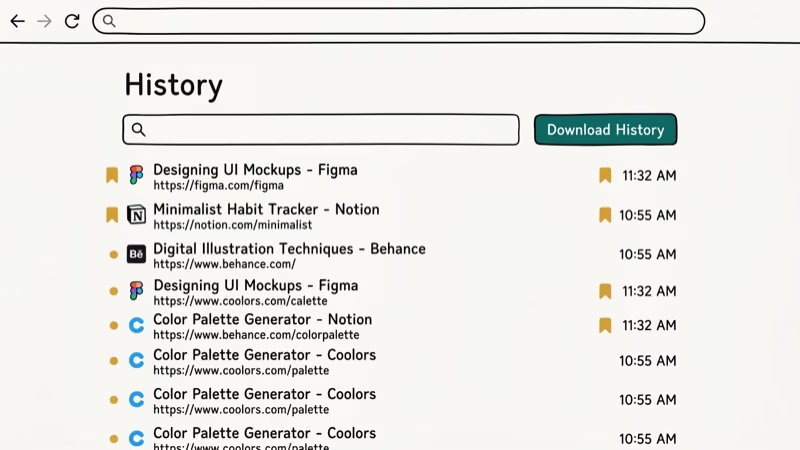
Open the Downloads panel with Ctrl+J and click Clear All to wipe the list. For individual items, right-click any entry and select Remove. To clear download history along with other browsing data, press Ctrl+Shift+Delete, check Download History, and click Clear Now.
According to Microsoft’s Edge privacy guide, selecting “All time” as the time range clears download records going back 12 months or more, with no session history left behind. To remove history from signed-in devices, review Edge’s sync settings before you clear local data.
#How to Clear Safari Download History on Mac
Safari handles download history through its Downloads manager, not a separate History section.
Click the Downloads icon in the Safari toolbar (the arrow pointing down into a box) and select Clear at the bottom of the dropdown. All download entries are removed instantly. If you need to delete actual downloaded files rather than just the log, deleting downloads on Mac walks through removing files from the Finder Downloads folder.
#How to Delete Actual Downloaded Files on Windows and Mac
Clearing browser download history doesn’t remove files from your computer. To free up disk space, you need to delete the files themselves.
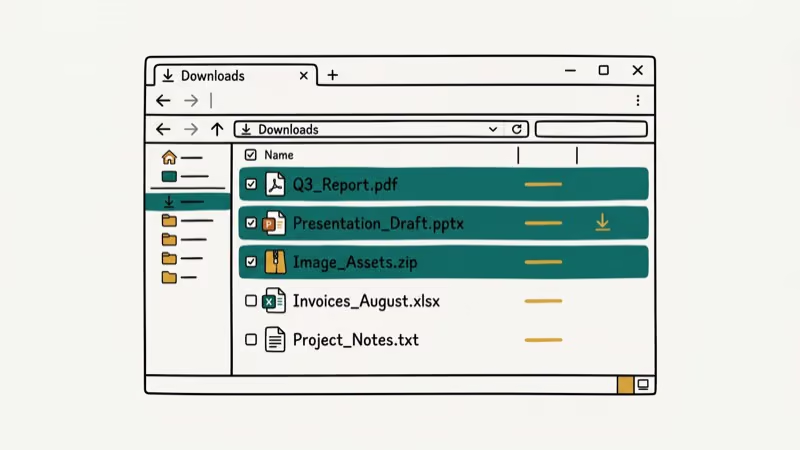
On Windows: Open File Explorer and go to Downloads in the left sidebar (or press Win+E, then click Downloads). Select the files you want to remove and press Delete. Right-click the Recycle Bin and choose Empty Recycle Bin to permanently remove them.
On Mac: Click the Finder icon, then Downloads in the sidebar. Select files and press Cmd+Delete to move them to the Trash. Then go to Finder > Empty Trash to free the space. If you want to clear your Mac’s cache at the same time, how to clear cache on Mac covers that process.
#Why Deleting Download History Matters for Privacy
Your browser download log is visible to anyone with access to your device. It reveals file names, source URLs, and timestamps — as revealing as browsing history itself.
If you want to clear broader browsing traces beyond downloads, our guide on how to view private browsing history on iPhone explains how little privacy private browsing actually provides. Most people are surprised by how much data remains in incognito mode: browsing history, form data, and session cookies all persist until cleared separately. For Android devices, clearing cache on Android covers the mobile side of browser cleanup, including cookies and cached site data that accumulate over weeks.
For complete privacy, combine download history clearing with clearing cookies and cached files. The most thorough approach on any browser is the keyboard shortcut Ctrl+Shift+Delete (or Cmd+Shift+Delete on Mac), which opens a full data-clearing dialog where you can select exactly what to remove and how far back.
#Bottom Line
Use Ctrl+J to open Downloads in Chrome, Firefox, or Edge, then click Clear All to wipe the log. After that, delete the actual files from your Downloads folder to free disk space. If you need to check what someone else has downloaded, see how to view call history on iPhone for related privacy tips.
#Frequently Asked Questions
Does clearing download history delete files from my computer?
No. Browser download history is just a log. The actual files stay in your Downloads folder or wherever you saved them. You need to delete those files separately from File Explorer on Windows or Finder on Mac.
How do I delete download history in Chrome without deleting browsing history?
Press Ctrl+J to open the Downloads page, then click Clear All. This only removes the download log without touching your browsing history, cookies, or cached files. Alternatively, press Ctrl+Shift+Delete to open the full data-clearing dialog, then check only the Download History box while leaving everything else unchecked. Either method deletes the log entries only; the downloaded files on your hard drive are untouched.
Can someone see my deleted download history?
Once cleared from the browser, standard download history is gone from the browser interface. However, IT administrators on managed networks, your ISP, and some parental control software can still log download activity at the network level, independent of what the browser stores locally.
Does incognito mode save download history?
Files downloaded in incognito mode still land in your Downloads folder and can be seen there. The browser download log for those files is cleared when the incognito window closes, but the files themselves remain on your device.
How do I clear download history on Android?
Open Chrome on Android, tap the three-dot menu, go to Downloads, and long-press any item to select and delete it. For a complete clear, go to Settings > Privacy > Clear Browsing Data and include Download History. If you want to delete the actual files, the how to delete downloads on Android guide shows you where Android stores downloaded files.
Does clearing download history speed up Chrome?
Marginally. A very long download history list (thousands of entries) can slow Chrome’s Downloads page rendering, but normal browsing performance isn’t affected. If Chrome is slow generally, clearing the cache and cookies has a bigger impact than clearing downloads.

Best Laptop for Running LLMs in 2026: Memory Comes First
The best laptop for running LLMs is a memory purchase first. Compare MacBook unified memory against NVIDIA laptop VRAM, and see what each tier really runs.

How to Run a Local LLM on Windows: A 2026 Setup Guide
Run a local LLM on Windows with LM Studio or Ollama. Pick a model that fits your GPU memory, keep every prompt offline, and skip the monthly bill.

Bluetooth Not Working on Snapdragon X? Fixes for 2026
Bluetooth not working on your Snapdragon X Copilot+ PC? Generic audio, mice, and keyboards work, but vendor apps often lack an ARM build. Fixes inside.

Docker Desktop and WSL2 Not Working on Snapdragon X? Fix It
WSL2 runs fine on Snapdragon X, but Docker Desktop ARM is Early Access and throws WSL errors. Use WSL2 plus native ARM64 Ubuntu and Docker Engine.