How to Fix "Developer Cannot Be Verified" on Mac Safely
Fix the "developer cannot be verified" warning on Mac with Apple’s per-app Open Anyway exception, plus careful checks for unsigned software.
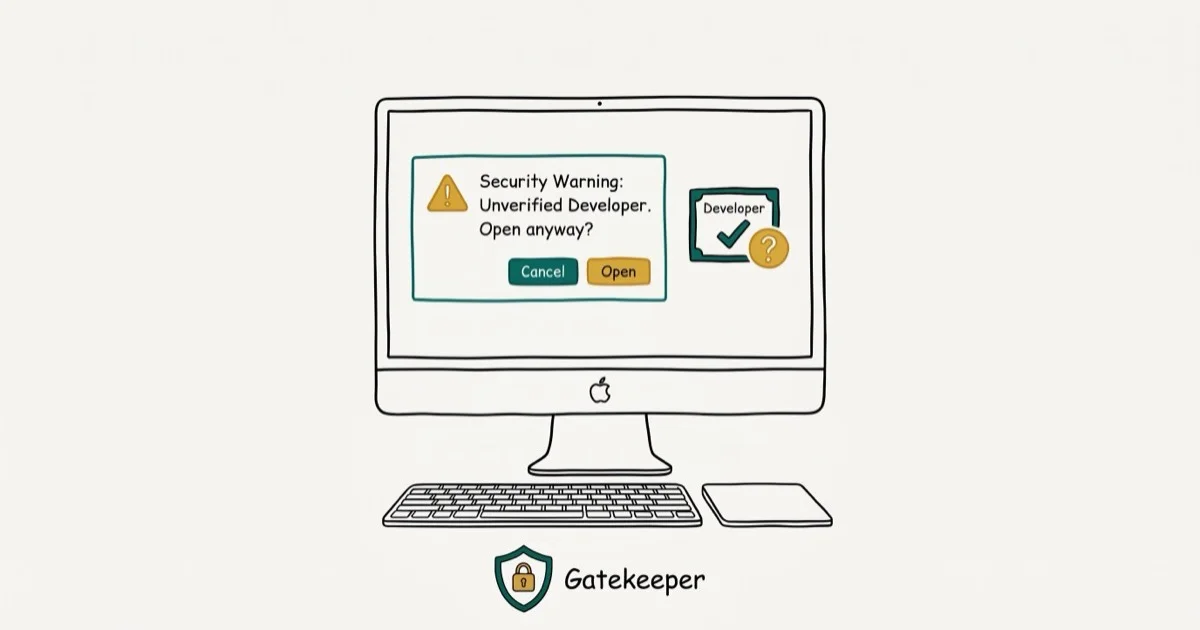
Quick AnswerIf you trust the source, try opening the app once, then go to System Settings > Privacy & Security and click Open Anyway. macOS saves that app as an exception without turning off Gatekeeper.
Gatekeeper shows this alert when macOS can’t confirm an app’s developer or notarization. Check the App Store or developer for a signed build first. If you trust the source and still need the app, make the per-app exception below without turning Gatekeeper off.
- On some macOS releases, Control-clicking an app and selecting Open creates a per-app exception
- Apple’s current path is
System Settings>Privacy & Security>Open Anyway - Check the App Store or developer for a current signed build before making an exception
- Gatekeeper checks Developer ID signatures and notarization status before allowing apps to run
- Don’t turn off Gatekeeper system-wide to install unsigned software
#What Is Gatekeeper and Why Does It Block Apps?
Gatekeeper checks an app’s Developer ID signature and notarization before macOS opens it.
Apps from the Mac App Store pass both checks automatically. Apps downloaded from websites need at least a Developer ID signature to run without warnings. If an app has neither, Gatekeeper blocks it with the “developer can’t be verified” message.
Apple introduced Gatekeeper with OS X Mountain Lion in 2012, according to its contemporary Developer ID announcement. It doesn’t mean every blocked app is dangerous. Many legitimate open-source tools, small indie apps, and developer utilities lack Apple notarization because the developers haven’t enrolled in Apple’s paid developer program or haven’t submitted their apps for notarization review.
#How to Open a Blocked App With Right-Click?
Some macOS releases also offer a Control-click shortcut.
Right-click (or Control-click) the app in Finder and select Open from the context menu. A dialog appears warning that the app is from an unidentified developer. Click Open to proceed.
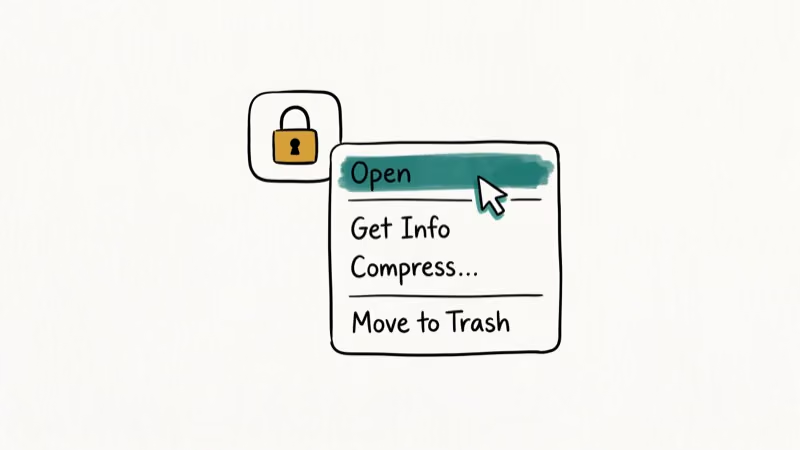
If macOS accepts the choice, it remembers the exception for that app. If the Open option doesn’t appear or the same alert returns, use Apple’s current System Settings path below.
Some Homebrew Cask apps and open-source utilities may show the same warning if a downloaded build isn’t notarized.
#Allowing Apps Through System Settings
According to Apple’s current safe-opening guide, try opening the app first, then approve that specific app through System Settings only if you’re certain the source is trustworthy and the app hasn’t been altered.
Go to System Settings > Privacy & Security and scroll to the Security section.
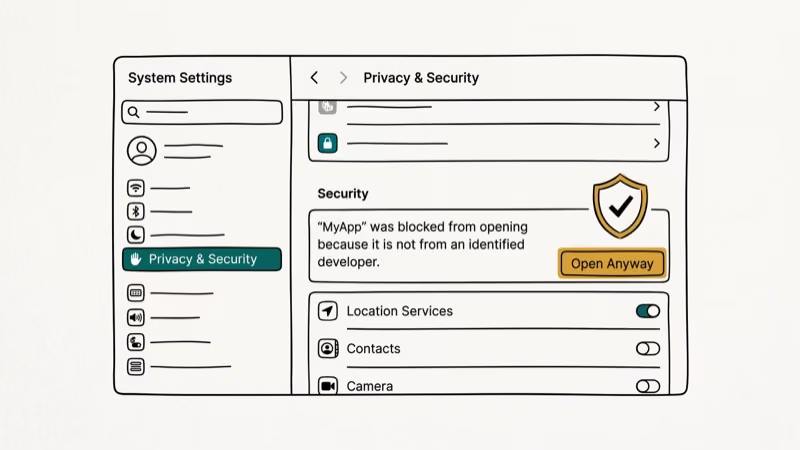 You’ll see a message saying the app was blocked. Click Open Anyway, confirm the warning, and authenticate if macOS asks. Apple says the button is available for about an hour after the blocked attempt and that macOS then saves the app as an exception.
Based on Apple’s security settings guide, you can also change the default app source to “App Store and identified developers” (which is the default) or lock it down to “App Store” only for stricter security. The stricter setting blocks all apps downloaded from the web, including notarized ones from identified developers, which is useful for shared Macs where you don’t want other users installing random software.
#Trust Checks Before Making an Exception
Change security settings only on your own computer or a Mac you’re authorized to administer. Bypassing organizational controls may violate workplace, school, or other applicable policies or laws, and an unverified app may expose personal or organizational data. On a shared or managed Mac, ask the owner or IT administrator instead.
Evaluate blocked apps before making an exception:
Trust indicators:
- The app comes from a well-known developer or project (Firefox, VLC, Homebrew, VS Code betas).
- You downloaded it directly from the developer’s official website, not a third-party download site.
- The developer provides SHA-256 checksums through an authenticated official channel, and you’ve verified that the downloaded file matches.
Warning signs that you should NOT open the app:
- You found it on a random forum or file-sharing site.
- It asks for admin permissions immediately after opening.
- The developer has no web presence, no GitHub profile, and no verifiable identity.
According to Apple’s Gatekeeper security overview, Gatekeeper verifies developer identity, notarization, and whether downloaded software has been altered. If macOS says an app will damage your computer or is damaged, don’t use Open Anyway; get a fresh signed copy or contact the developer.
#Avoid System-Wide Bypasses
Don’t disable Gatekeeper or strip quarantine metadata as a shortcut. Those changes go beyond Apple’s documented per-app route and may also violate a managed Mac’s policy. Use Open Anyway only for the app you reviewed; if that route isn’t available, stop and ask the developer or your IT administrator.
#Bottom Line
The “developer can’t be verified” alert means macOS couldn’t verify the app, not that the app is automatically safe or malicious. Check for a signed update or alternative first. If you trust the source and have authorization to use the Mac, approve only that app through System Settings > Privacy & Security > Open Anyway and leave Gatekeeper enabled for everything else.
#Related Mac App Problems
Read our macOS Gatekeeper overview for the security model behind the alert.
If the app is frozen rather than blocked, force quit the Mac app. If it opens and then behaves incorrectly, clear its damaged cache instead of changing security policy.
For an older Intel app, check Rosetta 2 compatibility. If macOS itself won’t install, follow the separate failed macOS installation guide. None of these failures calls for a Gatekeeper exception.
#Frequently Asked Questions
Does opening an unverified app put my Mac at risk?
Yes. A known developer or reputable open-source project can reduce uncertainty, but reputation doesn’t prove that a particular download is authentic or safe. Verify the exact file and its source before making an exception; avoid copies from forums or file-sharing sites.
Will the “Open Anyway” button appear for every blocked app?
It appears only after macOS has blocked an eligible app. Apple says the button remains available for about an hour after the attempt. If it doesn’t appear, don’t switch off Gatekeeper; check for a signed update, confirm that an administrator isn’t managing the setting, or contact the developer.
Can I disable Gatekeeper for all unsigned apps?
Don’t do that as a routine fix. A system-wide change removes protection from every download, while Open Anyway saves a narrow exception for the app you reviewed. Managed Macs may also prevent changes to this setting.
What if macOS says the app is damaged or will harm my Mac?
Don’t override that alert. Apple’s current guide distinguishes an unidentified developer from software that is damaged, altered, or known to be malicious. Delete the copy, download a fresh signed version from the developer or App Store, and contact the developer if the warning continues.
Can I use Open Anyway on a managed Mac?
The option may be unavailable. Apple’s current guide says these security settings might not appear when a system administrator or IT department manages the Mac. Contact the administrator instead of trying another bypass.
Does Gatekeeper affect apps installed through Homebrew?
Homebrew-installed command-line tools don’t trigger the same app-bundle warning. A Homebrew Cask can trigger a Gatekeeper alert if its app isn’t notarized. Verify the cask and developer first, then use the same per-app Open Anyway route if you choose to proceed.

Mac mini M6 vs M5 Pro: Which Model Should You Buy?
Mac mini M6 vs M5 Pro compared on price, memory, ports, displays, and real workloads. Find the better 2026 Mac mini for your desk and budget.

macOS 27 Compatible Macs: Every Supported Model (2026)
macOS 27 Golden Gate runs only on Apple Silicon Macs. Here is the full list of supported M-series models and the four Intel Macs that lose support.

macOS 27 Golden Gate: Every Major New Feature Confirmed
macOS 27 Golden Gate goes Apple Silicon only, adds a Gemini-powered Siri, refines Liquid Glass, and rebuilds Spotlight. Here is every confirmed change.
macOS 27 Liquid Glass: Every Readability Fix Explained
macOS 27 Golden Gate refines Liquid Glass with an intensity slider, better contrast, cleaner window corners, and edge-to-edge sidebars to fix readability.