Best Parental Control App for iPhone and Android 2026
Best parental control app for iPhone and Android: a transparent comparison of Apple Screen Time, Google Family Link, Bark, and Qustodio for 2026.
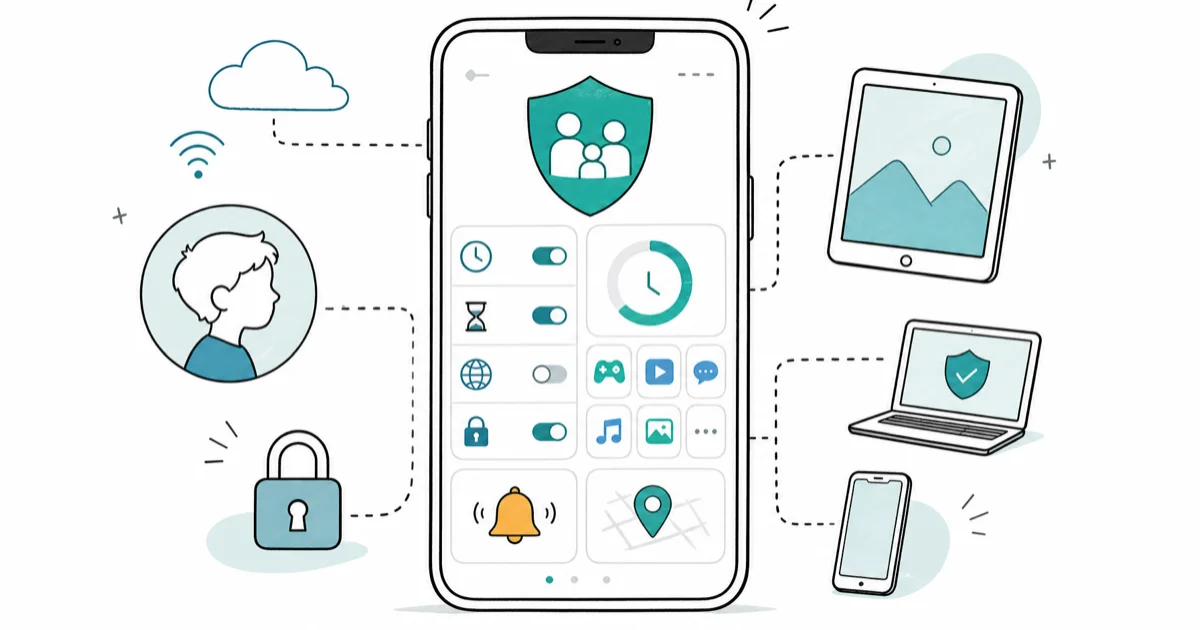
Quick AnswerThe best parental control app for iPhone and Android starts with the free built-in tools: Apple Screen Time with Family Sharing and Google Family Link. Add a cross-platform app like Bark or Qustodio only if you manage a mix of devices and need content alerts your own children know about.
The best parental control app for iPhone and Android depends on which devices your minor children actually use and how openly you want to manage them. Start with the free official tools built into each platform, then add a paid cross-platform app only when those tools leave a real gap. This guide compares the official setup on iPhone with Screen Time, Android with Family Link, and the major third-party options.
- Apple Screen Time with Family Sharing is the free, built-in choice for an all-iPhone household
- Google Family Link is the free, official tool for managing a child’s Android device and Google account
- Cross-platform apps like Bark and Qustodio earn their fee mainly when kids mix iPhone, Android, and laptops
- Parental controls should be transparent, set up with your own minor children’s knowledge, never as covert monitoring
- The right choice is the simplest tool that covers your devices, not the one with the longest feature list
#What Is the Best Parental Control App for iPhone and Android?
There’s no single winner here, because the best tool tracks your devices, not the marketing copy. For a family fully on iPhones and iPads, Apple’s free Screen Time is usually enough. For a child on Android, Google’s free Family Link is the official path. A paid third-party app only pulls ahead in two cases: when you manage a real mix of platforms in one household, or when you want content-based alerts the built-in tools simply don’t offer.
Whatever you pick, the right frame is transparent family safety. These tools are for your own minor children, set up openly as part of an age-appropriate conversation about online rules, never for covertly monitoring another adult.
According to Common Sense Media’s parental controls guide, the most effective controls pair built-in device settings with ongoing conversations rather than relying on software alone. Treat any app as one layer, not the whole plan, and lead with a talk before a tool. The software backs up the conversation; it doesn’t replace it, and kids who understand why a rule exists are far less likely to spend their energy routing around it.
#Should You Start With Apple Screen Time or Google Family Link?
Start with whichever platform your child’s main device runs. That free official tool is the foundation everything else builds on: Apple Screen Time through Family Sharing, or Google Family Link on Android.
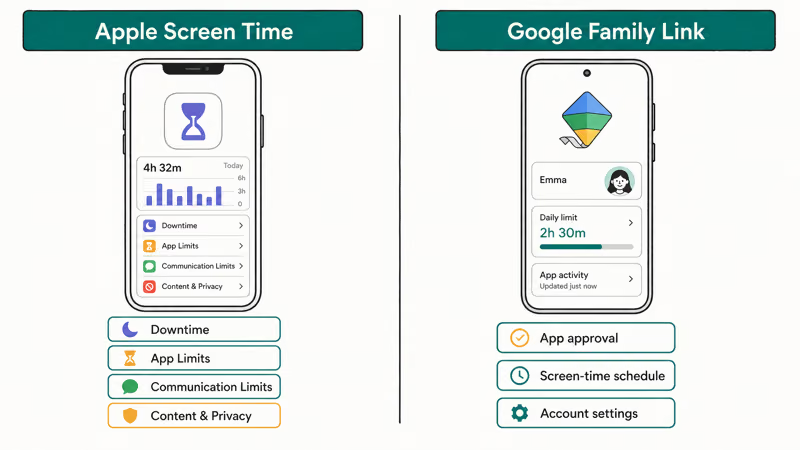
Apple’s Screen Time support page states that you can set 4 main kinds of controls: Downtime, App Limits, Communication Limits, and Content & Privacy Restrictions. You configure them remotely from your own device after setting up Family Sharing, so you don’t need the child’s phone in hand for routine changes.
Family Link covers the Android side. According to Google’s Family Link help documentation, a supervised account lets a parent approve app downloads, set screen-time schedules, and manage account settings for a child under your supervision. Expect Family Link controls to appear after the child account is fully created and signed in, not before.
If built-in limits keep breaking, fix those first with Ios 26 Screen Time Not Working and Android Screen Time.
#Compare Bark, Qustodio, Aura, and Router Controls
Third-party apps shine in one situation: a household that mixes platforms, where managing Screen Time on iPhones and Family Link on Android separately becomes a chore. A single dashboard that spans both is the main reason to pay.
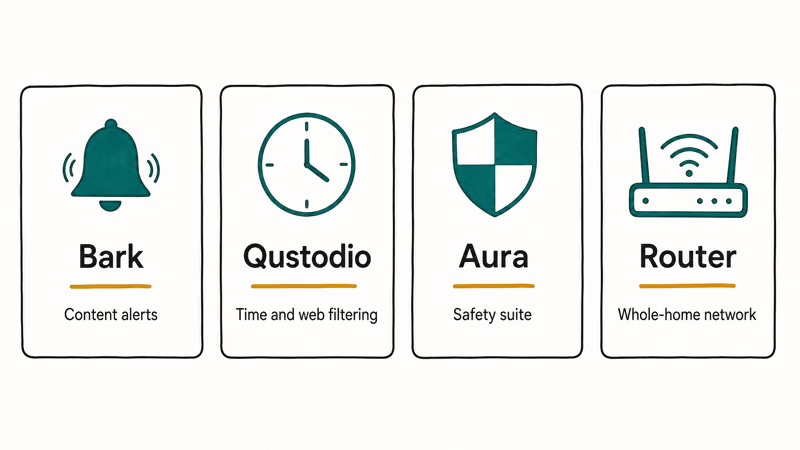
The three names you’ll see most are Bark, Qustodio, and Aura, and they don’t all do the same job.
Bark focuses on content monitoring and alerts, scanning for concerning messages and flagging them to parents rather than just blocking time. Qustodio leans toward time management and web filtering across phones, tablets, and computers from one dashboard. Aura bundles parental controls into a broader online-safety and identity suite, which fits families who also want device-wide protection beyond the kids’ phones, including identity monitoring and antivirus for the whole household.
Here’s how the categories compare at a glance:
Comparison of parental control approaches for a mixed iPhone and Android household
| Tool | Best for | Platforms | Cost model |
|---|---|---|---|
| Apple Screen Time | All-Apple households | iPhone, iPad, Mac | Free, built in |
| Google Family Link | Android child devices | Android, Chromebook | Free, built in |
| Bark | Content alerts | iOS, Android, computers | Paid subscription |
| Qustodio | Time and web filtering | iOS, Android, computers | Paid subscription |
| Router controls | Whole-home network rules | Any device on Wi-Fi | Often free or built in |
#Add Router and Network Controls at Home
Router-level controls cover a different layer: every device on your home Wi-Fi, regardless of platform. They can’t follow a child onto mobile data, but they’re a strong baseline at home. Our guide on the Best Parental Control Router covers that approach in depth.
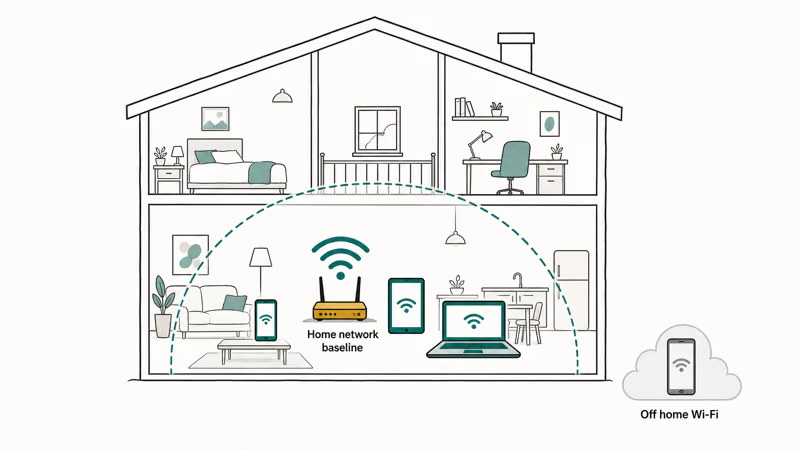
Think in layers rather than one purchase. Pairing the 2 free layers you already own, built-in device settings and the home router, usually covers more ground than a single paid app bolted on by itself.
#Privacy, Consent, and Age-Appropriate Rules
Transparency is not optional with these tools. Set them up openly with your minor child, and match the strictness to their age, because rules that fit a seven-year-old will frustrate a teenager and push them toward workarounds. Common Sense Media’s guidance stresses that controls work best when paired with conversation rather than imposed silently.
Be clear about the boundary too. These tools are for managing your own minor children, not for monitoring a partner, roommate, or any other adult. Covertly tracking another adult’s device is a privacy violation and, in many jurisdictions, against the law, so keep every use squarely within transparent, consent-based family management and never let it drift toward an adult you simply want to keep tabs on.
There is also a security angle. Third-party apps that demand deep device access can themselves become a risk, so prefer the official platform tools when they cover your needs, and vet any paid app carefully before granting it broad permissions.
#The Setup Most Families Should Actually Use
Most families should start free and stay there if it works. An all-iPhone home gets Screen Time plus Family Sharing. An all-Android home gets Family Link. A mixed home runs both, and only adds a paid cross-platform app once juggling two systems becomes the actual pain point.
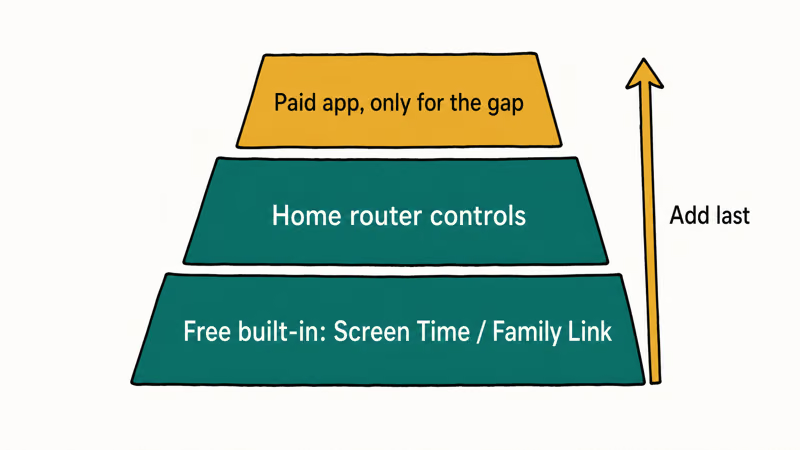
Layer in router controls at home for a network-wide baseline. Then reserve a subscription tool like Bark or Qustodio only for the specific gap it fills: content alerts, a unified dashboard, or filtering on laptops. Buying features you won’t use is the most common mistake parents make here, and it’s an easy one to avoid by adding paid tools last, one capability at a time, instead of starting with the priciest all-in-one bundle.
For content-specific filtering on a single platform, the official route is often enough. Our walkthroughs on How To Block Porn On iPhone and How To Block Porn On Android show the built-in content restrictions before you reach for a paid filter.
#Bottom Line
For most families, the best parental control setup is the free official tools first: Apple Screen Time with Family Sharing on iPhones and iPads, Google Family Link on Android. Add Bark for content alerts or Qustodio for cross-platform time limits only when you really do manage a mix of devices and the built-in tools fall short. Whatever you choose, set it up transparently with your own minor children and keep it pointed at family devices, never at another adult.
#Frequently Asked Questions
Best parental control app for iPhone and Android, what is the first thing to check?
Check which platform your child’s main device runs, then start with that platform’s free official tool. Apple Screen Time for iPhone and iPad, Google Family Link for Android. Only consider a paid cross-platform app after the built-in tools leave a gap.
Why did my limits stop working after a phone or account switch?
Parental controls are tied to the specific account and device, so any change to either can break them. Switching phones, signing out of the family account, or moving a child to a new Google or Apple ID can all drop the limits without warning. The fix is to re-add the child to your family group and reapply the rules on the new setup, which restores the controls once the account relationship is rebuilt on the device they actually use.
Does setting this up require a reset or reinstall?
No. Both Screen Time and Family Link are configured through settings and a family account, not a factory reset. Reserve resets for actual device faults.
What official support page should I check first?
Apple’s Screen Time support page and Google’s Family Link help documentation are the primary sources, and both are linked above. They walk through setting up Family Sharing or a supervised account and applying limits, which covers most setup questions before any third-party app.
What should I avoid doing?
Never covertly monitor another adult; that’s a privacy violation and often illegal. Also avoid granting deep permissions to an unvetted app.
When should I contact support?
Contact Apple or Google support if the built-in controls won’t apply even after re-adding the child account and rebooting. Contact a paid app’s support if its cross-device sync fails. Start with the official platform tools, since they’re free and resolve the most common issues.

Is This Bank App Real? Spot a Fake App on Your Home Screen
A bank app can land on your home screen from a web page with no install warning. Learn the checks that tell a real banking app from a phishing web app.

Passkeys Not Syncing Between iPhone and Windows? Read This
Passkeys not syncing between iPhone and Windows is by design, not a bug. Here is why iCloud passkeys skip Windows Hello and the three ways to fix it.

VPN Not Working on Snapdragon X? Why It Fails, How to Fix
Your VPN won't install or connect on a Snapdragon X Copilot Plus PC because Windows on ARM can't emulate the network driver. Here are the fixes that work.

How to Check If a Link Is Safe Before You Click It
Learn how to check if a link is safe with official-first steps: read the real domain, use the app instead, and treat scanners as a second opinion only.