Best Budget Monitor: 6 Value Picks Proven for 2026
The best budget monitor in 2026 is a 1440p IPS panel under $200. See 6 proven value picks for gaming, office, and study, plus what you give up.
Quick AnswerThe best budget monitor for most people in 2026 is a 27-inch 1440p IPS panel under $200, which now delivers high refresh rates and accurate color that cost twice as much a few years ago.
The best budget monitor in 2026 gets you more screen than a tight budget used to allow. A 27-inch 1440p IPS panel with a high refresh rate now sells for under $200, a spec that cost over $400 not long ago. This guide compares six value monitors across gaming, office, and study priorities so you can see where the smart money goes and what you give up at each price.
- A 27-inch 1440p IPS panel under $200 is the best all-around budget value in 2026
- Refresh rate is the single biggest upgrade over a basic 60Hz monitor, and 144Hz is now standard under $150
- Budget HDR labels like HDR400 are not bright enough for real HDR, so treat them as marketing
- 1080p suits 24-inch screens and weaker GPUs; 1440p shines at 27 inches if your GPU can drive it
- Stick to AOC, KTC, Dell, and BenQ at this tier, since unknown Amazon brands often ship fake specs
#Our Top Budget Monitor Picks for 2026
The big story this year is that 1440p high-refresh monitors dropped firmly under $200. That changes the default recommendation. For most people, a 27-inch 1440p IPS panel is now the value sweet spot, with 1080p reserved for smaller screens and budget GPUs.
#KTC H27T22C-3
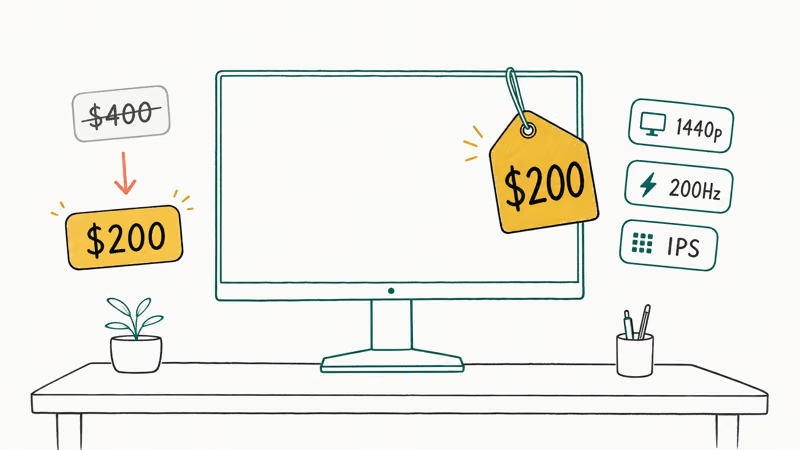
This is our top overall pick. It’s a 27-inch 1440p IPS panel with a high refresh rate and solid brightness, the kind of screen you would have paid premium money for a couple of years ago. PC Gamer’s budget monitor coverage found that this panel runs up to 210Hz, naming it their current favorite budget 1440p gaming pick. That combination makes it the strongest starting point here.
Its appeal is simple: punchy IPS color, fast response for everyday gaming, and a budget trade-off list that sticks mostly to the stand and ports. The trade-off is the basics: a tilt-only stand and a thin port selection with no USB hub. If you mount it on an arm and don’t need USB passthrough, those cuts barely register.
Why it leads: the KTC H27T22C-3 packs 1440p and 200Hz under $200, the most screen-per-dollar on this list.
As an Amazon Associate, fone.tips earns from qualifying purchases.
#AOC Q27G3XMN
The AOC Q27G3XMN is the pick if you want a known brand with a fuller feature set. It’s a 27-inch 1440p panel with a 165Hz refresh rate, a sturdier build, and a more capable stand than the KTC. A mini-LED backlight gives it brighter highlights than most rivals, the kind of upgrade that used to push budget monitors well past the $200 mark just a couple of years ago.
The Q27G3XMN is a touch more polished day to day, with a stand that adjusts properly and menus that are easy to navigate. The AOC Q27G3XMN typically costs a little more than the KTC, so it suits buyers who value brand support and ergonomics over the absolute lowest price.
#Should You Buy 1080p or 1440p on a Budget?
GPU and screen size decide the honest answer. 1440p looks sharper than 1080p, but it asks more of your graphics card. A 1440p 144Hz target needs roughly a mid-range GPU like an RTX 3060 or better to stay smooth in modern games.
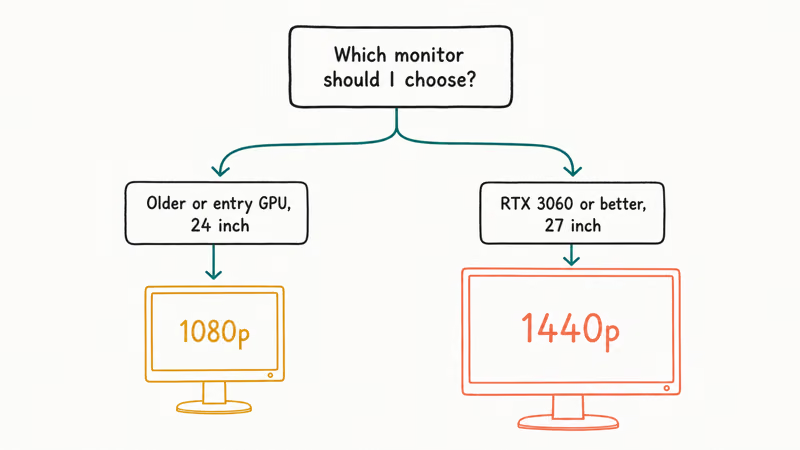
If your GPU is older or entry-level, a high-refresh 1080p panel is the smarter buy. You get higher frame rates and a lower price, and at 24 inches the lower resolution still looks crisp because the pixels are packed tighter. Reserve 1440p for 27-inch screens where the extra detail is worth it. If you’re weighing a new card to feed a 1440p panel, our GPU for 1440p gaming guide covers what each tier can actually push.
#Best Budget 1080p Monitors
#AOC 24G2E
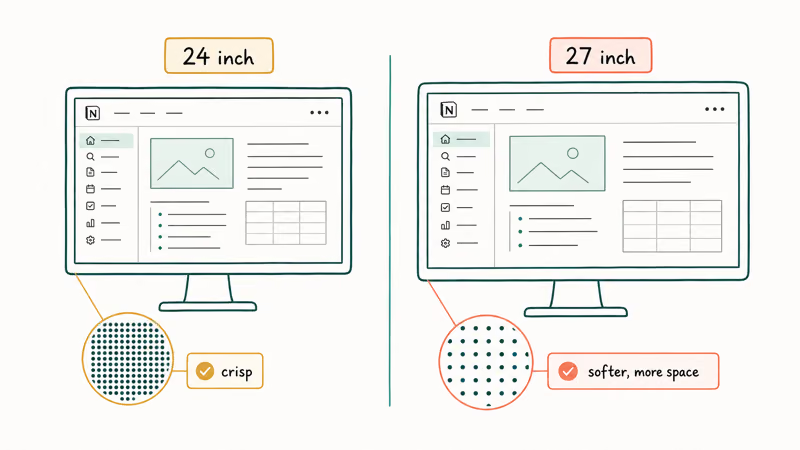
The AOC 24G2E is the budget king for 1080p. It’s a 24-inch IPS panel with a 165Hz refresh rate and a frameless design that looks far more expensive than its price suggests. IPS color at this tier is rare, and 165Hz exceeds what most budget GPUs can push, so you have headroom as you upgrade.
The stand is tilt-only, which is the usual budget compromise. For competitive players who want maximum frame rate and crisp motion on a tight budget, the AOC 24G2E is the easy recommendation.
#AOC 27G2SP
Want the same value at a larger size? The AOC 27G2SP is a 27-inch 1080p IPS panel with a 165Hz refresh rate, ideal if your GPU can’t push 1440p but you still want a bigger screen. At 27 inches the pixels spread out, so 1080p looks softer than on the 24-inch model, but the extra real estate helps for work and split-screen multitasking.
The AOC 27G2SP is a sensible pick for a dual-purpose desk that handles spreadsheets by day and games at night. Pair two of them and you have a wide workspace for cheap.
#Best Budget Monitors for Office and Study
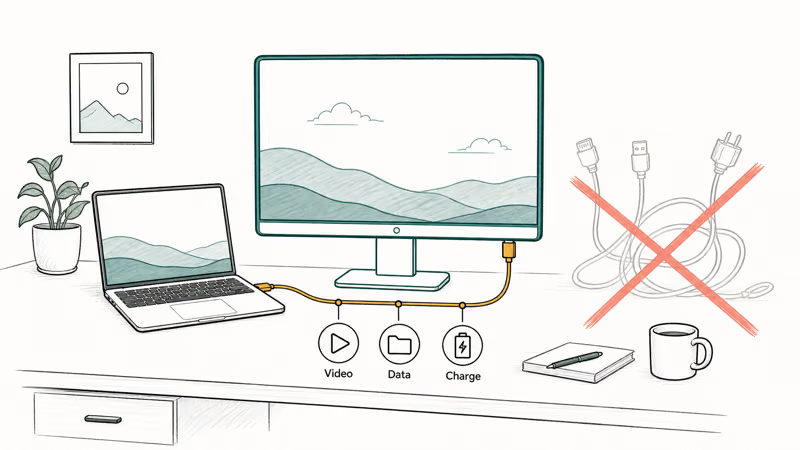
Gaming specs aren’t the priority for everyone. For office and study use, connectivity and eye comfort matter more than refresh rate, and a single USB-C cable that also charges a laptop is the feature worth chasing. Creative work raises the bar further, where a color-accurate monitor is worth budgeting for over a basic office panel.
#Dell S2722DC
The Dell S2722DC is our office pick. It’s a 27-inch 1440p IPS panel with USB-C connectivity, an ergonomic stand, and eye-care features for long sessions. The single USB-C cable carries video, data, and laptop charging, which clears the cable clutter from a home-office desk.
One cable keeps the Dell S2722DC desk cleaner by carrying display, data, and charging at once. For remote work and study, that convenience beats a high refresh rate.
#BenQ GW2786TC
BenQ’s GW2786TC is the value USB-C alternative: 65W power delivery plus DisplayPort-out for a tidy two-screen setup.
The BenQ GW2786TC is a comfortable everyday display with BenQ’s eye-care tuning, aimed squarely at desk work rather than gaming. If a second screen is in your future, the daisy-chain port saves money later. For larger arrangements, our multi-monitor setup guide covers mounting and cabling once you scale past two.
#How to Compare Budget Monitors
Compare budget monitors on the routine that exposes their trade-offs: document work, video calls, long-form reading, and fast and slow-paced games. Check motion clarity at native refresh, panel uniformity across the screen, and USB-C charging behavior where it applies. Brightness and color still vary unit to unit at this price, so treat factory accuracy claims carefully.
#What Should You Look for in a Budget Monitor?
Refresh rate delivers the most noticeable upgrade. Moving from 60Hz to 144Hz makes scrolling, cursor movement, and gameplay visibly smoother, and it’s the first spec to prioritize. Many budget monitors now include it as standard.
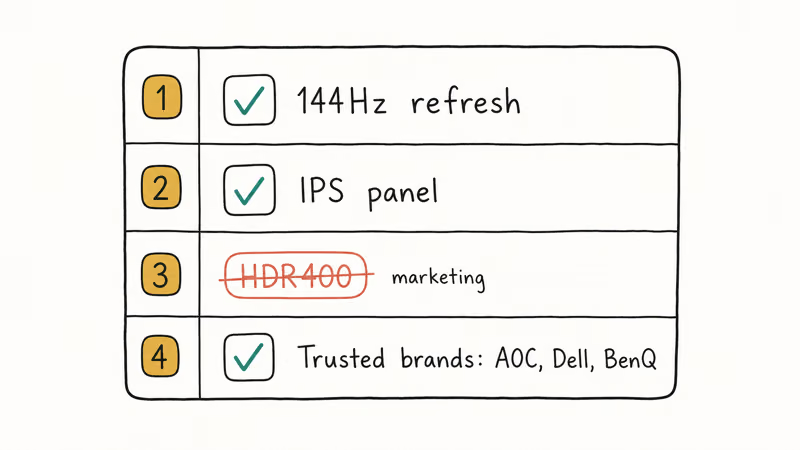
Panel type comes next. According to Tom’s Guide’s monitor recommendations, IPS is the panel to look for, since it beats the cheap TN and basic VA screens that used to fill this tier. Most of our picks use IPS for its color and wide viewing angles, which hold up whether you’re gaming, editing a spreadsheet, or sharing the screen with someone beside you. That single choice does more for everyday image quality than any marketing badge on the box.
Ignore HDR claims at this price. Panels labeled HDR400 can’t get bright enough for real HDR, so treat the badge as marketing. Most budget screens also stop at HDMI 2.0; consult our HDMI 2.1 monitor guide only if you need 4K at high frame rates.
Buy from reputable brands. According to RTINGS’ monitor testing, brands like AOC and Dell offer consistent budget options, while unknown Amazon-only labels tend to suffer from poor quality control and inflated spec sheets. A portable second screen can also stretch a budget setup, and our portable monitor guide covers travel-friendly options.
#Bottom Line
The best budget monitor for most people in 2026 is the KTC H27T22C-3, which delivers 1440p and 200Hz under $200. If you want a more established brand with better ergonomics, the AOC Q27G3XMN is worth the small premium. Budget gamers with weaker GPUs should grab the AOC 24G2E at 1080p, and remote workers should choose the Dell S2722DC or BenQ GW2786TC for single-cable USB-C convenience over raw refresh rate.
#Frequently Asked Questions
Is a budget monitor good enough for gaming?
Yes, easily. A budget 1440p or 1080p IPS panel at 144Hz or higher handles modern gaming well. You mainly give up premium extras like full-array local dimming and true HDR.
How much should I spend on a budget monitor?
You can get a strong 1080p 144Hz monitor for $150 to $200 and a 1440p high-refresh panel right around $200. Spending more mainly buys better stands, USB hubs, and brighter panels. For most people, the sweet spot sits just under $200.
Is 1440p worth it over 1080p on a budget?
It’s worth it with a mid-range GPU and a 27-inch screen, where the extra sharpness shows. With a smaller screen or a weaker card, high-refresh 1080p is the better value.
Are cheap monitors from unknown brands safe to buy?
They can be risky. Unknown Amazon-only brands often pair inconsistent quality control with overstated specs. Sticking with AOC, KTC, Dell, MSI, or BenQ avoids most of those problems.
Do budget monitors support USB-C charging?
Some do, but not all. Office-focused budget monitors like the Dell S2722DC and BenQ GW2786TC include USB-C with power delivery, so a single cable carries video, data, and laptop charging at once. Most budget gaming monitors skip USB-C entirely to keep costs down, since the people buying them usually connect over DisplayPort or HDMI from a desktop tower. Always read the spec sheet before buying, because two monitors at the same price can differ entirely on whether USB-C is present.
What refresh rate do I need on a budget monitor?
Aim for at least 144Hz. The jump from 60Hz to 144Hz is the one you actually feel, and it’s standard even under $150.
Can one budget monitor work for both office and gaming?
Absolutely. A 27-inch 1440p IPS panel with a high refresh rate handles spreadsheets, video calls, and evening gaming equally well. The KTC H27T22C-3 and AOC Q27G3XMN both fit that dual-purpose role, though office-heavy users may prefer the USB-C convenience of the Dell S2722DC.

Pixel 11 vs Pixel 10: What Changed and Who Should Upgrade
Pixel 11 vs Pixel 10: same screen and camera resolution, new Tensor G6, 25W wireless, and Gemini Intelligence. Here is who should actually upgrade.
Best Power Bank for iPad in 2026: Pro, Air, and Mini
Best power bank for iPad in 2026. Compare mAh tiers and USB-C PD wattage for iPad Pro, Air, and mini, plus airline Wh math, cables, and travel tips.
Best Power Bank With Built-In Cable: Top 2026 Picks
Best power bank with built-in cable picks for 2026. Compare single USB-C, multi-connector, and retractable laptop banks, plus airline Wh math.
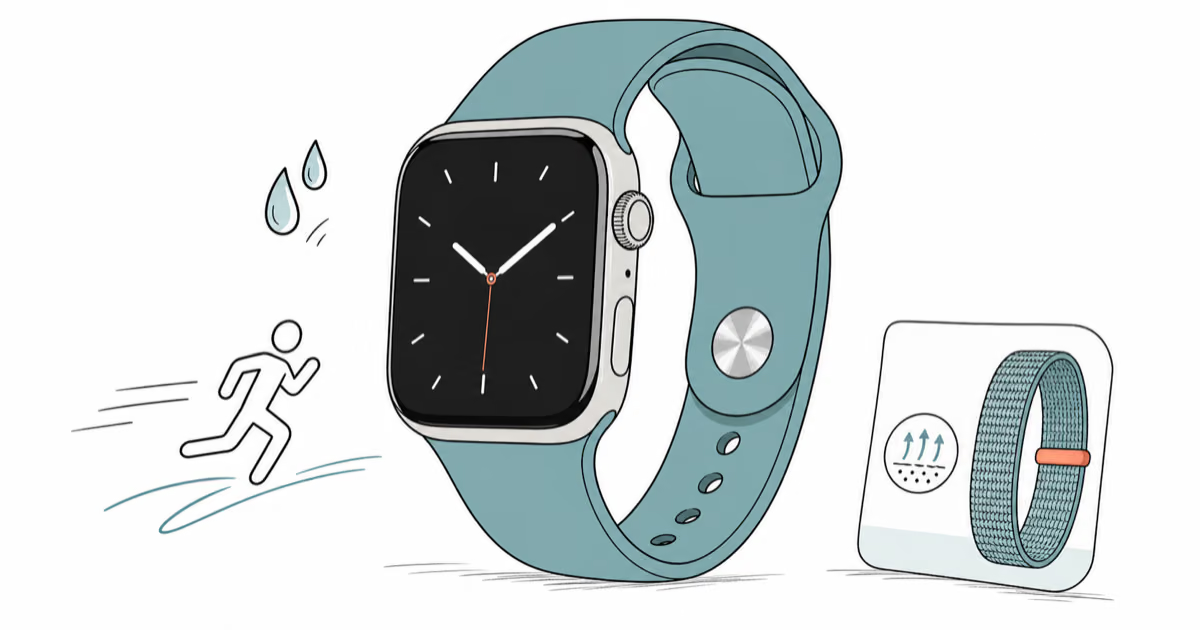
Best Apple Watch Band for Working Out: Proven Picks
The best Apple Watch band for working out handles sweat and stays put on your wrist. Compare silicone, nylon, and titanium picks for runs and lifts.