Apple Watch Green Snake: 5 Safe Charging Checks (2026)
Fix an Apple Watch charging-cable or low-battery screen with five Apple-supported checks for alignment, cleaning, power, restart, and service.
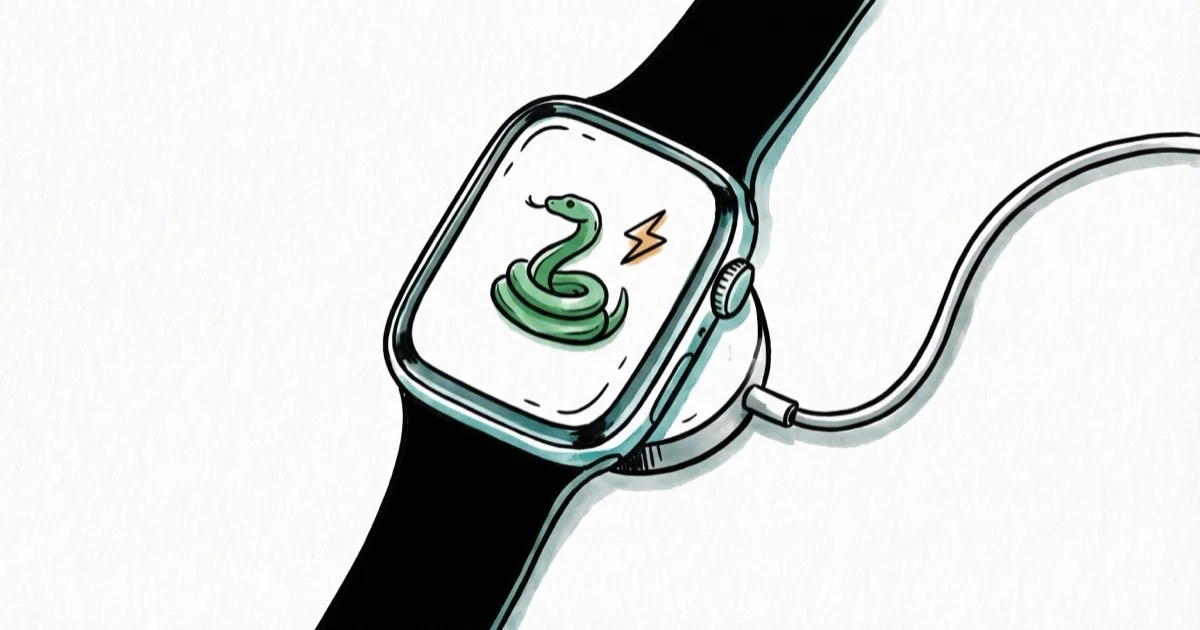
Quick AnswerA red lightning bolt means the watch lacks power; on a charger it appears inside a ring. Charge for up to 30 minutes, then check alignment, surfaces, cable, and adapter before force restarting.
Apple distinguishes a red low-power bolt, a red bolt inside a ring when connected, and a green charging icon. Match the screen before troubleshooting.
Try these charging-screen fixes only on your own Apple Watch or a watch you have permission to troubleshoot. Battery resets, charger swaps, and service decisions can affect warranty coverage, health data, and paired-device access, so keep ownership clear, respect legal privacy boundaries, and ask the owner before erasing or servicing a shared watch.
- A red lightning bolt means the watch lacks enough power to turn on
- On a charger, that red bolt appears inside a ring; a green icon means charging
- A fully drained watch may need up to 30 minutes before it turns on
- Check cable seating, magnetic alignment, clean surfaces, and the power adapter
- Force restart only after the charging checks; erase isn’t a charging repair
#What Does the Green Snake on Apple Watch Mean?
Apple’s current won’t-charge guide says a red lightning bolt means insufficient power; on a charger, it appears inside a ring.
Apple’s status-icon guide uses a separate green charging icon to mean that the watch is charging. Color and shape matter here: don’t infer a battery percentage or hardware failure from the community nickname alone.
Apple says a blank screen or charging-cable graphic may need up to 30 minutes on the charger. It doesn’t publish a 5–10% boot threshold.
#Five Charging Checks to Try
#Check 1: Connect the Charger and Wait
Apple’s charging instructions say to connect an Apple Watch Magnetic Charging Cable, USB-C Magnetic Fast Charging Cable, or Magnetic Charging Dock to a USB power adapter and then place the watch back on the charger. The magnets should align it, and a charging icon should appear.
Keep it connected for up to 30 minutes. That published window isn’t a promise that every watch will boot at the same minute.
#Check 2: Reposition and Clean Both Surfaces
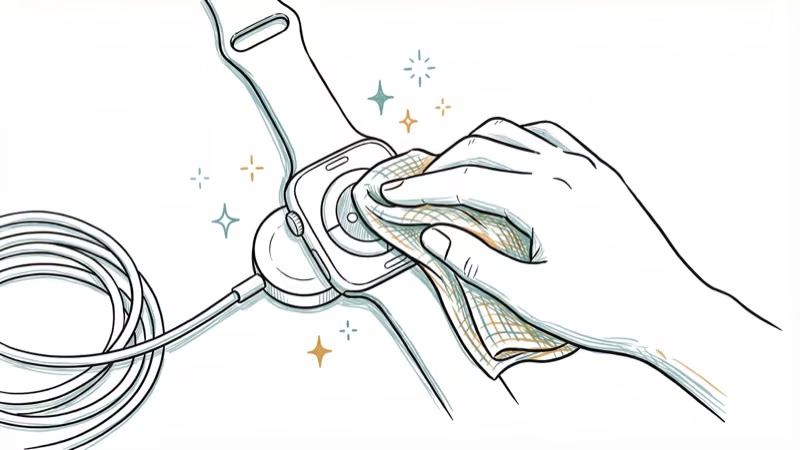
Remove any plastic film from both sides of the charger. Reposition the watch until the magnets align, then clean the back of the watch and the magnetic puck with a soft, lint-free cloth.
According to Apple’s cleaning guide, use water when needed, not soap or solvents. Dry both surfaces before reconnecting them.
#Check 3: Swap the Cable, Adapter, or Outlet
Apple’s won’t-charge guide recommends a different approved cable, USB power adapter, and outlet.
Use the cable that came with the watch when possible. If you use another product, confirm that it explicitly supports your Apple Watch model and market; a connector that fits physically isn’t proof of compatibility.
#Check 4: Adjust the Fit on Docks and Larger Watches
Apple says 44 mm, 45 mm, and 49 mm watches on a Magnetic Charging Dock or MagSafe Duo may need a different angle or a flat dock position. For Apple Watch Ultra or later, remove the band if it prevents the watch from lying flat.
Don’t intentionally drain the battery to zero. Apple’s current charging flow keeps the watch connected while you check alignment, surfaces, cable, adapter, and fit.
#Check 5: Force Restart, Then Get Service
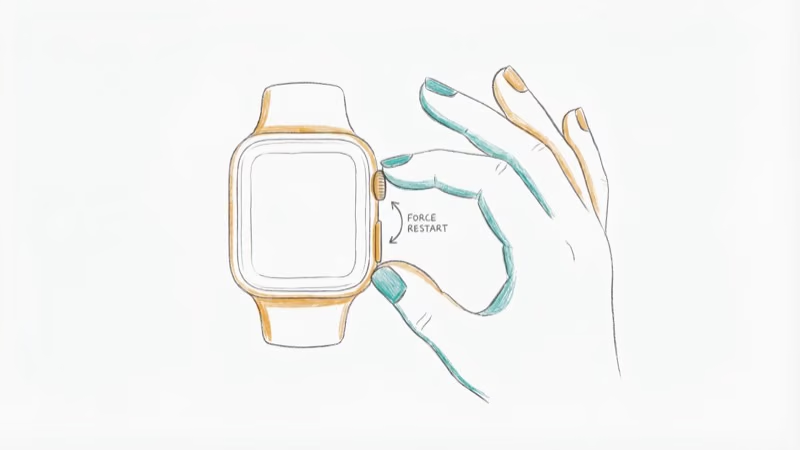
If the watch still won’t charge after the checks above, Apple says to hold the side button and Digital Crown together for at least 10 seconds, or until the Apple logo appears. This is a force restart; it doesn’t erase the watch.
If the watch remains unresponsive, request service. Don’t use the Watch app’s destructive Erase Apple Watch Content and Settings command as a charging repair.
Only consider Apple’s unpair-and-reset flow after the watch responds and you’ve decided to erase it.
If it later gets stuck on the Apple logo or has update trouble, handle that separate issue after charging works.
Use the manual pairing guide only after the watch can turn on.
#Red and Green Charging Symbols
Apple’s current support pages distinguish these states:
| Screen state | What Apple says | Safe next step |
|---|---|---|
| Red lightning bolt | The watch lacks enough power to turn on | Connect the charging cable |
| Red bolt inside a ring | The low-power watch is connected to its charger | Keep it connected for up to 30 minutes |
| Green charging icon | The watch is charging | Leave it connected |
| Blank screen or charging-cable graphic | The watch may need time before it can turn on | Charge up to 30 minutes, then run the checks above |
Don’t label a red low-battery symbol as a green charging state. If Activation Lock appears after the watch boots, handle that account check separately; it doesn’t explain a charging-cable screen.
#Water-Damage Warning Signs
A charging-cable symbol alone doesn’t establish water damage or a failed internal seal.
Apple’s water-resistance guidance says protection can diminish over time. Stop charging and seek service if you see liquid under the display, damaged glass, corrosion, or unusual heat.
#When Should You Contact Apple Support?
Ask Apple or an authorized provider for help when:
- The watch still won’t charge after Apple’s cable, alignment, cleaning, adapter, and force-restart checks
- The watch or charger becomes unusually hot
- You see physical damage to the back sensor or charging area
- The watch is under warranty or covered by AppleCare+
Apple doesn’t publish one static battery-service price for every watch. According to its current Apple Watch service page, the estimate depends on the selected model, and authorized providers can set their own fees. With eligible AppleCare coverage, Apple says battery service has no extra charge when capacity drops below 80%.
Check Settings > Battery > Battery Health. A low reading helps Apple Support, but it isn’t a stand-alone diagnosis of the boot failure.
#Reducing Future Charging Problems
Use a compatible charger, keep both magnetic surfaces clean, and check the fit before assuming the battery failed. Apple’s charging guide says the watch learns from daily charging habits to support battery lifespan through Optimized Battery Charging; it doesn’t publish a 10% prevention floor or a 500-cycle diagnosis for this screen.
If the watch starts draining unusually fast after it boots, follow the separate battery-drain checks and record the Battery Health reading for support.
#Bottom Line
Treat the icon by its actual color and shape. Charge for up to 30 minutes, verify alignment and clean surfaces, try another compatible cable and adapter, then force restart for at least 10 seconds. If those Apple-supported checks fail, request service instead of draining or erasing the watch.
#Frequently Asked Questions
How long does it take for the green snake to go away?
Apple says a blank screen or charging-cable graphic may need up to 30 minutes on the charger before the watch turns on. If it still doesn’t respond, work through the alignment, cleaning, cable, adapter, outlet, and force-restart checks above; the elapsed time alone doesn’t identify which part failed.
Can I use my Apple Watch while it shows the green snake?
Not while the watch remains on the low-power or charging-cable screen. Keep it connected until it can turn on, then confirm that the green charging icon appears before using it normally.
Does the green snake mean my Apple Watch is broken?
Not by itself. “Green snake” is a community nickname, not an Apple diagnostic. Apple’s guide distinguishes a red low-power bolt, a red bolt inside a ring when the charger is connected, and a green charging icon. Run the charging checks before drawing a hardware conclusion.
Will a force restart delete my data?
No. The button combination in Apple’s won’t-charge guide restarts the watch; it isn’t the separate Erase Apple Watch Content and Settings command. Don’t choose the erase command as a charging fix.
Why does my Apple Watch keep showing the green snake repeatedly?
Repeated low-power screens justify checking the same variables again: magnetic alignment, debris, cable, adapter, outlet, and Battery Health. Give Apple Support the Battery Health reading and describe when the screen returns, but don’t treat the icon or one reading as proof that the battery needs replacement.
Can I charge my Apple Watch with an iPhone charger?
An iPhone’s Lightning or USB-C charging cable doesn’t connect directly to an Apple Watch. Use an Apple Watch Magnetic Charging Cable, USB-C Magnetic Fast Charging Cable, Magnetic Charging Dock, or another product that explicitly supports your watch model.
Is it safe to leave my Apple Watch charging overnight?
Apple documents overnight charging as part of the watch’s normal routine and says Optimized Battery Charging learns your daily habits to reduce time spent fully charged. Keep the watch and charger ventilated, and follow any on-screen charging limit rather than relying on an unsupported claim that power draw stops completely at 100%.

Mac mini M6 vs M5 Pro: Which Model Should You Buy?
Mac mini M6 vs M5 Pro compared on price, memory, ports, displays, and real workloads. Find the better 2026 Mac mini for your desk and budget.

Apple Siri Settlement: Who Qualifies and How to Claim
Apple's $250 million Siri settlement covers iPhone 15 Pro and iPhone 16 models bought June 2024 to March 2025. See who qualifies and how claims work.

iOS 26.6.1 Security Update: What Apple Fixed and Who Gets It
Apple released iOS 26.6.1 on August 17 with 29 security fixes, including an IPSec interception bug. See what it patches, who gets it, and how to update.

iPhone Adaptive Power: How It Works and When to Use It
Learn how iPhone Adaptive Power works, which models support it, what it changes, and when Low Power Mode is still the better battery-saving choice.