Android Theft Protection: A Practical 2026 Setup Guide
Android Theft Protection guide for 2026: set up Theft Detection Lock, Offline Device Lock, and Remote Lock on your own phone, with official Google sources.
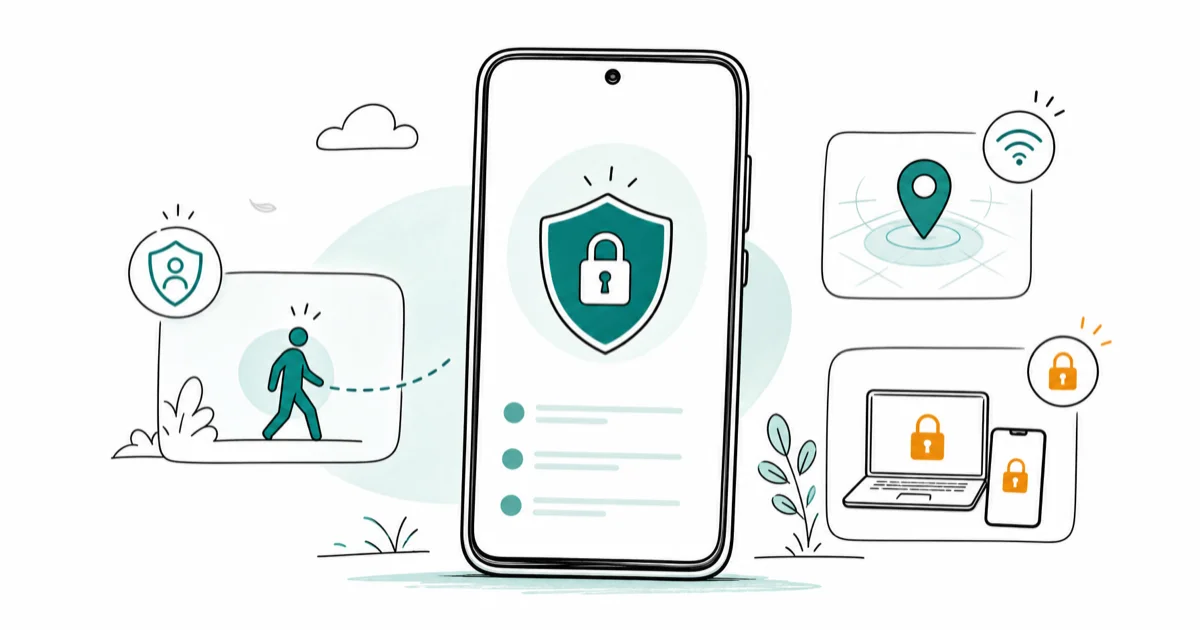
Quick AnswerAndroid Theft Protection is a set of features on your own phone that lock it during a snatch, when offline, or remotely. Confirm you run Android 15 or newer with a current Google Play system update, then turn on Theft Detection Lock, Offline Device Lock, and Remote Lock before you ever need them.
Android Theft Protection is a bundle of lock features built into recent Android phones to protect your own device if it’s snatched, goes offline, or needs to be locked from afar. The best time to set it up is before anything happens. The exact menu names can vary by Android skin, so Settings search is usually the fastest way to find the switches.
- Theft Protection needs Android 15 or newer plus a current Google Play system update
- Theft Detection Lock uses motion sensors to lock the screen when a thief grabs the phone and moves fast
- Offline Device Lock locks the screen if the phone is taken offline for an extended period
- Remote Lock lets you lock the device from any browser using just your phone number
- These features protect your own phone only, and you should never use them to track another adult without consent
#What Is Android Theft Protection?
Android Theft Protection is Google’s name for a group of automatic lock features that respond to common theft patterns. Instead of one switch, it bundles several that each react to a different scenario: a grab-and-run, a phone forced offline, or a device you need to lock remotely after it leaves your hands.
The core idea is prevention through locking, not surveillance. These tools secure a phone you own so a thief is left holding a brick. They’re never meant to monitor another person without consent.
According to Google’s theft protection help page, the feature set includes three locks: Theft Detection Lock, Offline Device Lock, and Remote Lock. Google’s Android theft protection announcement confirms that the rollout reaches eligible devices through Google Play services rather than a full OS update, so your phone can gain these features without a headline version bump.
#Turn On All Three Core Theft Protection Locks
Turn on all three. Each covers a gap the others miss. Theft Detection Lock is the headline feature: it uses the phone’s accelerometer and machine learning to spot the sudden motion of a snatch, then locks the screen automatically.
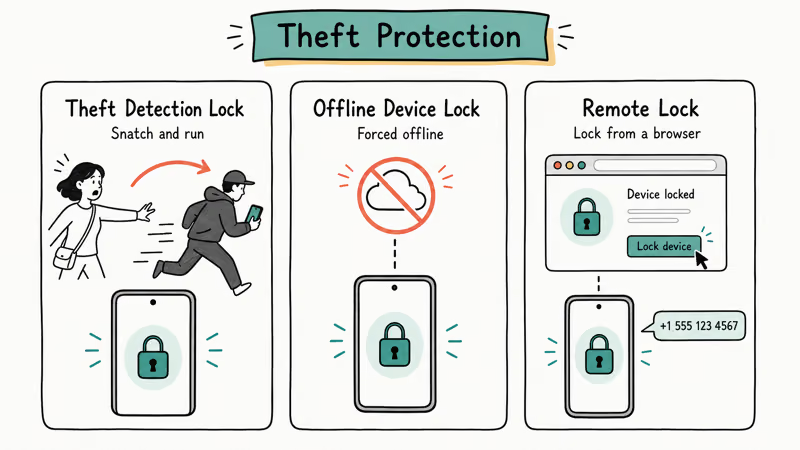
Offline Device Lock handles the next move a thief makes: pulling the phone offline to dodge tracking. If your device goes offline for a stretch while locked, this feature relocks the screen so it can’t be left open and unattended.
Remote Lock is your manual override. Google’s documentation states that you can lock the phone from a browser using only your verified phone number, which is faster than a full account login when you’re panicking after a loss. That makes it the fallback for the moment when the device is already gone but the recovery number is still reachable.
Set up all three the same day. A half-configured set leaves an obvious gap.
#Check Whether Your Phone Is Eligible First
Eligibility is the gate. Google’s Android theft protection announcement states that the lock set targets 3 device-loss scenarios across Android 10 and above, while Theft Detection Lock itself requires Android 15 or newer. So an older phone may get some pieces but not the marquee motion lock.
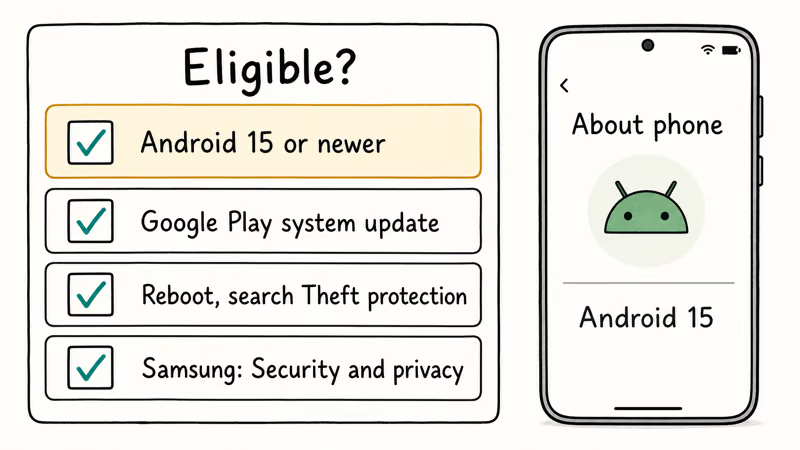
Run this quick checklist before you hunt for the switches:
- Confirm Android 15 or newer under
Settings>Aboutphone - Install any pending Google Play system update
- Reboot, then open Settings and search “Theft protection”
- On Samsung, also check
Settings>Security andprivacy for the same group
If the search comes up empty after a reboot on a current phone, the feature simply hasn’t reached your device through Play services yet. Wait a few days and check again rather than chasing a fix.
#Set Up Remote Lock and Offline Device Lock
Start in Settings and use the search bar. Type “Theft protection” and tap the result, which collects all three locks in one place on a qualifying phone.
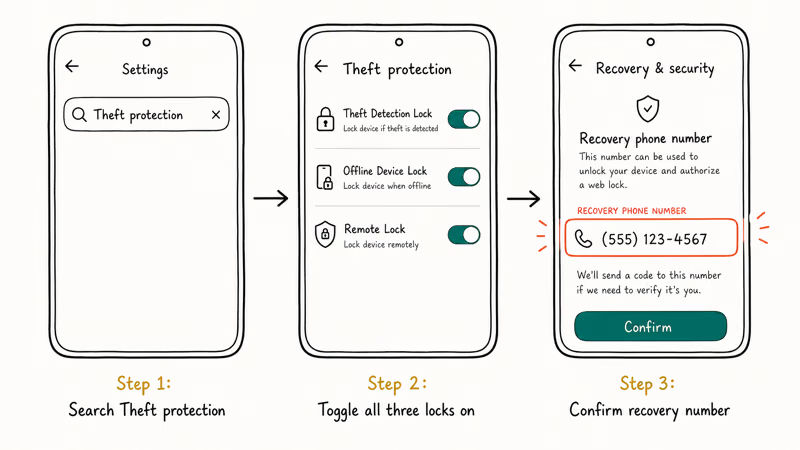
Inside that screen, toggle all three locks on one by one. Remote Lock is the one that needs a little setup: it asks you to confirm a recovery phone number, because that number is exactly what later authorizes a lock from the web when you no longer have the phone in hand. Pick a number you actually control, ideally a second device or a trusted family member’s line, so you’re never locked out of your own lock.
To use Remote Lock later, you visit Google’s device lock page in any browser and verify with that phone number. According to Google’s Find Hub help documentation, the same Google account that powers device finding also backs these lock and erase actions. So keeping that account secure with a strong password and two-step verification is part of theft protection, not separate from it.
If your phone predates these features, the lower-risk fallback is a screen lock plus Find Hub. Our guide on Google Find My Device walks through locating and locking an older device, and How To Locate A Lost Cell Phone That Is Turned Off covers the harder offline case.
#How Does Find Hub Fit In?
Find Hub is Google’s renamed device-finding service. It’s the recovery half of theft protection: the locks keep a thief out, while Find Hub shows you where the phone is and lets you trigger a remote lock or erase. The two work as a pair.
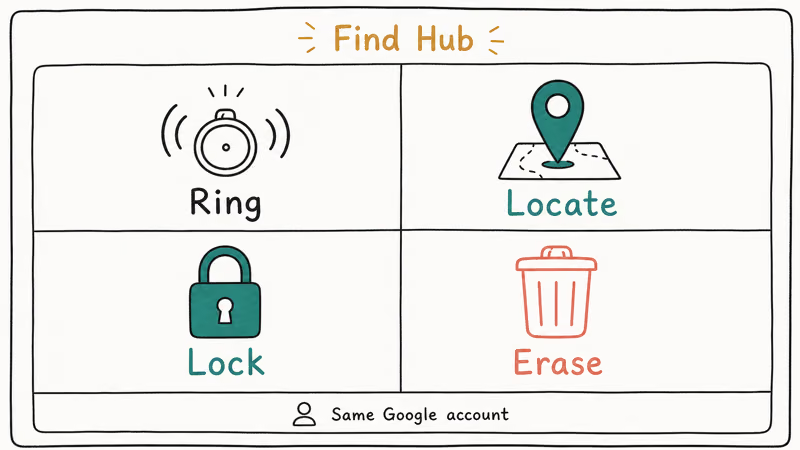
From Find Hub you can do four things: ring the phone, see its last known location, lock it with a message, or erase it as a last resort.
Google’s Find Hub documentation confirms that all 4 of those lock and erase actions lean on the same Google account the Theft Protection switches use. That overlap is exactly why account security, with a strong password and two-step verification, is part of theft protection and not a separate task you can leave for later, since a compromised account hands an attacker the same remote controls you rely on.
Hardware trackers cover a different gap: keys or a bag, not the phone. Our roundup of the Best Bluetooth Tracker For Android compares those, and How To Find An Airtag Tracking You explains how to detect an unwanted one.
#Know the Privacy and Authorization Limits
These tools are for a device you own, or a minor child you transparently manage. Pointing them at another adult’s phone without clear consent is surveillance, which violates privacy and can break the law.
Set realistic expectations too. Theft Detection Lock relies on motion patterns, so it won’t catch every scenario, and a phone with no power or no signal can’t be located in real time. A thief who powers the device down fast, or drops it into a signal-blocking bag, can still defeat the locate side, even though the locks themselves stay engaged. Treat all of this as strong, layered protection rather than an absolute guarantee that a stolen phone always comes back.
When the official path fails, don’t force a workaround. Skip risky third-party “anti-theft” apps that demand deep permissions, since a tool that can lock a phone can also be abused. If you suspect one is already on your device, our guide on How To Remove Malware From Android helps you audit what’s installed.
If your phone is stolen, file a police report and contact your carrier to suspend service. The official lock-and-locate flow plus a report is the safe sequence.
#Bottom Line
For most Android owners on a 2026 phone, the right move is simple. Confirm you’re on Android 15 or newer with a current Google Play system update, then turn on all three locks in Settings under Theft protection. Set a recovery phone number for Remote Lock now, while the device is in your hands.
That recovery number is the single highest-value step here, because it’s what lets you lock from a browser the moment the phone is gone. Keep every one of these tools pointed at your own device only.
#Frequently Asked Questions
Android Theft Protection, what is the first thing to check?
Check your Android version under Settings > About phone. The feature needs Android 15 or newer.
Why did this start appearing after an update or device switch?
Theft Protection ships through Google Play system updates, not only full Android releases, so a background update can add the menu without a version change. If it appeared after switching phones, the new device simply met the eligibility bar that your old one didn’t, which is why the same person can see the feature on a newer handset and not on the one they just retired.
Does setting this up require a reset or reinstall?
No. It’s a settings change, not a repair. You only toggle the three locks and confirm a recovery number.
What official support page should I check first?
Google’s theft protection help page documents Theft Detection Lock, Offline Device Lock, and Remote Lock, and the Find Hub help page covers the locate and erase side. Both are linked above and apply directly to setting up and using these features on your own phone, so start there before any third-party guide that may be out of date or aimed at a different Android skin.
What should I avoid doing?
Skip third-party anti-theft apps that demand broad permissions, and never enable these locks on another adult’s device without consent.
When should I contact support or the authorities?
If your phone is stolen, file a police report and call your carrier to suspend the line, then use Remote Lock and Find Hub to lock or erase the device. Contact your phone maker’s support if you’re on a qualifying Android 15 device and the Theft protection menu still won’t appear after a reboot.

Pixel 11 vs Pixel 10: What Changed and Who Should Upgrade
Pixel 11 vs Pixel 10: same screen and camera resolution, new Tensor G6, 25W wireless, and Gemini Intelligence. Here is who should actually upgrade.

Verizon Not Receiving Texts? How to Fix It in 9 Steps
Verizon not receiving texts? Fix it in 9 steps: check Message Blocking in My Verizon, reset network settings, deregister iMessage, and call support.

Pixel Battery Drain: What Google's July Fix Really Covers
Google marked the Pixel idle battery drain bug fixed in July, but only some phones got the patch. Here is who is covered, who is not, and what to try.

iPhone Stuck on EDGE? How to Get 5G or LTE Back (2026)
iPhone stuck on EDGE with crawling data? Here's why the E icon appears, which settings force 5G or LTE back, and when the problem is your carrier.