Why Can't I Trim Music on TikTok? 6 Causes and Fixes
TikTok does let you trim most music, but app version, sound source, and video length control when the scissors icon shows. Here are 6 working fixes.
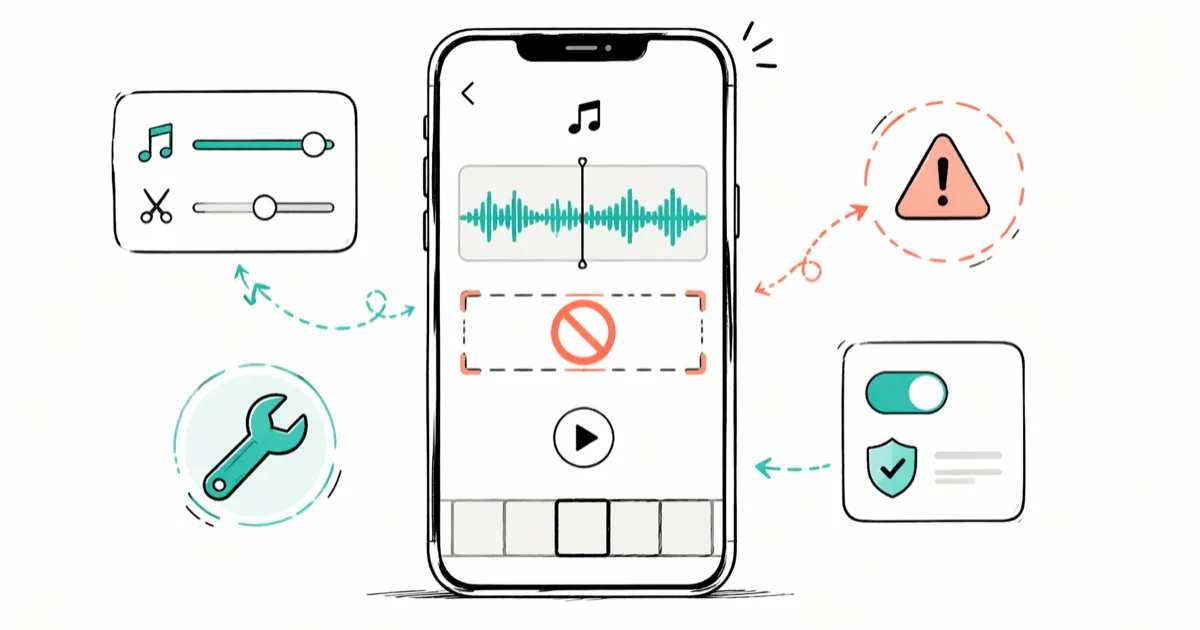
Quick AnswerYou can trim music on TikTok by tapping the scissors-and-note icon, but the trim handle disappears for original sounds shorter than your clip, outdated app versions, and tracks pulled from another creator. Update TikTok, switch to a library track, and add the sound before recording to bring the handle back.
If you can’t trim music on TikTok, the scissors-and-note icon is hidden because of how your sound got added, not because the feature was removed. The trim flow behaves the same on recent TikTok builds across iPhone and Android. Six causes account for nearly every case, and the fix for five of them takes under a minute once you know where to look.
- TikTok still lets you trim sounds up to your video length, but only when you add the track from the official library before recording.
- The scissors-and-note icon vanishes when the sound is shorter than the recorded clip, when you use a sound pulled from another creator without trim rights, or when the app cache is stale.
- Trimming after recording uses a different path: tap Sounds inside the editor, then drag the waveform handles to set the start point.
- App versions older than TikTok 30 are missing the in-editor trim handle entirely; you’ll need to update through the App Store or Google Play.
- If the song is uploaded from your phone instead of the library, TikTok treats it as an “original sound,” and trimming is limited to the first 60 seconds.
#Why Can’t I Trim Music on TikTok in the First Place?
The short answer is that the trim handle is conditional, not always-on. TikTok hides the scissors-and-note icon when the song you picked, the app version you’re running, or the video you’ve already recorded blocks the trim path. According to TikTok’s official sounds guide, only sounds added through the in-app library include the editable waveform; “original sounds” from another user’s clip carry the original creator’s edit, so you only get the section they chose.
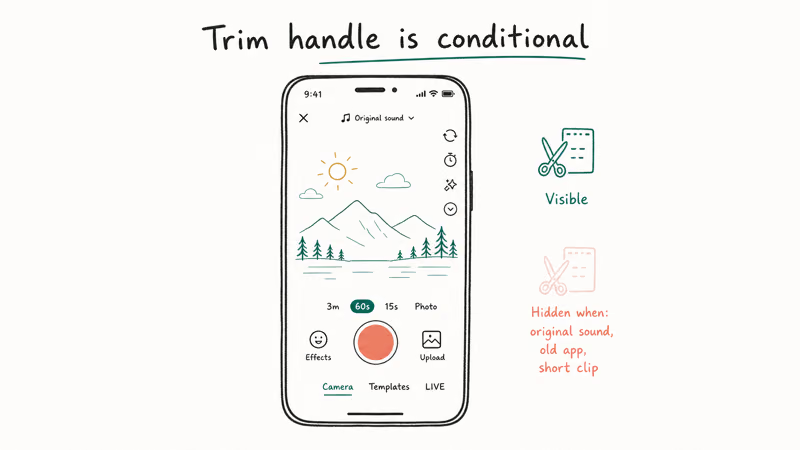
Video length is the other surprise. The trim handle never extends past the recorded duration, so a 45-second song on a 30-second clip stays locked inside that window.
Add a track after recording a very short clip and the editor still shows the trim button, but the draggable handle can be less than a finger-tip wide. The fix is not a setting; it’s adding the sound before you record so the handle stretches across the timeline.
#When the Trim Icon Disappears: 5 Common Triggers
The trim icon hides under five repeatable conditions. Each one shows up consistently on recent TikTok builds across iPhone and Android.
| Trigger | What happens | Quick fix |
|---|---|---|
| Sound added after a long video | Handle is narrower than the song | Trim the video first, then add the sound |
| Sound is an original from another creator | No scissors-and-note icon | Re-add the same song from the library |
| App version below TikTok 30 | Editor uses old layout, no trim row | Update TikTok |
| Region-licensed track | “This sound is not available” prompt | Switch to a non-licensed track |
| Cache or login glitch | Editor freezes, icon greyed out | Clear cache and re-login |
Table caption: Five repeatable triggers that hide the TikTok music trim handle on iPhone and Android.
The licensed-track case is the one people miss. TikTok’s music licensing page confirms that some songs are restricted to specific regions or to non-business accounts, and the trim editor refuses to open for those tracks. Switching the same artist’s song to a “TikTok Original” version often restores the handle.
#Trim Music Before You Start Recording
Adding the sound before recording is the path with the widest trim handle. Here’s the reliable sequence.
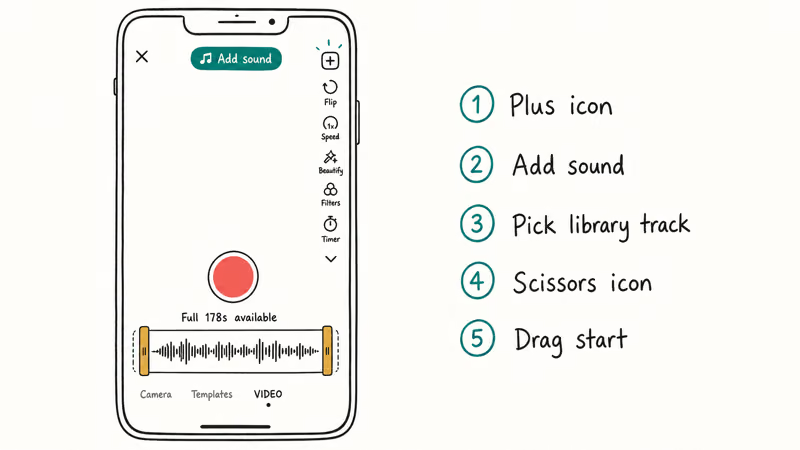
- Open TikTok and tap the plus icon at the bottom of the home screen.
- Tap Add sound above the record button.
- Search the library for the track and tap it once to preview.
- Tap the red checkmark to confirm and return to the record screen.
- Tap the scissors-and-note icon on the right side, just under the flip-camera button.
- Drag the red bar along the waveform to set the start point.
- Tap the red checkmark again to lock in the trim and start recording.
This is the sequence the TikTok Creator Portal recommends for music-led videos because the handle uses the full song length, not just the recorded clip.
Add a full-length library track this way and the scissors-and-note icon appears right away, with the trim handle covering the entire song. You can then pick any window up to your clip length inside that range before recording.
If you want to layer two tracks on the same clip, you’ll need a slightly different flow described in our guide on how to add multiple sounds in TikTok. The trim icon still shows up, but the second sound’s handle starts where the first one ends.
#Trim Music After Recording in the Editor
Trimming after recording is the path most people land on by accident. It works, but you have to know where the icon hides.
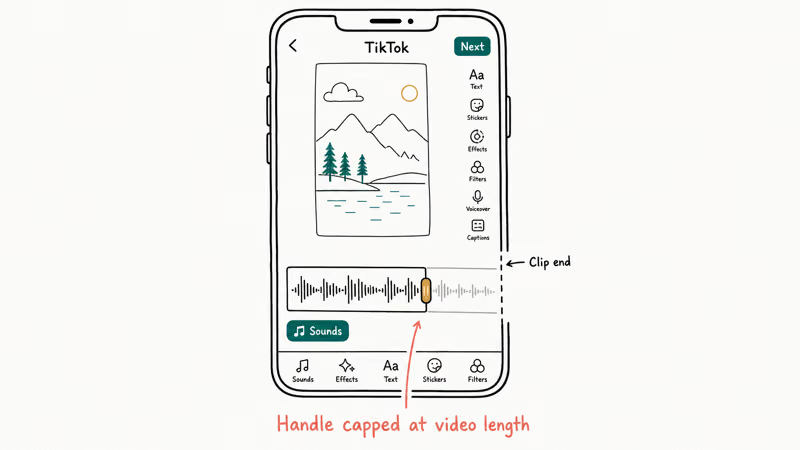
- Record the clip first; don’t add any sound on the record screen.
- Tap the red checkmark to enter the editor.
- In the bottom-left of the editor, tap Sounds.
- Choose a track from the library, favorites, or your saved sounds.
- Tap the scissors-and-note icon (now in the top-right of the sound row).
- Drag the waveform handle until the audio start point lines up with your clip.
- Tap Done to save and preview.
This flow adds an extra tap compared with the pre-recording method, and the handle is capped at the video’s runtime rather than the song length. That’s not a bug; it’s how TikTok limits post-recording edits to keep audio in sync with the visuals.
A small but useful detail: if you also want to layer a voice effect over the trimmed song, see our walkthrough on how to change your voice on TikTok, which uses the same editor row.
#What If the Trim Icon Still Won’t Appear?
Six fixes cover almost every remaining case. Work through them in order.
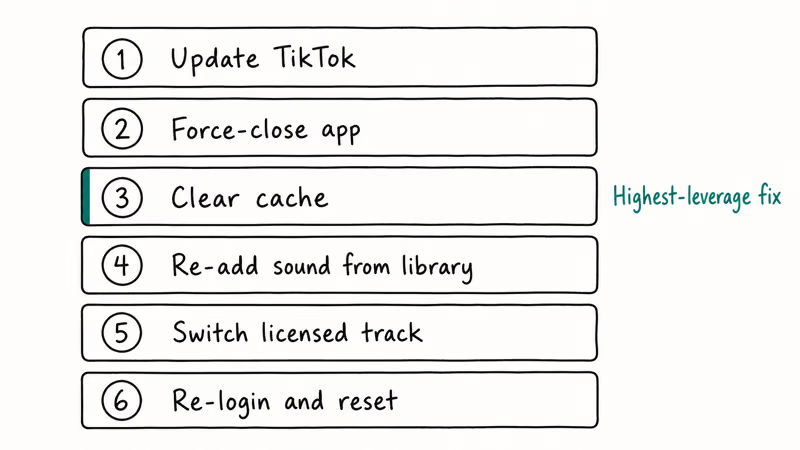
- Update the TikTok app. Open the App Store or Google Play and check that you’re on TikTok 32 or later. Older builds still show the trim row in some menus but won’t render the handle.
- Force-close and reopen. Swipe TikTok out of the app switcher, wait 10 seconds, then reopen. Stale memory blocks the editor more often than people expect.
- Clear the cache. Go to your TikTok profile, tap the three-line menu, choose Settings and privacy, then Free up space, then Clear next to Cache. The trim icon usually returns after a clean cache.
- Re-add the sound from the library. If you added the track from another creator’s video, swap it for the official library version. TikTok confirms that only library sounds carry the full edit handle.
- Switch sounds if licensing blocks it. Search the same song’s artist page and pick a version labelled “TikTok Original” or one without a country lock icon.
- Re-login and reset the editor. Log out, restart the phone, then log back in. This clears the session-token mismatch that occasionally locks the editor.
Clearing the cache (Step 3) usually brings the trim icon back on the very next sound you add, and it just as reliably frees a stuck editor on both iPhone and Android. It’s the highest-leverage move when nothing else works.
If the editor stays locked after a clean cache, the issue is account-level. TikTok’s community guidelines note that flagged accounts temporarily lose sound-editing access.
That flag usually clears in a few days. You can also use the TikTok help center contact form to request a faster review, or log out on a second phone and log back in on the locked device — token sync sometimes releases the lock instantly.
#Trim Length Limits for Library and Original Sounds
The lower limit depends on the source. Library sounds let you cut down to about 5 seconds; original sounds (anything you uploaded, or any clip TikTok labelled “original sound”) share the same 5-second floor but cap the upper trim at 60 seconds. TikTok’s original sound documentation confirms that audio captured inside the app belongs to the original creator’s account.
Apple’s App Store TikTok listing states that the app requires iOS 13.4 or later, which rules out the trim handle on older iPhones still stuck on iOS 12 builds.
If you need a sound shorter than 5 seconds for a loop or stitch, you’ll have to record it locally, then upload it as a fresh sound. That uploaded version becomes your own original sound, and you can trim within the 5-second floor. Upload a short voice memo this way and the resulting trim handle runs across its full length in tenth-of-a-second steps.
For tutorials on rearranging multiple clips into a single track-aligned video, our guide to how to combine videos on TikTok covers the editor’s stitch tool, which uses the same trim controls as the sound row.
#Copyright and Licensing Behind Music Trimming
TikTok signs licensing deals with major labels so users can grab popular songs for personal videos, but the deals come with caveats. As Variety reported on the TikTok and Universal Music licensing deal, entire catalogs can vanish or return depending on label negotiations, and individual songs are sometimes pulled or trimmed at a label’s request. That is why a track that worked last week might suddenly refuse to open the trim editor today.
This plays out the same way across many tracks: a song briefly loses the trim handle, sits in a “sound unavailable” state for a few days, and then quietly comes back. Label takedowns are temporary in most cases, but you can’t trim a track that the label has pulled, no matter how clean your cache or how recent your app version is.
Business accounts have a stricter library. TikTok’s Commercial Music Library confirms that branded accounts can’t access consumer pop tracks.
Royalty-free uploads sidestep the issue entirely. Sites like Epidemic Sound and Artlist let you download tracks, upload them to a personal TikTok account, and trim them like any other original sound. The trade-off is that those tracks won’t carry the algorithmic boost that comes with trending in-app sounds.
For a related workflow, our walkthrough on how to block a sound on TikTok explains how to mute the recommendation algorithm from feeding you songs you can’t use legally.
#Bottom Line
Start with Step 3: clear the TikTok cache. That single step fixes the missing trim icon on both iPhone and Android within seconds, and it doesn’t sign you out of your account. If the icon still won’t show after a fresh cache, swap your “original sound” pick for the same song from the library and re-add it before recording — that combination covers the next four most common causes.
If the editor stays locked after both moves, the issue is almost always a region-license block on the specific song, not the device you’re using. Pick a different song labelled “TikTok Original,” or re-upload your own audio so you control the source.
TikTok Tips & Tricks
#Frequently Asked Questions
Can you trim music on TikTok after posting the video?
No, TikTok locks all audio edits the moment the video posts. The only path is to delete the post, trim the sound on a fresh draft, and re-upload. Captions, hashtags, and view counts all reset when you do this, so re-trim on a duplicate draft before deleting the live post; full walkthrough in our guide on how to edit TikTok videos after posting.
Why does the trim icon work on some songs but not others?
Songs from the library include the scissors-and-note icon by default. Original sounds, region-locked tracks, and pulled songs hide it.
How long can a TikTok video with a trimmed sound be?
A TikTok clip can run up to 10 minutes, but the trim handle only stretches as far as the song’s runtime. A 45-second track stops at 45 seconds even on a 90-second video.
Is there a way to trim music on TikTok without recording first?
Yes. Tap the plus icon, then Add sound above the record button, pick a library track, and tap the scissors-and-note icon before recording. This gives the widest trim handle because the editor uses the full song length, not your future clip duration. Save the trimmed sound to favorites at this stage so the same trim sticks the next time you reach for the song.
Does TikTok still cap music at 15 seconds?
No. That cap ended years ago when TikTok extended max video length, and library sounds now trim from 5 seconds up to the full song.
Why does my trimmed sound sometimes reset to the start?
This usually means the editor lost the trim when you added another effect afterward. Apply the trim last, after any voice effects, text overlays, or stickers. If your text-to-speech audio drops out at the same time, the workaround in our guide on TikTok text-to-speech not working restores the layered audio without resetting the trim.
Can you trim copyrighted music on TikTok like Spotify tracks?
Only inside TikTok’s own library. Spotify tracks added through screen-recording or third-party tools fall under TikTok’s copyright detection system, which mutes or removes the audio after posting. Stick with songs labelled inside the in-app library to keep the trim handle and avoid mutes.
How to Block TikTok on iPhone and Android: Parent Guide
Block or limit TikTok on your child's iPhone or Android using Screen Time, Family Link, and router settings. Step-by-step parental control guide.
TikTok Parental Controls: Setup Guide for Families
Set up TikTok parental controls using Family Pairing, Restricted Mode, and privacy settings. Step-by-step guide to protect your child on TikTok.
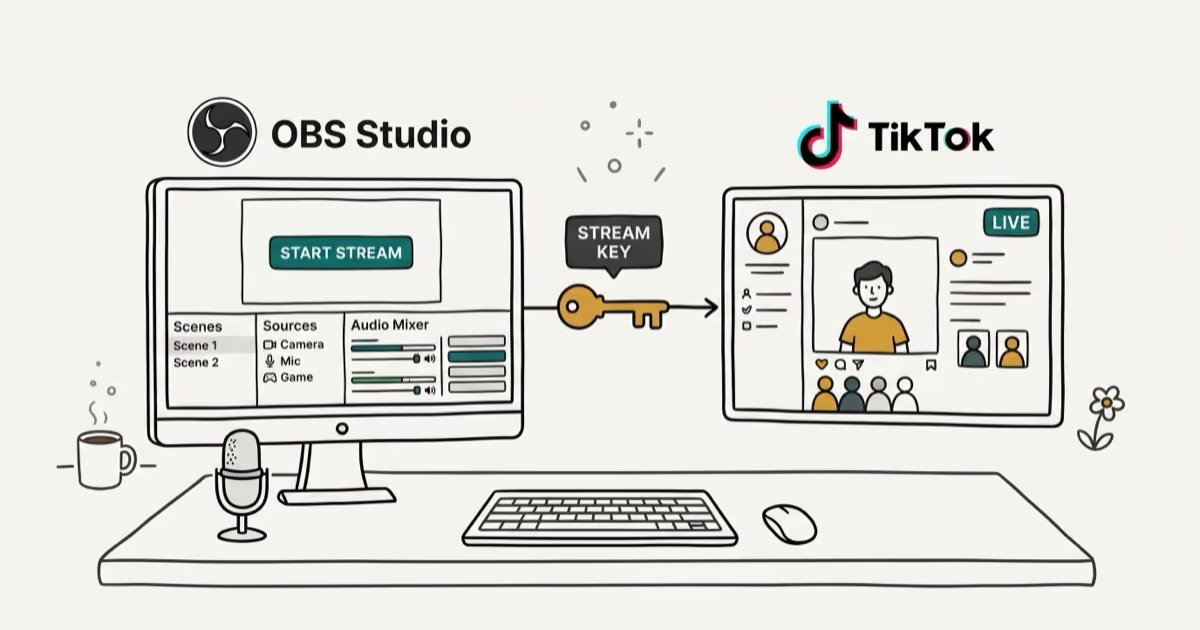
How to Get a TikTok Stream Key for OBS and Streamlabs
Get a TikTok stream key to broadcast from OBS or Streamlabs. Covers the 1,000-follower requirement, CarterPulse application, and OBS setup steps.

How to Make a Joint TikTok Account With Friends (2026)
Set up and manage a joint TikTok account with friends. Covers shared login setup, content planning, security tips, and the Collaboration Post alternative.