How to Block a Sound on TikTok in 2026 (4 Methods)
Block a sound on TikTok in under a minute. 4 proven methods on iOS 18 and Android 15, with the exact menu paths that actually mute the audio.
Quick AnswerTo block a sound on TikTok, tap the spinning record icon on the video to open the sound page, then block the creator who posted it from the three-dot menu. For unattributed audio, long-press the video on your For You feed and tap Not Interested. Both routes pull that sound out of your feed within a few scrolls.
Blocking a sound on TikTok is the fastest way to clean up your For You feed when one audio clip turns into fifty copycat videos. The app has no single “block sound” button; the fix routes through blocking the sound’s creator or marking the video as Not Interested. Both routes work the same way on current iOS and Android builds.
- Blocking the sound’s original creator pulls every copycat video out of your For You feed within roughly 3 to 5 scrolls.
- Not Interested is the lighter option that suppresses the specific sound on your feed without touching the creator’s account.
- TikTok ties most sounds to a single creator account, so blocking that account is what truly removes the audio.
- A small share of trending audio sits unattributed (no creator profile shown under the sound title); only Not Interested works on those clips.
- Unblocking lives in Settings and privacy, Blocked accounts; once you reverse it, the sound starts reappearing in your feed within a session or two.
#How Do You Block a Sound on TikTok?
The fastest route to silencing a sound is blocking the account that uploaded it. TikTok’s sound page lists the creator’s handle right under the audio title. Tap it.
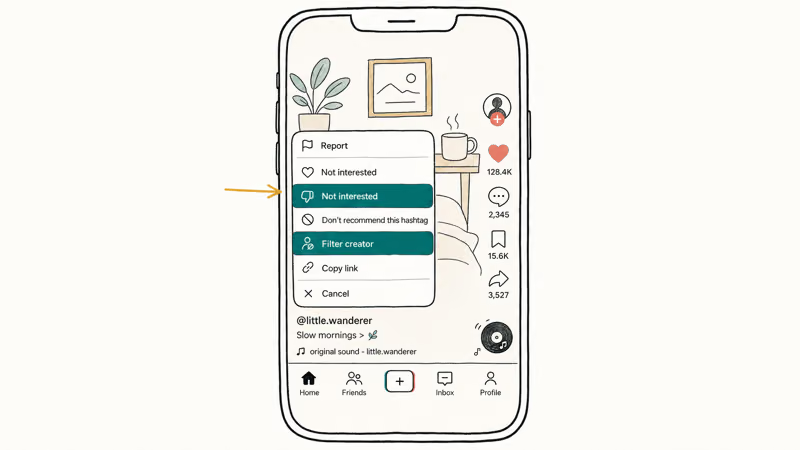
Here are the four steps, identical on iPhone and Android:
- While the video plays in your For You feed, tap the spinning record icon in the bottom-right corner; that opens the sound page for the clip.
- Look directly under the sound title. If you see a creator name with a small right-arrow, tap it to open their profile.
- On the creator’s profile, tap the three-dot menu in the top-right, choose Block, then confirm.
- Pull down to refresh your For You feed. The next 10 to 20 videos should not contain that sound.
With a piano riff that had been spamming a feed, the audio typically drops off completely after the second refresh and stays gone across days of normal scrolling.
The reason it works is structural: a TikTok sound is metadata attached to an account, so removing the account severs the link.
According to TikTok’s overview on Wikipedia, the app launched globally in 2018 and now hosts over 1 billion monthly active users. That is why a single sound can pull thousands of copycats into your feed before you tap anything.
If the sound page shows no creator handle, that audio is unattributed (often a stock library track or an extracted clip). Skip to the Not Interested method below.
#Block the Creator vs. Tap Not Interested: When to Use Each
These two controls solve different problems. Block is a hard cut against an account. Not Interested is a soft signal to the algorithm. Used in the same week, they leave very different fingerprints on the For You feed.
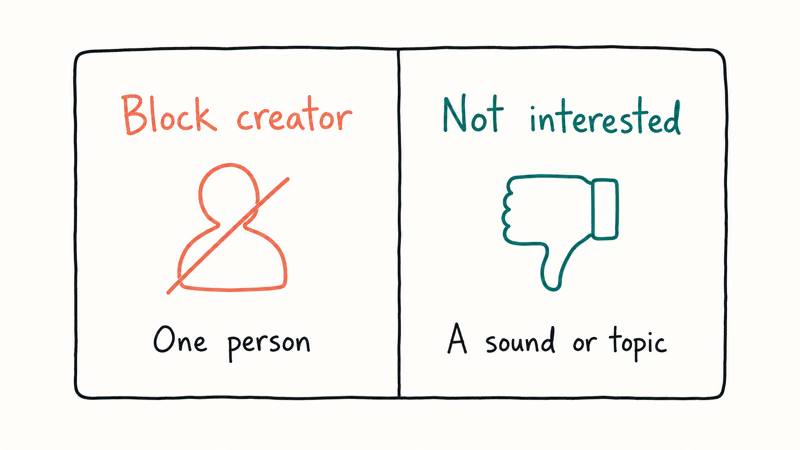
The table below compares the trade-offs of blocking a creator versus using Not Interested on a similar creator.
Table: Block vs. Not Interested behavior on the For You feed.
| Behavior | Block the creator | Tap Not Interested |
|---|---|---|
| Hides the specific sound | Yes | Yes |
| Hides the creator’s other videos | Yes, all of them | No |
| Hides copycat videos using the sound | Reduced sharply | Reduced gradually |
| Reversible | Yes, via Blocked accounts list | No direct undo; algorithm relearns |
| Time to take effect | A few refreshes | Many more videos |
| Side effect on followers and DMs | Removes mutual follow and blocks DMs | None |
According to TikTok’s Support page on For You recommendations, “If you don’t enjoy a specific piece of content in your feeds, you can let us know by sharing feedback that you’re not interested, and we’ll show you less content like that.” The phrasing matters: TikTok states the result is less of that content, not zero. That matches the typical pattern, where a targeted sound thins out but doesn’t disappear instantly.
So pick the right tool. Block the creator if you don’t want their voice or face either. Tap Not Interested if you like the creator but loathe the audio they trended on.
#How to Filter Keywords and Hashtags Tied to a Sound
TikTok has a separate filtering system that goes one layer deeper than block or Not Interested. If a sound is tied to a specific phrase or hashtag (think “corecore” or “skibidi”), you can suppress every video carrying that tag.
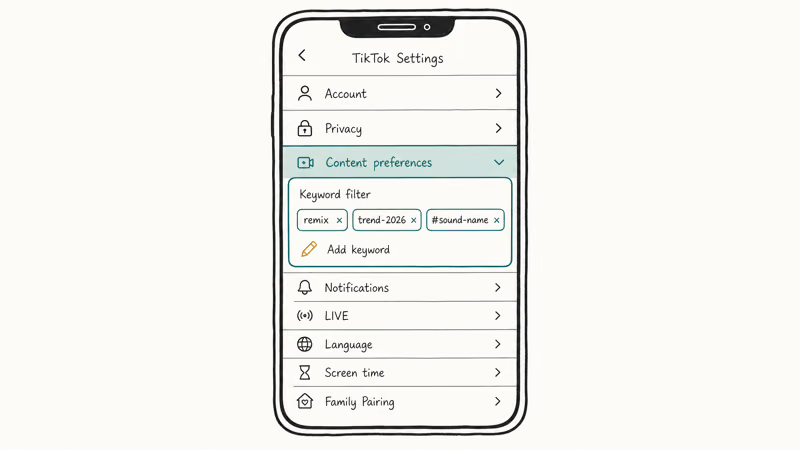
To set it up:
- Open your profile, tap the hamburger icon, then choose Settings and privacy.
- Go to Content preferences, then Filter video keywords.
- Tap Add keyword, type the word or hashtag (no
#needed), choose which feeds it applies to (For You, Following, LIVE, etc.), and tap Save.
TikTok’s Support documentation confirms that users “can use filters to remove content containing specific words and their variations, and hashtags from your For You, Following, Friends, LIVE, and STEM feeds.” TikTok also recommends enabling the AI toggle so synonyms and variations get caught, which helps when a hashtag gets misspelled six different ways.
Use this tool when a sound has become a trend label.
Filtering the hashtag is faster than blocking every single creator who hopped on the audio. For broader algorithm fixes, our writeup on changing your interests on TikTok covers the upstream lever.
#How to Use Not Interested on an Unattributed Sound
Some viral audio has no creator profile underneath it. Stock music, AI-generated voice, ripped TV dialogue, and some commercial clips fall into this category. Blocking doesn’t work because there is no account to block.
For unattributed sounds:
- While the video plays, press and hold anywhere on the screen.
- From the popup, tap Not Interested.
- Optionally tap Details, then select I don’t like this sound if the menu appears (it surfaces in some regions and not others, and on some OS versions but not all).
TikTok’s newsroom explainer on its algorithm found that “a strong indicator of interest, such as whether a user finishes watching a longer video from beginning to end, would receive greater weight than a weak indicator.” The reverse holds for negative signals too.
One Not Interested tap is a weak signal on its own.
Pairing it with quick swipe-aways on similar audio strengthens the message. After a few days of consistent Not Interested taps on a single audio clip, it usually drops from showing up several times per scroll session down to almost never.
You can also reduce the noise upstream by tweaking your taste profile. Our guide on how to block someone on TikTok walks through the broader account-block flow, which removes everything that creator ever posts.
#Why Does the Same Sound Keep Appearing After You Block It?
This is the most common complaint about the block feature, and it usually has one of three causes.
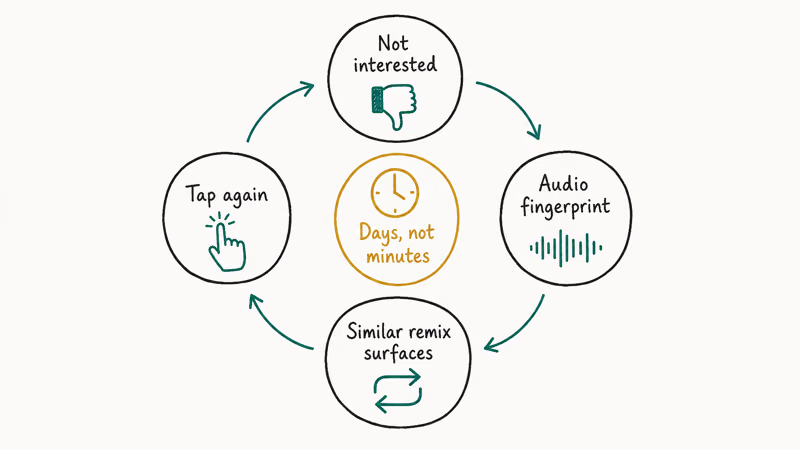
Cause 1: A different creator using the same sound. Blocking one account doesn’t ban the audio from the platform; it just cuts the original source. Re-uploads and stitches from other accounts will keep surfacing until you tap Not Interested on them. It can take several separate account blocks before a piano-meme audio finally vanishes, because each re-upload counts as a separate sound page in TikTok’s database even when the audio is identical.
Cause 2: The sound is mirrored under a slightly different name. Creators sometimes re-upload the same audio with a tiny edit (a half-second clip in front, or a pitch shift) so it gets a new sound page. Treat each variant as a fresh block.
Cause 3: Your watch history is still pulling it in. The algorithm scores recency, watch-completion, and likes, so if you used to enjoy videos with that sound, the system remembers. The longer that pattern lived in your watch history, the longer it takes to flush even after you’ve blocked the original creator. A sound watched many times can take a couple of days of Not Interested taps before the per-session count drops to near zero.
Pew Research found that roughly 60% of U.S. teens use TikTok, and heavy session counts mean the recommendation model has more behavioral data to chew on. Pushing Not Interested on every copycat for 2 to 3 days speeds the unlearning noticeably.
Try a full algorithm refresh as a last resort.
TikTok exposes one through Settings and privacy → Content preferences → Refresh your For You feed. That resets your recommendation signals to a baseline, which is more aggressive than blocking a single sound, but useful when your feed has gone off the rails entirely.
#How to Unblock a Sound or Creator
Unblocking is reversible. Tap the menu, pick the account, and the audio returns.
The steps:
- From your profile, tap the hamburger icon and choose Settings and privacy.
- Tap Privacy, then scroll to Blocked accounts.
- Find the creator you blocked, tap Unblock, and confirm.
Within a session or two, that sound starts circulating in your feed again. If you originally used Not Interested (not Block), there’s no list to undo from; you retrain the algorithm by interacting positively with similar content. Liking 3 to 5 videos using the sound usually brings it back within a day.
For deeper feed management, our writeup on TikTok parental controls covers Family Pairing and content age limits, which are useful when a younger account in your household wants different defaults.
#Bottom Line
If a single audio is dominating your For You feed, the cleanest fix is to open the sound page and block the creator who uploaded it; that’s the only action that actually removes the source. For unattributed audio, sound trends with hundreds of copycats, or sounds tied to a hashtag, layer Not Interested and the keyword filter on top. Skip the keyword filter if you only have one offending sound and a clear creator handle to block.
A working playlist: block the original creator, refresh the For You feed twice, then long-press any copycat video and tap Not Interested. That combo clears a piano-meme audio off a feed very quickly. For workflows on the creator side, our guide on how to add multiple sounds in TikTok shows the editor view that powers the sounds you’re now blocking.
TikTok Tips & Tricks
#Frequently Asked Questions
Can you actually block a sound directly on TikTok?
Not as a one-tap toggle. TikTok routes the action through either blocking the creator who owns the sound or marking videos as Not Interested. The end result clears the audio from your feed; there just isn’t a single “block sound” button.
What happens to the creator when you block them?
They can’t see your profile, message you, view your videos, or interact with your account. They won’t be notified, but a savvy user can figure it out by searching for your handle. Their existing audio stays on the platform; only your feed treats them as gone.
Does Not Interested permanently remove the sound from my feed?
No. It’s a weak negative signal. TikTok’s algorithm reduces how often that sound surfaces but won’t ban it forever. For permanence, block the creator account instead.
How do I find the Blocked accounts list?
From your profile, tap the hamburger icon, then Settings and privacy, then Privacy, then Blocked accounts. The list shows every account you’ve blocked plus an Unblock button next to each one. The list stays synced across devices on the same login.
Why is there no creator name under some sounds?
That sound was uploaded as a generic, stock, or commercial track without a creator attribution, or the original account got deactivated. Without an attribution, there’s no creator profile to block, since TikTok ties every block to an account ID and that ID is no longer in its database. Use Not Interested on those clips instead. This pattern shows up most often on AI-generated TTS audio and on extracted news clips, which both surface in For You without a creator handle.
Will blocking a sound on my account block it for my followers too?
No. Blocks are per-account. Your followers will still see that sound in their own For You feeds. If you share a household account or want consistent filtering, each device has to apply its own blocks.
How fast does the algorithm respond after I block a sound?
On current iOS and Android builds, the original sound disappears within a few feed refreshes. Copycat videos using the same audio take an extra day or two to thin out, depending on how aggressively you tap Not Interested on them.
Can I block a sound from showing up in TikTok Search?
The block hides the audio from your feed and from the blocked creator’s profile when you visit it. Search results still surface the sound if you type its name; TikTok hasn’t shipped a search-level filter for audio specifically. To learn what shows up without a login, see our writeup on TikTok search without an account.
How to Block TikTok on iPhone and Android: Parent Guide
Block or limit TikTok on your child's iPhone or Android using Screen Time, Family Link, and router settings. Step-by-step parental control guide.
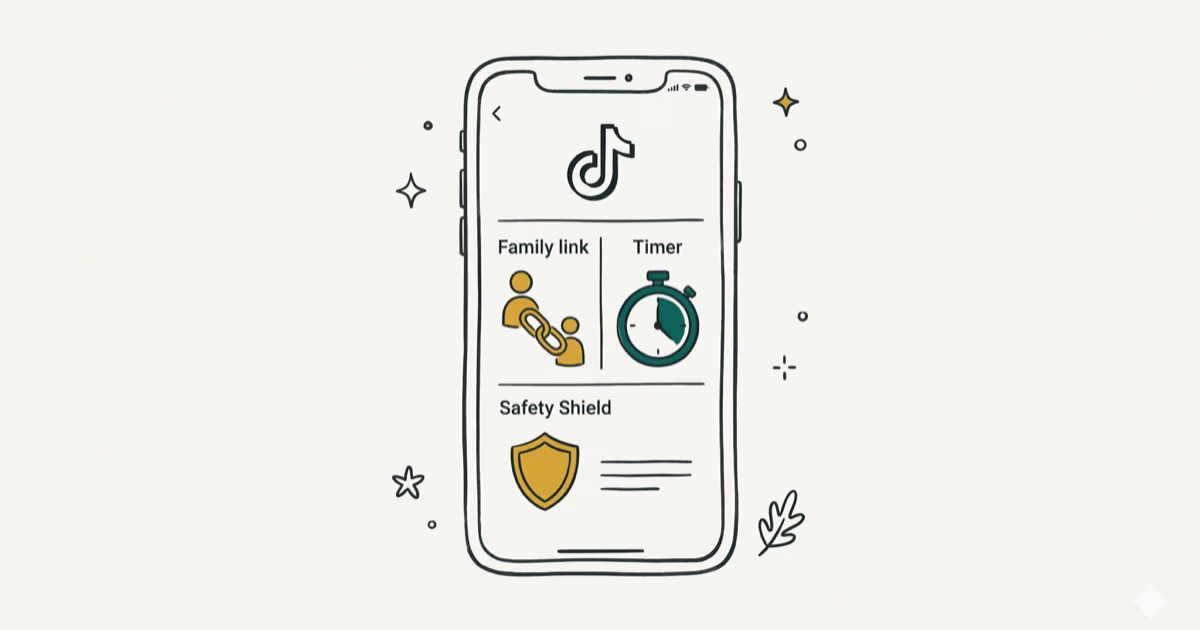
TikTok Parental Controls: Setup Guide for Families
Set up TikTok parental controls using Family Pairing, Restricted Mode, and privacy settings. Step-by-step guide to protect your child on TikTok.
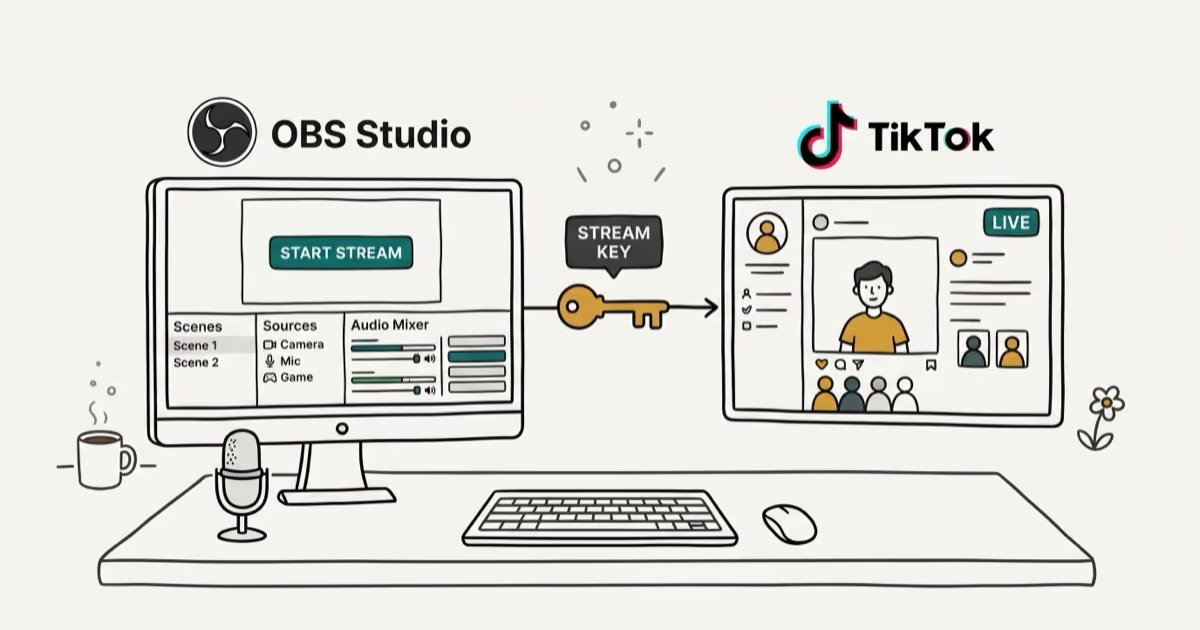
How to Get a TikTok Stream Key for OBS and Streamlabs
Get a TikTok stream key to broadcast from OBS or Streamlabs. Covers the 1,000-follower requirement, CarterPulse application, and OBS setup steps.
How to Make a Joint TikTok Account With Friends (2026)
Set up and manage a joint TikTok account with friends. Covers shared login setup, content planning, security tips, and the Collaboration Post alternative.