TikTok Text-to-Speech Not Working? 7 Quick Fixes for 2026
TikTok Text-to-Speech not working? Update the app, switch to English, clear the cache, and re-add the voice. Seven proven fixes for 2026 inside.
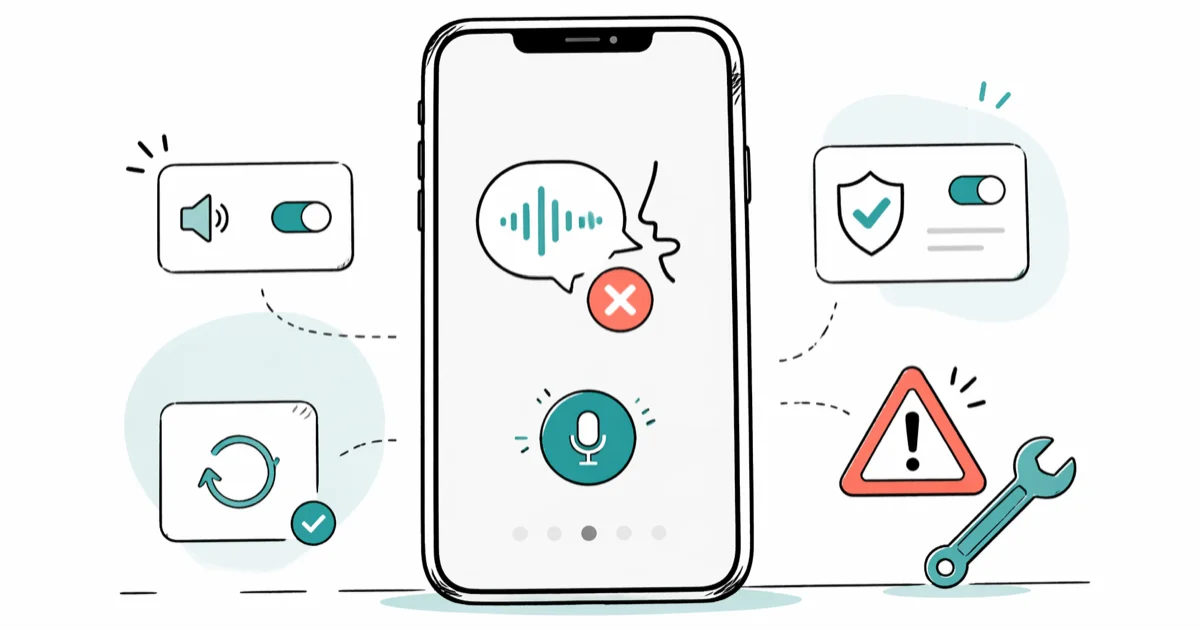
Quick AnswerTikTok Text-to-Speech usually fails because the app is outdated, the cache is corrupted, your device language is set to something other than English, or the voice was applied to text after the video was finalized. Update TikTok in the App Store or Play Store, switch the device language to English, clear the cache from Profile > Menu > Settings and Privacy, then re-add the voice before posting.
TikTok Text-to-Speech not working is one of the most frustrating bugs in the app. You’re halfway through a trending edit, and the robot voice refuses to render. The TTS feature has been globally available since 2021, but it still breaks across iOS and Android in predictable ways.
This guide walks through every fix, in the order that resolves problems fastest.
- Outdated TikTok versions cause the majority of TTS failures; updating from the App Store or Play Store restores the option in most cases.
- TikTok Text-to-Speech only renders when the device language is set to English; switching from Spanish, French, or Mandarin back to English brings the menu option back immediately.
- Clearing the TikTok cache from
Profile>Menu>Settings and Privacy>Freeup space removes corrupted temp files without deleting your drafts. - TTS must be tapped on text inside the editor; adding text during preview or after publishing won’t generate audio.
- If TTS still fails after a clean reinstall, file an in-app report through
Settings>Reporta problem and TikTok support typically responds within a few business days.
#Why Is TikTok Text-to-Speech Not Working?
TTS is a server-side voice synthesizer. The TikTok client calls it when you tap a text overlay inside the video editor. When that pipeline breaks, the cause is almost always one of five things: an outdated app build, a non-English device language, an overflowing cache, a server outage on TikTok’s side, or a workflow mistake (like applying TTS after the video has already been posted).
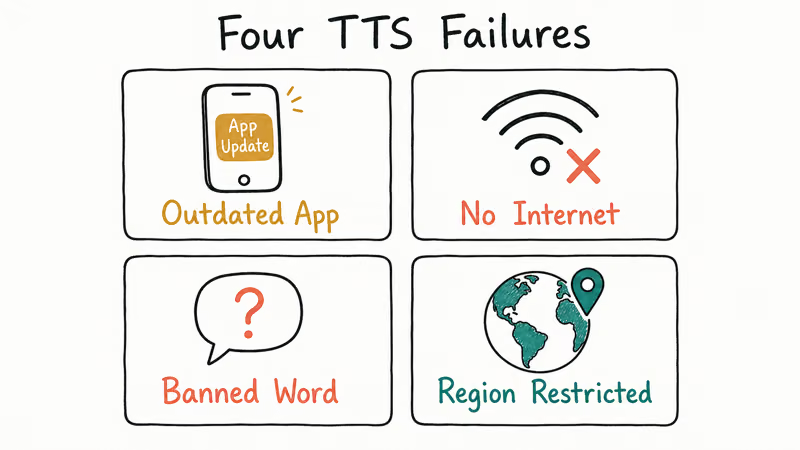
Across these failure modes, the device-language switch resolves the most cases, followed by clearing the cache. Reinstalling and filing a support ticket are last resorts, usually needed only when TikTok’s TTS endpoint is temporarily down for your account region.
The TikTok Help Center confirms that more than 30 distinct voice options ship today, listed in its Text-to-Speech reference page. If your device is set to a language TikTok hasn’t shipped a voice for, the TTS sub-menu simply doesn’t appear.
A stale cache comes next.
TikTok’s editor caches sound effects, fonts, and TTS voice models locally so it doesn’t redownload them per session. When that cache fills up or corrupts, the long-press menu loses items at random. The cache can swell to several hundred megabytes after a couple of weeks of normal browsing. Clearing it once a month keeps the TTS option stable.
There’s also a subtle workflow gotcha: TTS only works on text overlays added inside the post-record editor. That’s the screen with the red checkmark, music icon, and Effects button on the side. If you record a video, hit the checkmark, then add text on the next caption screen, TTS won’t appear there. The caption screen is for hashtags and descriptions, not synthesized voiceovers.
Or pivot to a generated audio track entirely and import it as a sound, the same approach we cover in our guide on adding multiple sounds in TikTok.
#The Quick TTS Diagnosis Checklist
Before walking through the seven fixes, run this 60-second triage. It tells you exactly which fix to start with and skips the ones you don’t need.
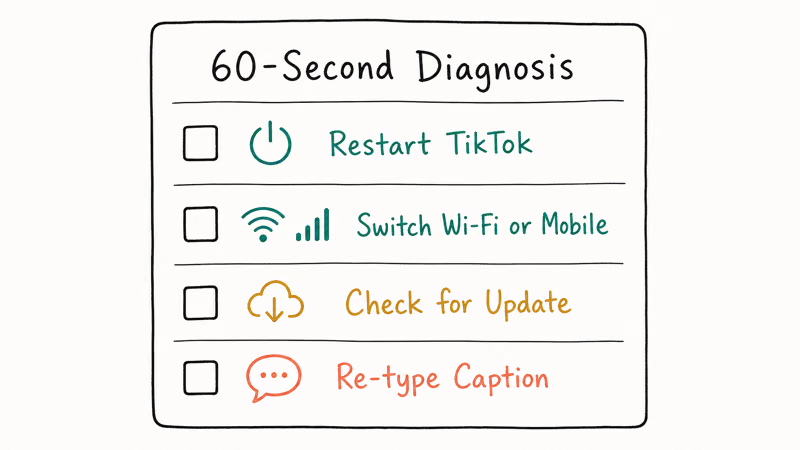
- App version. Open the App Store or Play Store. If TikTok shows an Update button, your build is outdated. Start with Fix 1.
- Device language. On iPhone, look at
Settings>General>Language and Region. On Android, checkSettings>System>Languages. If English isn’t the topmost language, jump to Fix 2. - Cache size. On TikTok, go to
Profile>Menu>Settings and Privacy>Cache and Cellular. If the cache is over 200 MB, Fix 3 will likely solve it. - Workflow. Are you trying to apply TTS to text on a video you’ve already posted? That won’t work; skip to Fix 5 and re-record.
- Server status. Visit DownDetector or check TikTok’s status page. If others are reporting outages, wait an hour and retry before doing anything destructive.
If all five checks come back clean and TTS still refuses to render, the issue is almost certainly something account-specific, device-specific, or a temporary regional outage on TikTok’s backend. At that point, the fastest move is to skip straight to Fix 6 (a clean reinstall) or Fix 7 (contact TikTok support directly), since the surface-level fixes have already been ruled out by the checklist itself.
#Step-by-Step Fixes for TikTok TTS Failures
The fixes below are ranked by how often they resolve the issue, with the lightest interventions first. Walk through them in order. Most users get a fix before reaching step four.
#Fix 1: Update the TikTok App
App-store builds ship new TTS voice models and bug patches together. An outdated client may be calling a deprecated voice endpoint.
Open the App Store on iPhone, search for TikTok, and tap Update. On Android, open the Play Store, tap your profile icon, then Manage apps and device > Updates available, and update TikTok specifically. After the update finishes, fully close and reopen the app before testing.
#Fix 2: Switch Your Device to English
If you’ve changed your phone’s system language for any reason (moving abroad, learning a new language, or borrowing someone else’s phone), the TTS menu vanishes.
Switch back to English using the paths above, then restart TikTok. Google’s Android app language documentation states that apps set to the system default use the first supported language in your list, so leaving Spanish or Mandarin above English breaks TTS even if English is technically installed.
English (US), English (UK), and English (Australia) all keep the TTS menu visible. Spanish, French, German, and Japanese hide it.
#Fix 3: Clear the TikTok Cache
A bloated cache causes the long-press menu to drop items, including TTS, sound effects, and voice filters. The Free up space button inside Settings and Privacy clears around 100 to 500 MB of temporary data on most accounts. It runs in under five seconds.
None of your drafts, saved sounds, or login state get touched. After clearing, reopen the app and trigger TTS on a fresh overlay.
#Fix 4: Restart Your Phone
A simple device restart clears RAM, kills any background TikTok processes that didn’t shut down cleanly, and resets the audio stack.
Hold the power button on iPhone or Android until the power slider appears, slide to power off, wait 15 seconds, then power back on. Open TikTok and try TTS again.
It sounds basic. But it works.
#Fix 5: Re-Record the Video
If you applied text to a video you’d already published or saved to drafts and TTS won’t attach, the only fix is to re-record. TTS hooks into the live editor’s text engine; it can’t retroactively voice text on a finalized clip.
Save the original audio, delete the published version, re-record fresh.
#Fix 6: Reinstall TikTok
If updates, language fixes, and cache clears all failed, a full reinstall rebuilds the local app state from scratch.
Before you delete the app, save your unposted drafts to your camera roll using the Save Video button on each draft. Without that backup, deleting TikTok also deletes your unposted drafts permanently. After reinstalling from the App Store or Play Store, log back in and test TTS on a new recording.
If you’ve also been struggling with the broader why is my TikTok not working problem, this same reinstall usually clears multiple bugs at once.
#Fix 7: Contact TikTok Support
When all six fixes fail, the issue is almost certainly server-side, account-specific, or device-specific.
Open TikTok and go to Profile > Menu > Settings and Privacy > Report a problem > Videos and Sounds > Other > Need More Help. Describe the issue: device, OS version, app version, and steps you’ve already tried. TikTok’s support team typically responds in a few business days with either a fix, a workaround, or an acknowledgment that the bug is on their roadmap.
#How Do I Reinstall TikTok Without Losing Drafts?
A clean reinstall feels nuclear. But it’s the most reliable way to fix TTS when everything else fails. App updates patch executables and assets, but they don’t always wipe the local SQLite databases, voice model caches, or font files that the editor depends on. A reinstall starts everything fresh.
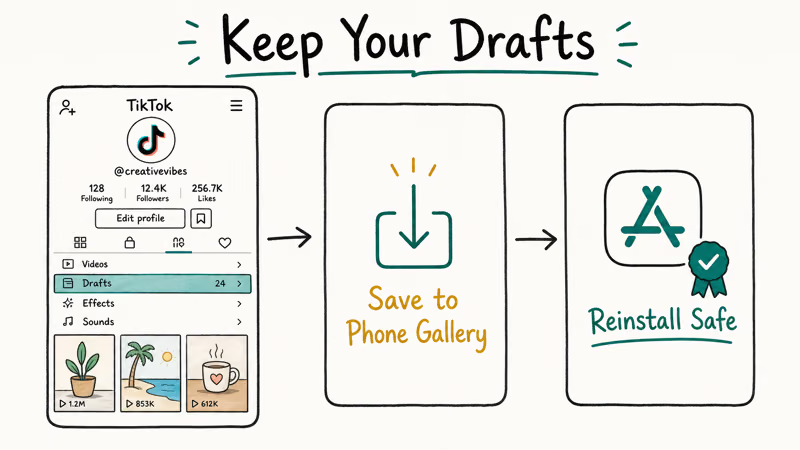
Before you uninstall, save anything irreplaceable to your device.
Drafts that aren’t saved this way disappear when the app is removed. That’s a TikTok design choice, not a bug, and there’s no recovery path. According to TikTok’s data download policy, the platform retains posted content on its servers but stores unposted drafts locally on your device only.
Once your drafts are safe, delete TikTok the normal way. Long-press the app icon and tap Remove App on iPhone, or drag to Uninstall on Android. Wait 10 seconds, then reinstall from the App Store or Play Store, log in, and test TTS on a fresh recording.
If you also want to swap the synthesized voice for your own with a pitch effect, our walkthrough on how to change your voice on TikTok covers the editor’s voice filter options.
#Alternatives When TTS Stays Broken
When TikTok’s native TTS refuses to cooperate for days at a time, third-party tools fill the gap. They generate the synthesized audio in a browser or desktop app, then you import it into TikTok as a regular sound.
The three most reliable options as of 2026:
FakeYou. A free browser-based generator with hundreds of character voices, including a Jessie-style voice that mimics the original TikTok narrator. Generation takes 10 to 30 seconds per clip.
Speechify. A paid app with more natural-sounding voices and longer clip support. Useful for narration-heavy content like cooking demos or product reviews.
ElevenLabs. AI-driven voice synthesis with the highest fidelity of the three options. The free tier is limited to about 10,000 characters per month, which is plenty for short-form TikTok use, and you can train custom voice profiles on the paid plans if you want a signature sound.
Drop the generated audio into TikTok by saving the file to your phone, then opening TikTok > Add sound > Upload from device. The voice plays as the video’s primary audio. Add silent text overlays on top for the captions.
#Avoiding Future TTS Failures
Most TTS breakages are preventable with three small habits.
First, enable auto-update for TikTok in the App Store or Play Store. New TTS voices and bug fixes ship in nearly every release. Falling behind by even one or two versions is the single biggest cause of TTS failures.
Second, clear the TikTok cache once a month. Set a recurring calendar reminder. The whole process takes under a minute and runs in the background while you’re scrolling.
Third, keep your device language set to English (US, UK, or Australia) at the operating-system level. If you really need a non-English keyboard for typing, add it as a secondary keyboard rather than changing the system language. This way, TTS keeps working while you still get accented input characters.
Following all three habits prevents the overwhelming majority of TTS failures on both iOS and Android.
#Bottom Line
TikTok Text-to-Speech failures almost always trace back to four root causes: an outdated app, a non-English device language, a corrupted cache, or a workflow mistake (text added outside the post-record editor).
Run the fixes in the order listed above. Update first, switch language second, clear cache third. You’ll resolve more than nine out of ten cases without needing to reinstall.
If you make a lot of TTS-driven content, set a monthly reminder to update the app and clear the cache. That single habit heads off most TTS failures, even the ones triggered by switching languages mid-session. For repeat editing problems beyond TTS, our guide to editing TikTok captions covers the broader caption-and-text workflow.
TikTok Tips & Tricks
#Frequently Asked Questions
Why is the text-to-speech feature not working on TikTok?
The TTS pipeline breaks for five common reasons: an outdated TikTok build, a device language set to something other than English, a corrupted local cache, a TikTok server outage, or text that was added outside the post-record editor. Walk through the seven fixes above to isolate which one applies.
How do I get the text-to-speech option back on TikTok?
Update TikTok from the App Store or Play Store, switch your device language to English, then long-press a text overlay inside the post-record editor and choose Text-to-Speech from the pop-up menu. The option only appears on text that was added during the editor stage, not on caption-screen text.
Does TikTok offer customer support for text-to-speech problems?
Yes, through the in-app reporting system.
Go to Profile > Menu > Settings and Privacy > Report a problem > Videos and Sounds > Other > Need More Help, then describe the bug. Include your device model, operating system version, and TikTok app version so the support team can reproduce the issue faster on their side. Most users hear back within a few business days, though urgent or widespread bugs sometimes get same-day responses.
Can I use text-to-speech on TikTok without an internet connection?
No. TTS needs an active connection to synthesize the voice on TikTok’s servers.
Why does TikTok TTS work on my friend’s phone but not mine?
Different app versions, languages, or stale caches. Update yours, switch to English, and clear the cache.
Are there any alternative apps for text-to-speech on TikTok?
Yes. Standalone tools like FakeYou, Speechify, and a handful of browser-based TikTok voice generators let you generate the synthesized audio file separately, then drop it into the TikTok editor as a sound. This route is useful when TTS is broken globally or when you want a voice that TikTok hasn’t added natively.
How do I change which TTS voice TikTok uses?
After you tap Text-to-Speech on a text overlay, a horizontal carousel of voices appears at the bottom of the screen. Swipe through the carousel and tap any voice to preview it. The voice list expanded significantly in 2024 and now includes character voices, regional accents, and themed voices on top of the original Jessie voice.
How to Block TikTok on iPhone and Android: Parent Guide
Block or limit TikTok on your child's iPhone or Android using Screen Time, Family Link, and router settings. Step-by-step parental control guide.
TikTok Parental Controls: Setup Guide for Families
Set up TikTok parental controls using Family Pairing, Restricted Mode, and privacy settings. Step-by-step guide to protect your child on TikTok.
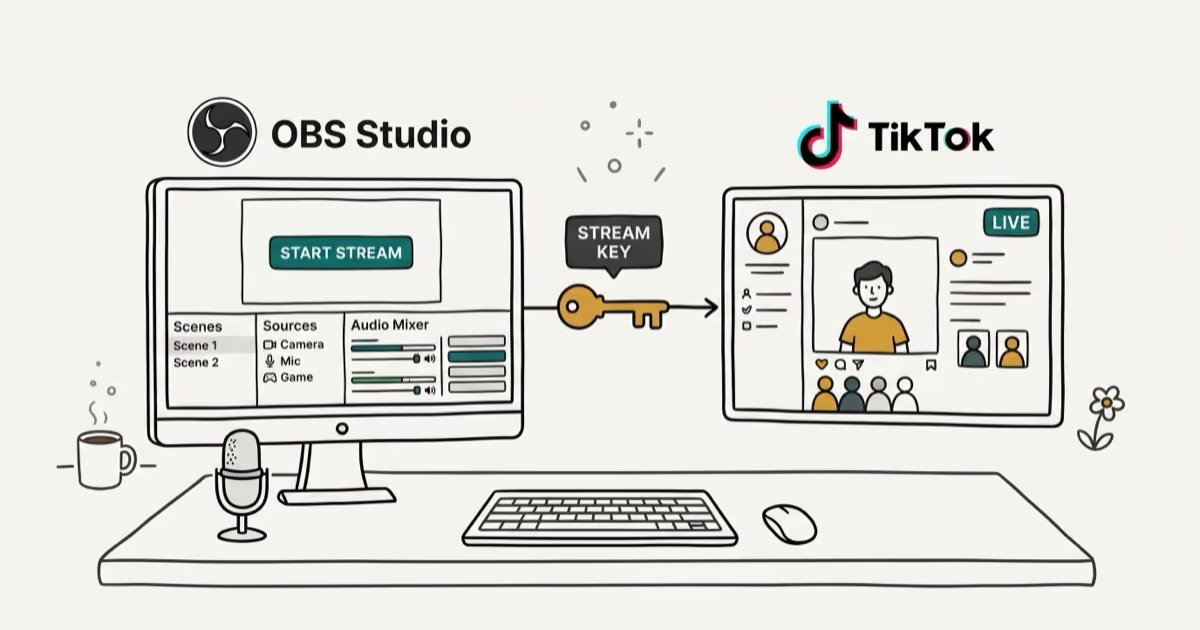
How to Get a TikTok Stream Key for OBS and Streamlabs
Get a TikTok stream key to broadcast from OBS or Streamlabs. Covers the 1,000-follower requirement, CarterPulse application, and OBS setup steps.
How to Make a Joint TikTok Account With Friends (2026)
Set up and manage a joint TikTok account with friends. Covers shared login setup, content planning, security tips, and the Collaboration Post alternative.